Purchase process - Managed Application
🟣 Public plan
- The customer finds your plan on Microsoft Marketplace and clicks Get It Now, which opens the deployment blade in the Azure portal.
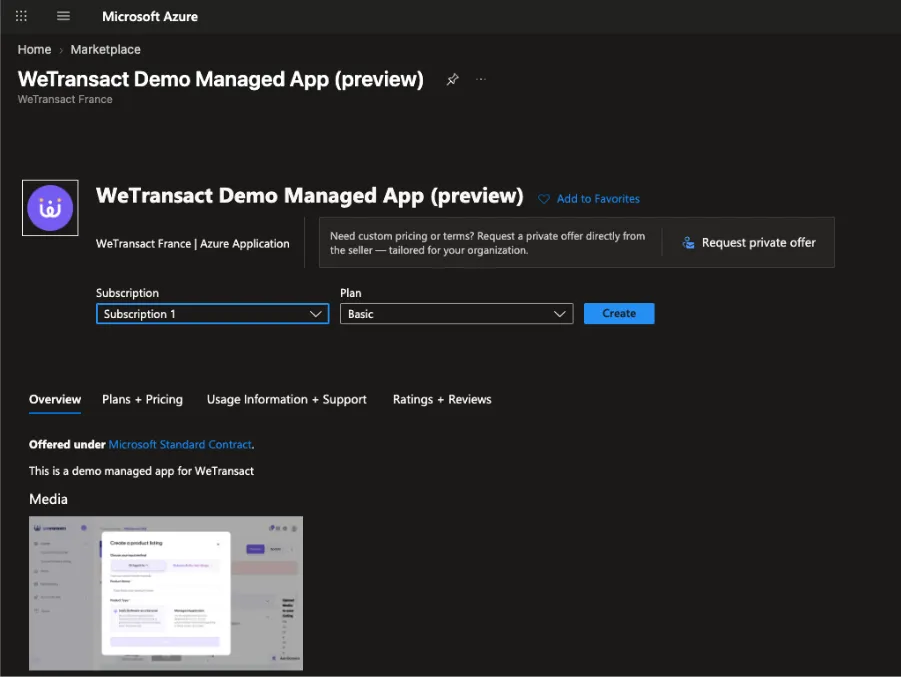
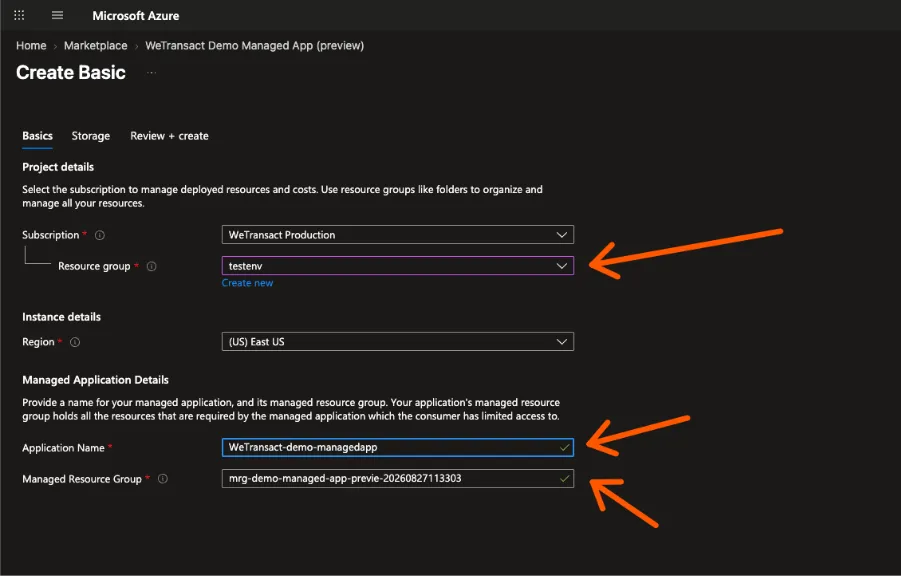
- On the Basics tab the customer selects the Azure subscription, a resource group for the managed application resource, a region supported by the offer, an application name, and a name for the managed resource group.
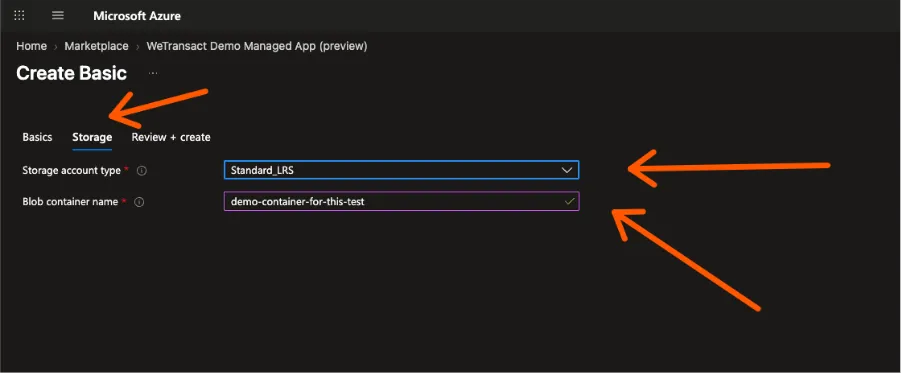
- The customer moves to the tab defined by your createUiDefinition.json — in this example (Storage account type, container name for this example)
- On Review + create the customer reviews pricing and legal terms, accepting the Microsoft Standard Contract (or their Enterprise Agreement terms) and your terms of use. They must also tick the Co-Admin Access Permission box, which is what grants you administrative access to the deployed resources. Then they click Create.
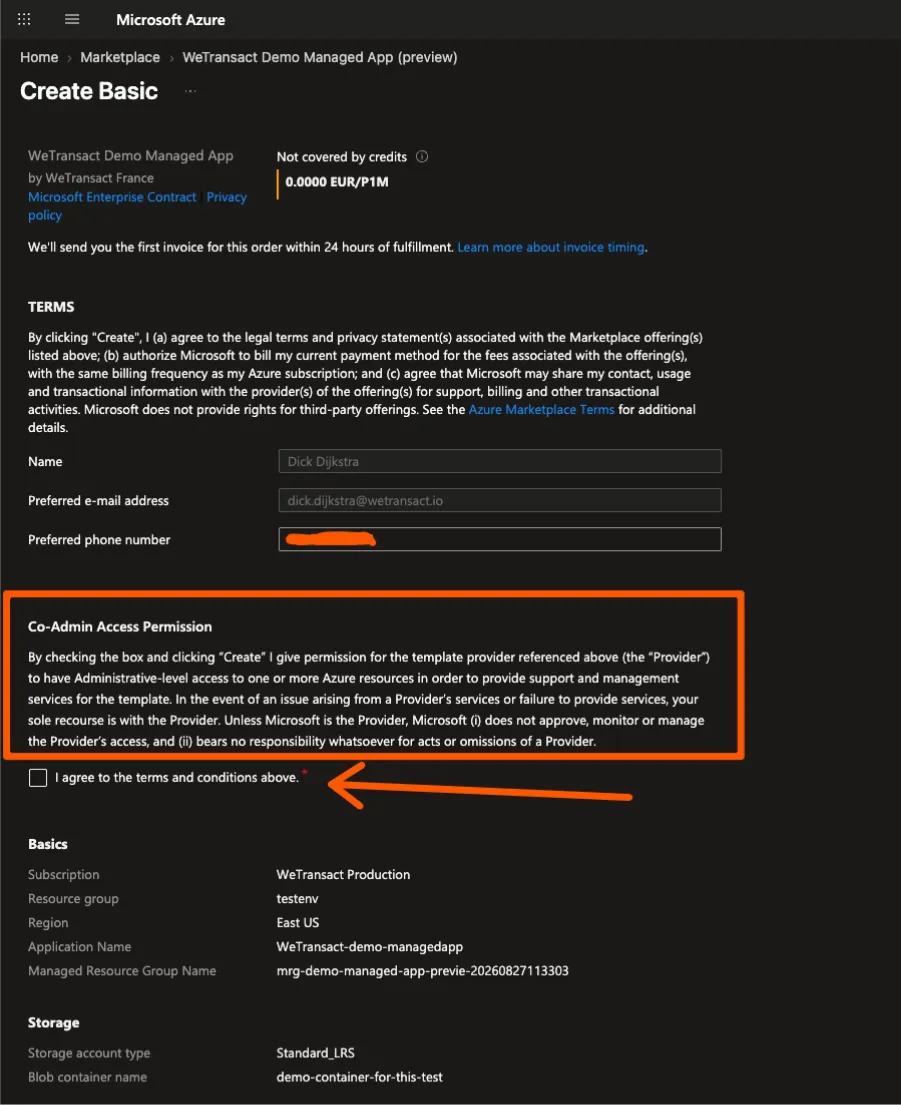
Note: The Create button does not appear until the customer ticks the terms checkbox. This is a common point of confusion — flag it in advance.
- Azure deploys the resources from your template into a new managed resource group in the customer's subscription.
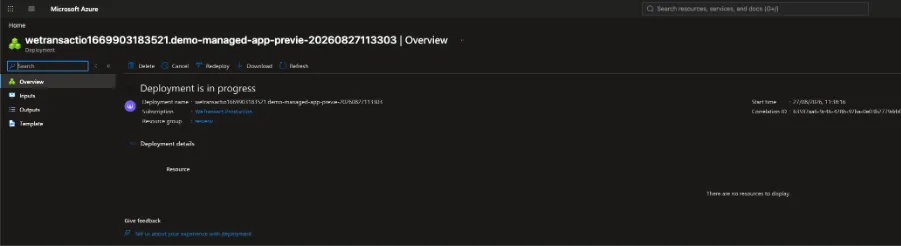
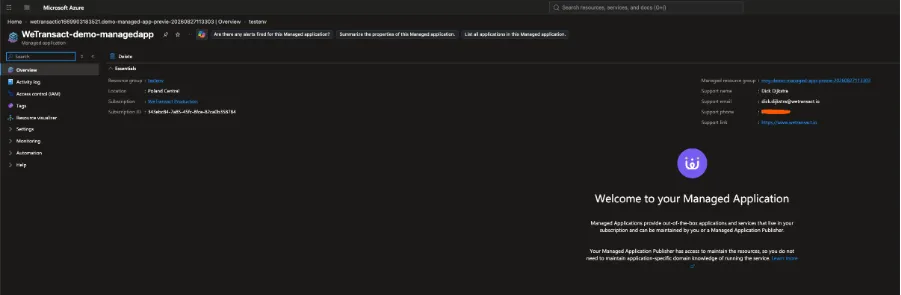
- When deployment completes, two objects exist in the customer's subscription.
- The managed application resource — the control plane the customer owns. This is where they can delete the application, and it links to the managed resource group.
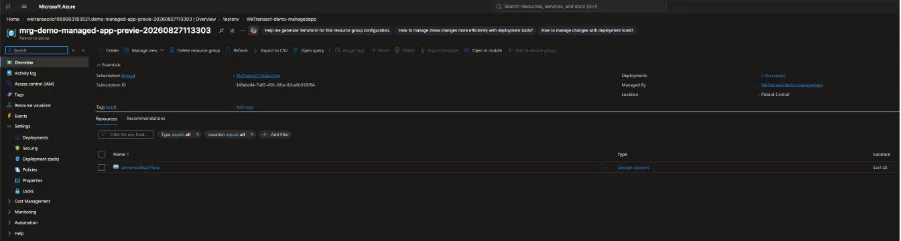
- The managed resource group — containing the resources your template deployed. In this example, one storage account.
- Order activation. Unlike SaaS, no action is required from you. The order activates automatically once deployment completes, Azure starts billing for the plan from that moment, and a notification is sent to the WeTransact portal where a new order appears.
Tip: Customers who lose the deployment link can find their application again at Managed applications in the Azure portal. They do not need to remember which resource group they put it in.
🟣 Private offer
CSMs work closely with Managed Application customers throughout this process, from creating the private offer through to supporting the customer during purchase. A private offer can be based on an existing public plan or on a new plan created for it.
Purchasing a private offer has two layers: accepting the offer, then purchasing it.
- Accepting. In the Azure portal the customer goes to Marketplace → Private Offer Management, finds the offer, clicks View + accept, reviews the terms and price, and selects Accept private offer. The status changes to "Accepted, pending purchase".
- Deployment starts at acceptance: in the Managed Application offer type, deployment begins when the customer accepts the offer, not at purchase.
- Waiting time: the Purchase button can take 30 to 40 minutes to become clickable after acceptance. Once clicked, completing the purchase can take up to 60 minutes. Set this expectation with the customer up front.
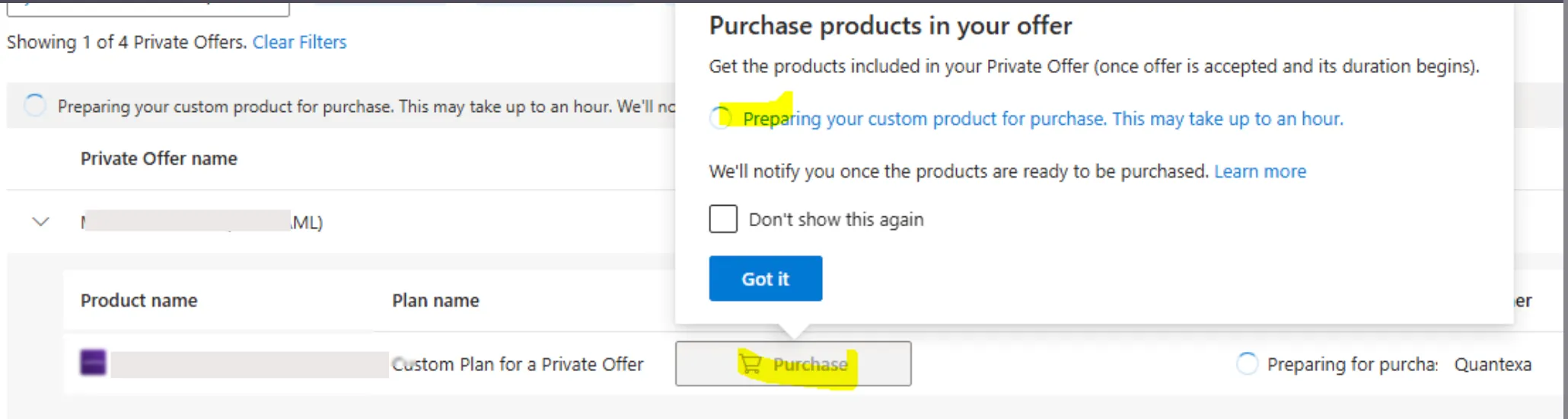
🟣 Facts to keep in mind:
- Deployment starts at acceptance. For the Managed Application offer type, deployment begins when the customer accepts the offer, not at purchase.
- If you cancel the deployment after the customer accepts, the Purchase button will not appear.
- The customer can cancel at any time by deleting the managed application resource. If they do this before completing the purchase, the Purchase button disappears and the private offer has to be re-initiated.
- Once the purchase completes, no publisher action is needed. The order activates automatically and the application is deployed in the customer's subscription.
🟣 Access control and permissions
By default you have full access to the managed resource group and the customer has read-only visibility, enforced through deny assignments. Microsoft supports four permission scenarios:
Scenario | Your access | Customer access | Deny assignment |
|---|---|---|---|
Publisher managed (default) | Management access | Restricted | Applied |
Publisher and customer | Full access | Full access | Removed |
Locked mode | No access | Restricted | Applied |
Customer managed | No access | Full access | Not applied |
Publisher set this while configuring the offer.
💬 For more, contact us at : [email protected]