How to Cancel a Subscription?
🟣 Cancel within 3 days? Use the Azure Portal.
🟣 Order older than 3 days? Use Microsoft Partner Center.
How to Cancel a Subscription in Azure Portal?
Canceling a subscription in the Microsoft Azure Portal stops future billing and access to the associated services. This can be done from the Subscriptions section by selecting the subscription and choosing the cancellation option.
⚠️ Please note: Subscriptions can be cancelled within the first 3 days of purchase.
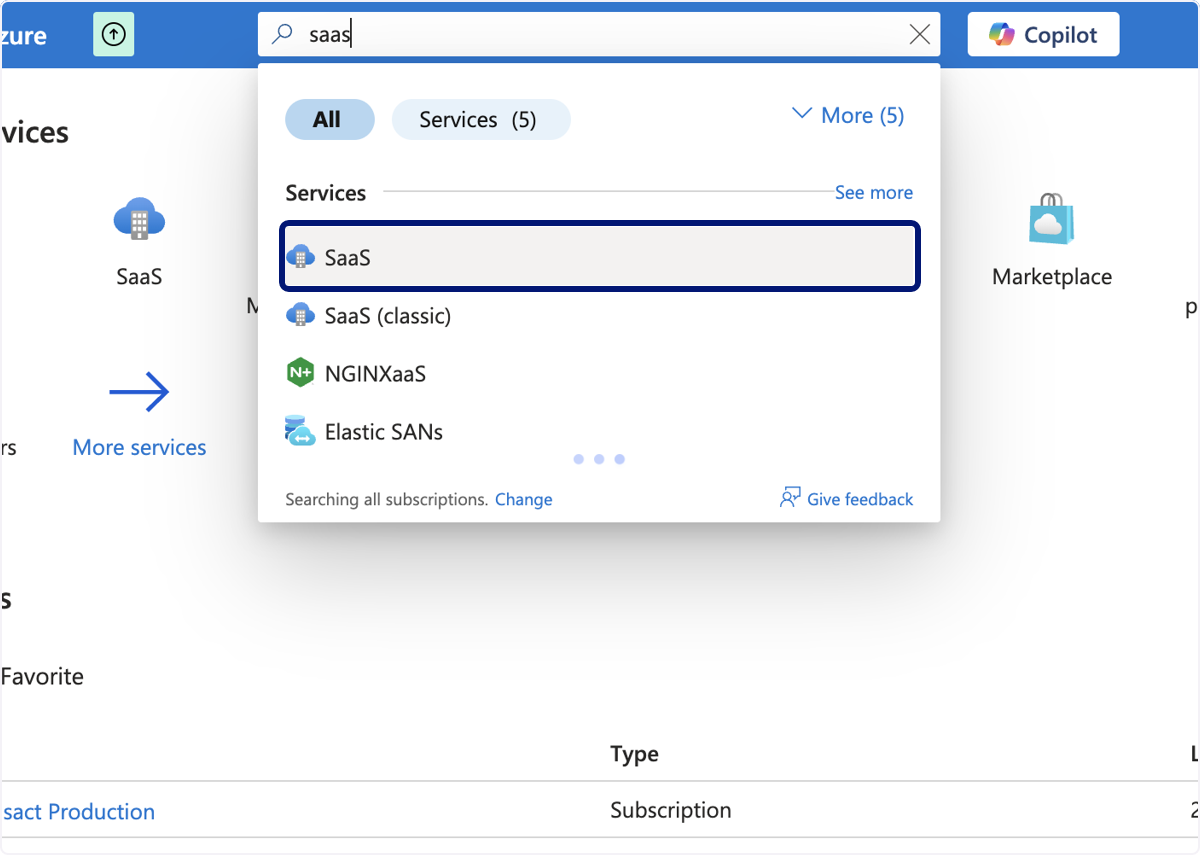
🟣 Sign in to Azure portal and search Saas
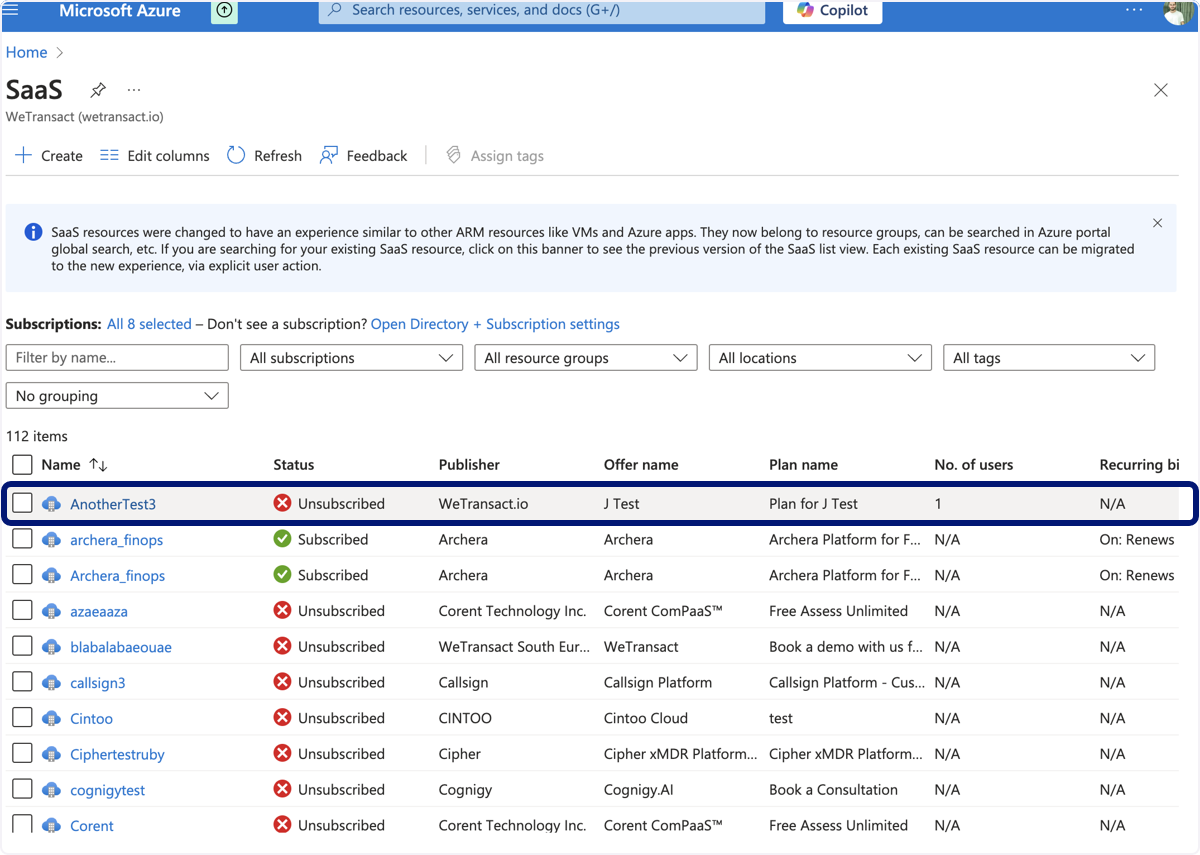
🟣 Click on the subscription Name from the list that you wish to cancel
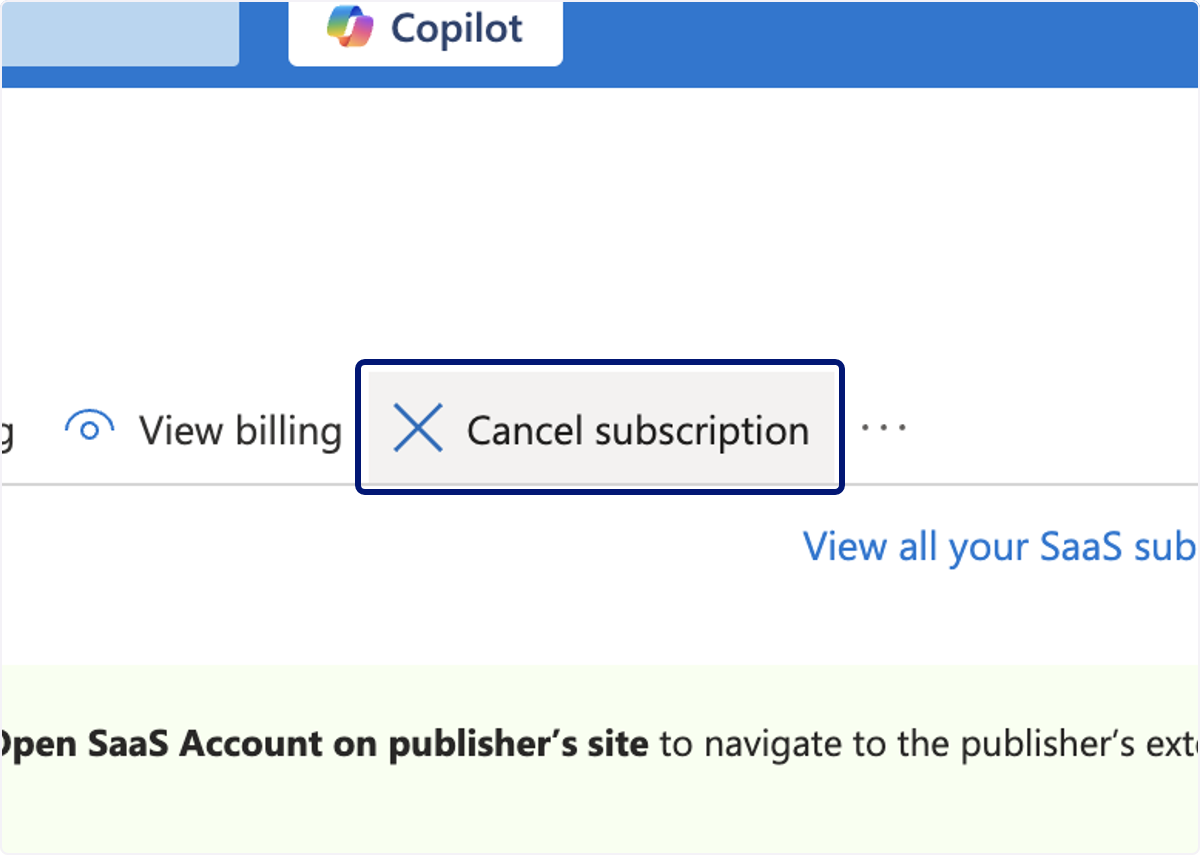
🟣 Click on Cancel subscription
🟣 Click on Cancel subscription
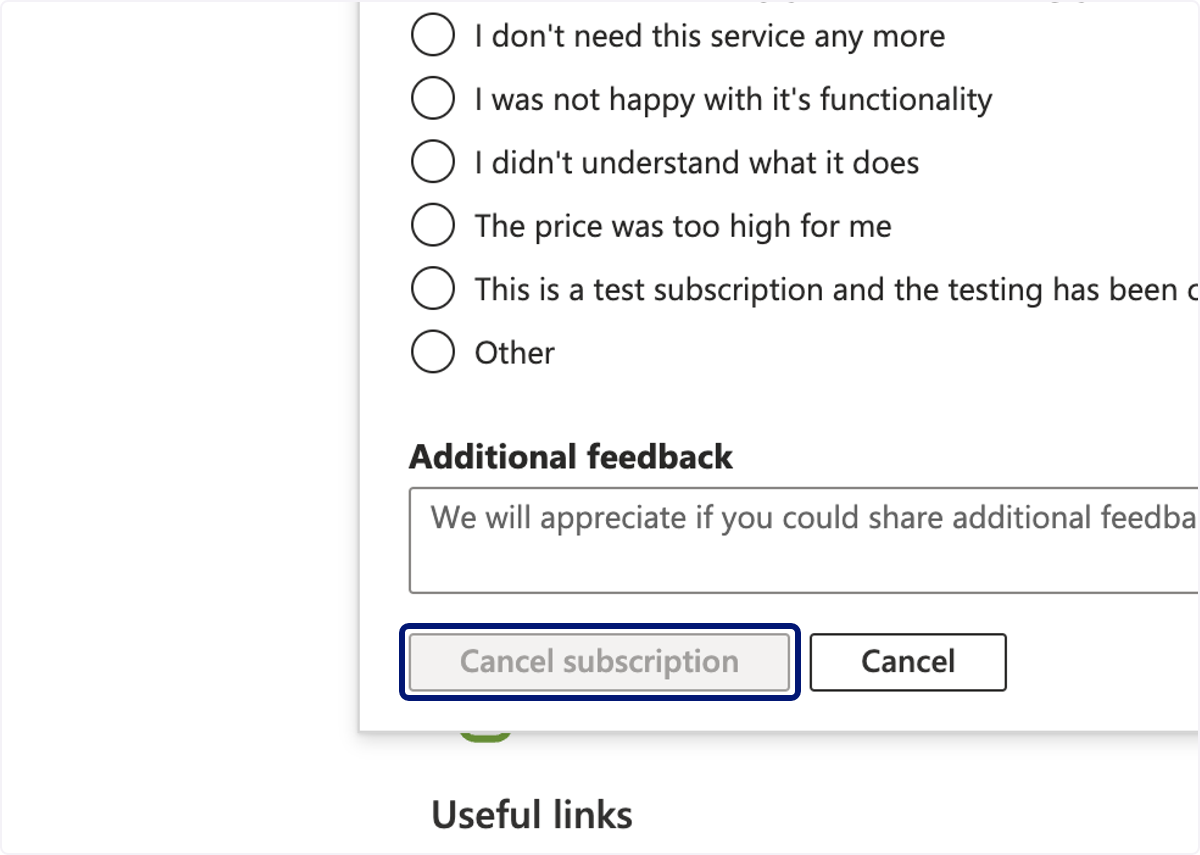
✅ Your subscription has been successfully cancelled.
Purchased more than 3 days ago? Follow the steps below to cancel via Microsoft Partner Center. 👇
How to Cancel a Purchase via Microsoft Partner Center?
If your purchase is more than 3 days old, it can no longer be cancelled through the standard order management flow. Instead, you will need to submit a cancellation request through the Partner Center AI assistant. Follow the steps below.
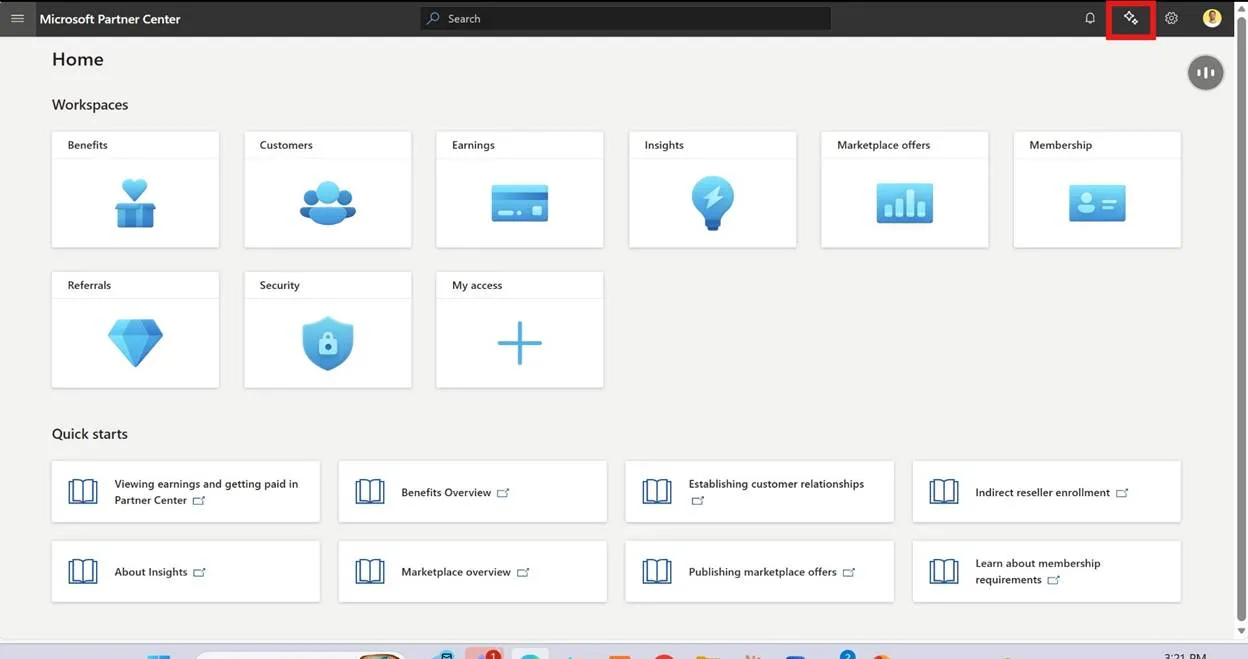
🟣 Step 1 – Open the AI Assistant
Go to partner.microsoft.com and click the stars icon (✦) in the top-right corner of the navigation bar.
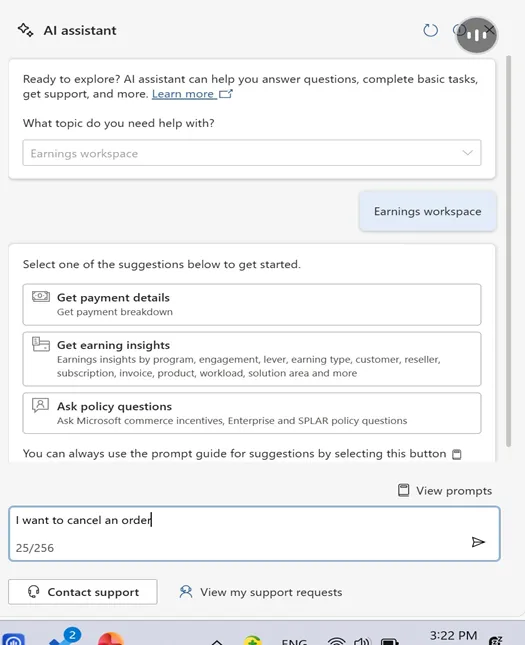
🟣 Step 2 – Select the Earnings Workspace and Send Your Message
When the AI assistant panel opens, select "Earnings workspace" from the topic dropdown. Then, in the text field at the bottom, type "I want to cancel an order" and click the send button (>).
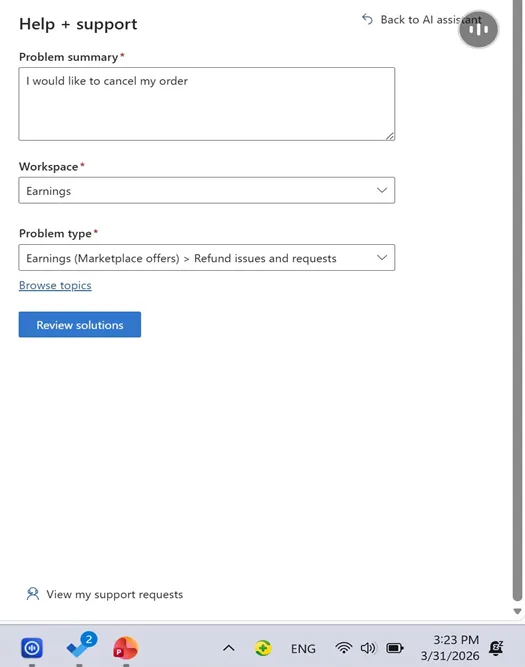
🟣 Step 3 – Click "Contact Support" and Fill in the Initial Form
After sending your message, click the "Contact support" button at the bottom of the panel. The Help + support form will open. Fill in the fields as follows:
• Problem summary: "I would like to cancel my order"
• Workspace: Earnings
• Problem type: Earnings (Marketplace offers) > Refund issues and requests
Once the fields are filled in, click the "Review solutions" button to proceed.
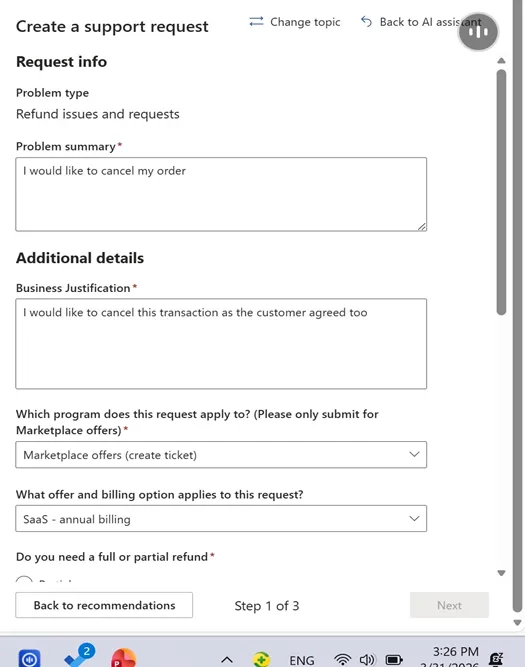
🟣 Step 4 – Complete the Support Request Form
A more detailed form will open. Fill in the fields as follows:
• Problem summary: "I would like to cancel my order""issue a refund" etc...
• Business Justification: explain why you are requesting the cancellation, e.g. "I would like to cancel this transaction as the customer agreed to"
• Program: Marketplace offers (create ticket)
• Offer and billing option: select the relevant billing type, e.g. SaaS - annual billing
• Full or partial refund: select "Partial" if you only want to cancel without a refund, or "Full" if the customer is entitled to a full refund. If a refund is needed, enter the expected refund amount in the customer's currency.
Tip: To find your Purchase Order ID, go to Partner Center > Insights > Orders, then scroll down. You will find all the relevant identifiers there, including the Purchase Order ID (also called Purchase Record ID), Order Date, Customer Name, and Start Date.
Continue filling in the remaining fields:
• Order date: the date the purchase was made
• Purchase Order ID: the Purchase Record ID from the Insights > Orders view
• Customer Name: the name of the customer
• Start Date: the start date of the subscription
🟣 Step 5 – Click Next
Once all fields are complete, click the "Next" button to proceed to the next step to create the ticket.
Important notes
• If you only want to cancel the order without issuing a refund, select "Partial" and enter 0 as the refund amount.
• If the customer is entitled to a refund, you can choose between a partial or full refund and specify the amount.
• Follow the instructions of the support agent to issue the refund. Eventually he will ask you to include the customer in the thread to confirm the cancelation.
💬 For more, contact us at : [email protected]