Create Azure Support Request for Invoice Payment
22 min
This guide walks through the steps to create an Azure support request for invoice payment using bank transfer.
It is intended for scenarios where credit card payment fails or is not an option due to card limits.
The process is completed directly in the Azure Portal by submitting a billing support ticket. Once submitted, a Microsoft support engineer will contact you to assist with the payment.
Sign in to your Azure portal.
🟣 Go to the question Mark
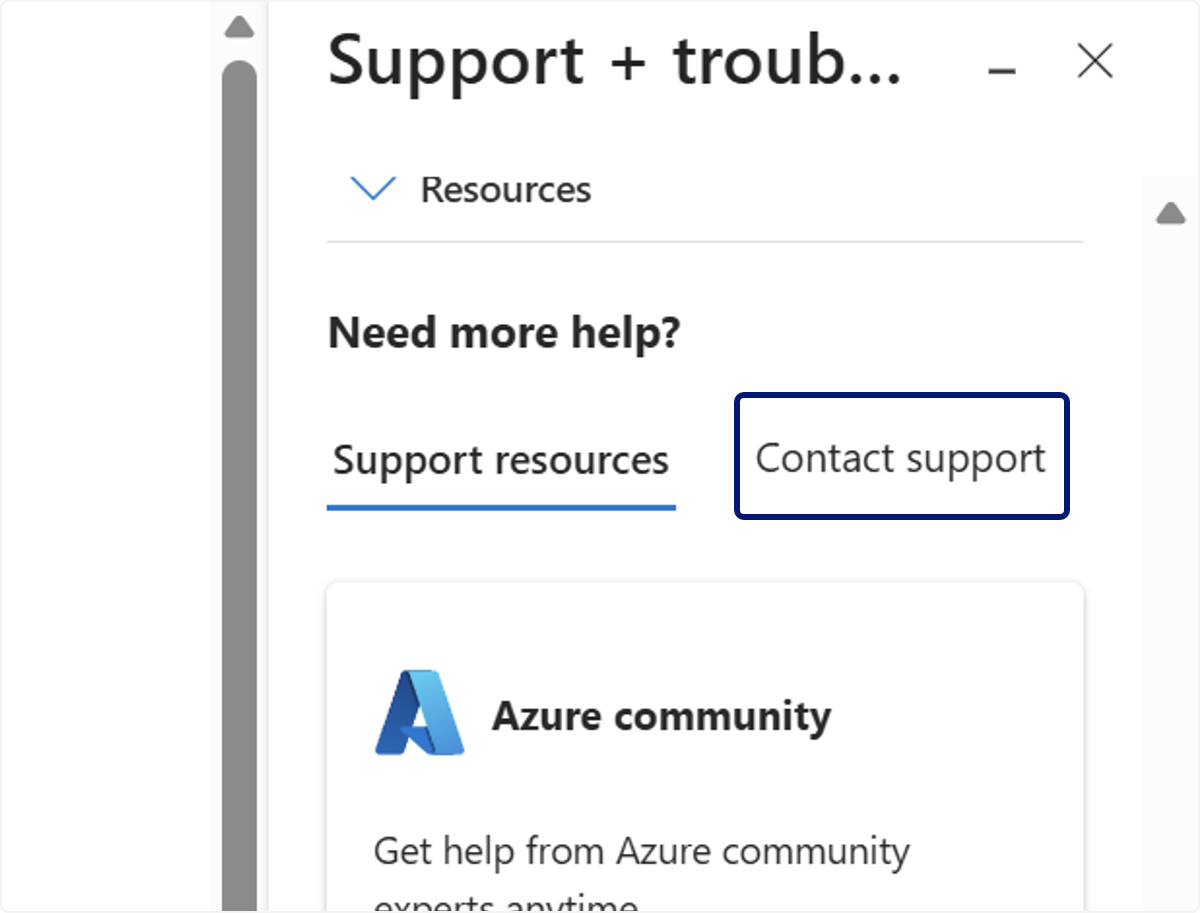
🟣 Click on Contact support
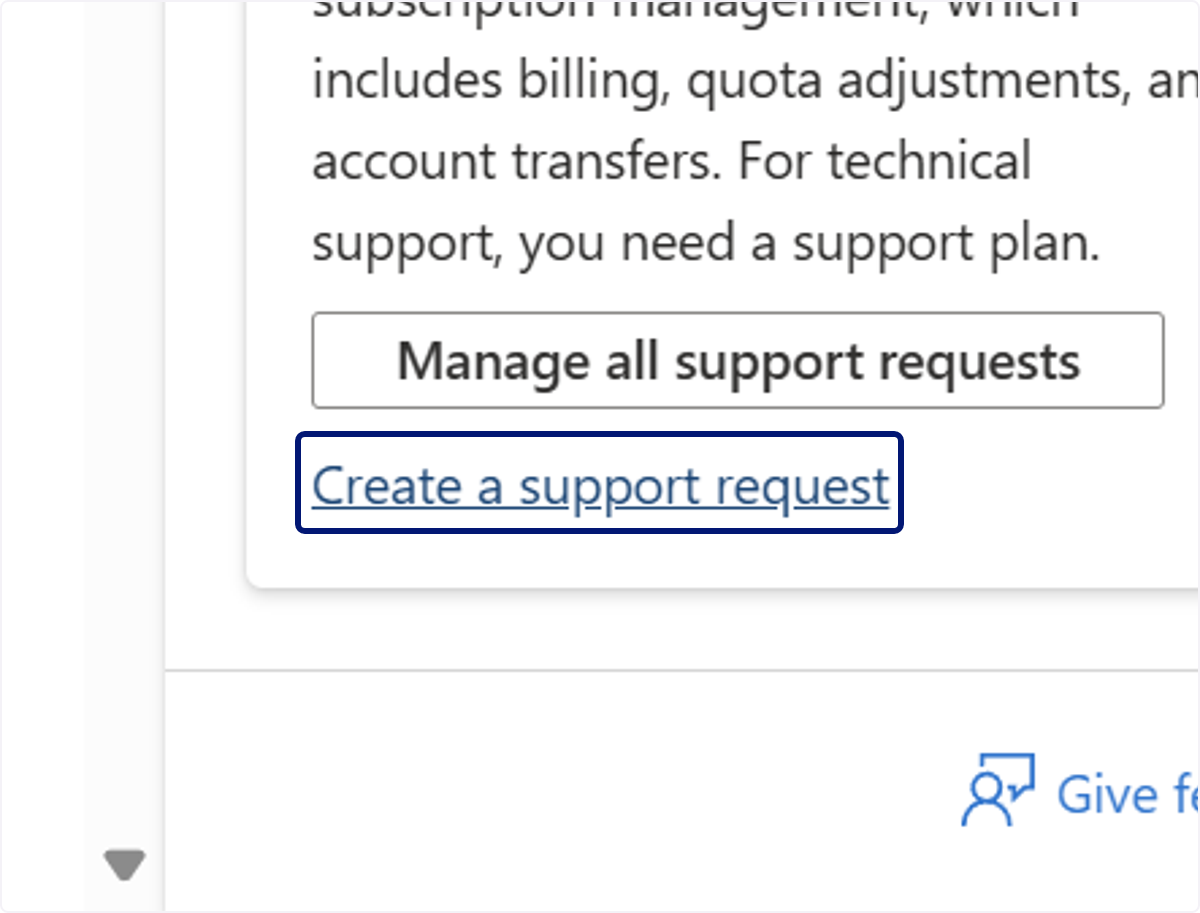
🟣 Click on Create a support request
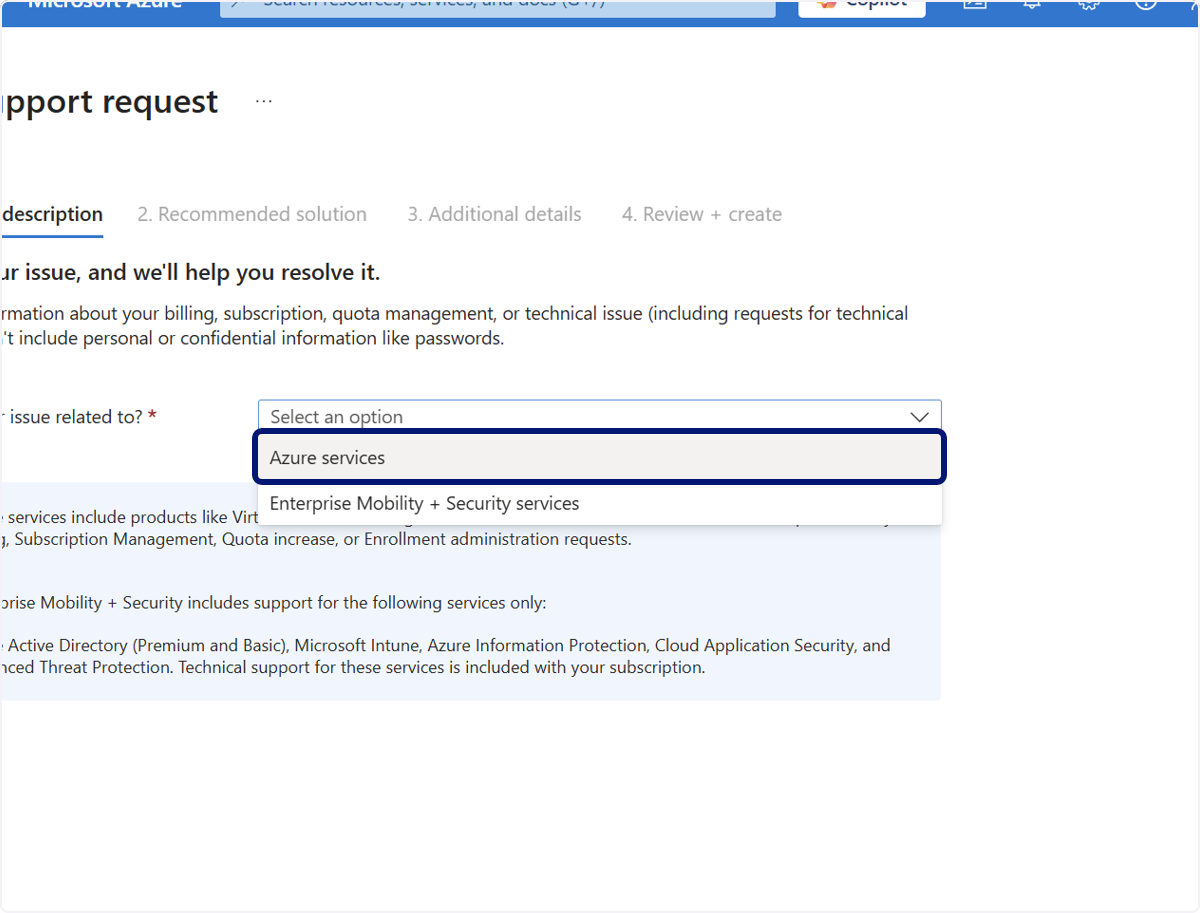
🟣 Issue related to: Azure services
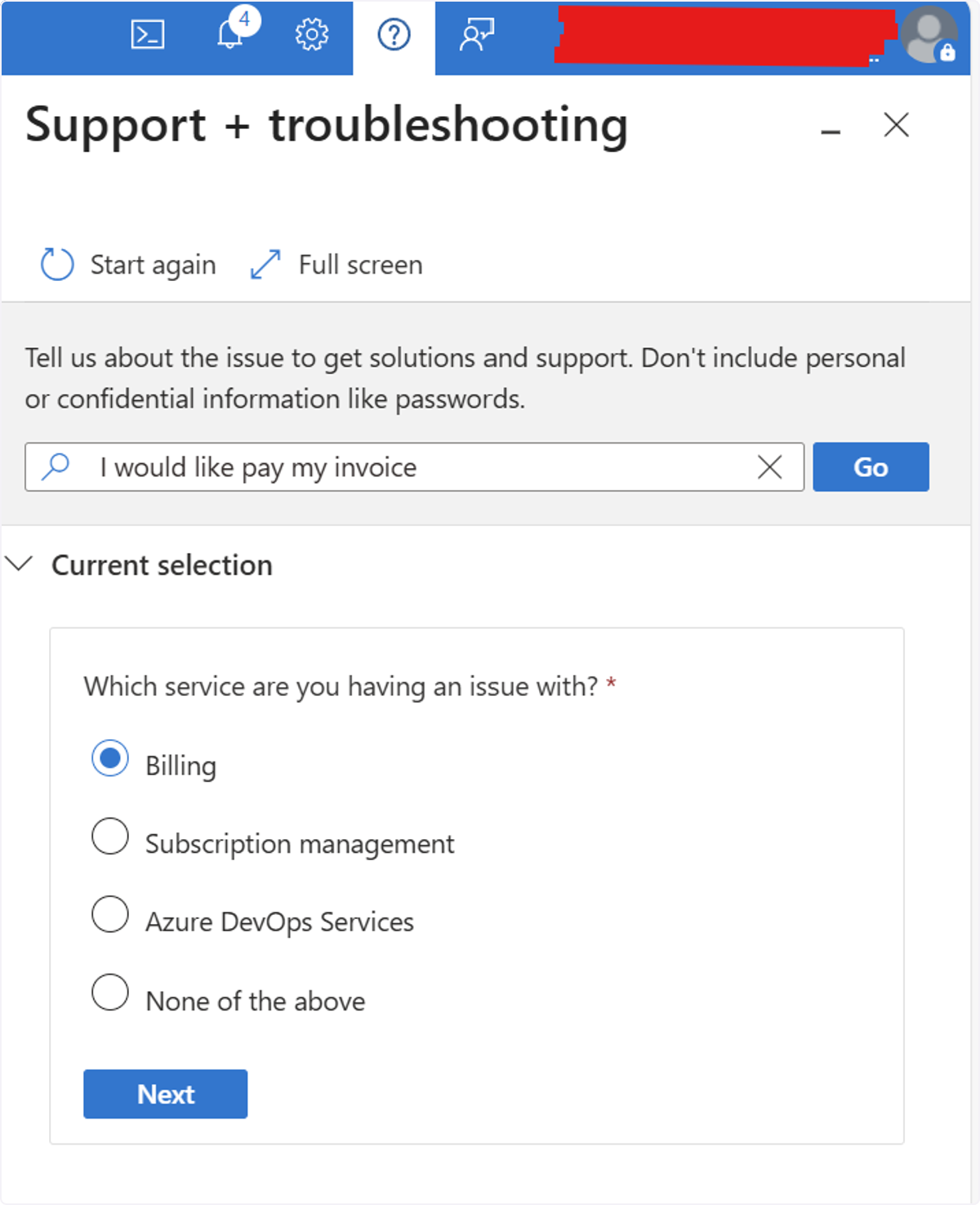
🟣 Type "We would like to pay our invoice by bank transfer"
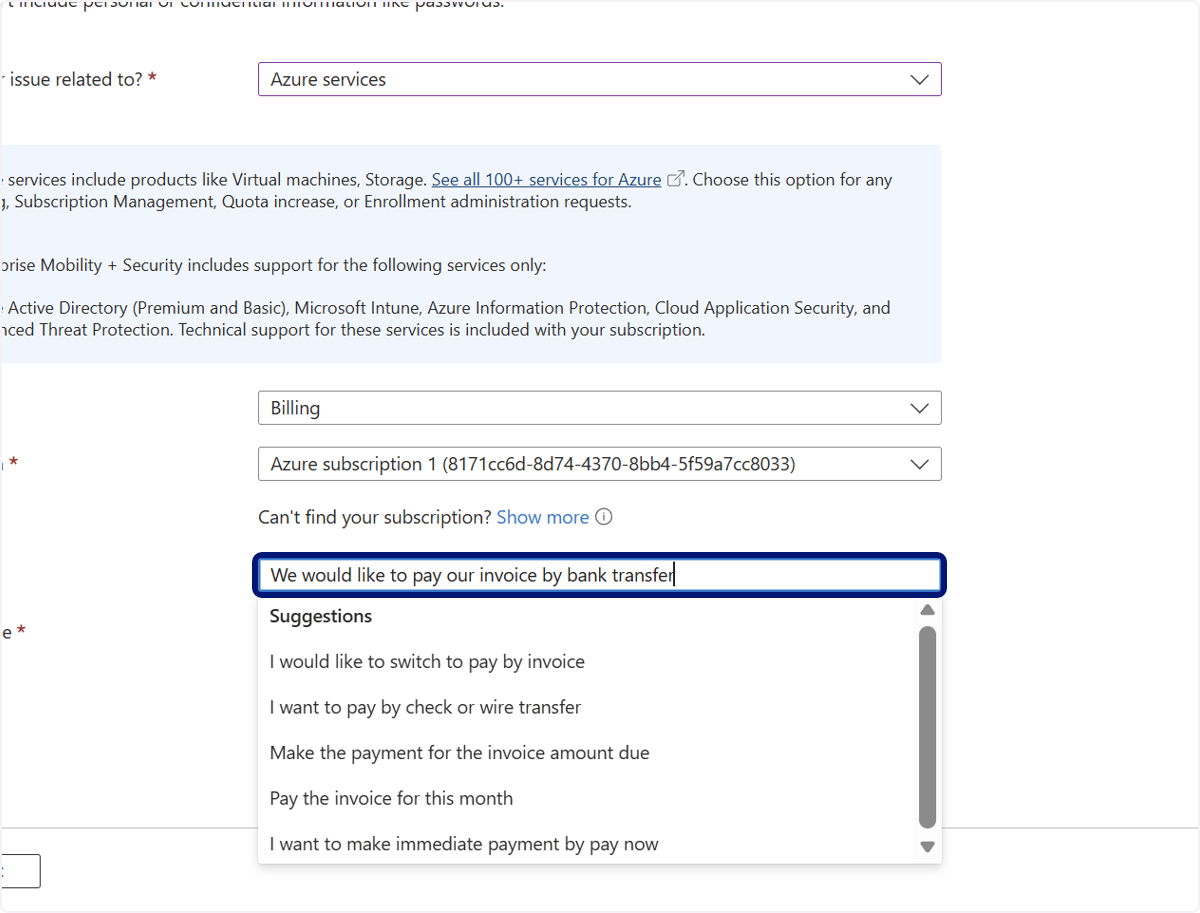
🟣 Click on Pay the invoice for this month
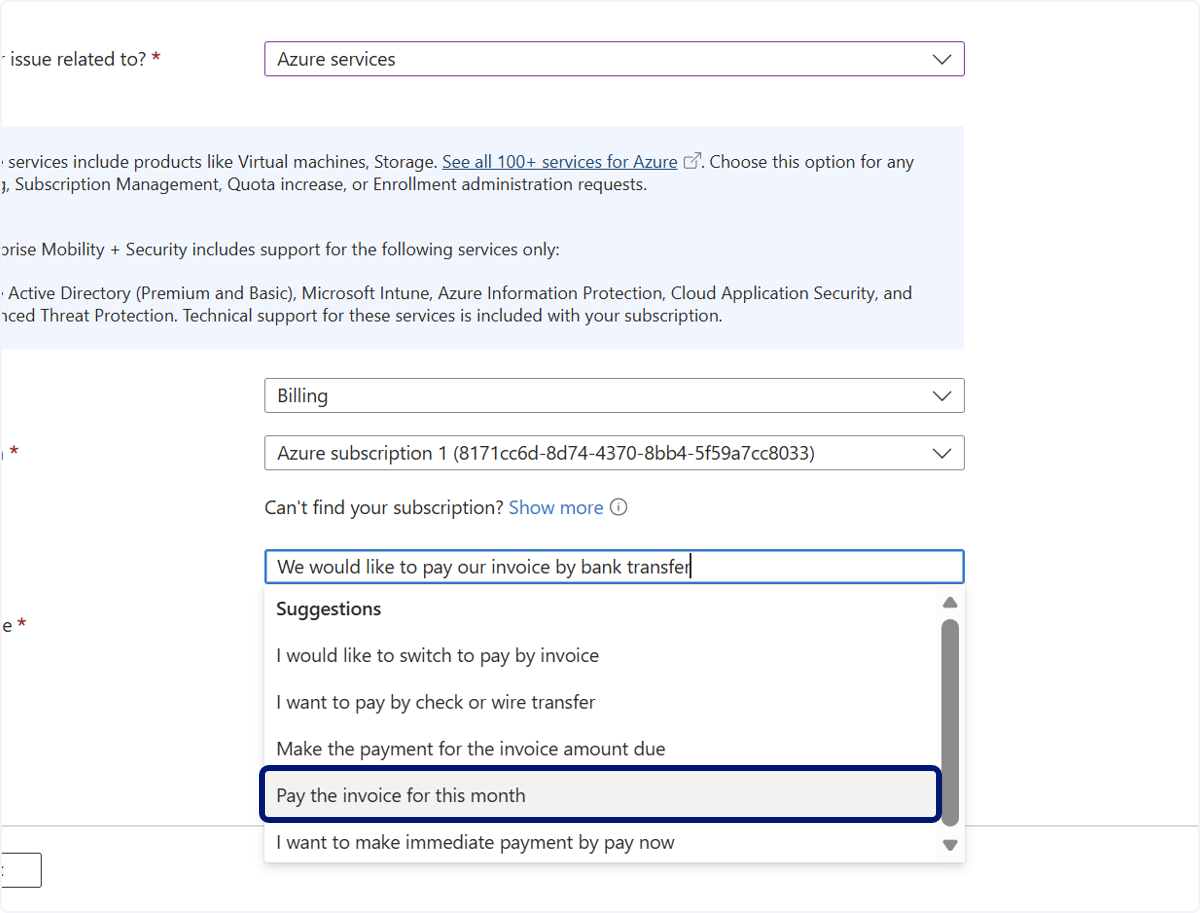
🟣 Click on Problem type
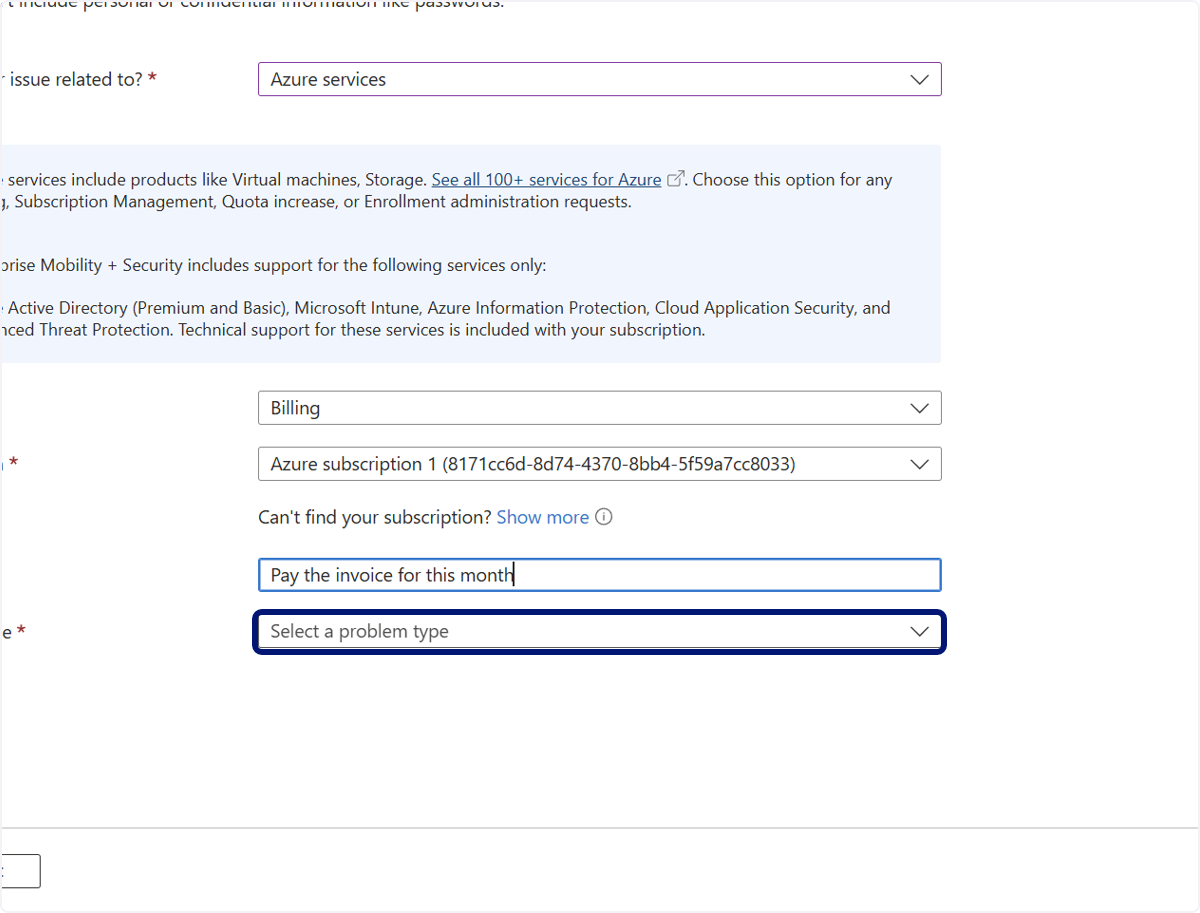
🟣 Click on Make a Payment
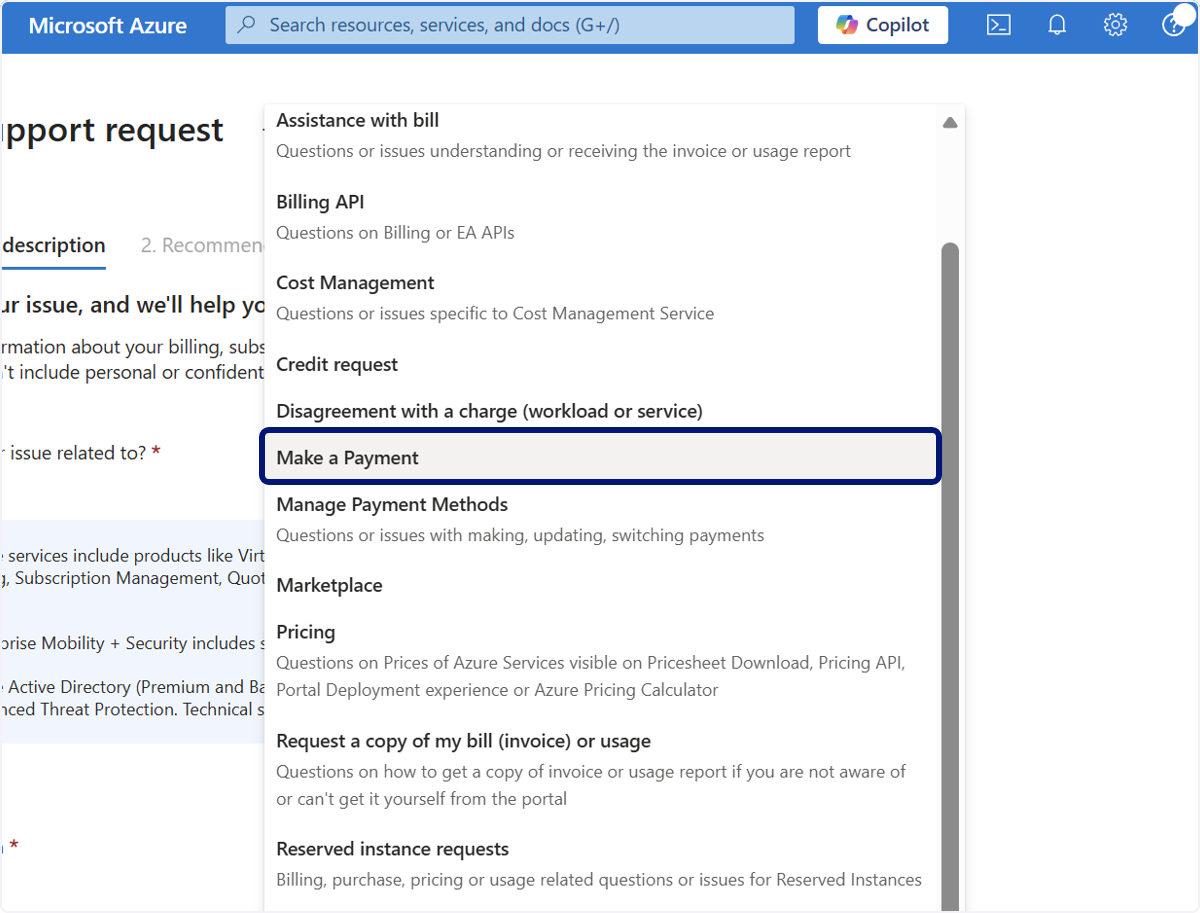
🟣 Click on 1. Problem description…
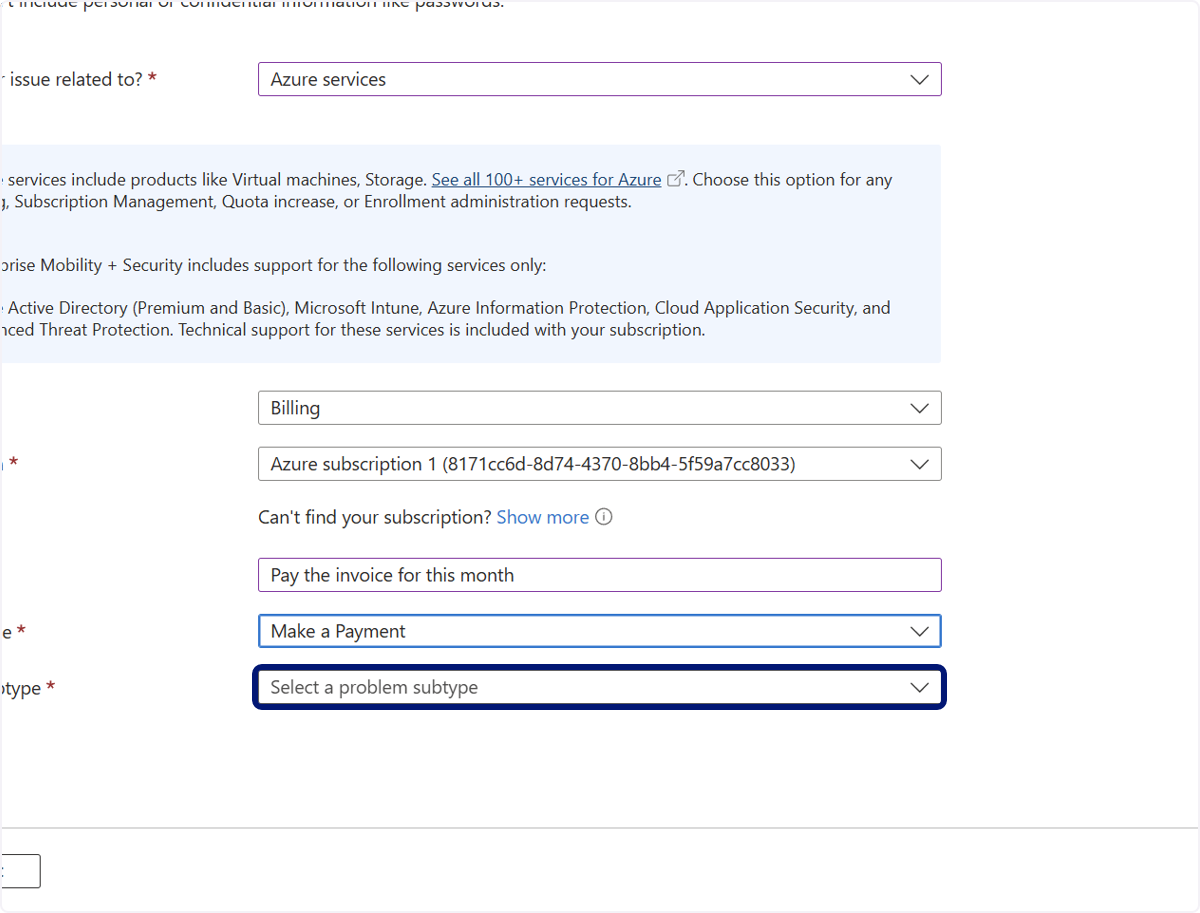
🟣 Click on Need assistance to make a payment immediately…
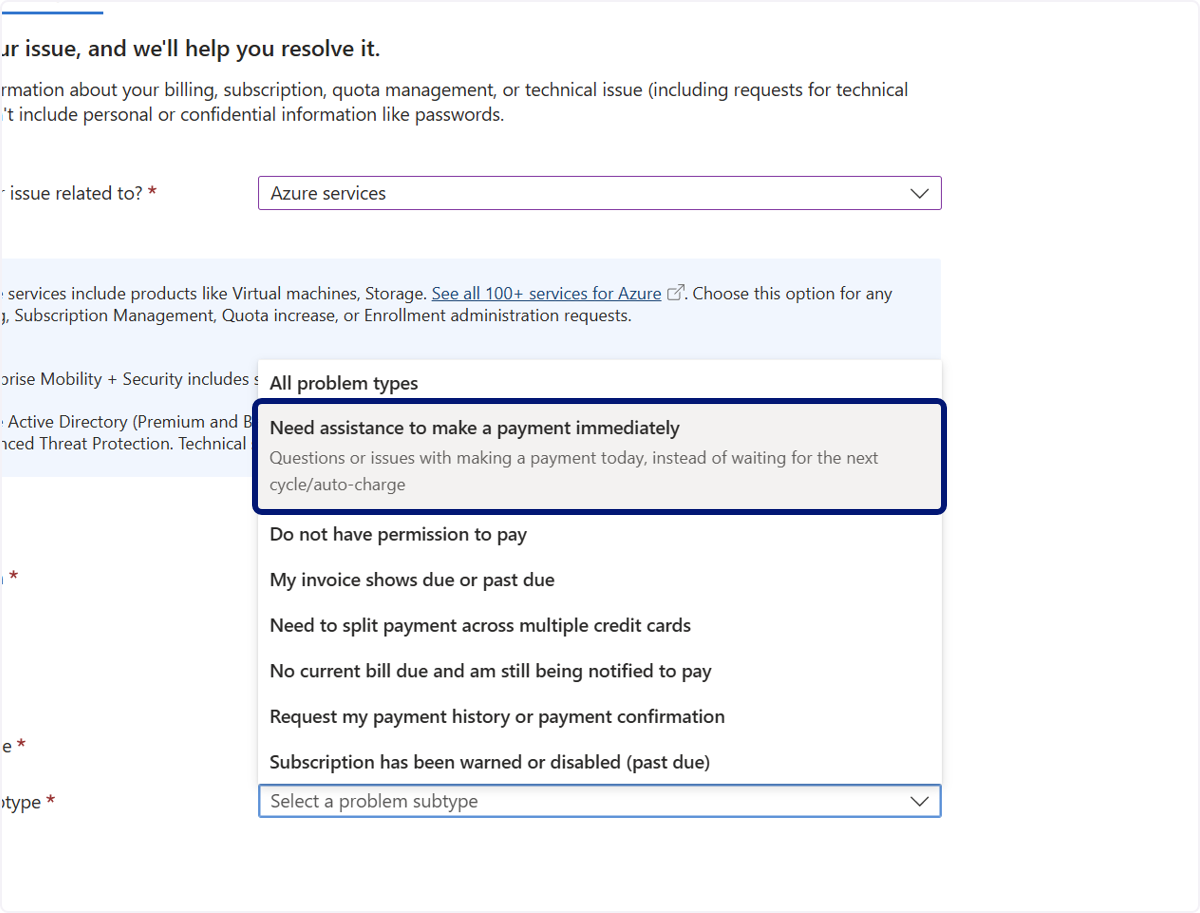
🟣 Click on Next
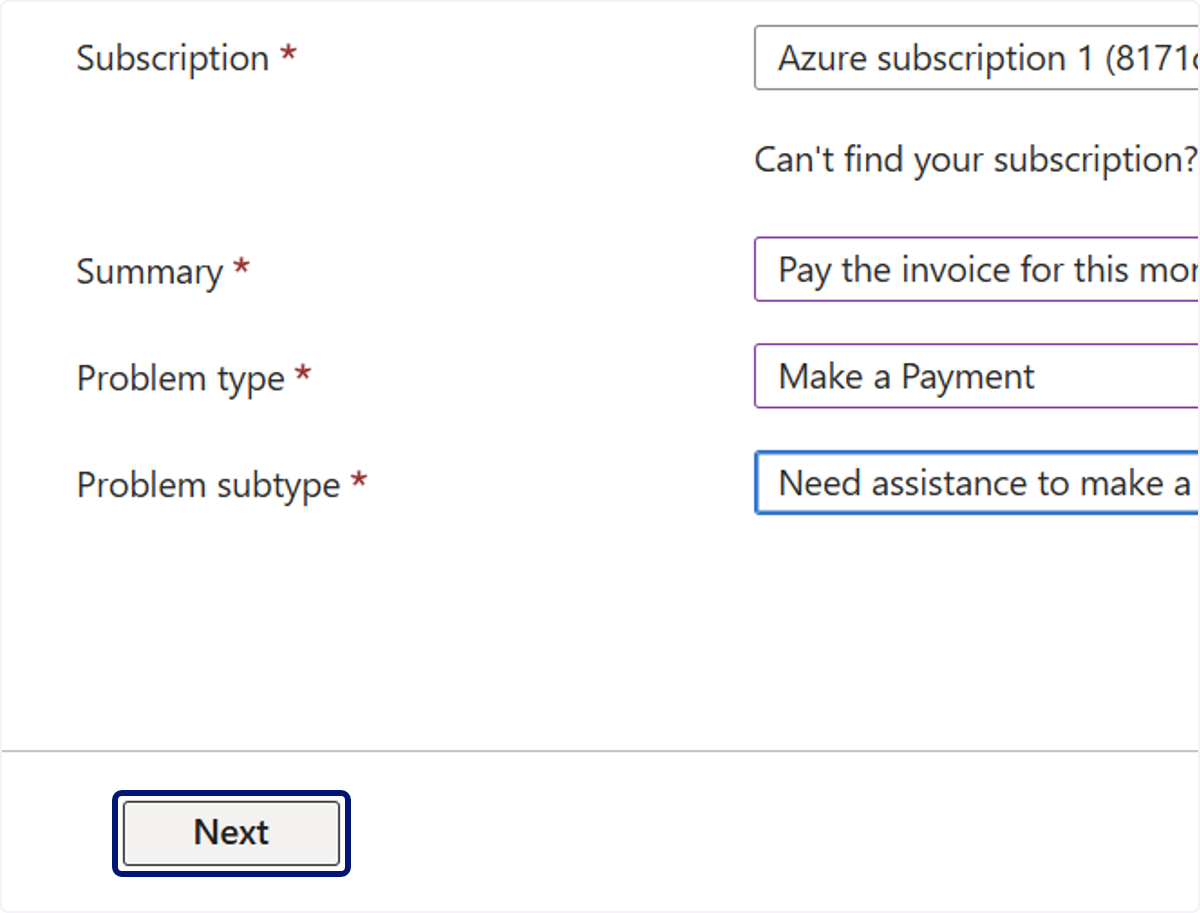
🟣 Click on Return to support request
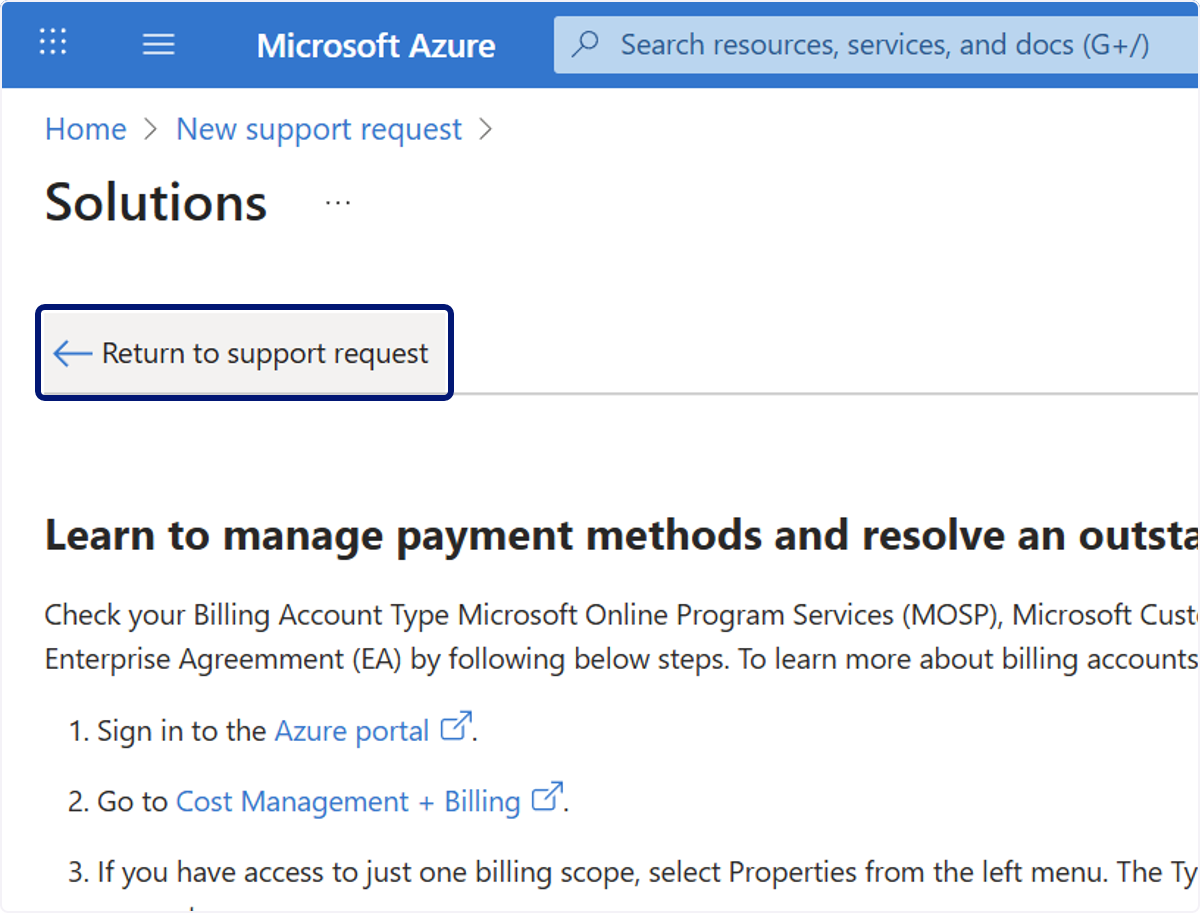
🟣 Click on Next
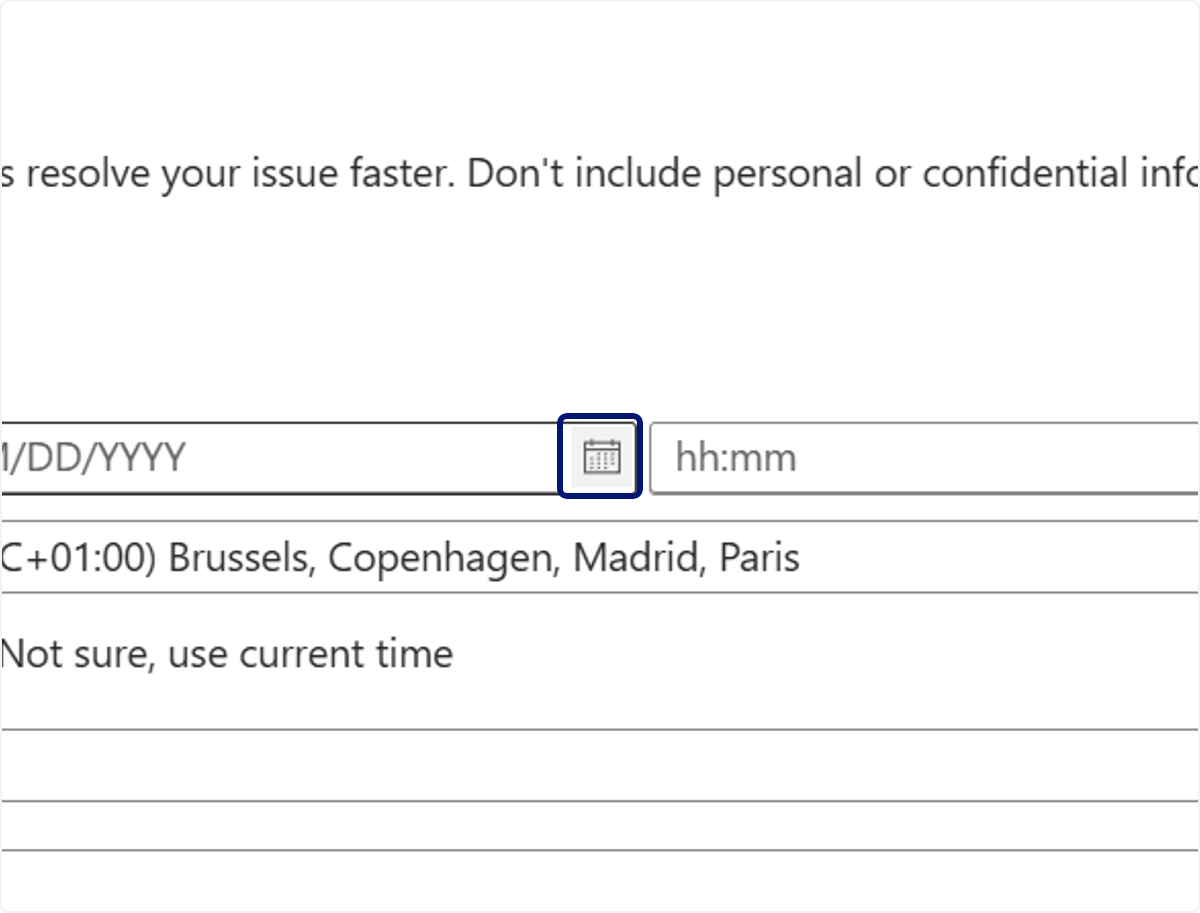
🟣 Select a date
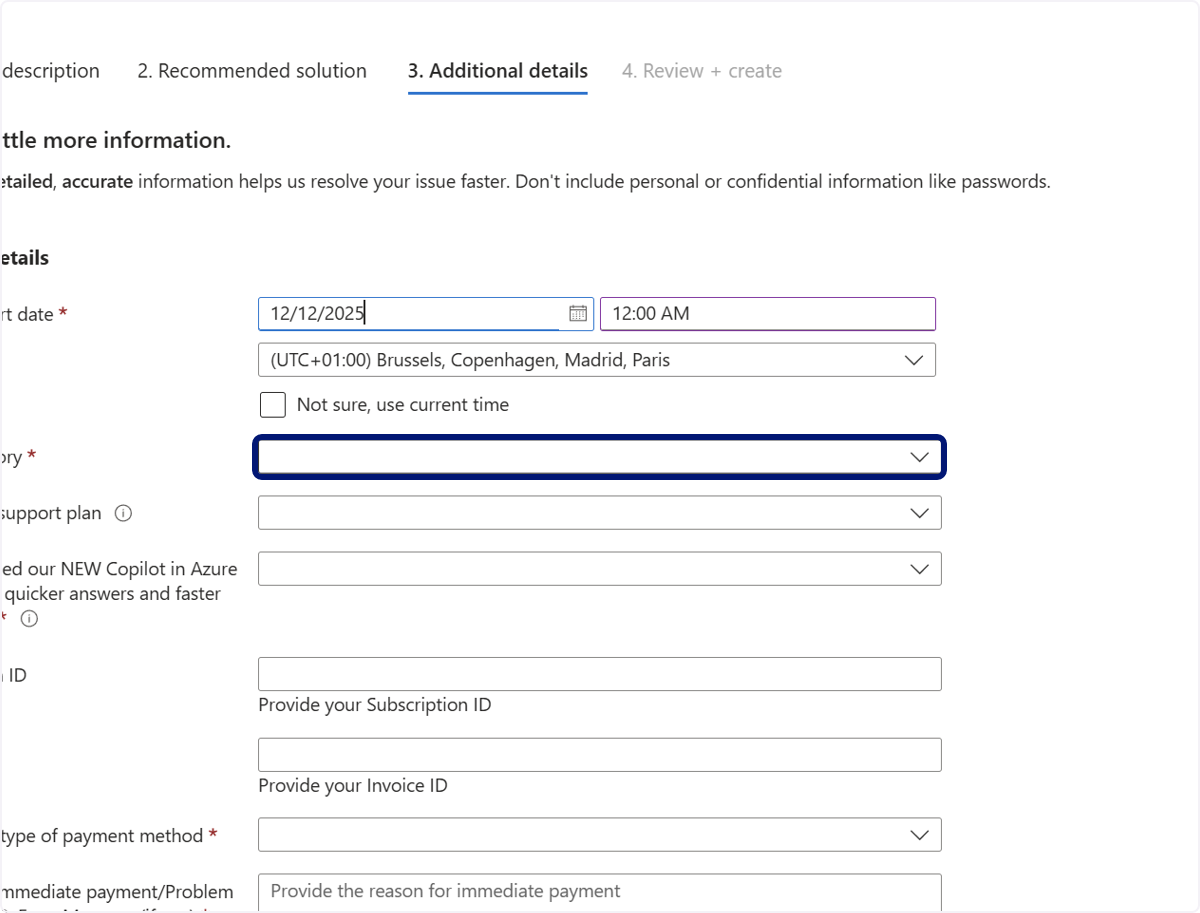
🟣 Click on 1. Problem description…
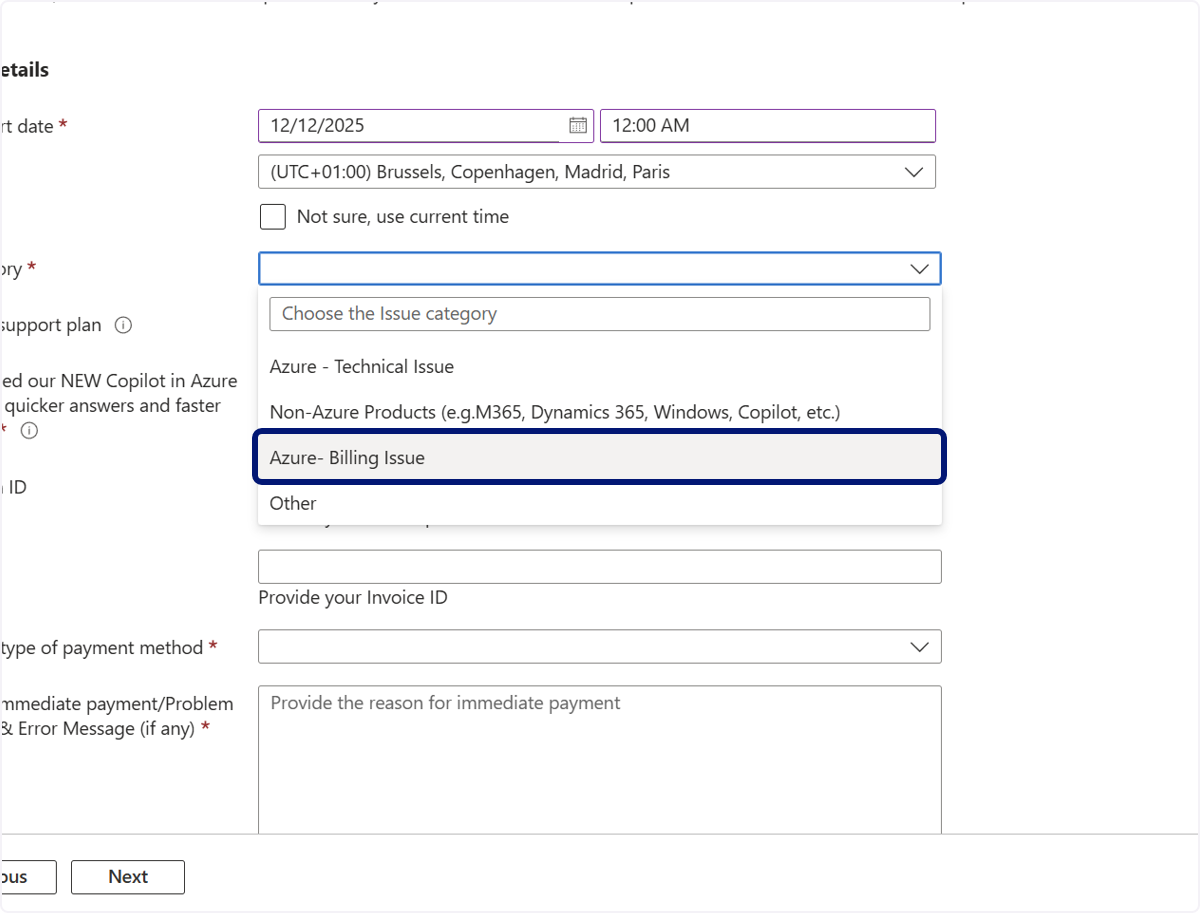
🟣 Click on Azure- Billing Issue
🟣 Click on 1. Problem description…
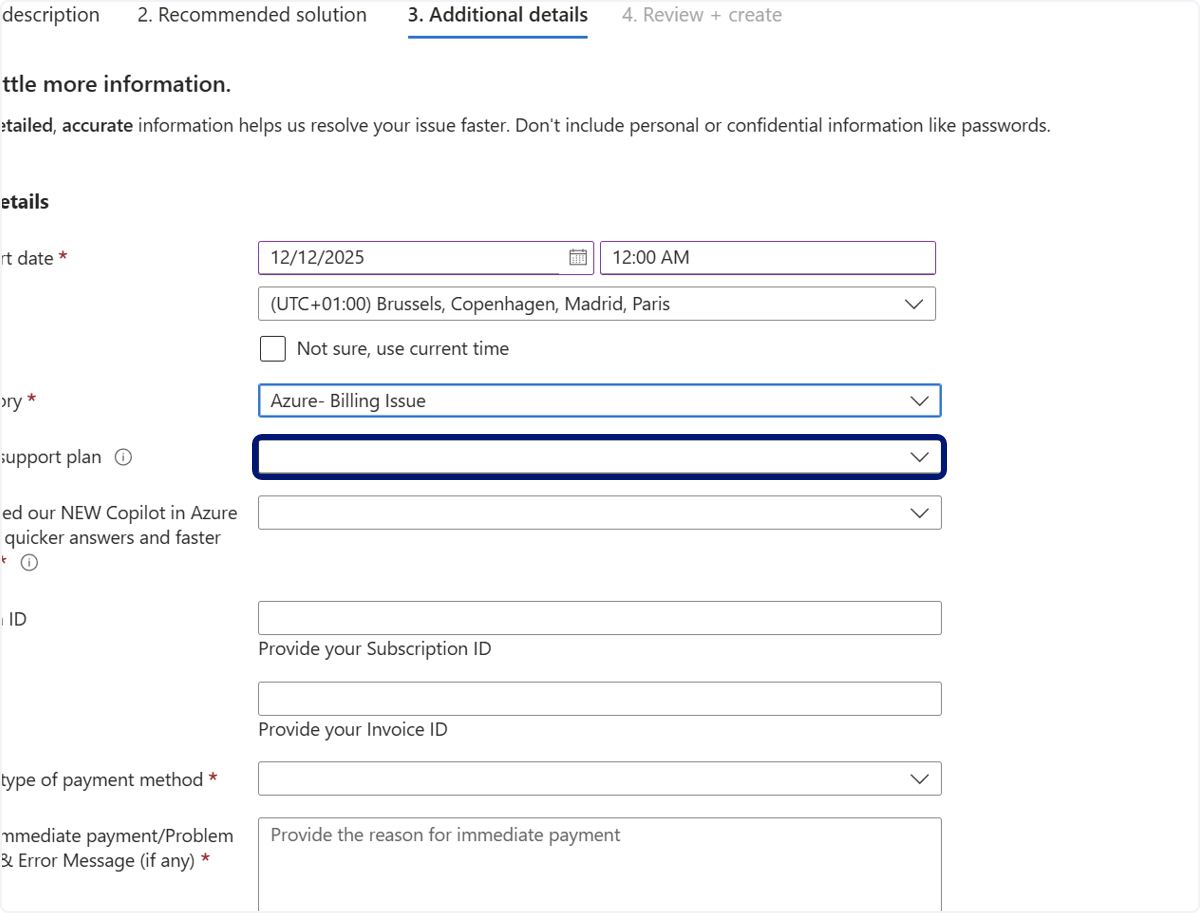
🟣 Click on Basic
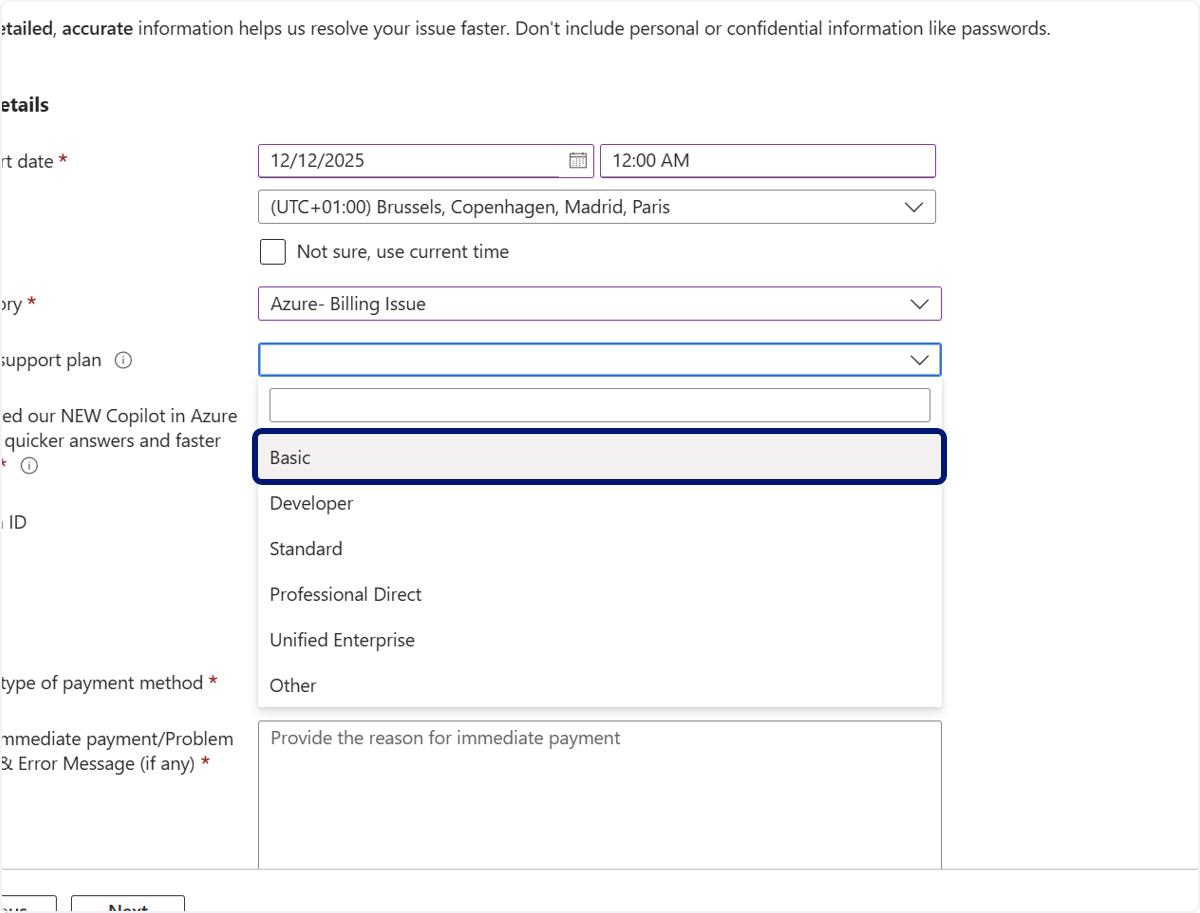
🟣 Click on 1. Problem description…
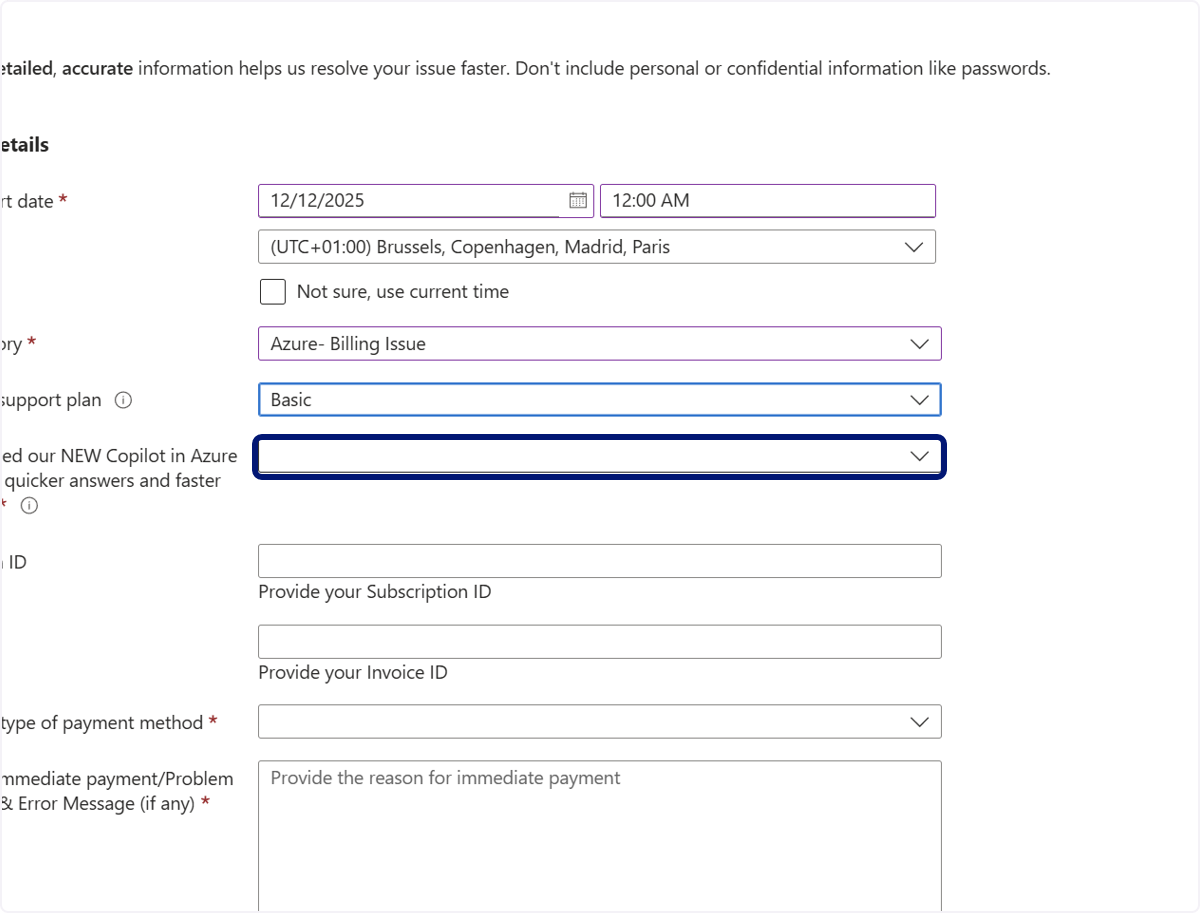
🟣 Click on Yes
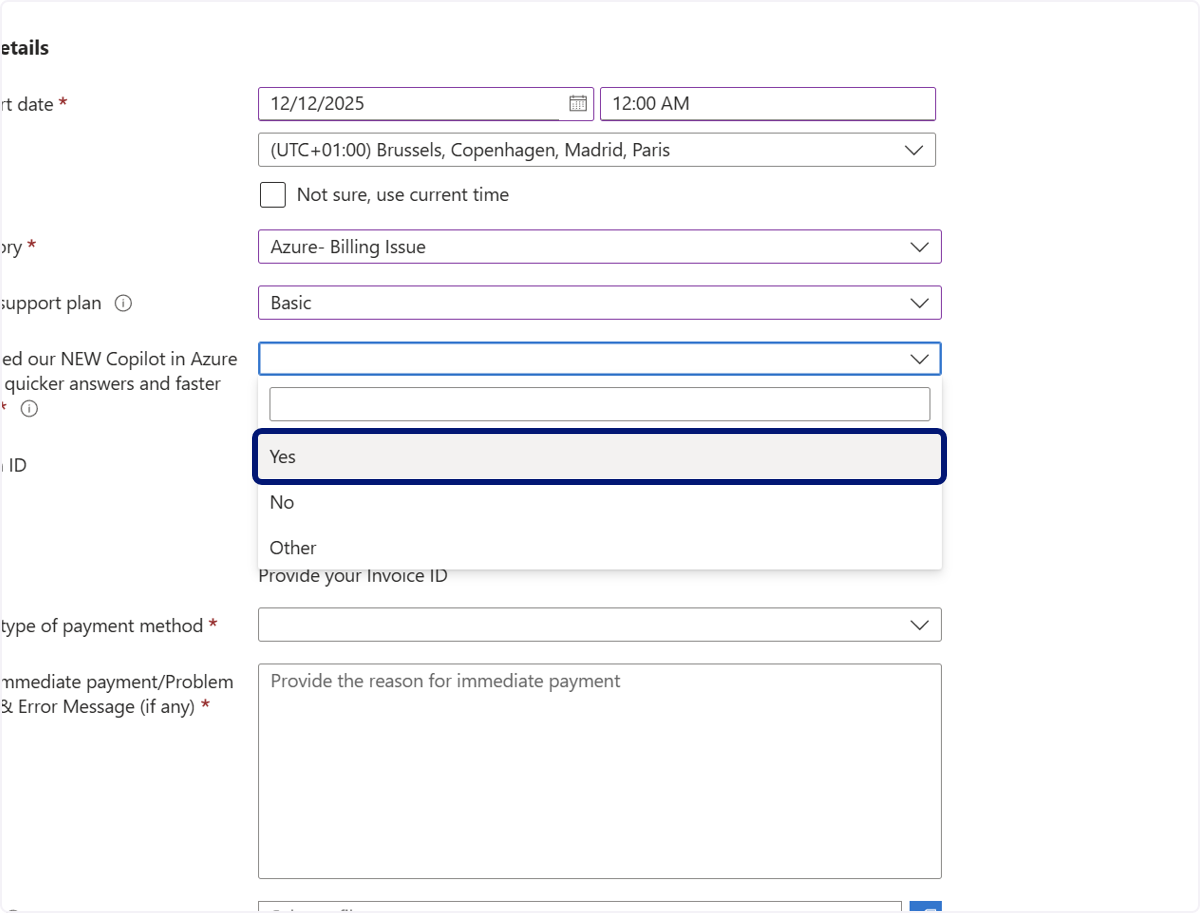
🟣 Type "add your invoice ID"
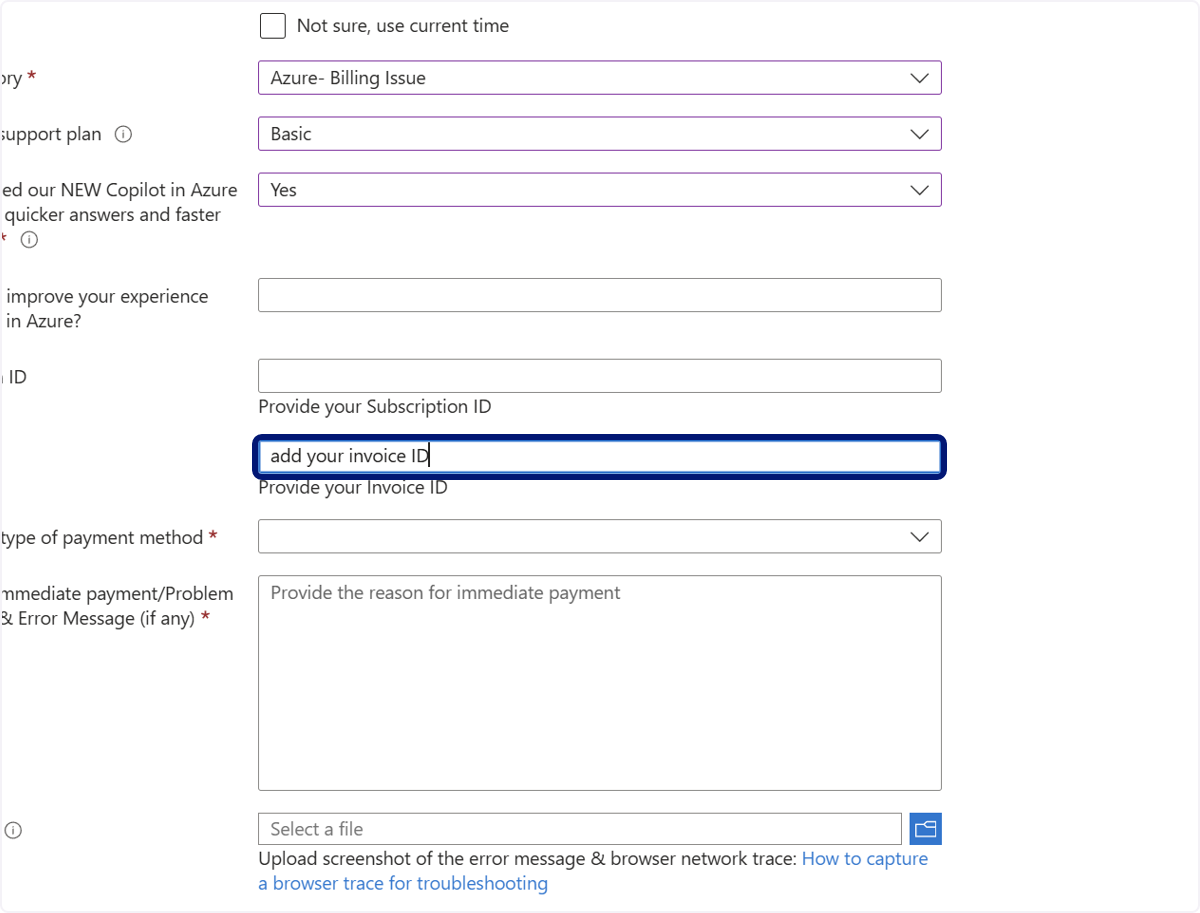
🟣 Click on 1. Problem description…
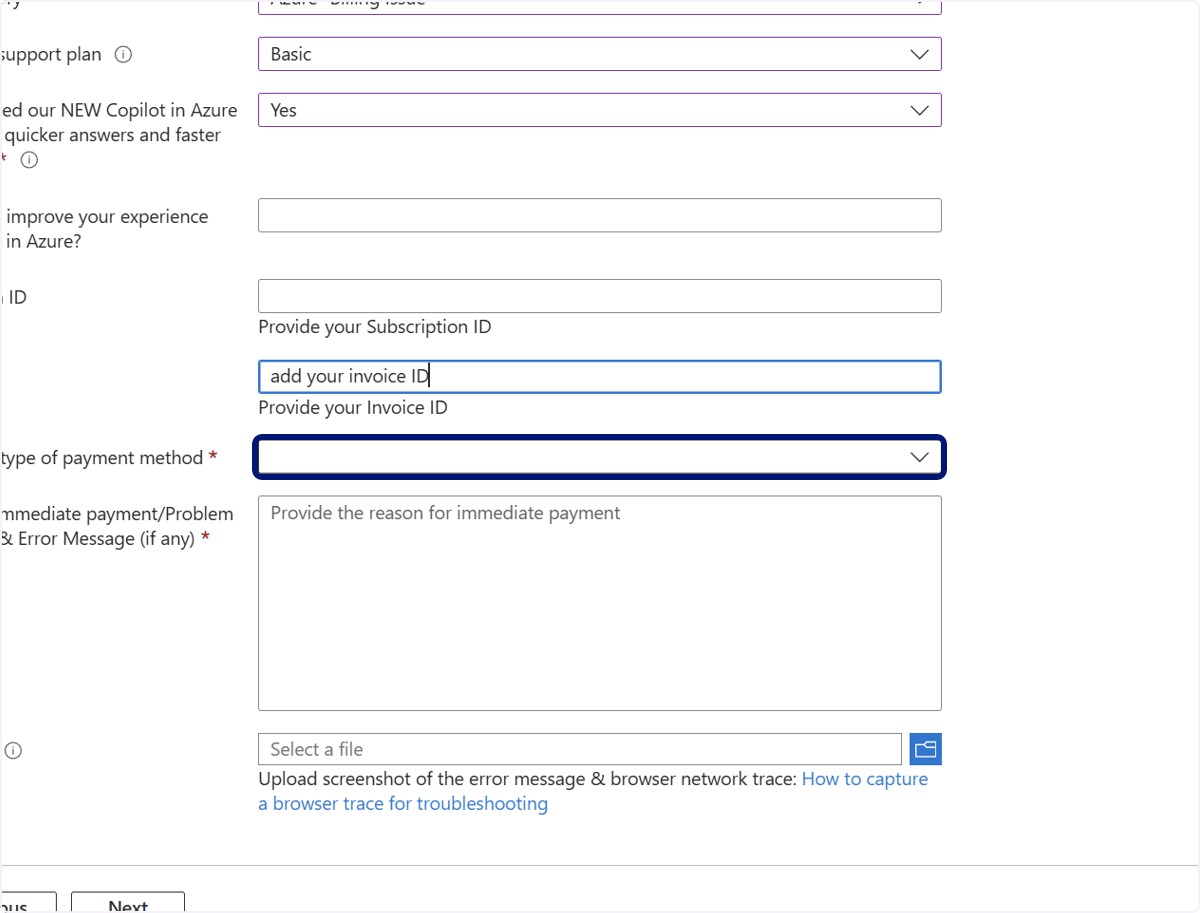
🟣 Click on Invoice
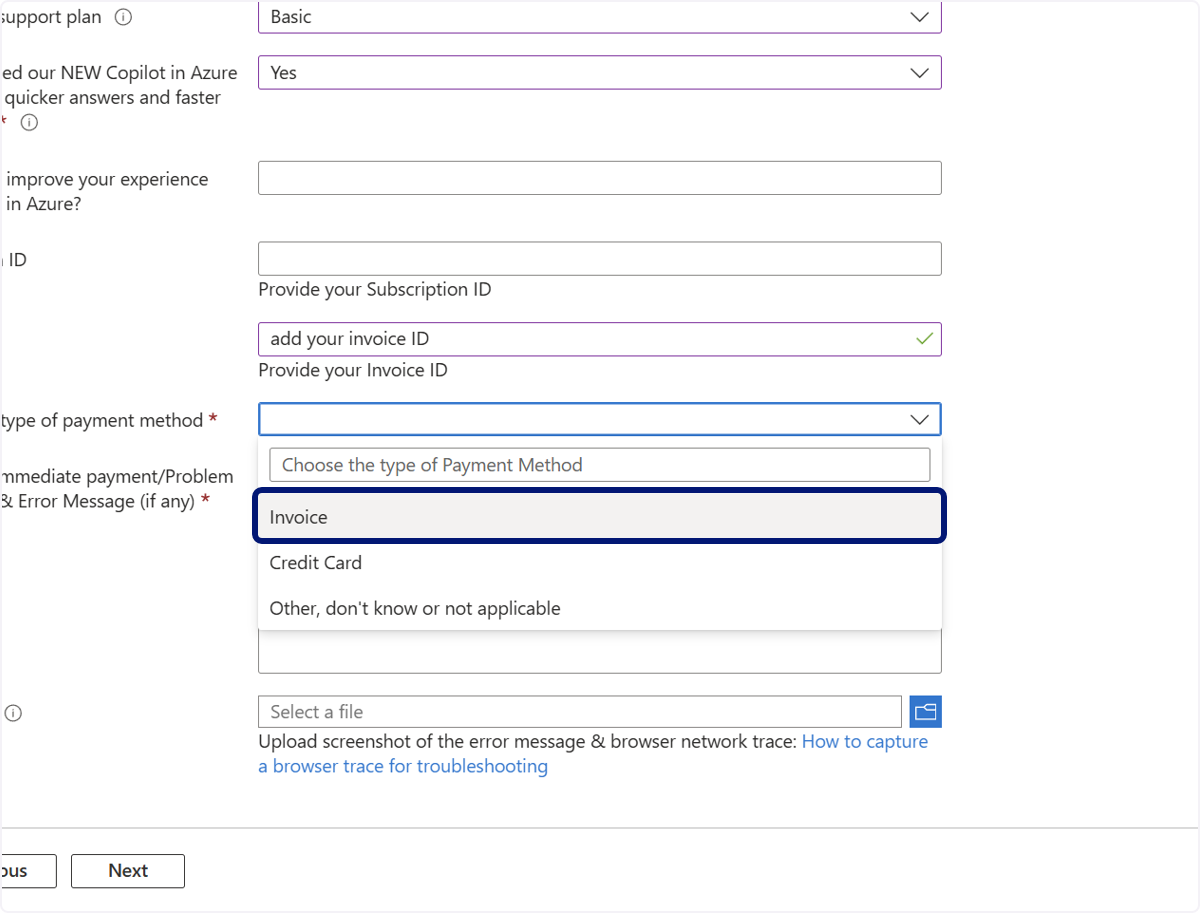
🟣 Type "I would like to pay this invoice by bank transfer as the limit in my credit card is too low, and the payment gets rejected."
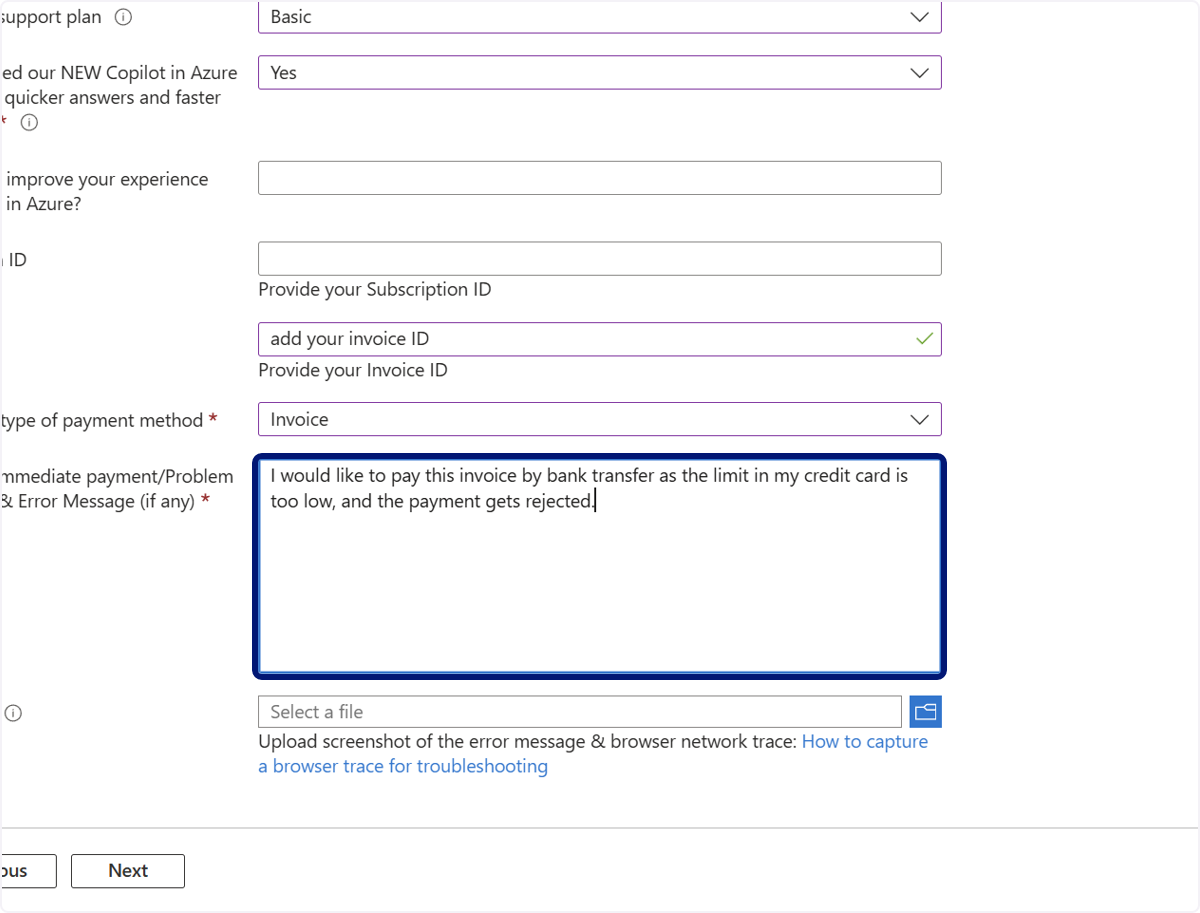
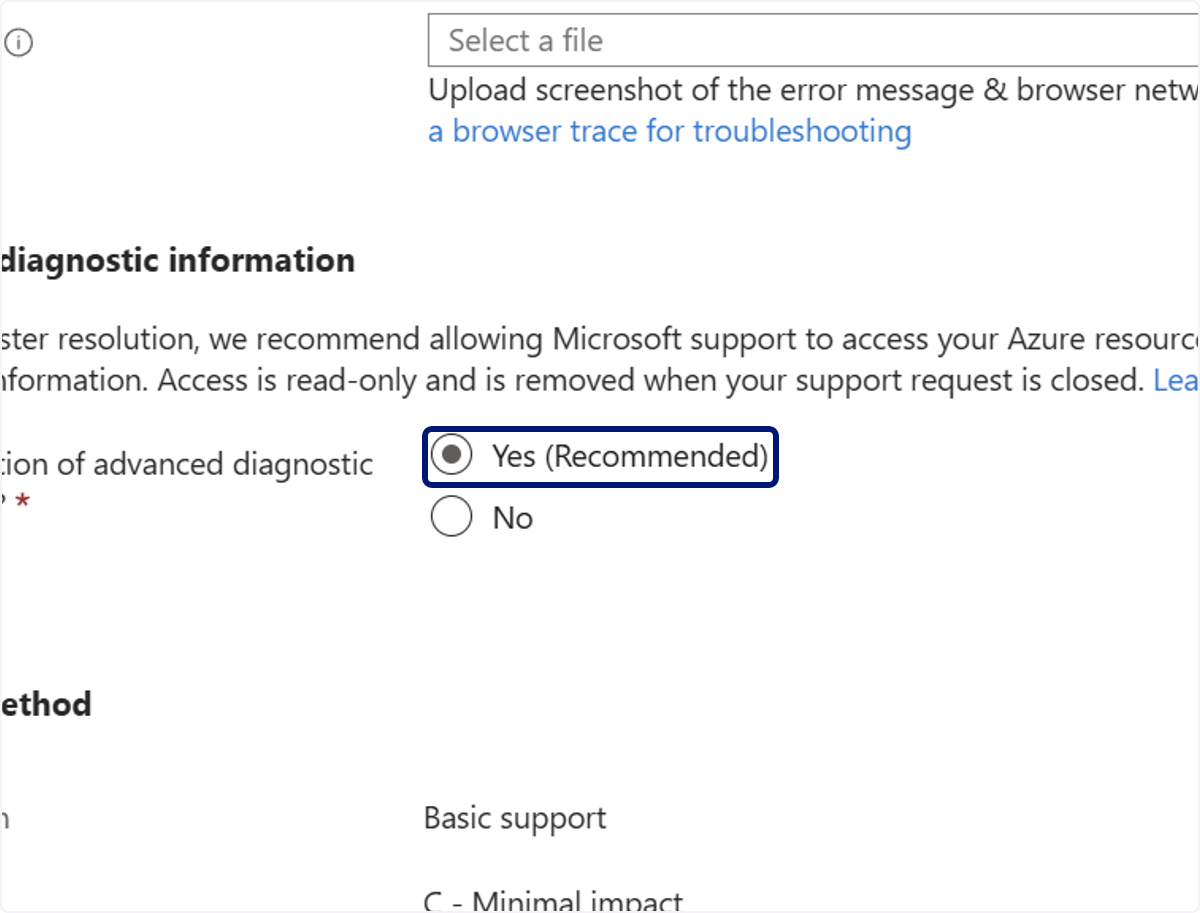
🟣 Click on Yes (Recommended)
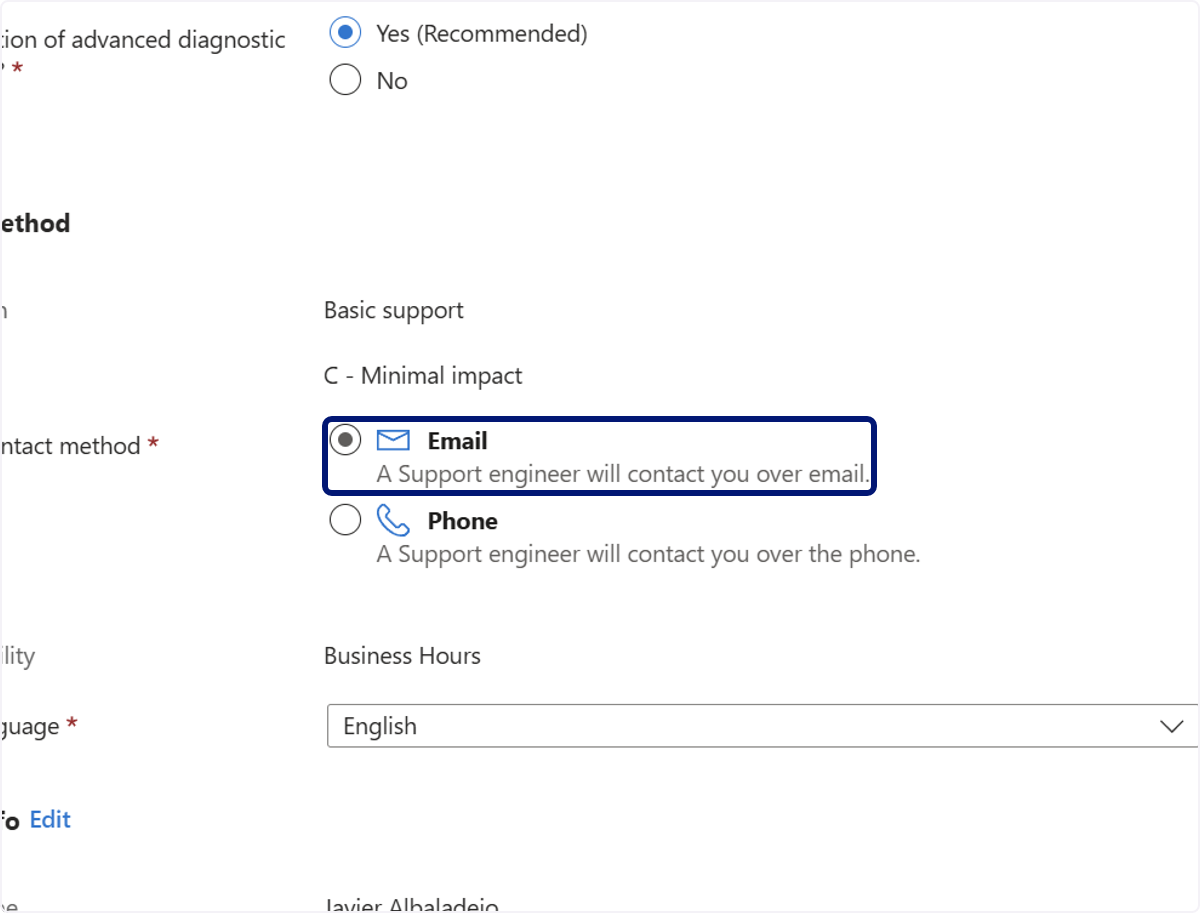
🟣 Click on Email A Support engineer will contact you over email.
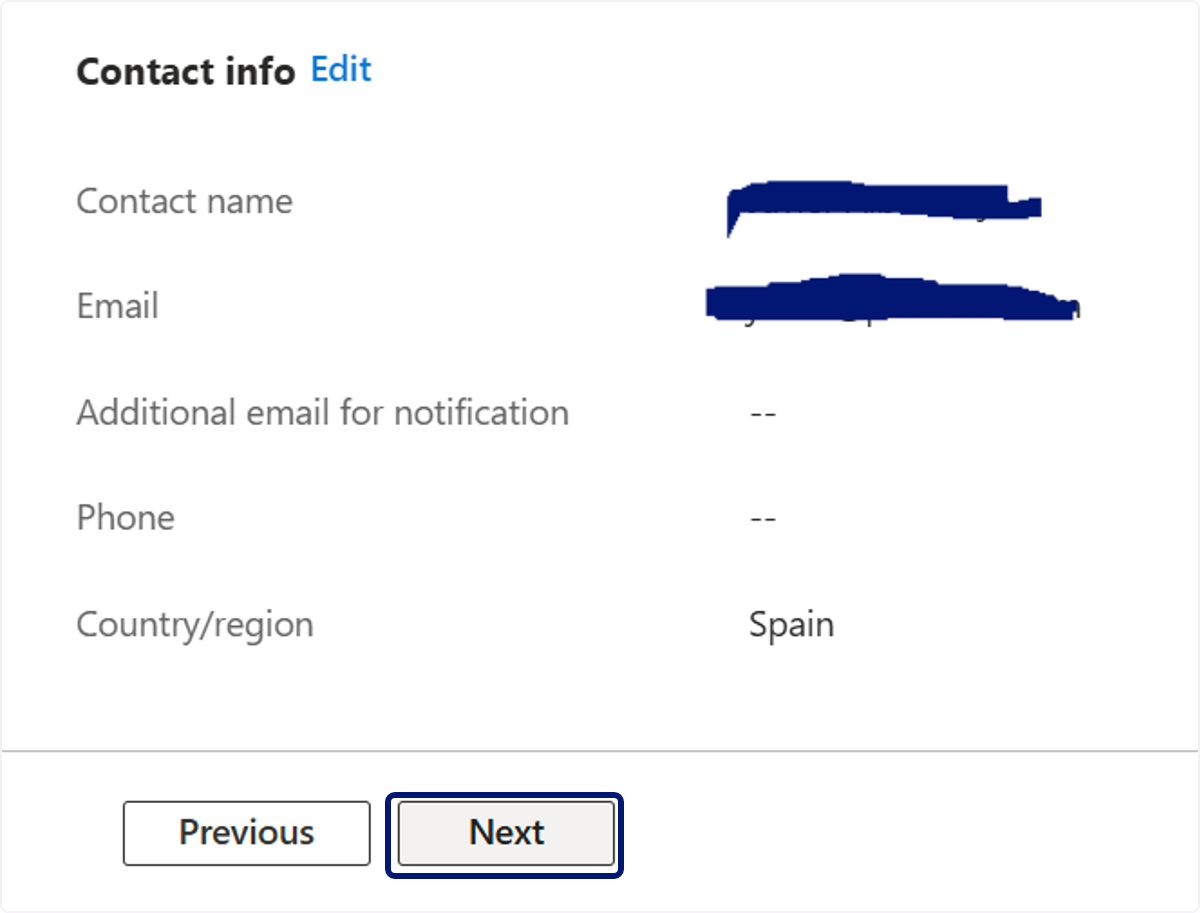
🟣 Click on Next
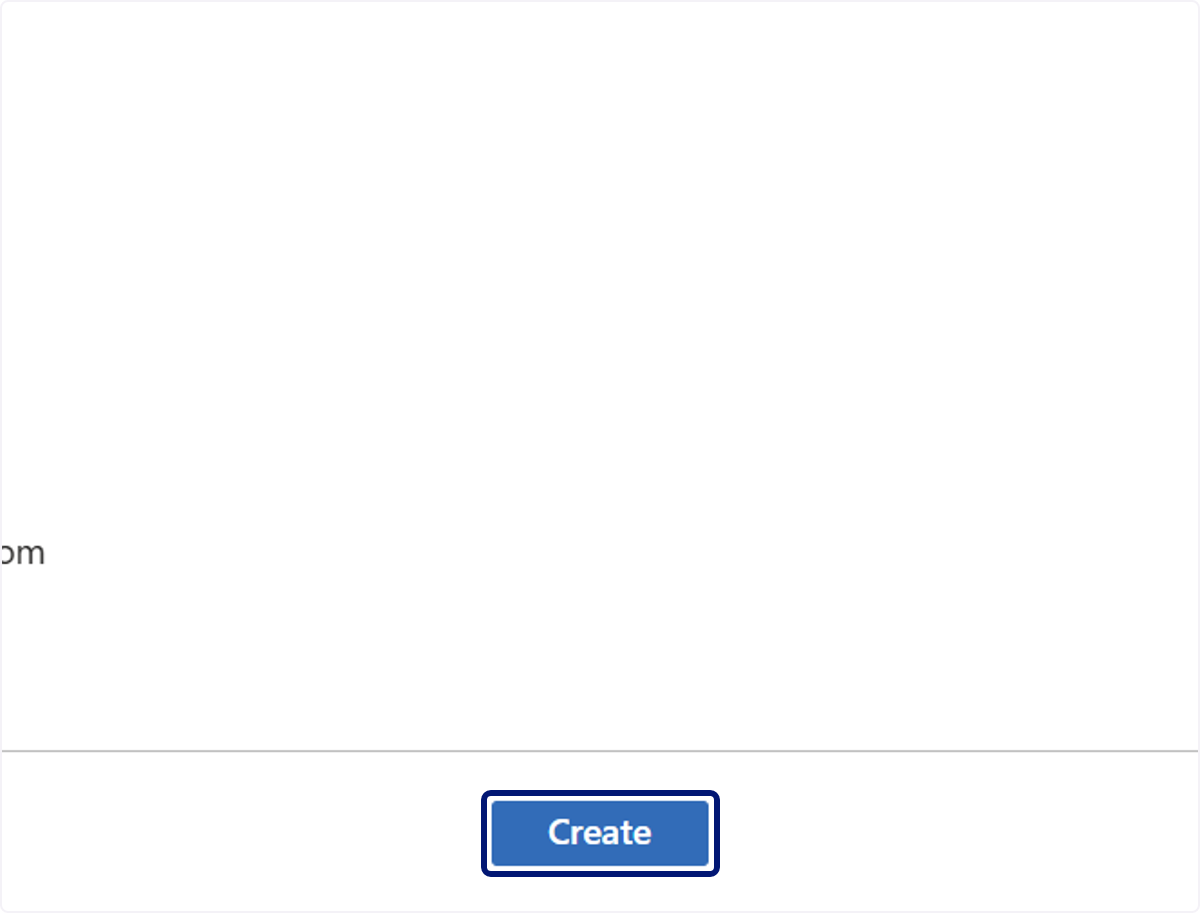
28. Click on Create
💬 For more, contact us at : [email protected]