How to accept a Private Offer? - Customer walkthrough
12 min
Accepting a private offer allows the customer to review the custom terms and pricing, confirm the purchase through their Azure subscription, and gain access to the solution as agreed with the publisher. Please follow the steps:
The customer will receive an email with the link to the private offer, or they can follow the steps below to find the private offer.
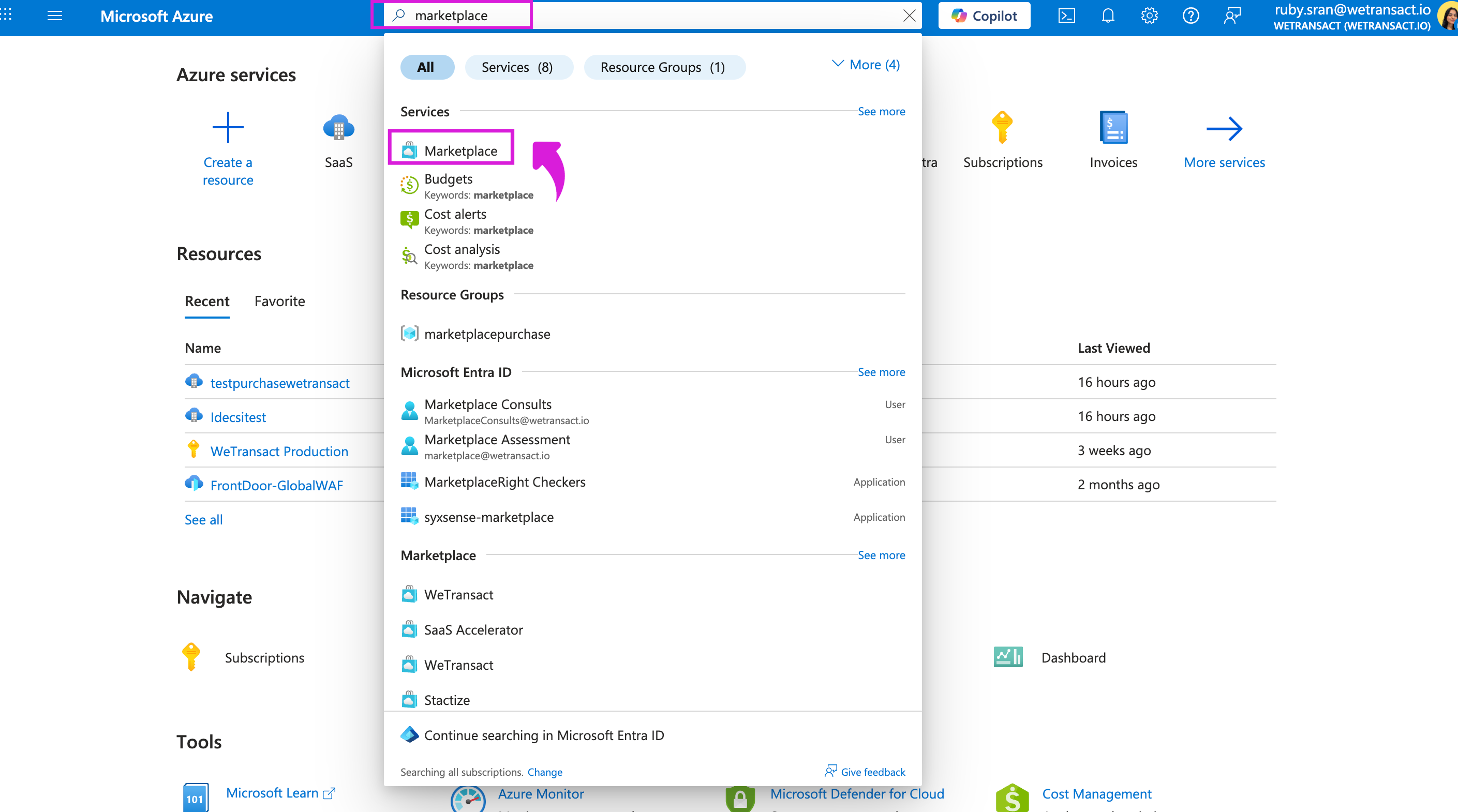
🟣 Sign in to Azure portal and search 'Marketplace' in the search bar and click on 'Marketplace'.
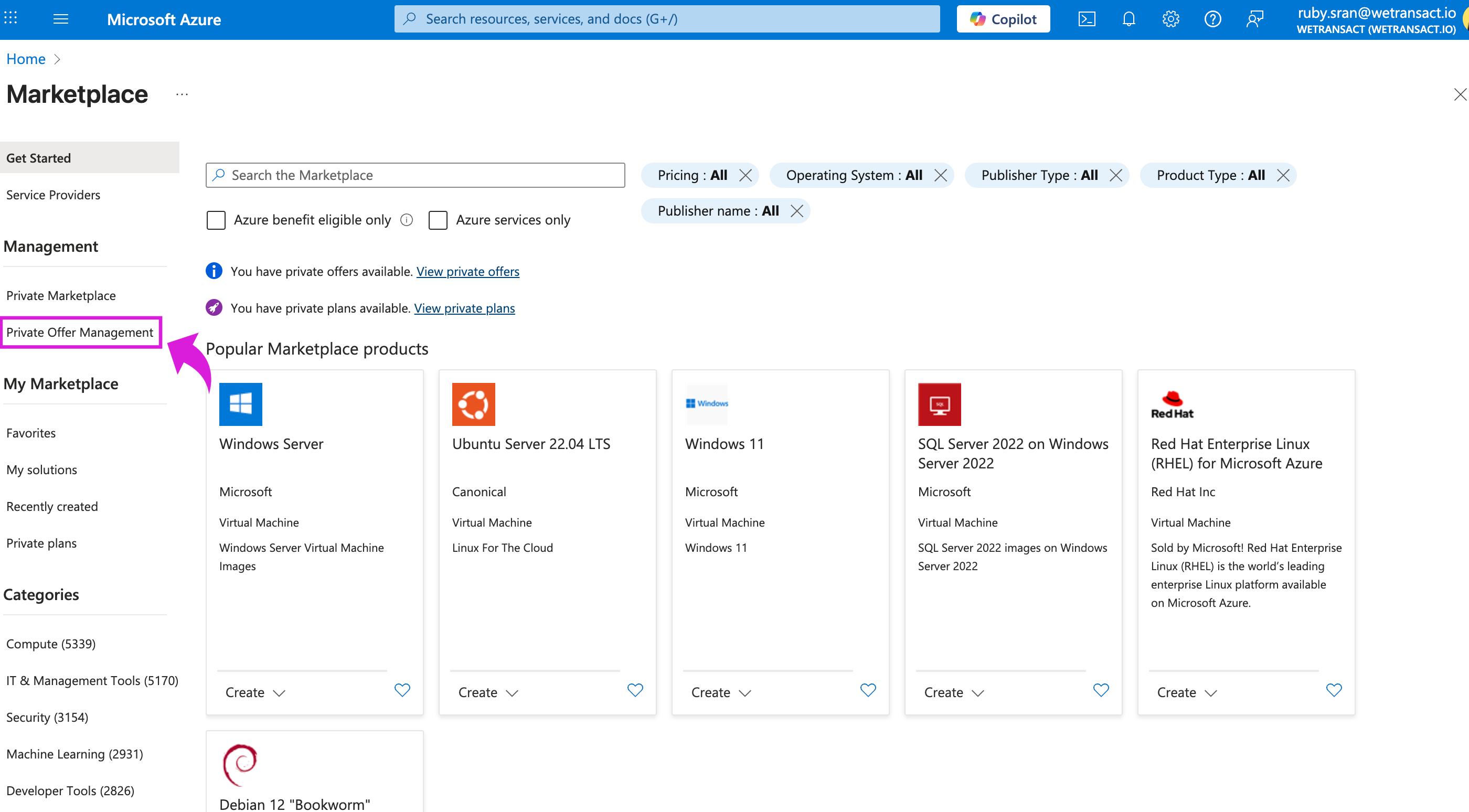
🟣 Click on 'Private Offer Management' on the left menu.
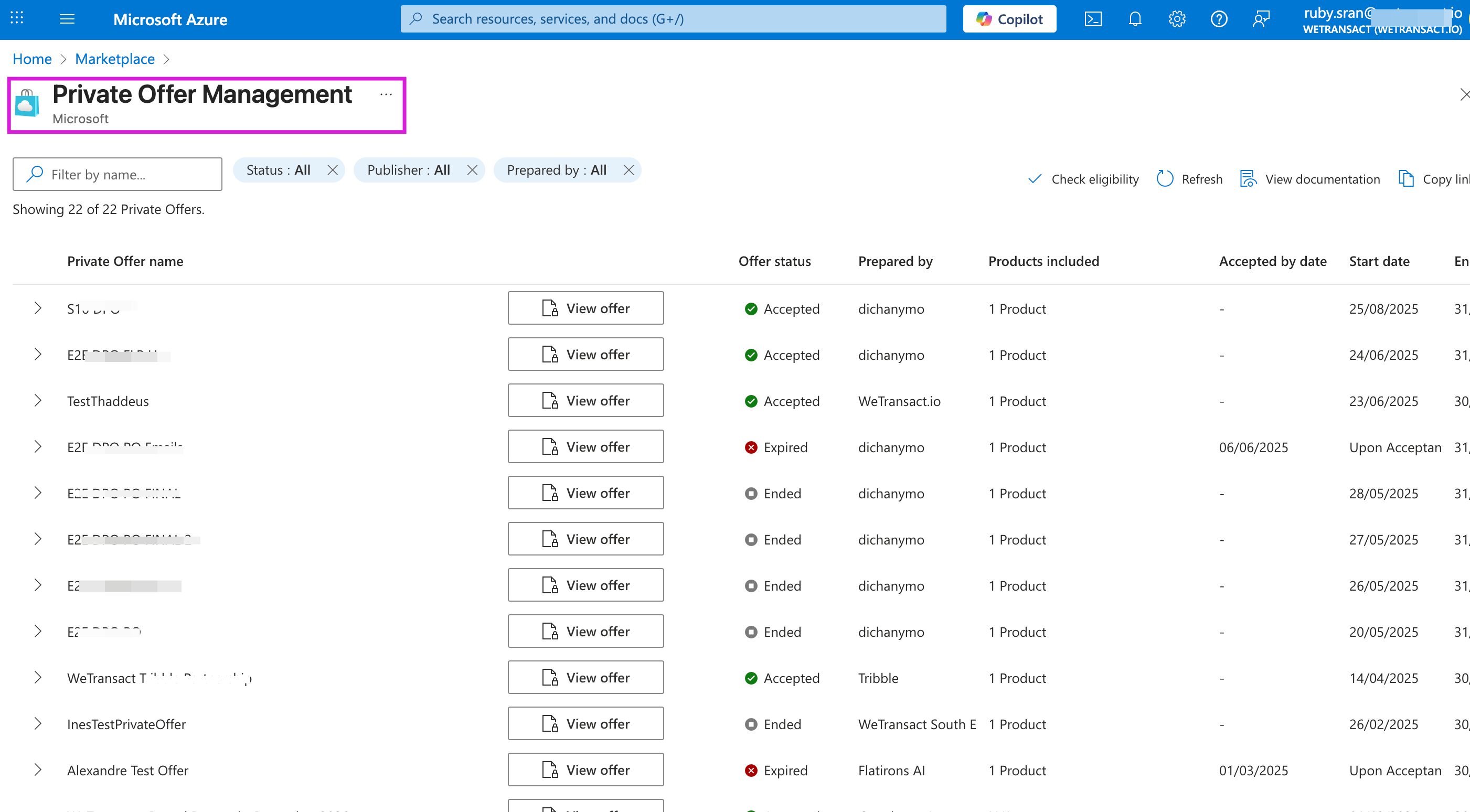
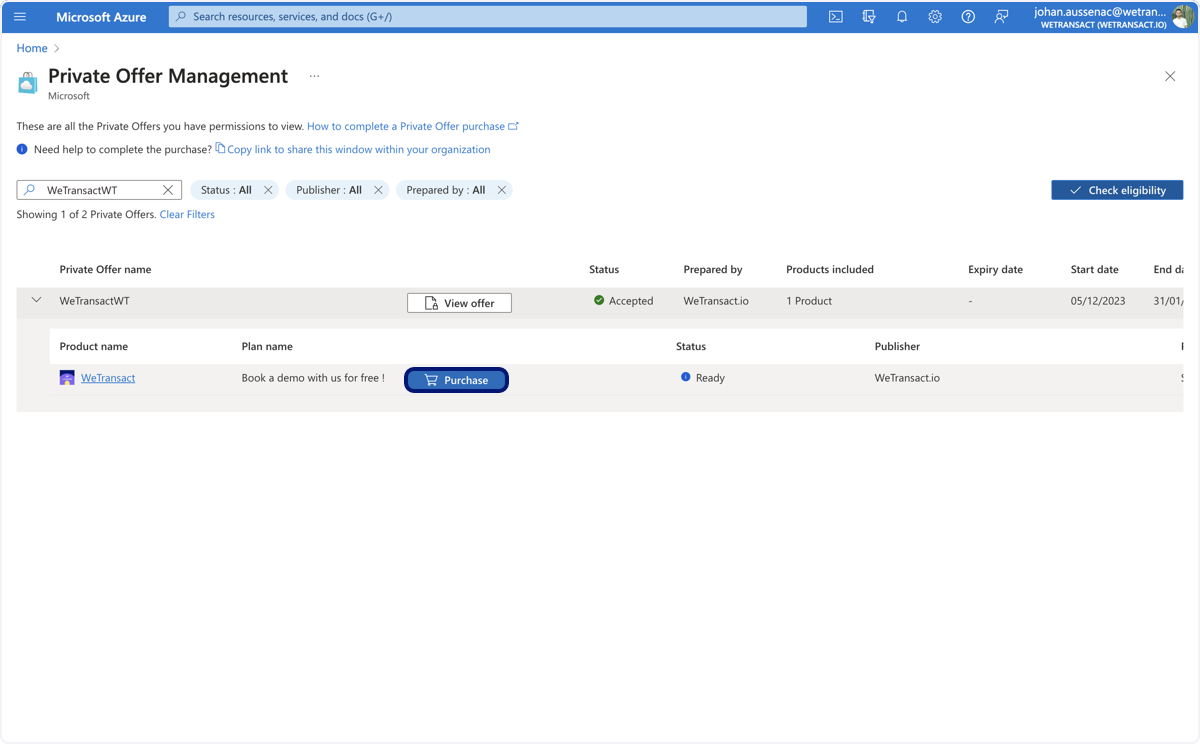
🟣 You will see all the private offers under this section. Select the private offer you want to accept and click on 'view offer'.
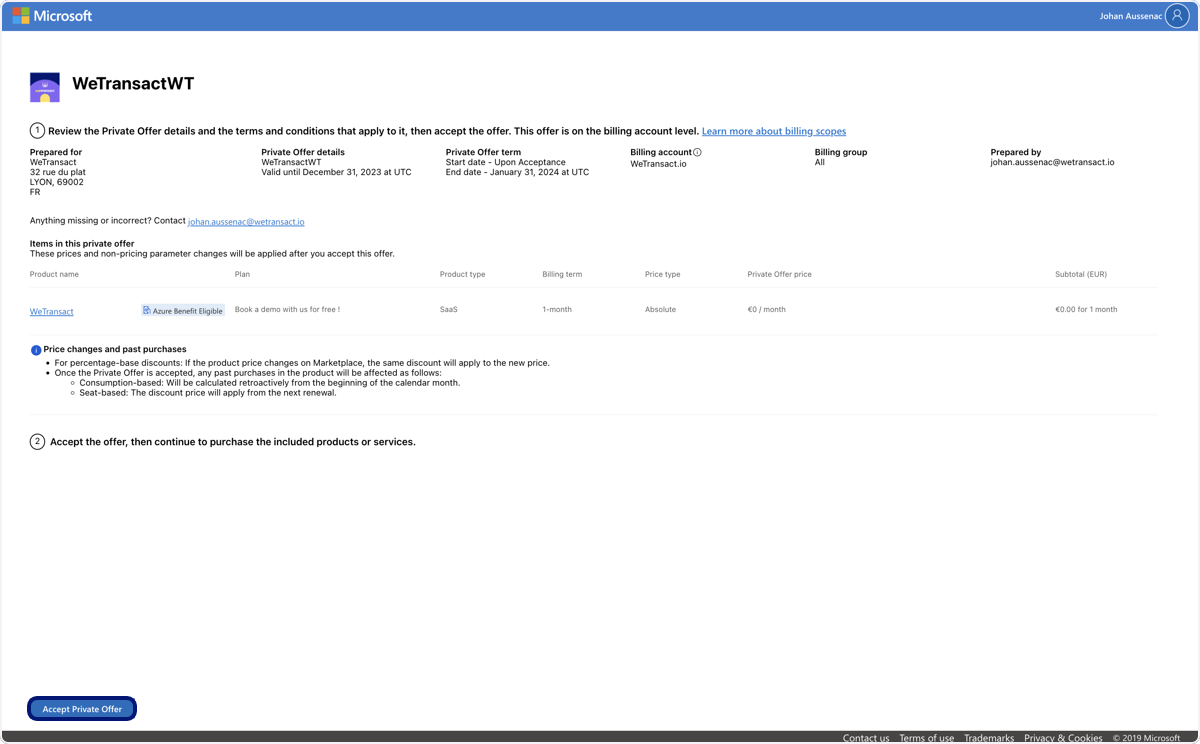
🟣 Below is what they see on their screen after click on the link or View offer
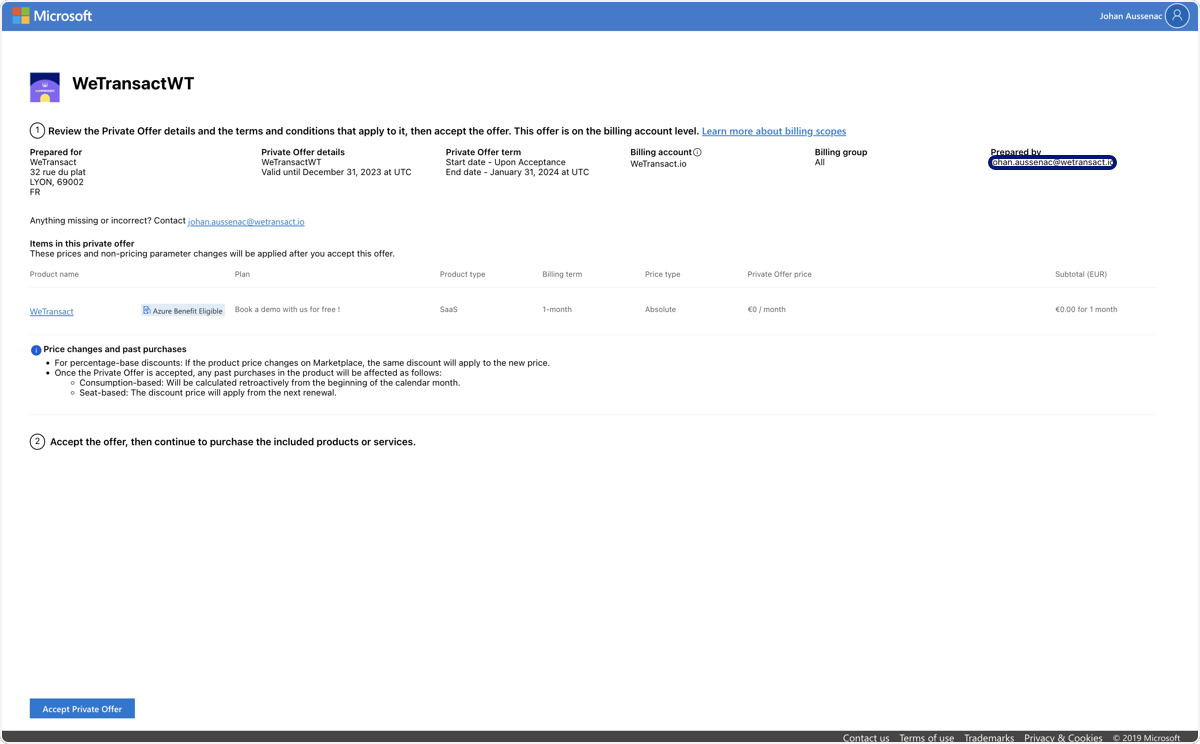
🟣 Click on 'Accept Private Offer'.
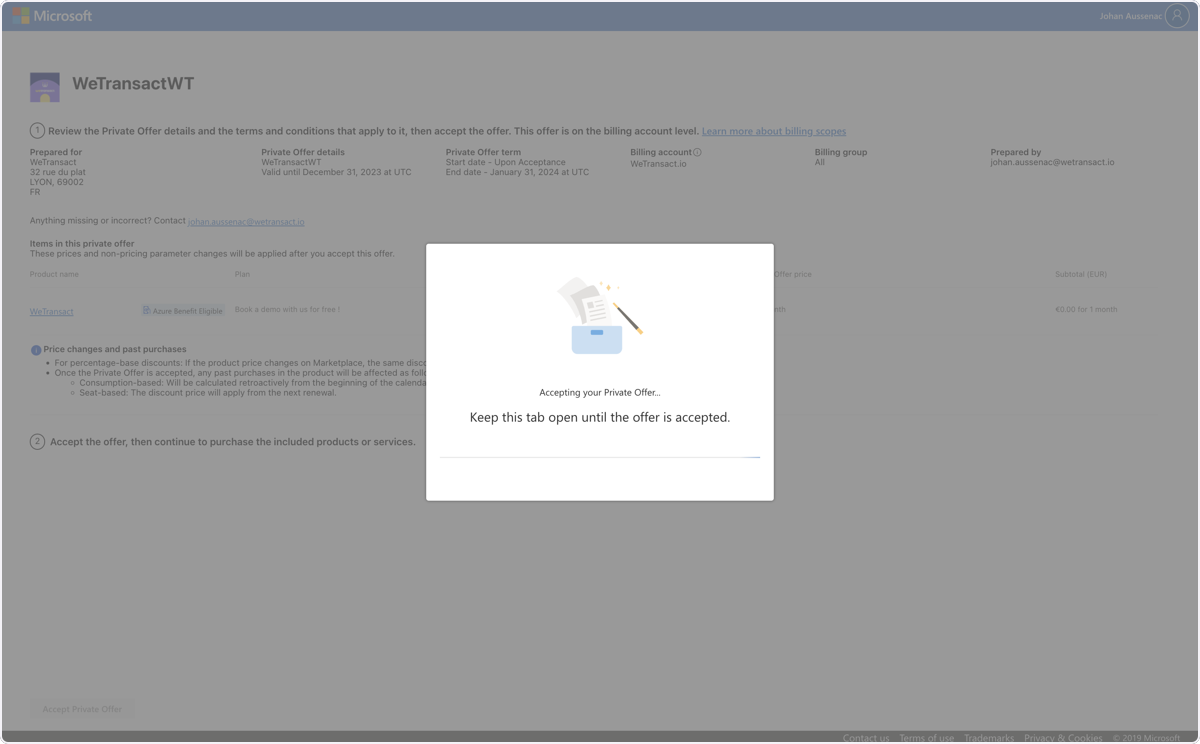
🟣 Click on Accepting your Private Offer...
🟣 Click on Purchase
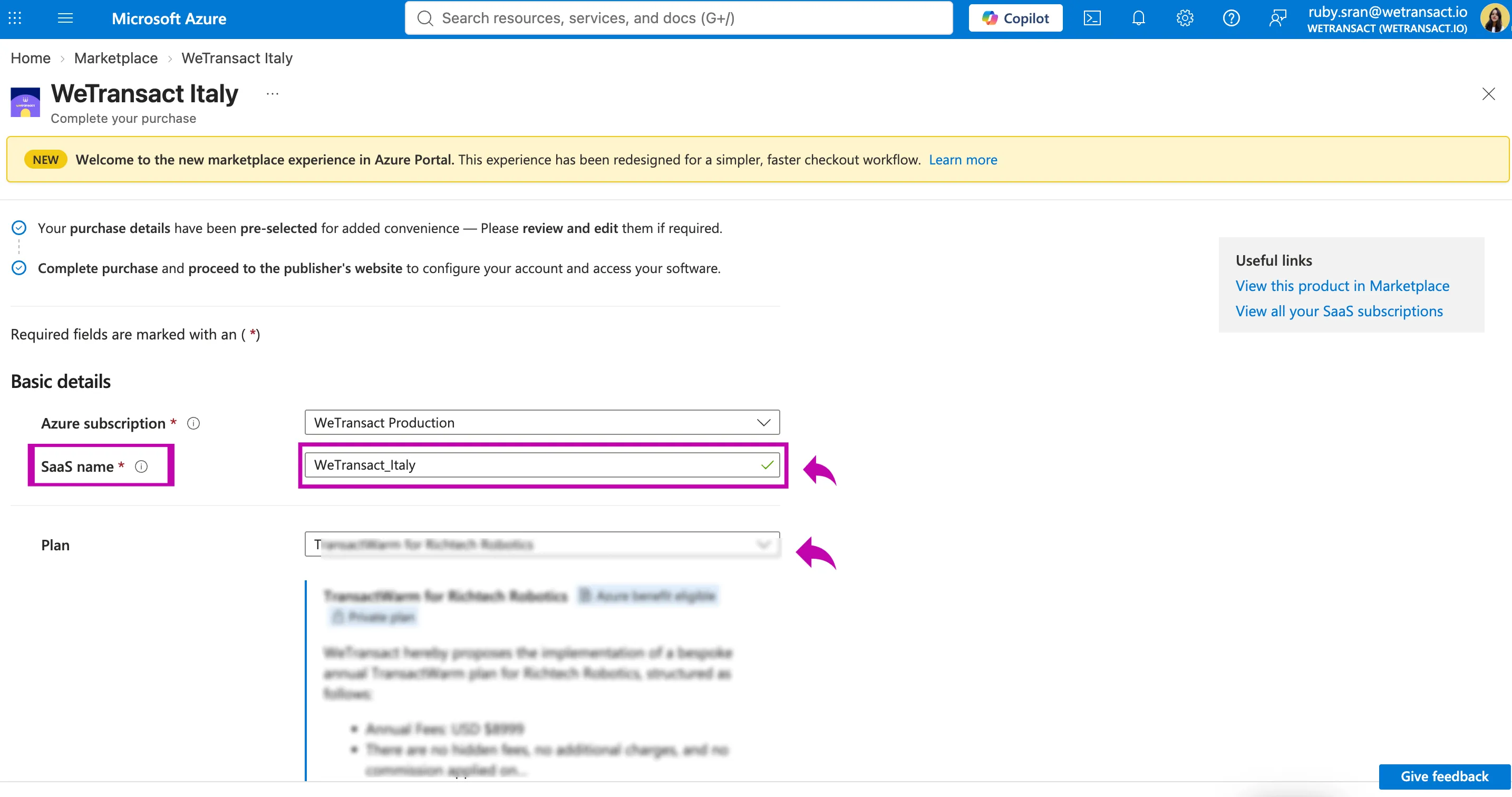
🟣 Add ' SaaS Name' It's a display name the you give to your SaaS subscription resource in Azure
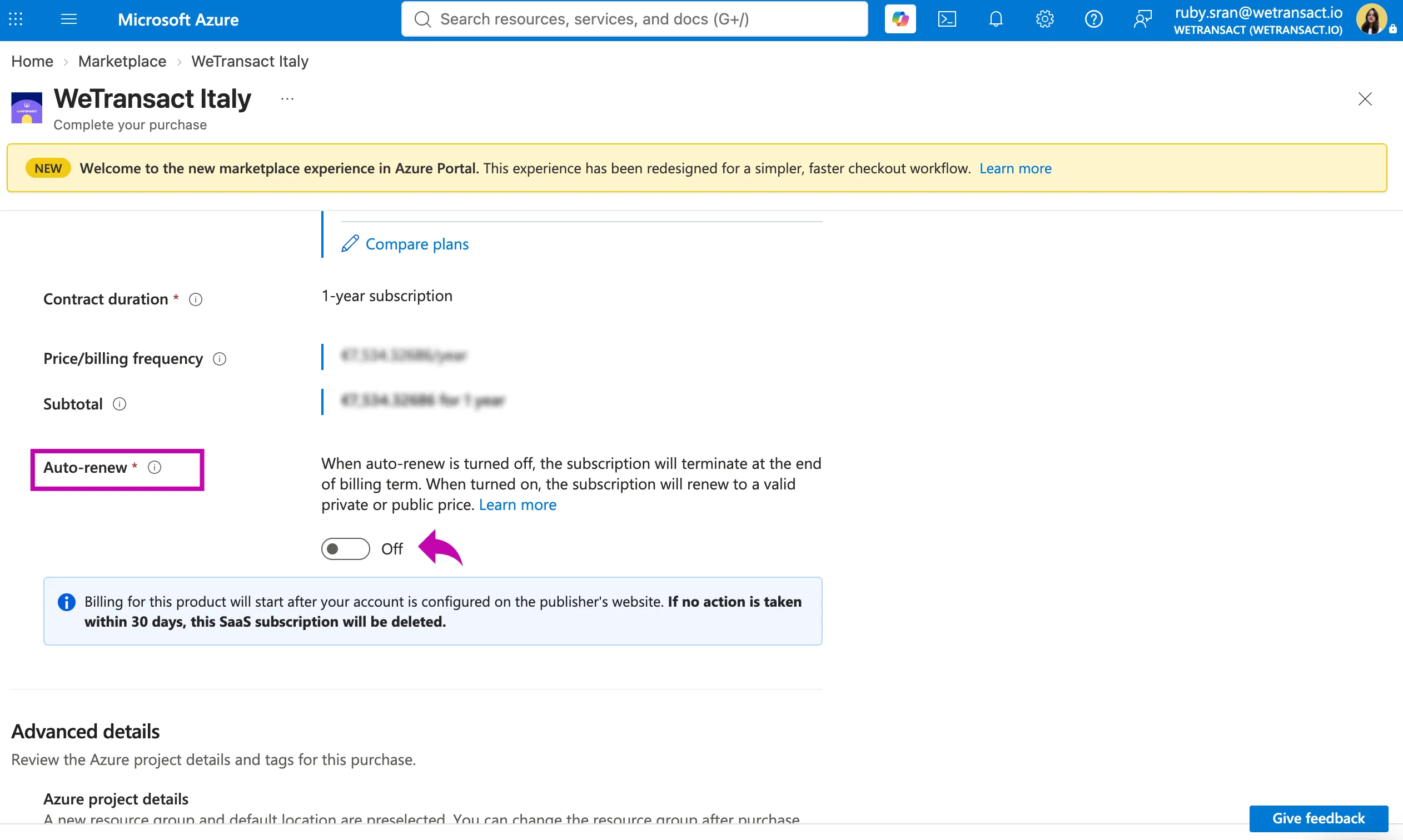
🟣 Choose recurring billing 'Auto - Renew' on or off
For Start-Ups you can leave the recurring billing on. There will be no discount changes from one year to the other.
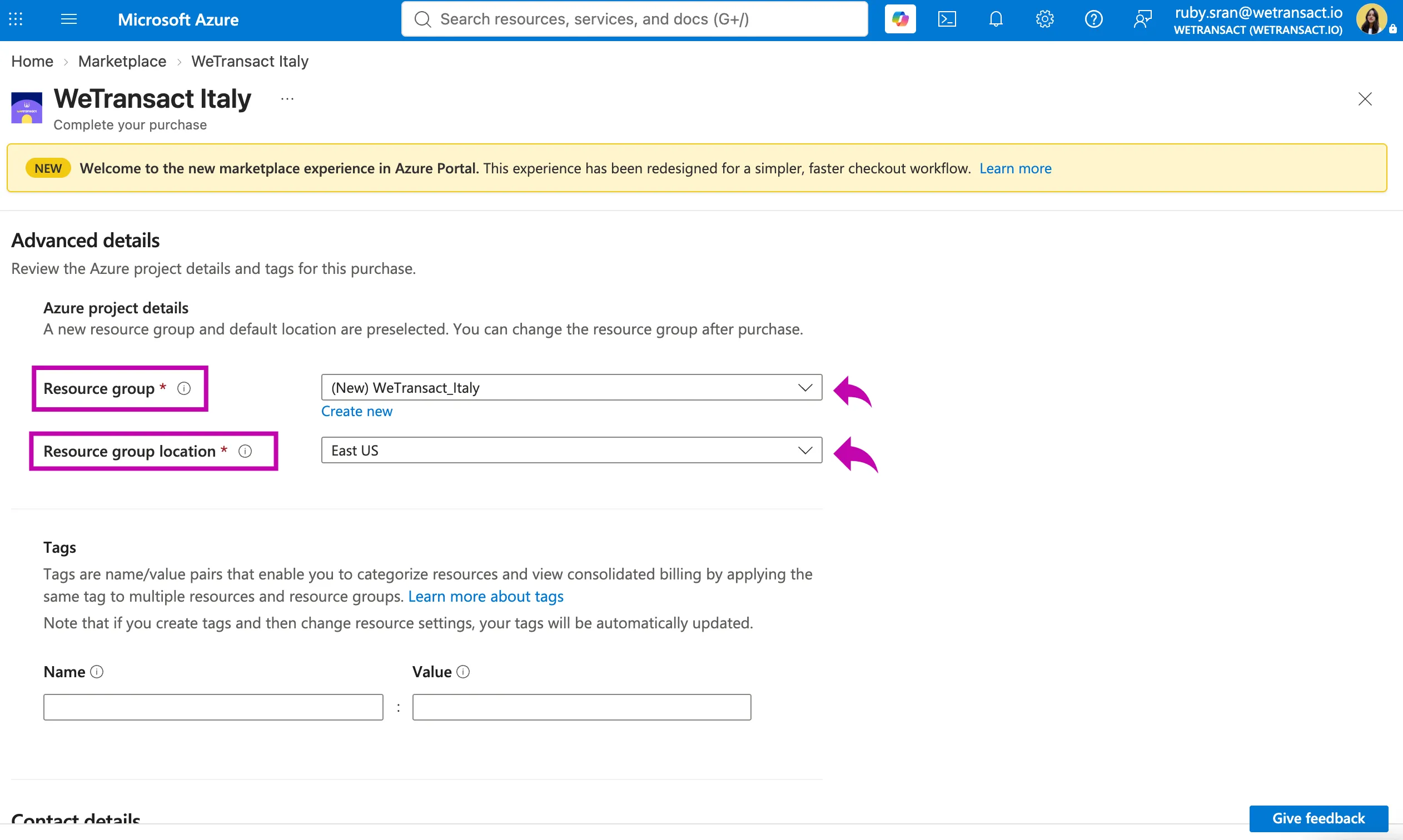
🟣 Select the "Resource Group" into which the SaaS subscription's resource will be deployed
FAQ at this stage:
- Which Resource Group should I deploy into?
- Answer: I would advise creating a new one named "MarketplacePurchases". This is where you'll find all your apps procured through Marketplace.
- Why did Azure create a 'SaaS resource' if the application isn't running in my Azure account?
- Answer: The reason Azure creates SaaS resources is to ease transactions with the product. In other words, you'll find all the transaction information about one product by clicking on the SaaS resource. You will also be able to cancel/change or deactivate the renewal of the subscription clicking on that resource.
- Resource group location ?
- Answer: the "Resource group location" only determines where the resource group's metadata is stored in Azure. Azure requires every resource group to have a region, so the field is mandatory even when it's irrelevant.
- What it's not: it has nothing to do with where the SaaS software runs. A SaaS subscription is just a billing/entitlement record in the customer's Azure environment — the actual application runs on the publisher's own infrastructure (in this case, wherever WeTransact hosts). Choosing East US vs West Europe doesn't move any data, change performance, or affect pricing.
- Data residency: if a customer raises residency concerns at this step, the answer is that this field is cosmetic for SaaS. Where their data lives is determined by the publisher's hosting, not by this dropdown.
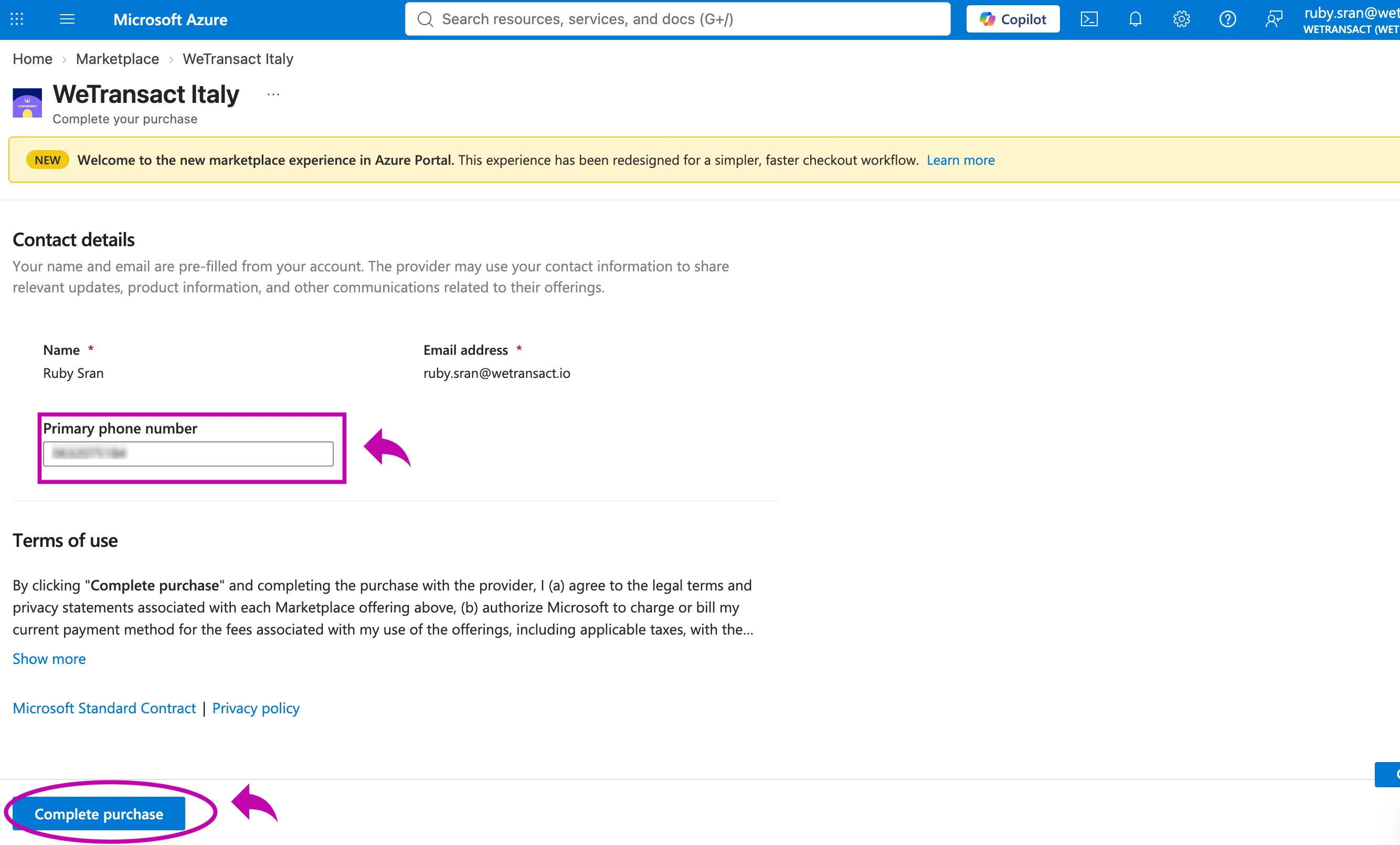
🟣 Add Contact details (optional) and Click on 'Complete Purchase'
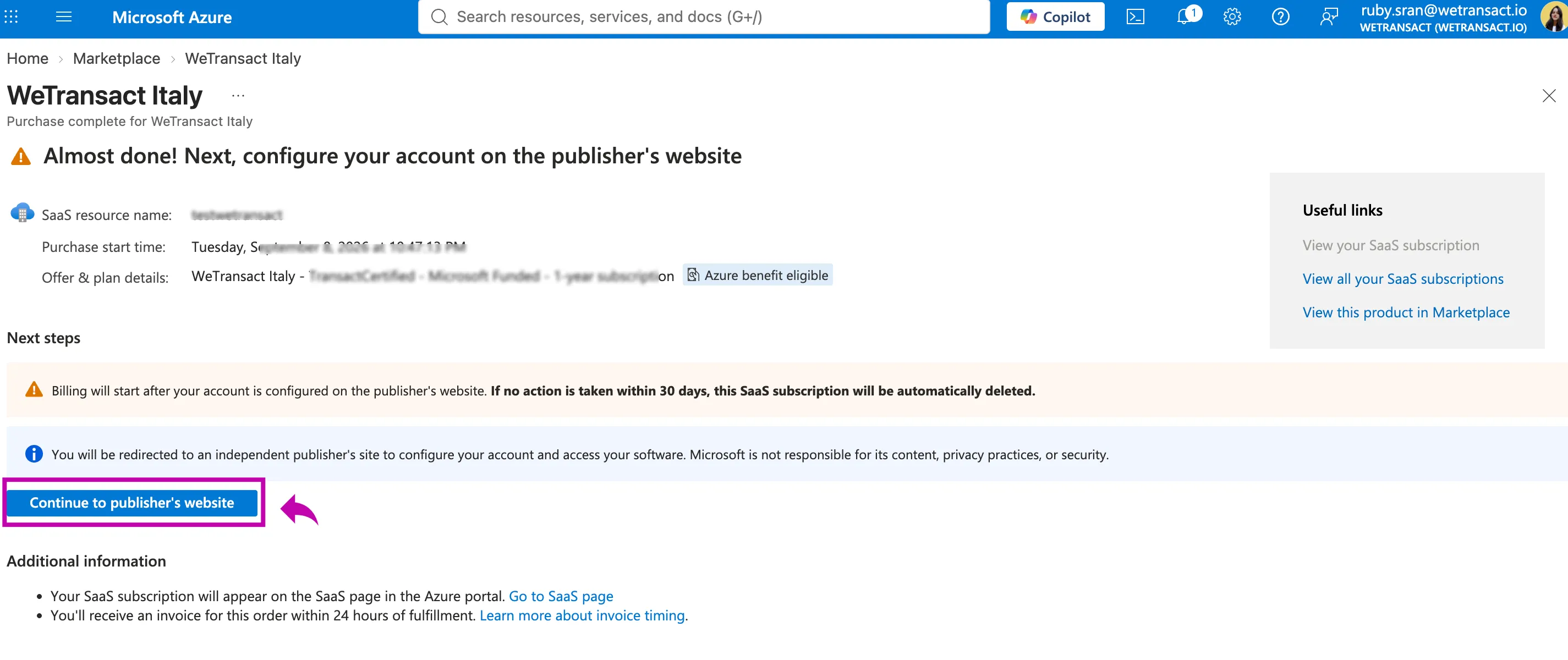
🟣 After 2 min, the "Continue to publisher's website" button will appear. Please click on it.
You'll be directed to the landing page as shown below:
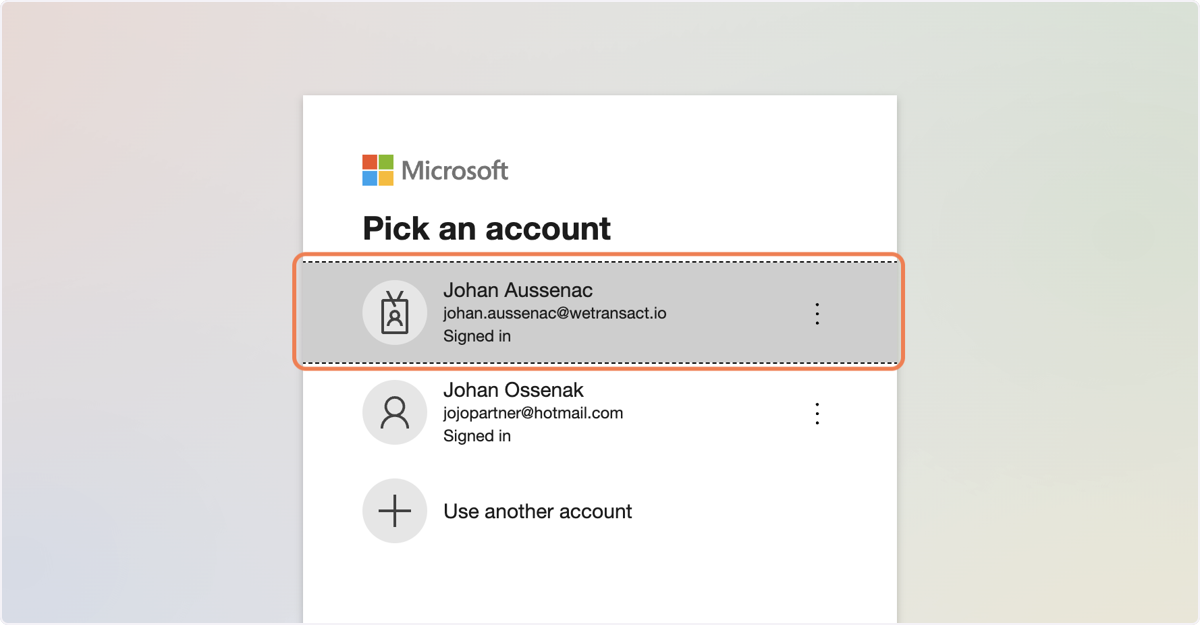
🟣 Sign into your account
🟣 On the Landing Page, please enter your company name.
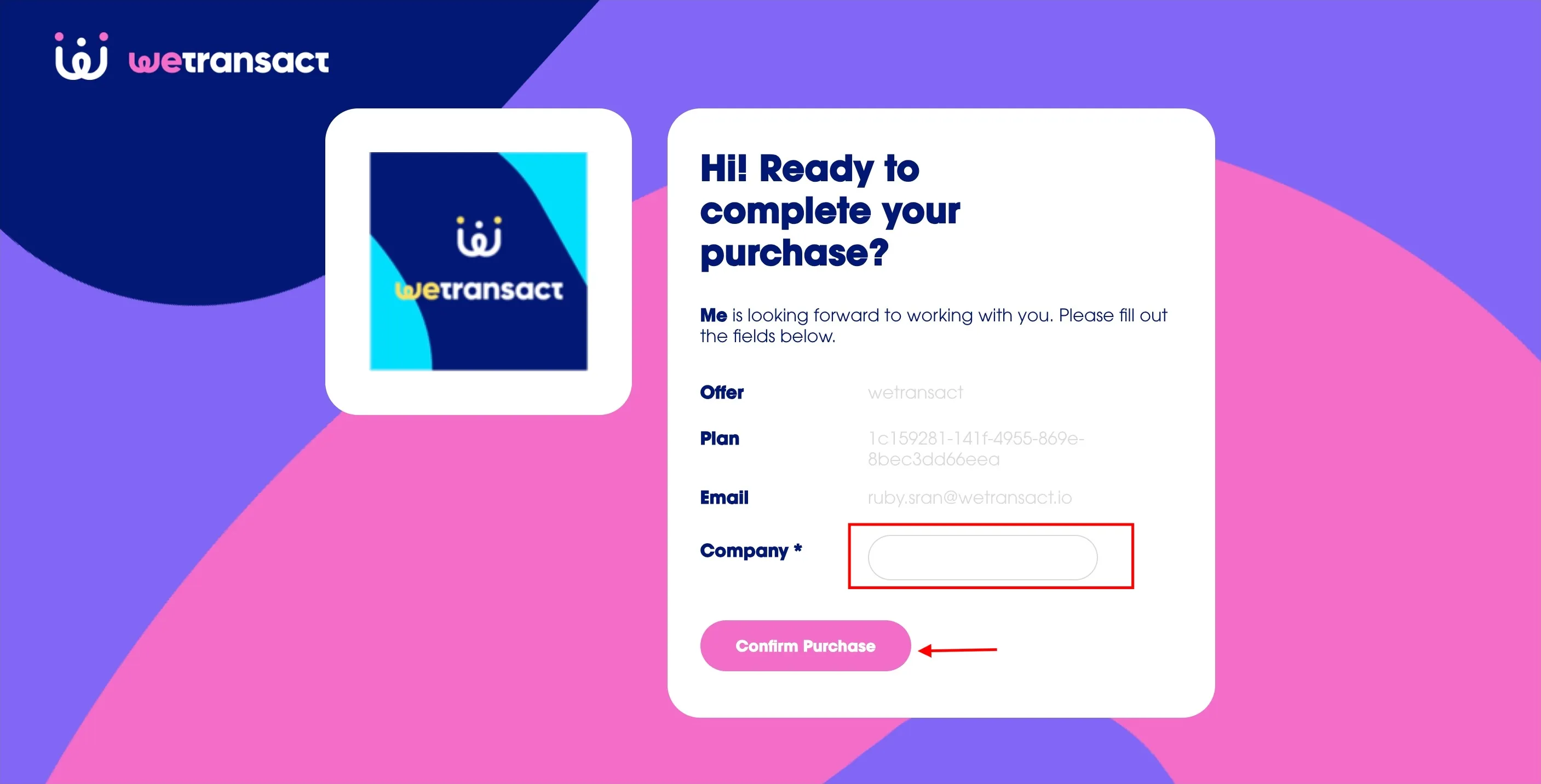
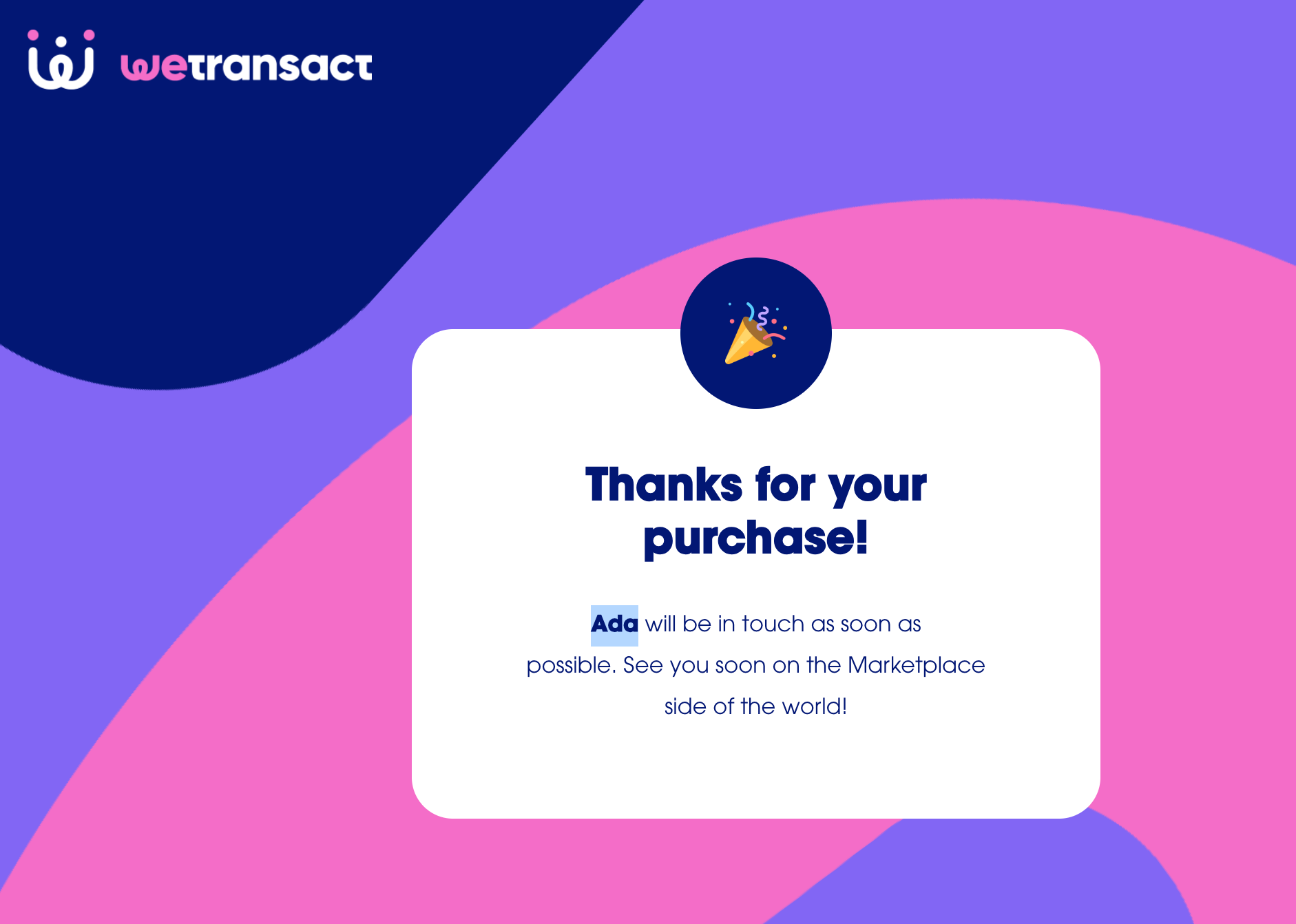
🟣 Click on "Confirm Purchase" and you're done! 🎉
💬 For more, contact us at : [email protected]