How do I use the report function for custom dimensions?
Using a custom dimension in your Pricing Plans requires reporting usage. This guide outlines a step-by-step process for billing customers based on their usage.
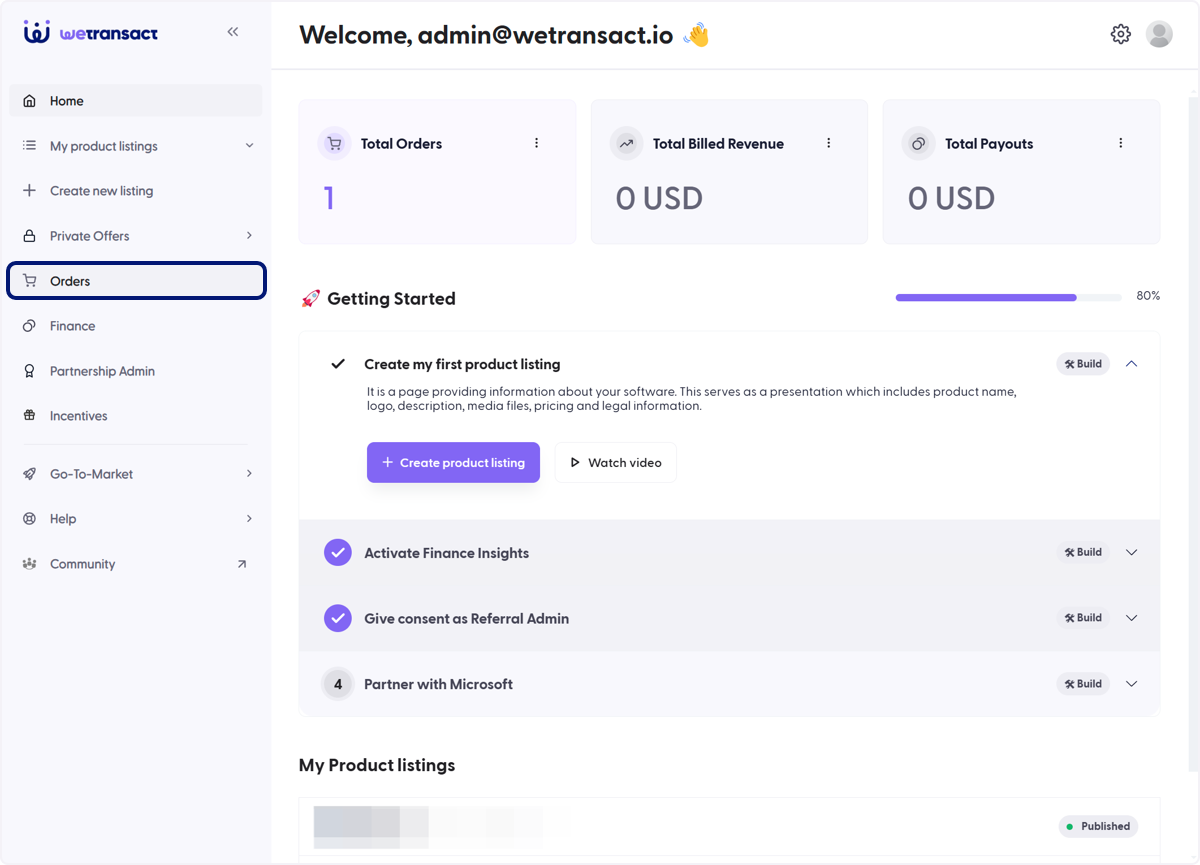
🟣 Click on Orders
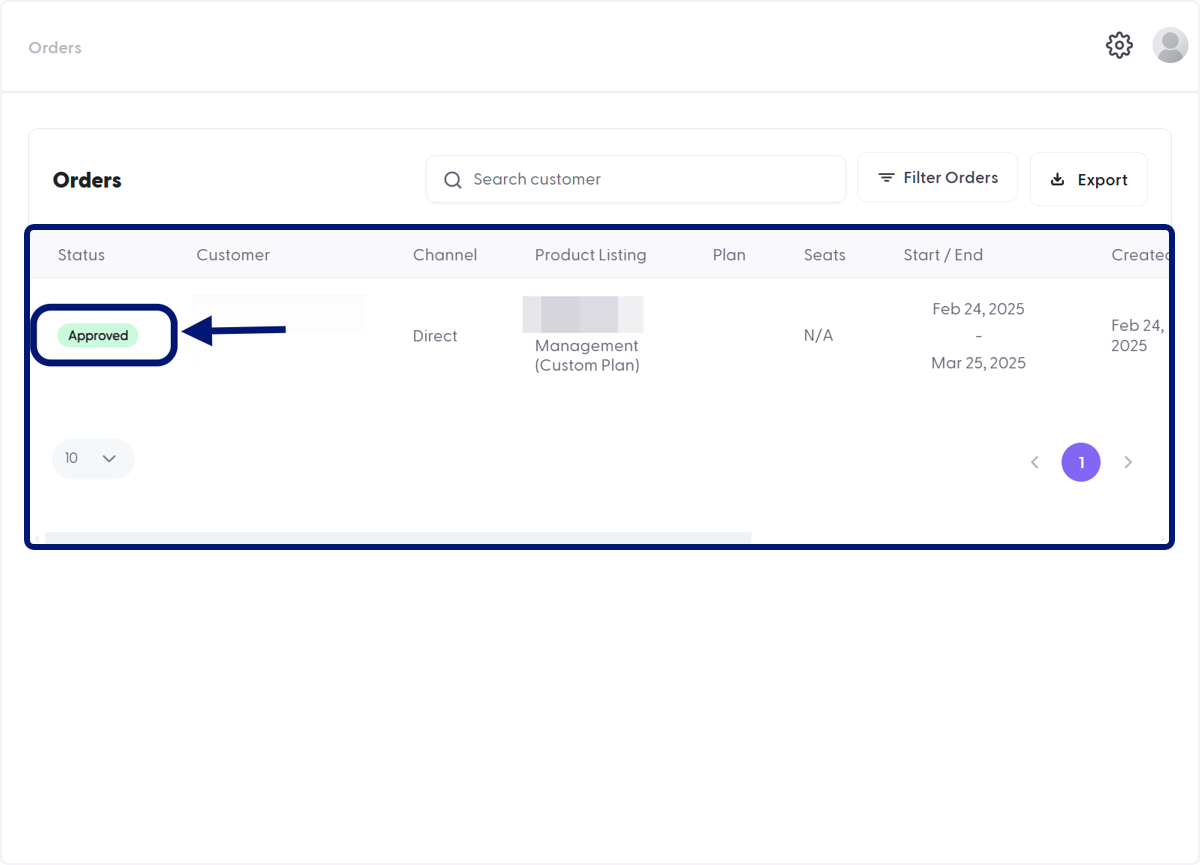
🟣 Check if the Order is Approved
The Report button will only be available once an order is Approved. Orders can be approved manually or set to auto-approve. For more details, refer to the guide: How to Activate/Accept Order.
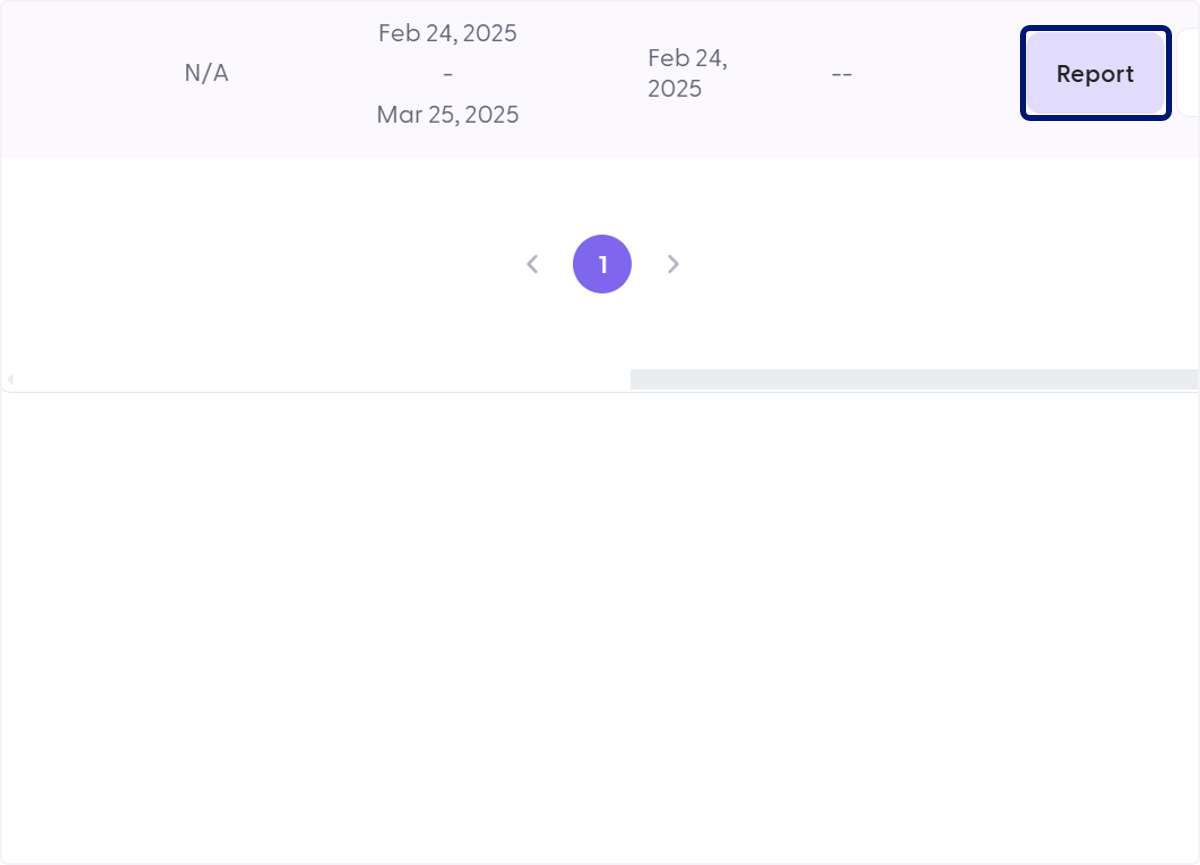
🟣 Click on Report
Scroll to the far right or locate the Action column, then click on Report.
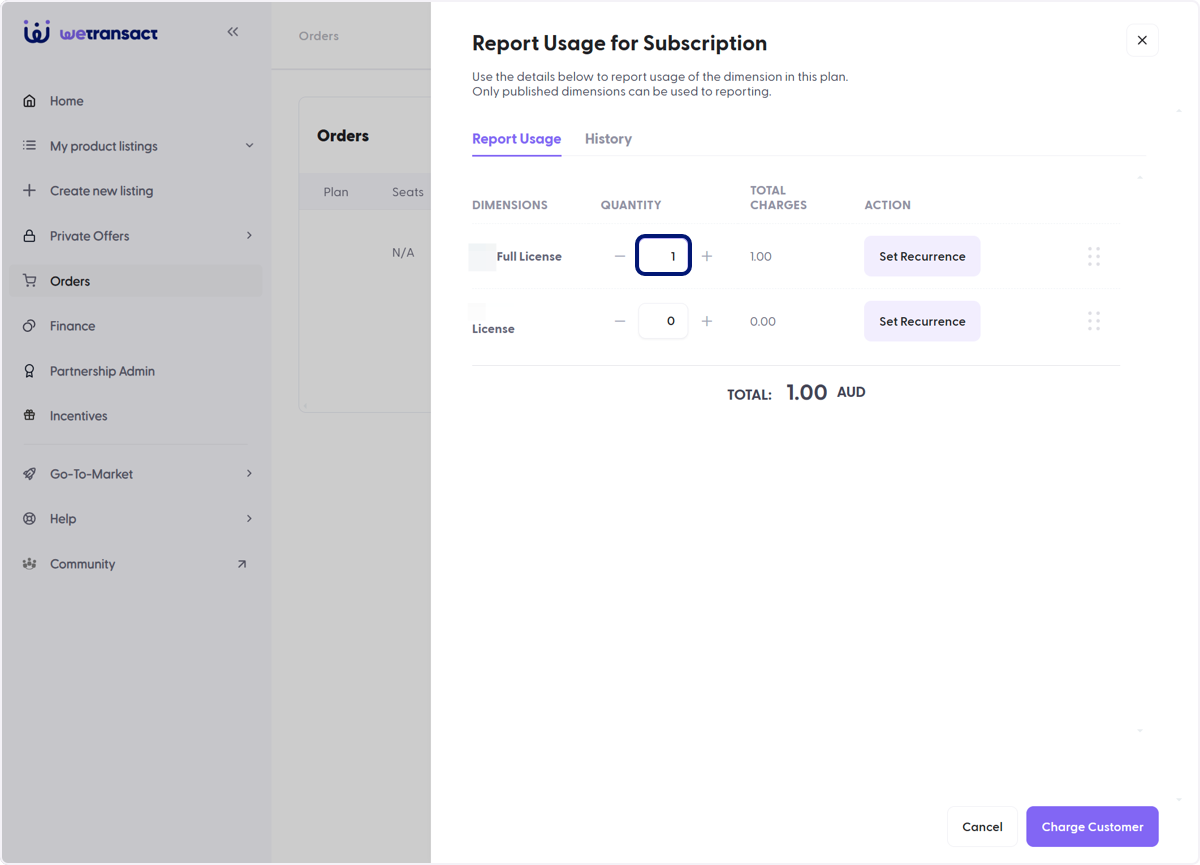
🟣 Report Usage Slide Modal
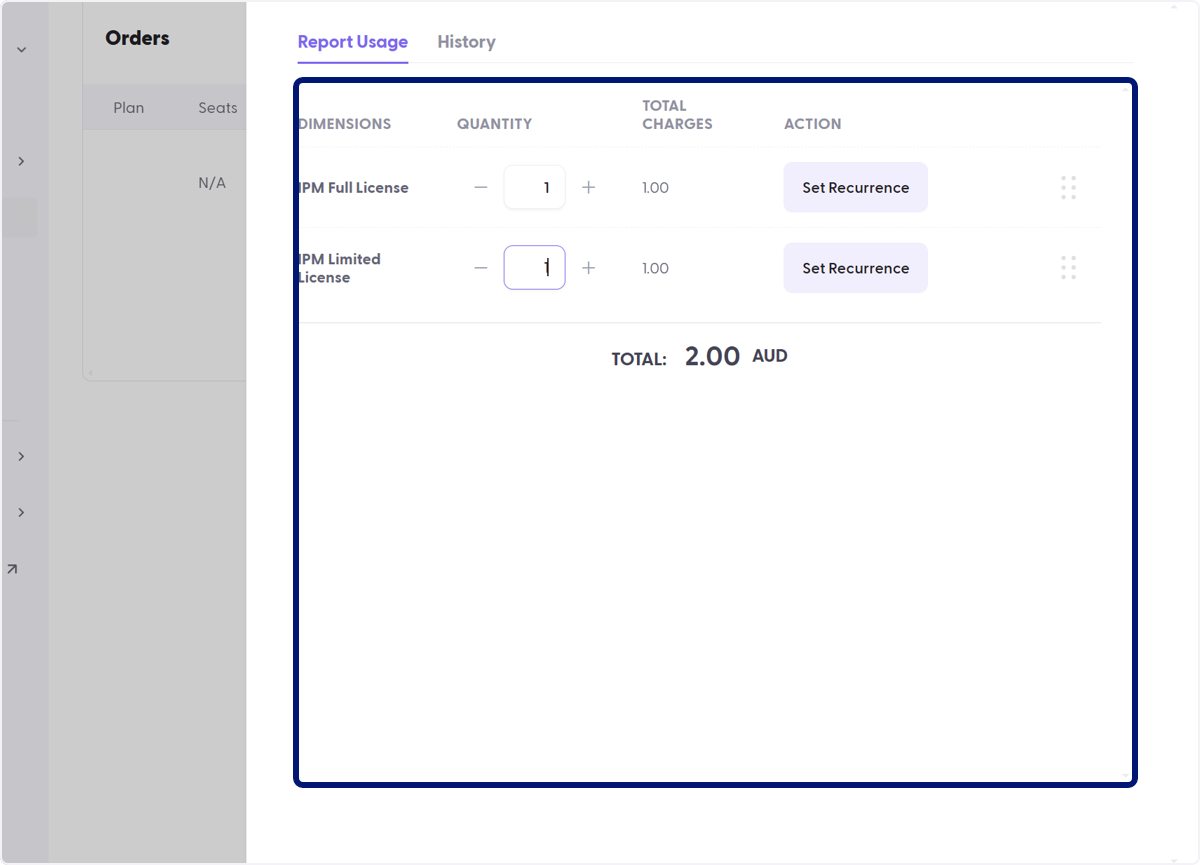
After clicking the Report button, a slide modal will appear, allowing you to enter quantities for your dimensions.
Based on the input in your Pricing Plan's Custom Dimension:
- If a price is specified, it will be automatically calculated in the Total Charges column.
- If no price is specified, manually enter a price in the Total Charges column. [For confirmation]
🟣 Set Recurrence
This feature is for setting a notification when reporting should be done. If it is a one-time fee, proceed to step Review Quantities

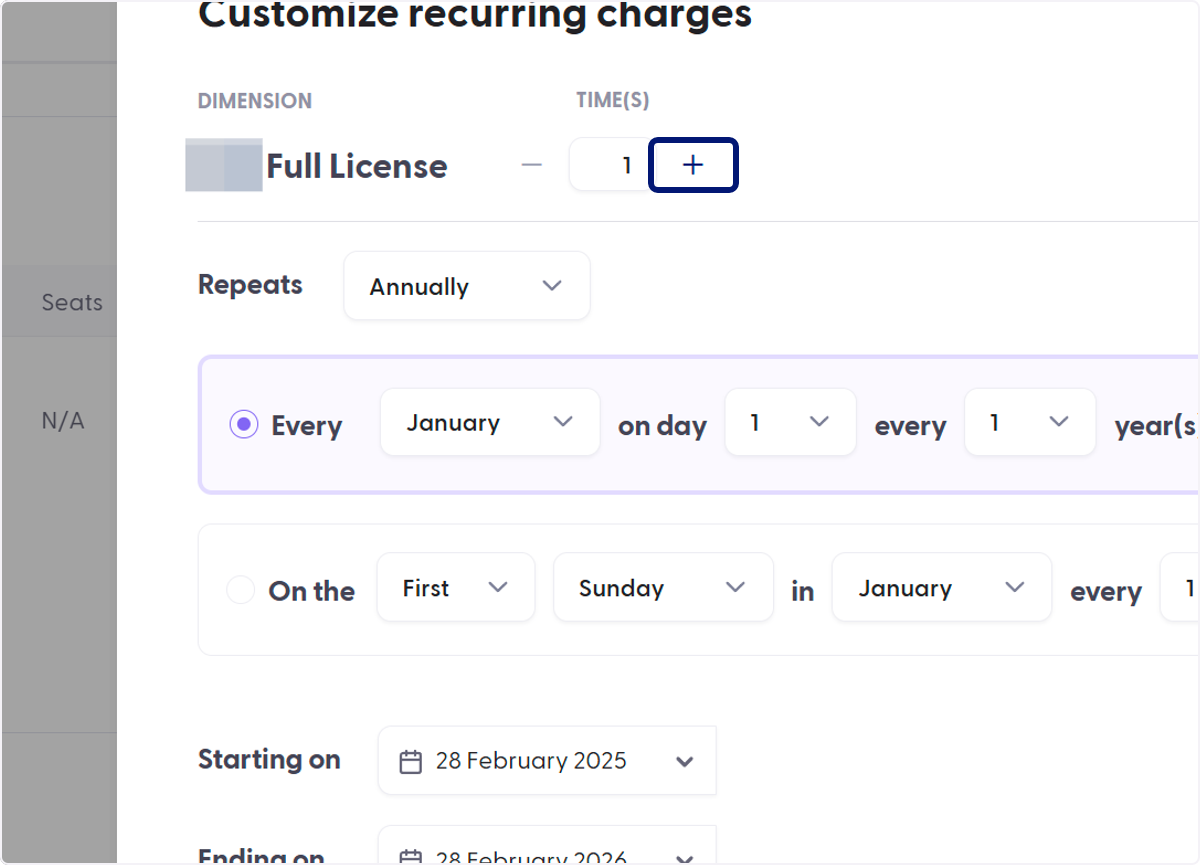
🟣 Select the number of times
[FOR CONFIRMATION]
This function allows you to automate the times (quantity, units, licenses or any other naming convention used) at which the custom dimension is charged or billed to the customer based on the selected interval. In some cases, where the custom dimension serves as a unit, you can add or adjust the quantity accordingly.
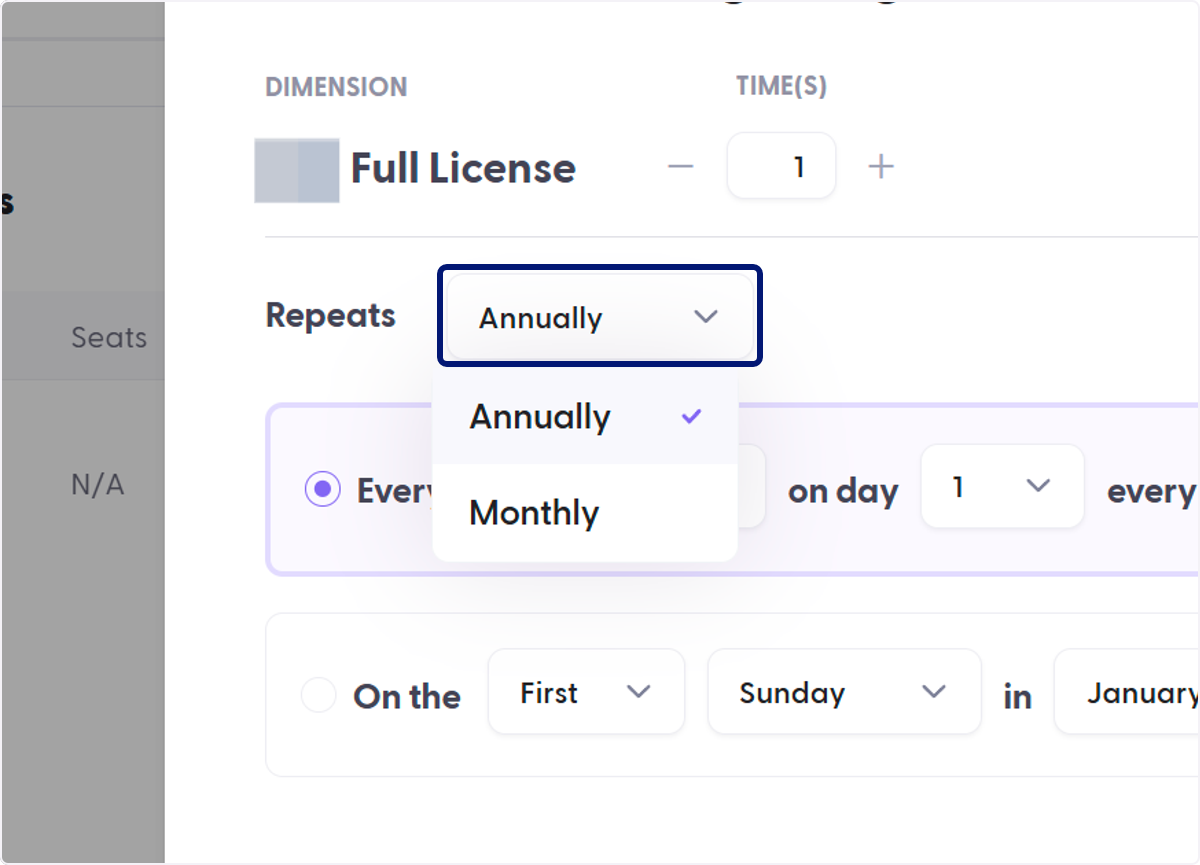
🟣 Select the Frequency
If the custom dimension is a one-time fee, select Annually.
If the custom dimension is a monthly fee, select Monthly.
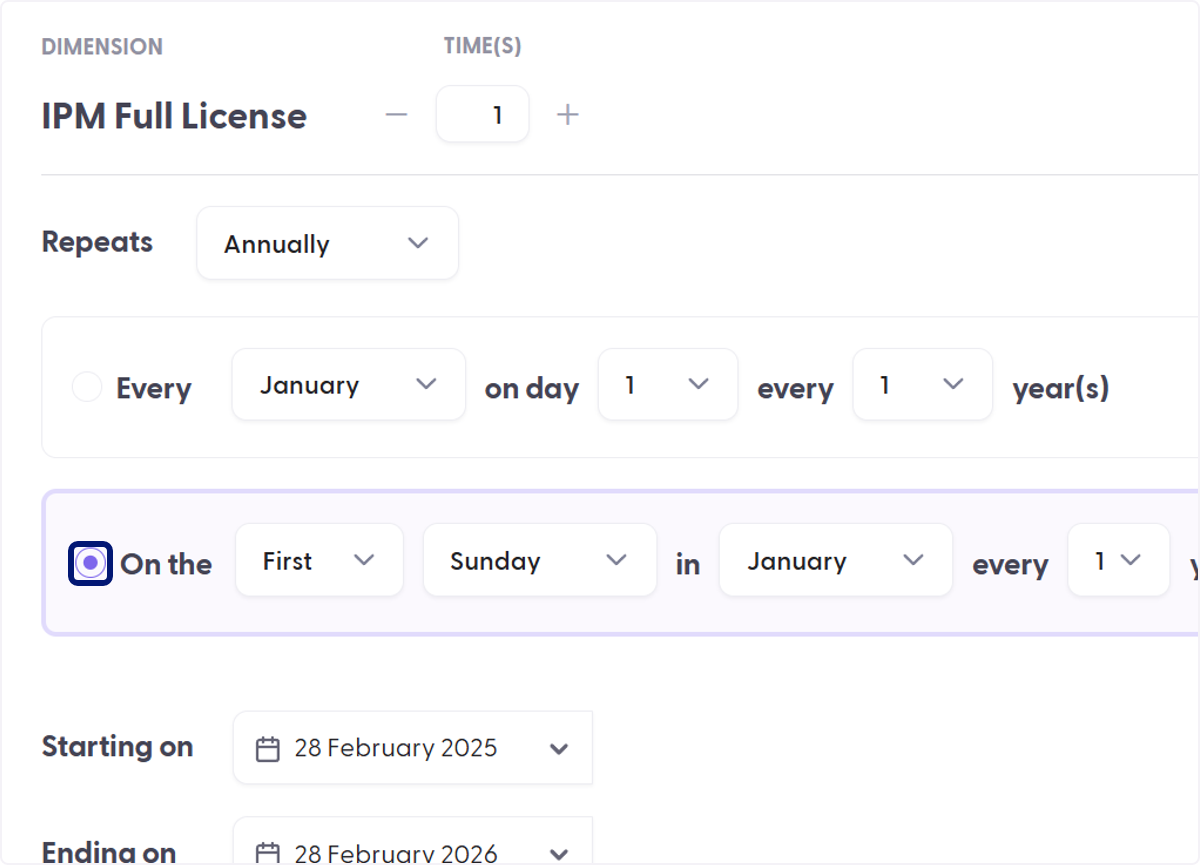
🟣 Set a specific Date or Day
🟣 Add a Timeframe
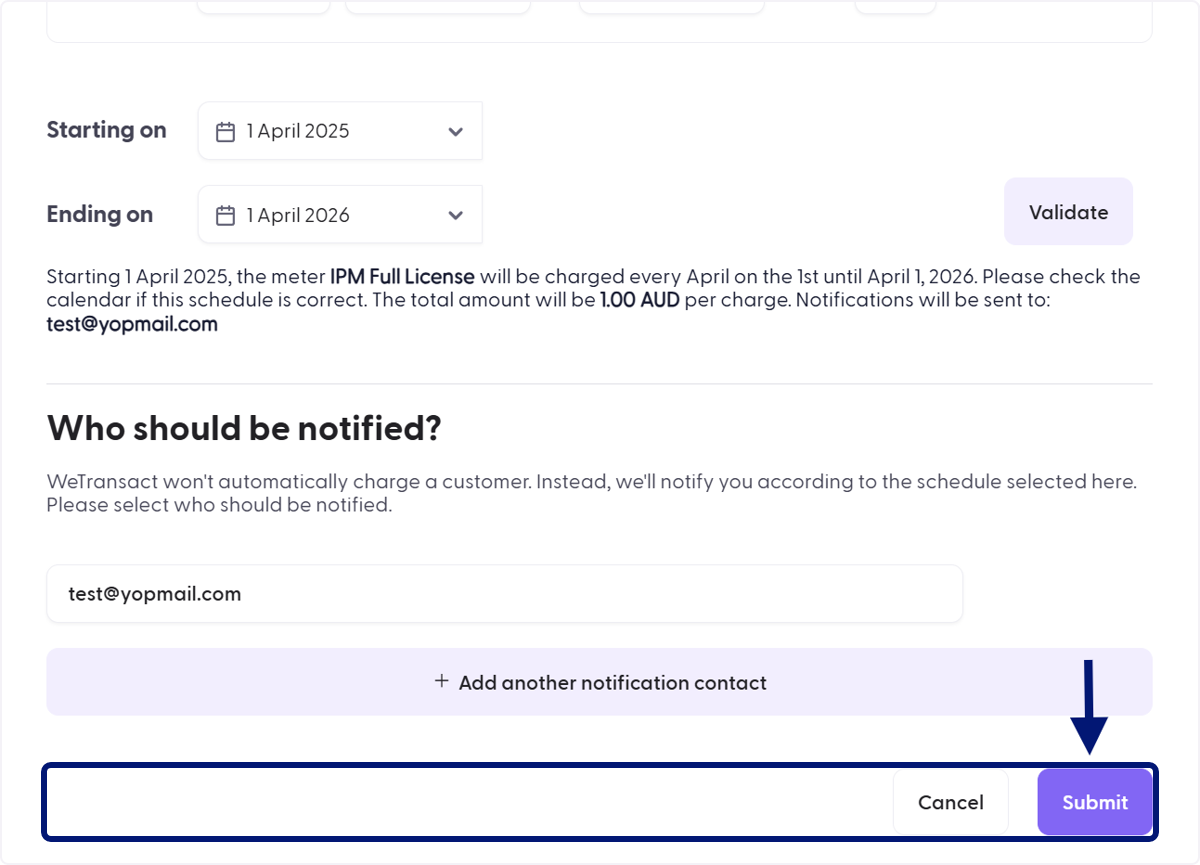
Set a starting and end date on which the recurrence should be valid.
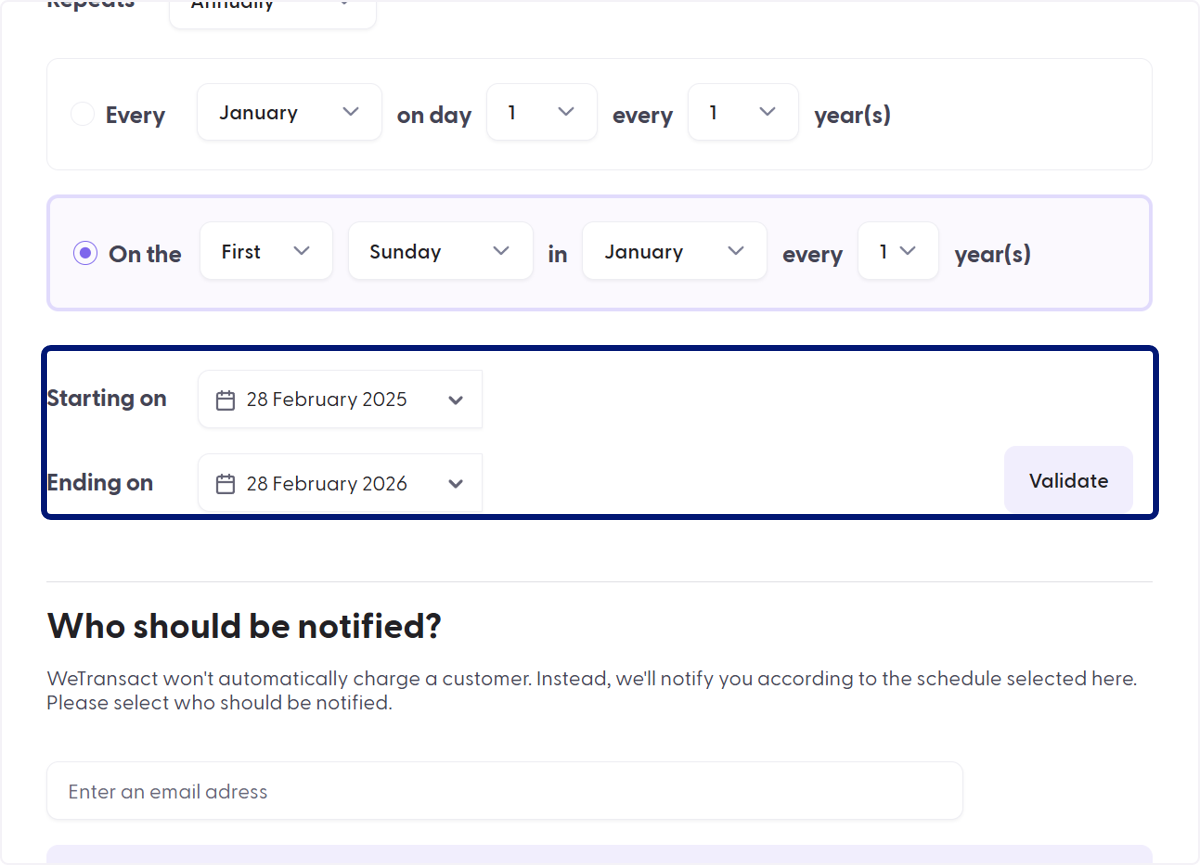
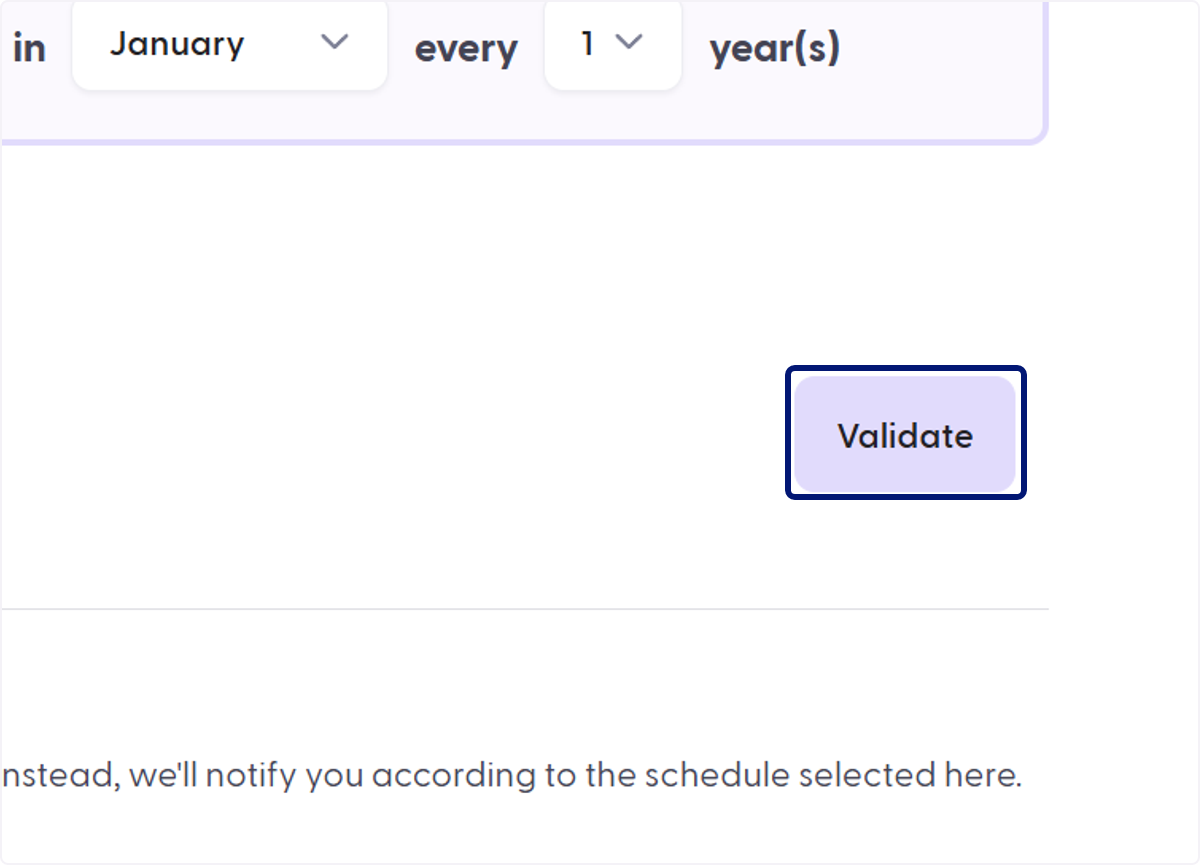
🟣 Click on Validate
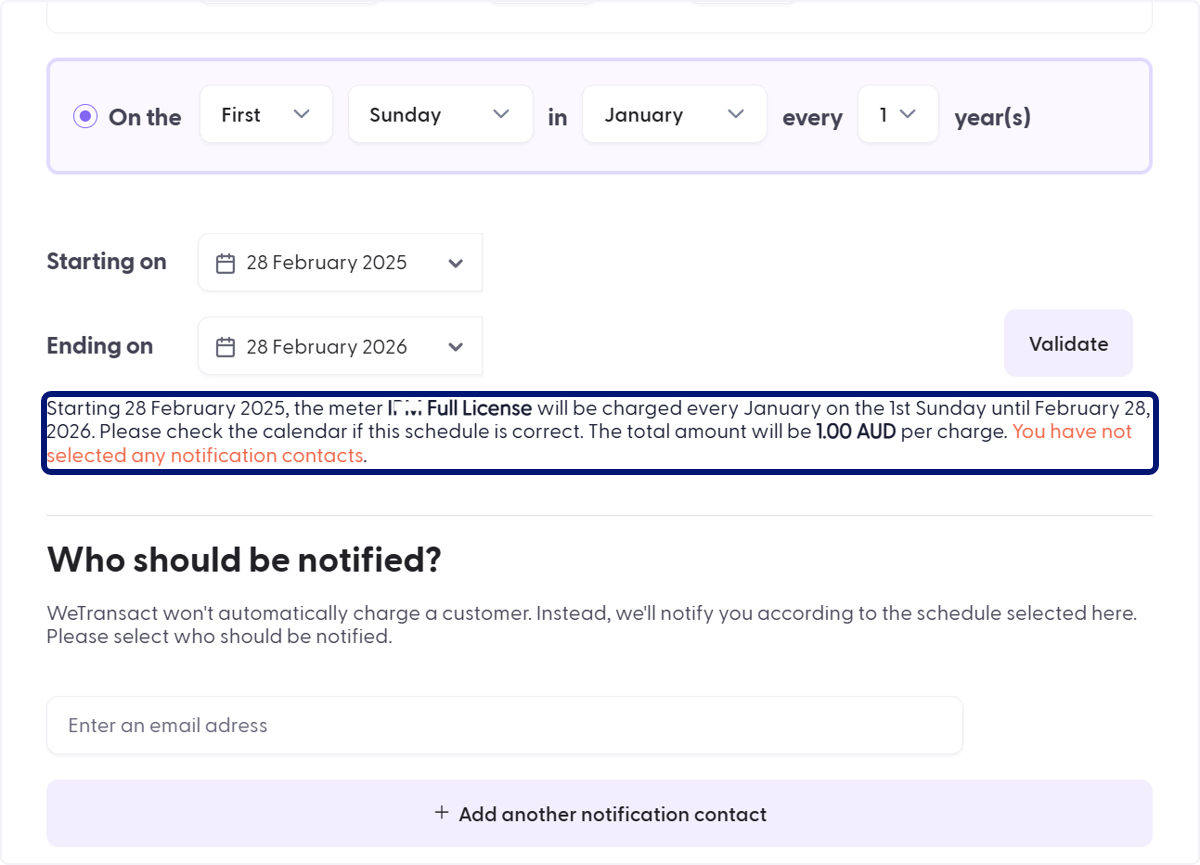
🟣 Review the details of the Recurrence setting
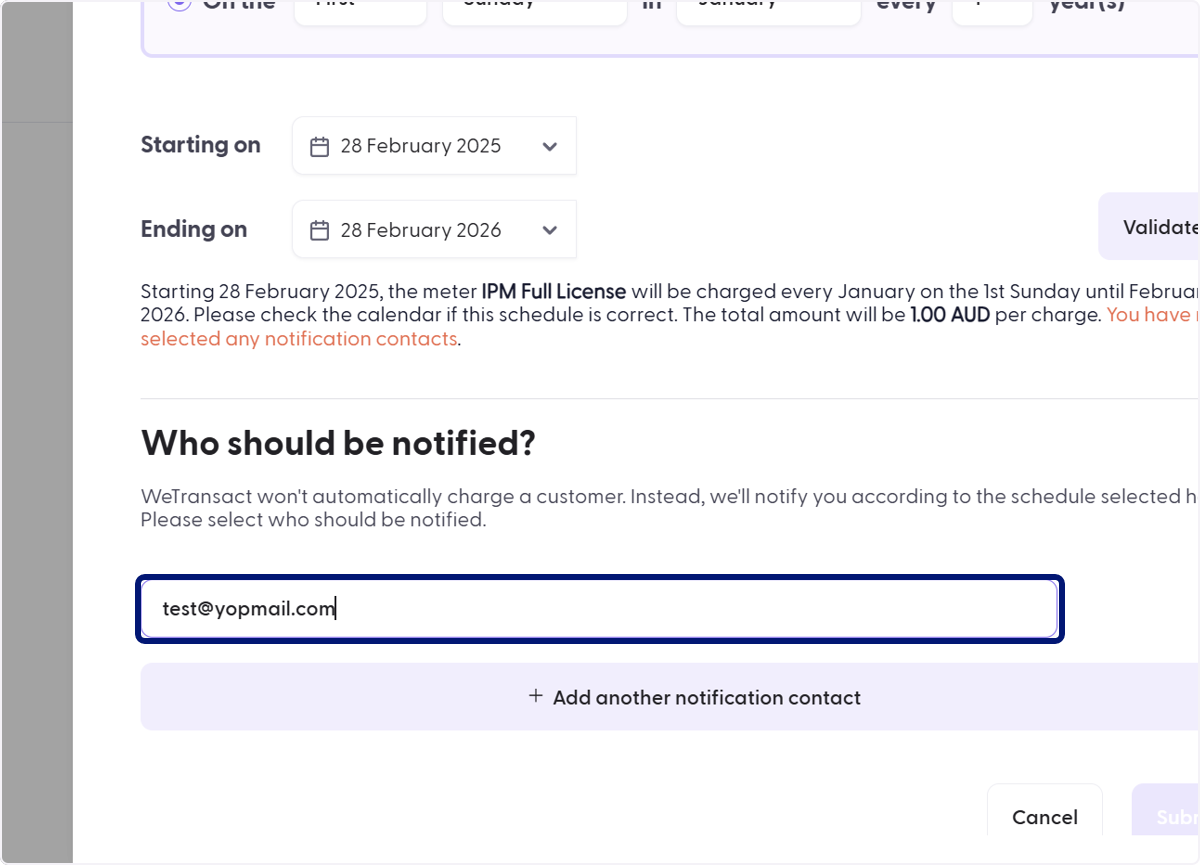
🟣 Add Notification Recipients
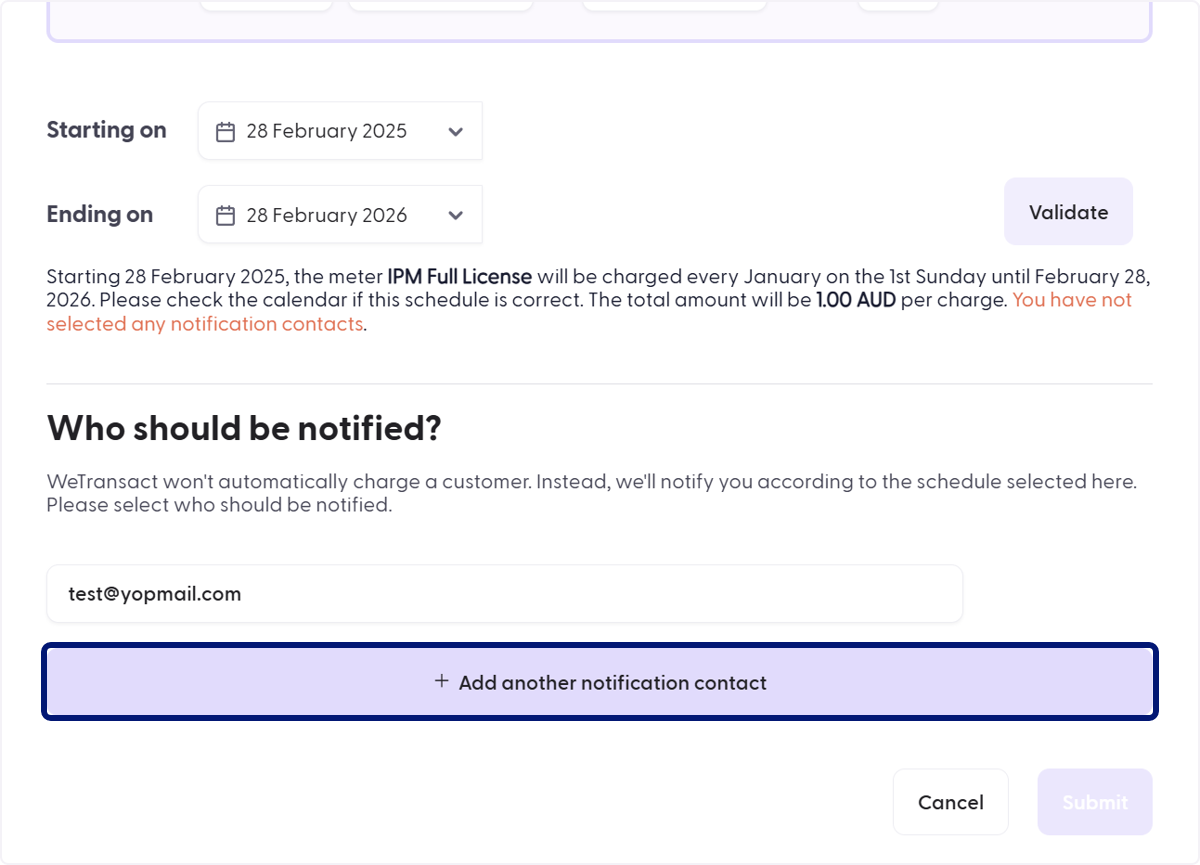
🟣 Add another notification contact
Add additional contacts who should receive the notification.
🟣 Click on Submit…
🟣 Review Quantities
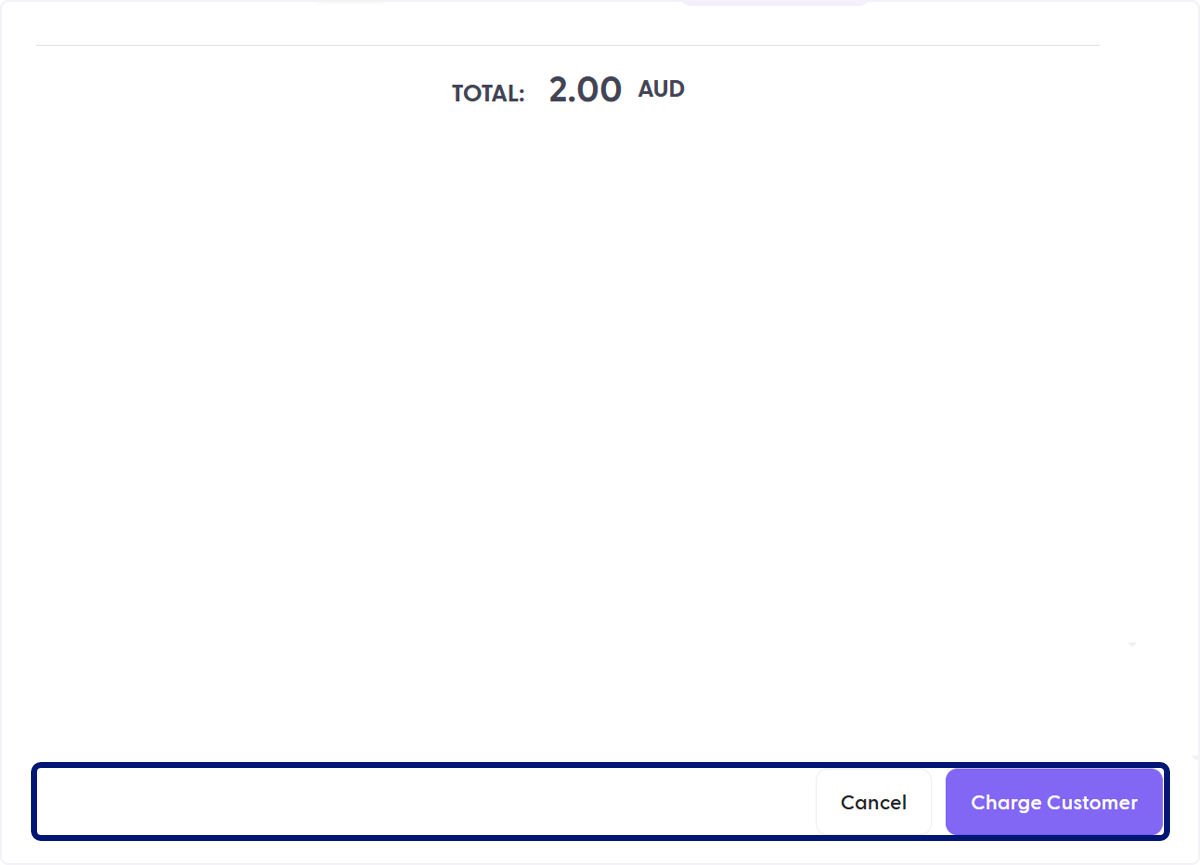
🟣 Charge Customer
💬 For more, contact us at : [email protected]