How to Set Up the Finance Tab in the Wetransact Portal?
15 min
Some informations need to be fetch real time from Microsoft. We do connect through APIs to revert back these data in an easy way in your WeTransact UI.
User Rights: You will need a Global Admin Role to perform this task
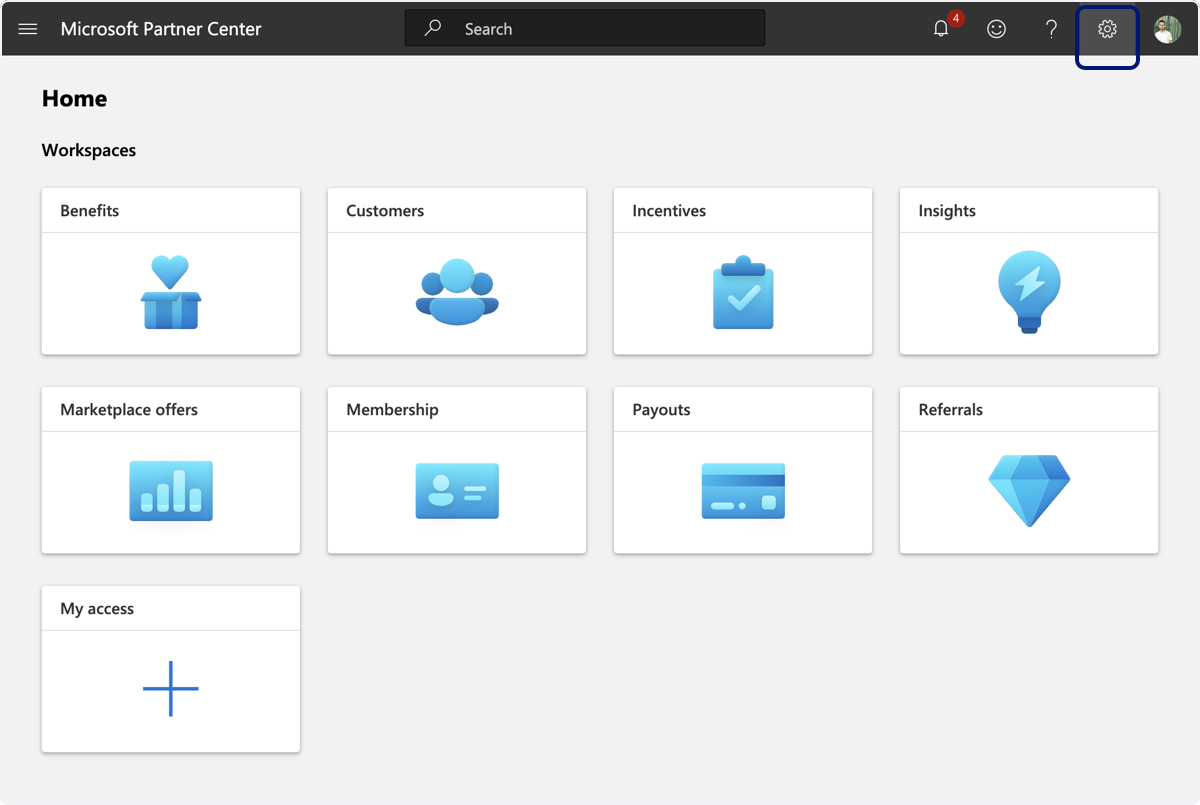
🟣 On Partner Center click on the little wheel on the top right.
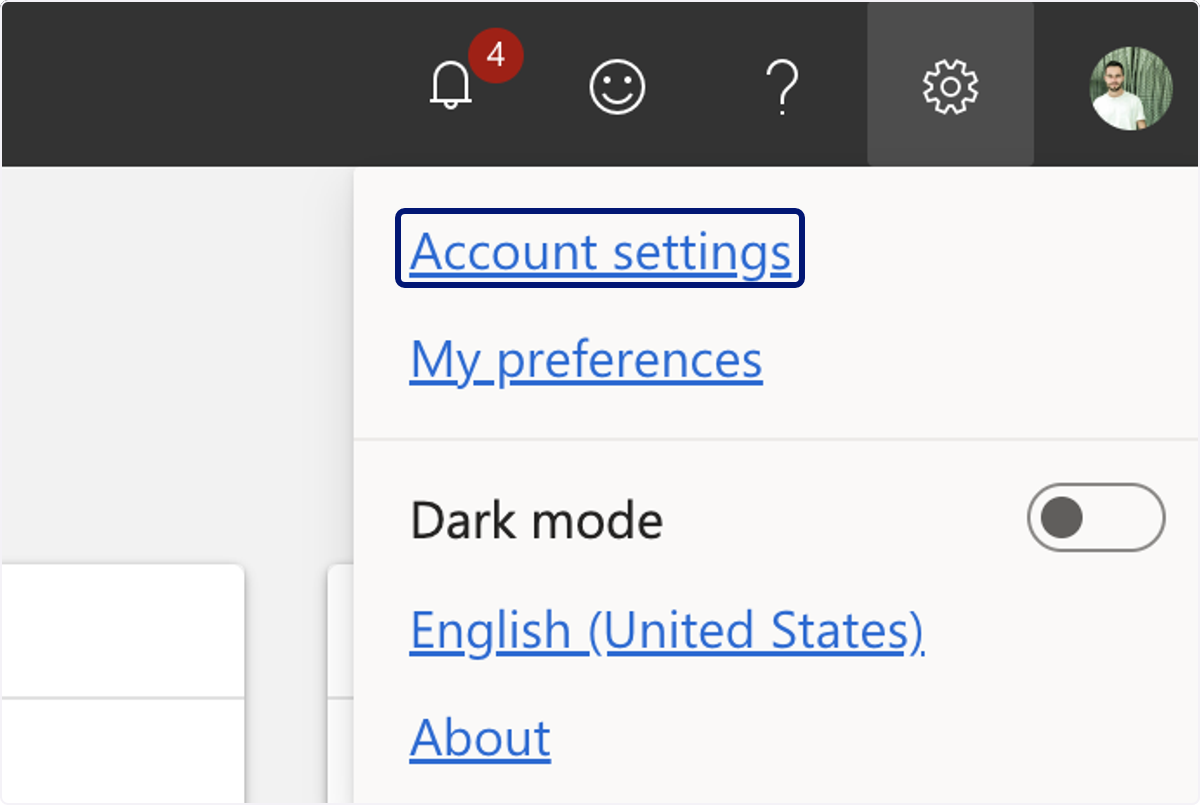
🟣 Click on Account settings
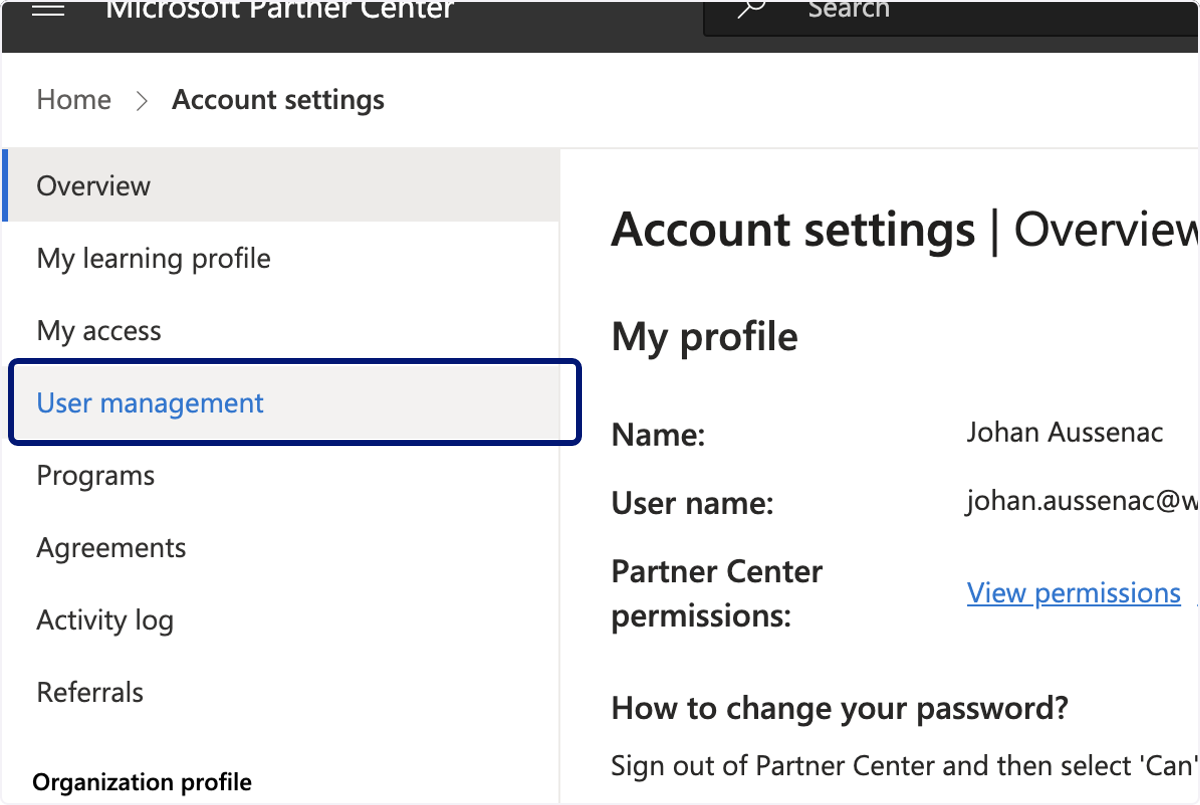
🟣 Click on User management
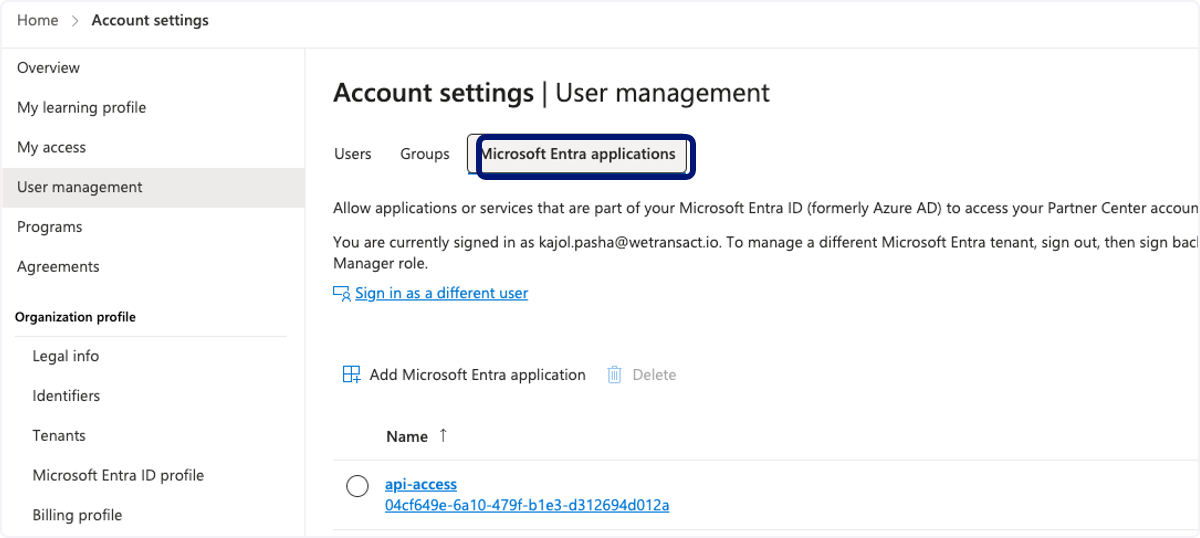
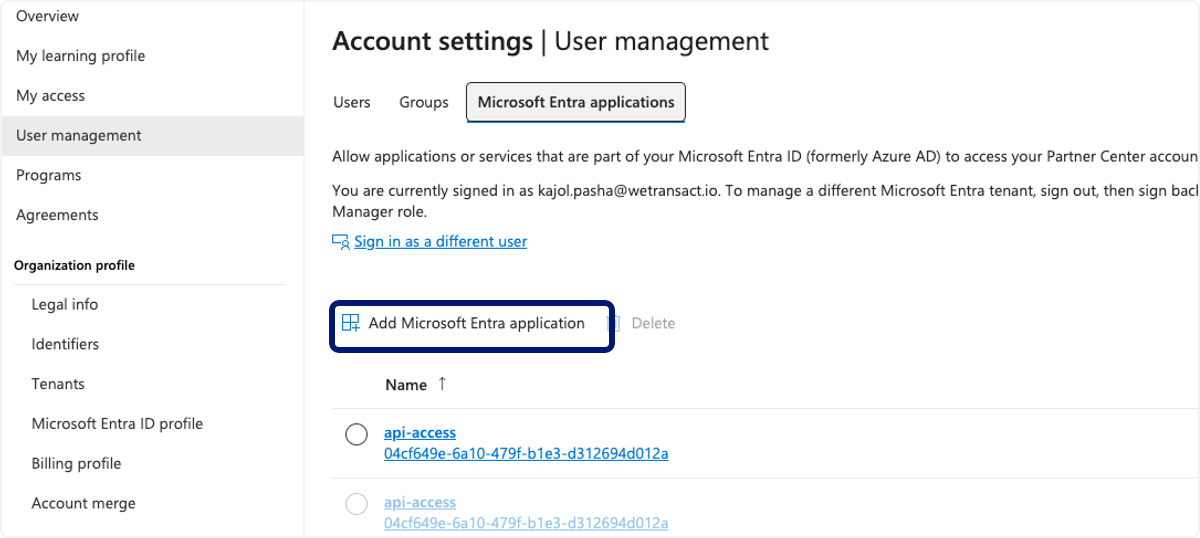
🟣 Click on Microsoft Entra Applications
🟣 Click Add Microsoft Entra Application
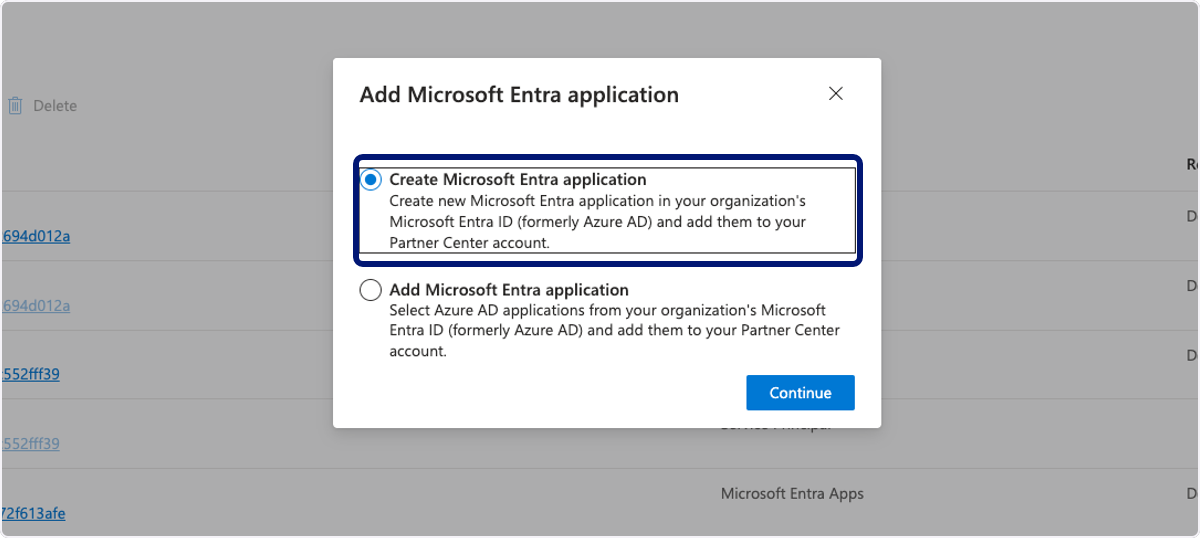
🟣 Click on Create Azure AD application and "Continue"
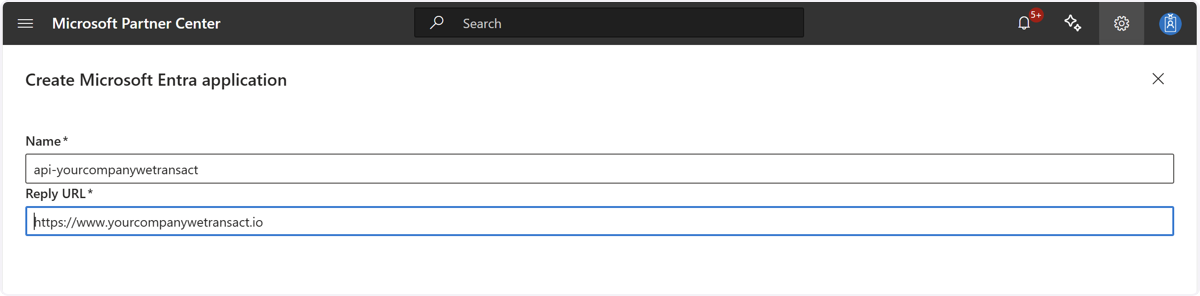
🟣 Fill the following fields, replace "yourcompany" by your company name
Name: api-yourcompanywetransact URL: https://www.yourcompanywetransact.io
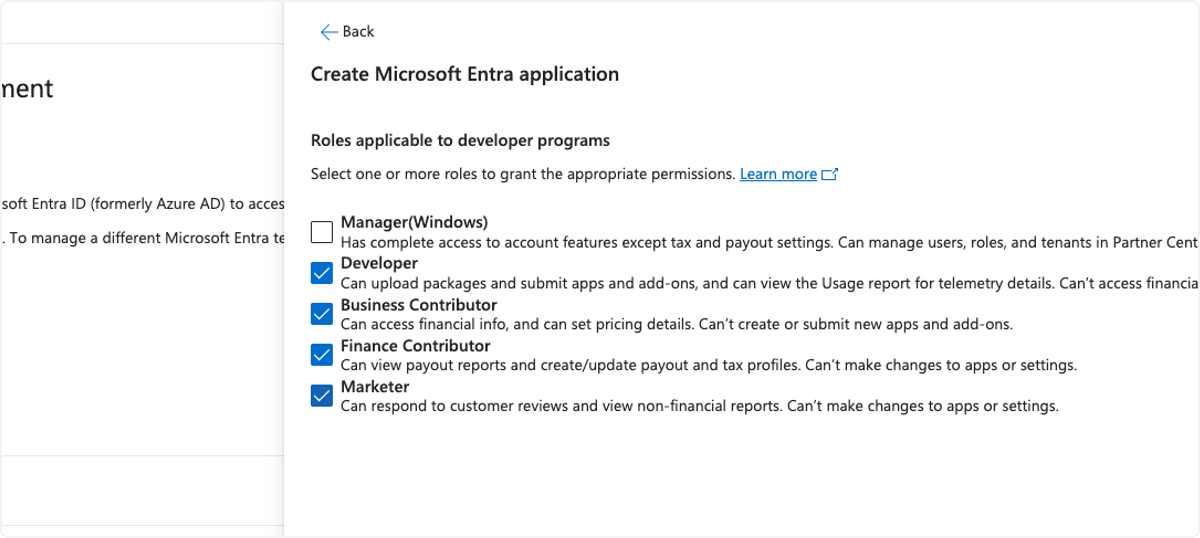
🟣 Check Developer, Business Contributor, Finance Contributor & Marketer roles
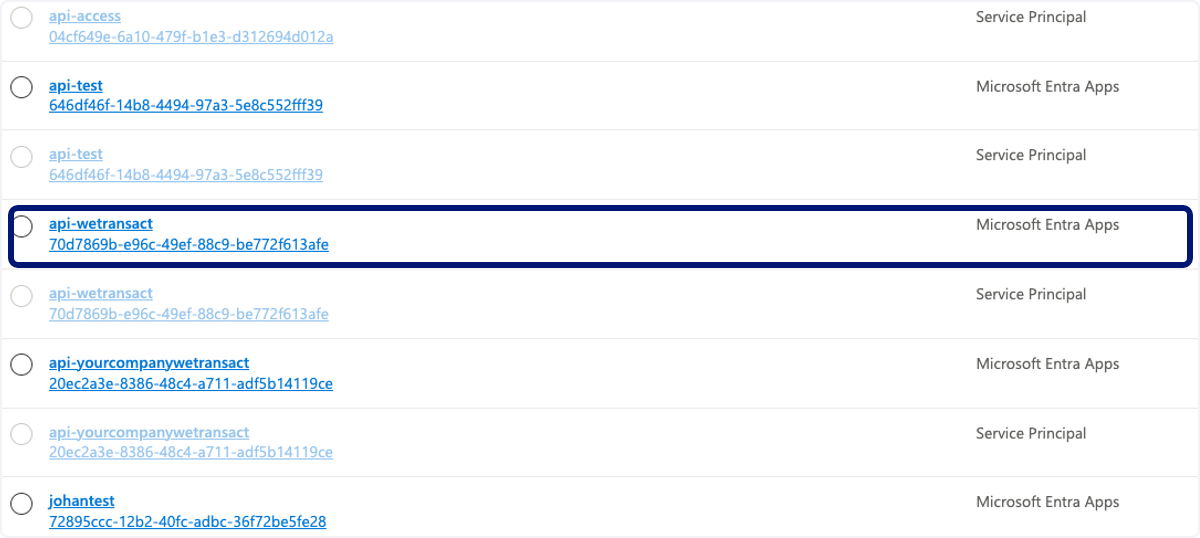
🟣 Click on the newly created App Registration
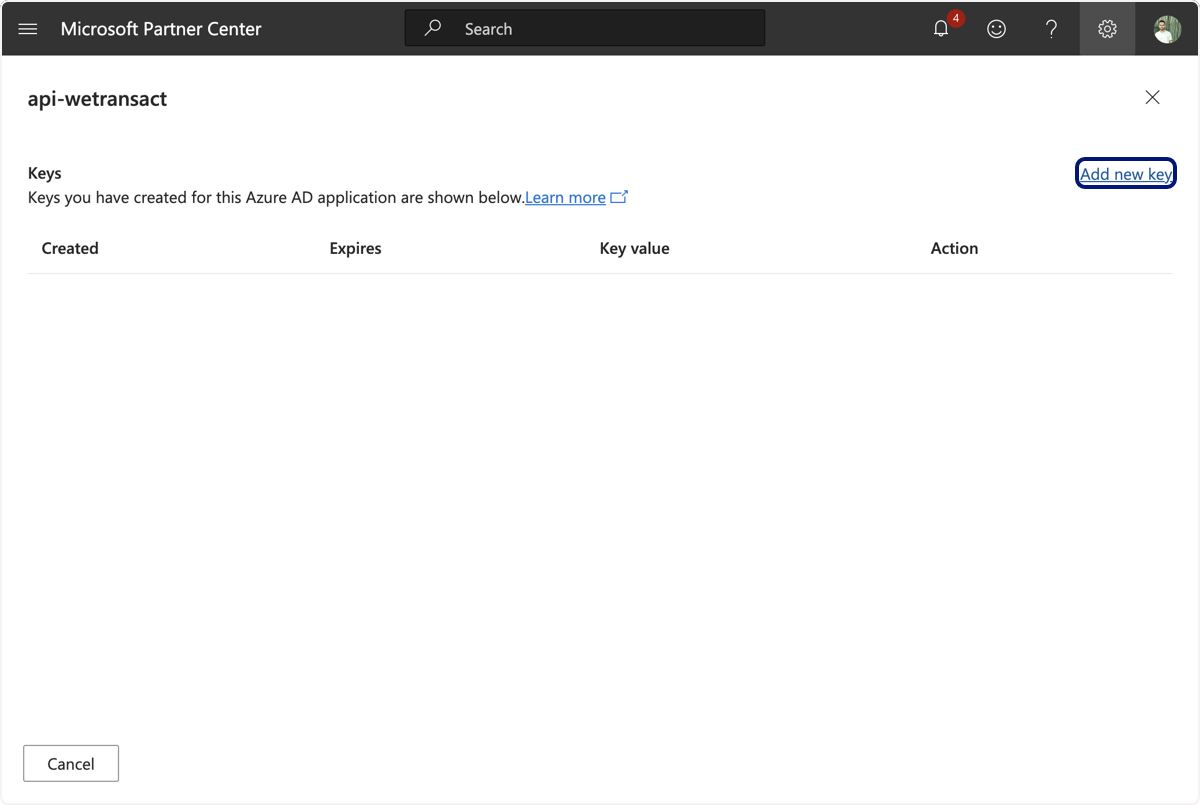
🟣 Add new key
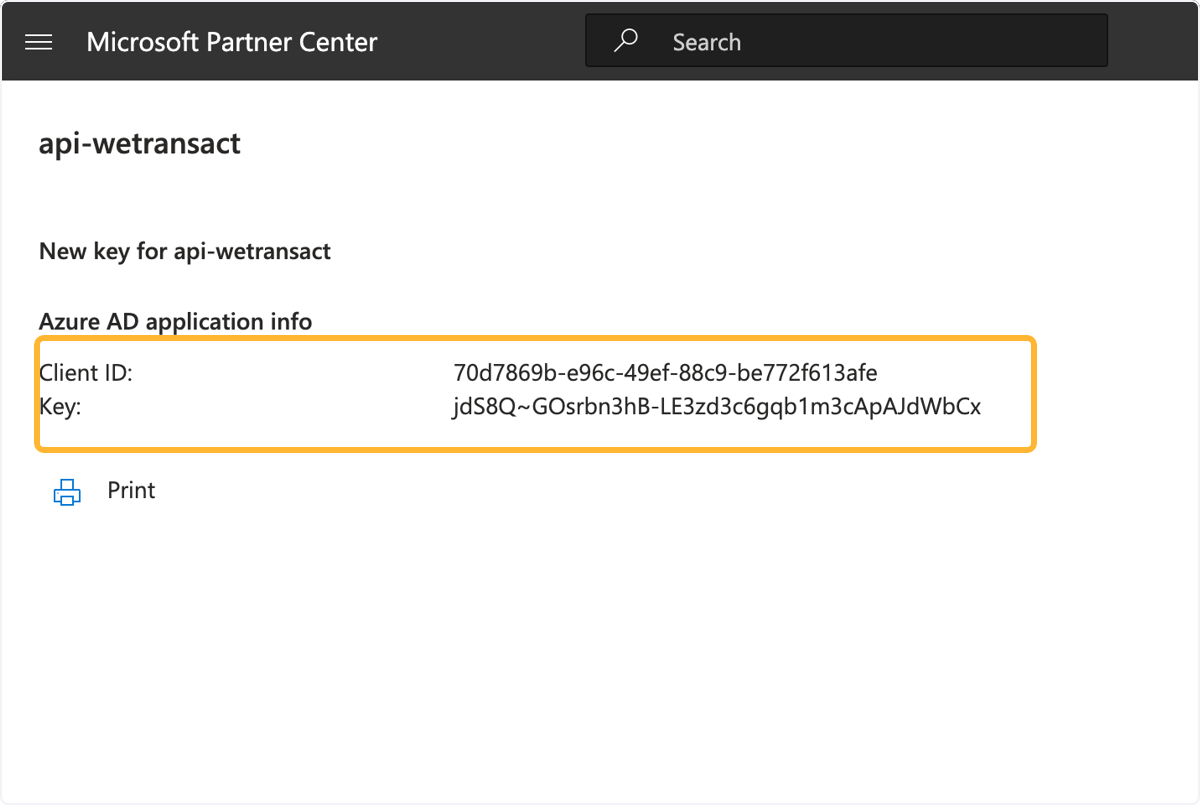
🟣 This page will appear with your Client Id and the Key. Copy and save it.
Leave that page open—if you close it, you won't be able to access your key again.
If you're in doubt, save these values
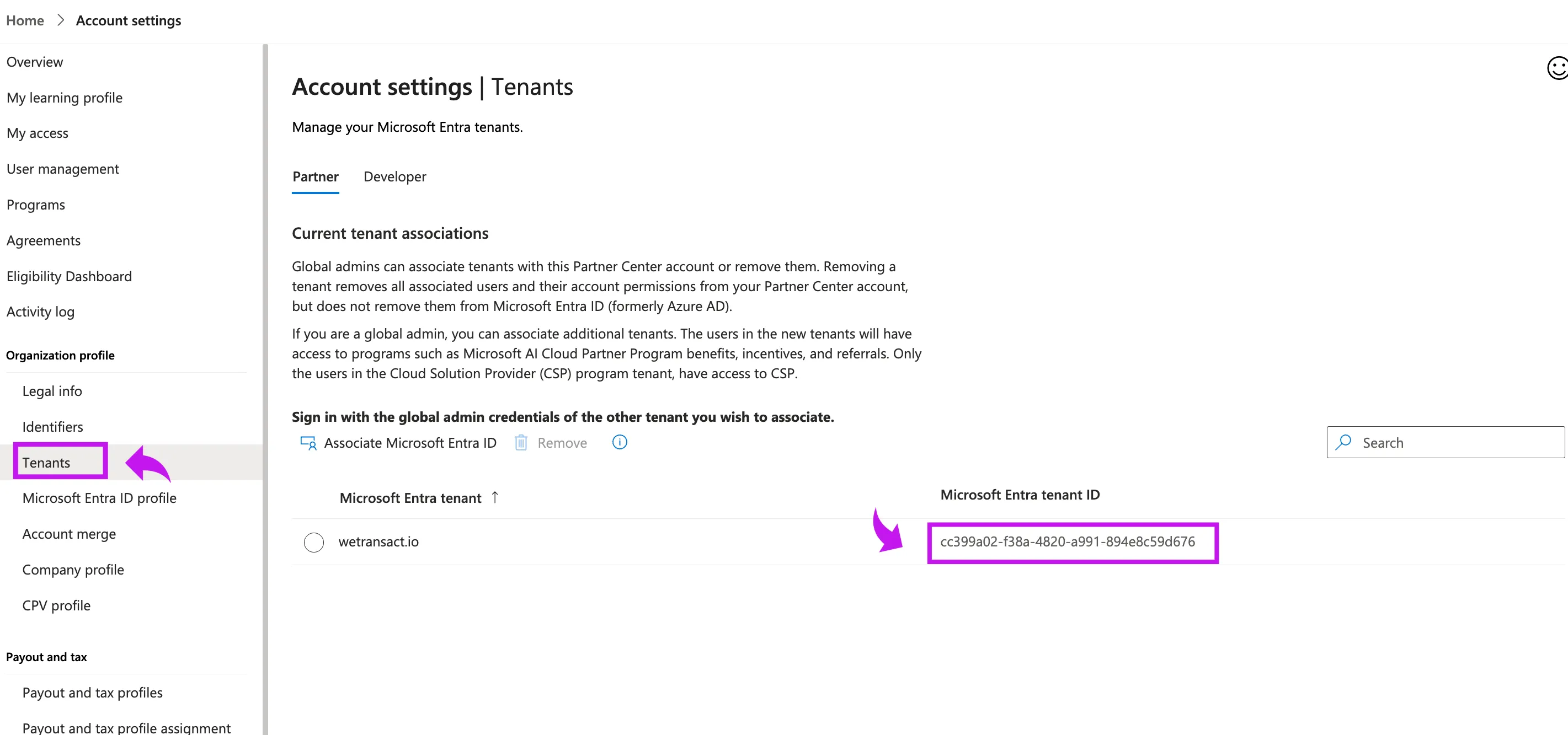
🟣 Close the page of Client ID and Key, on the left click on tenants and copy the tenant ID
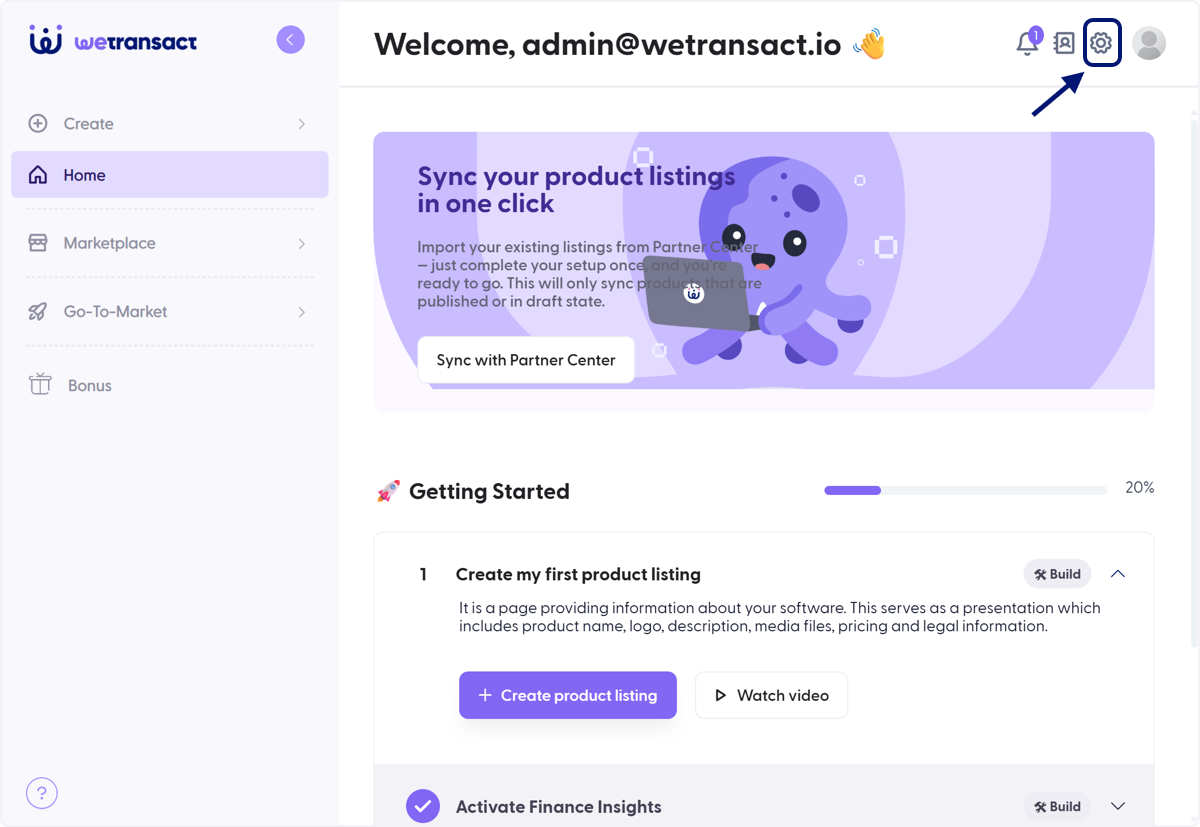
🟣 Now Sign in to the WeTransact portal and Go to Settings
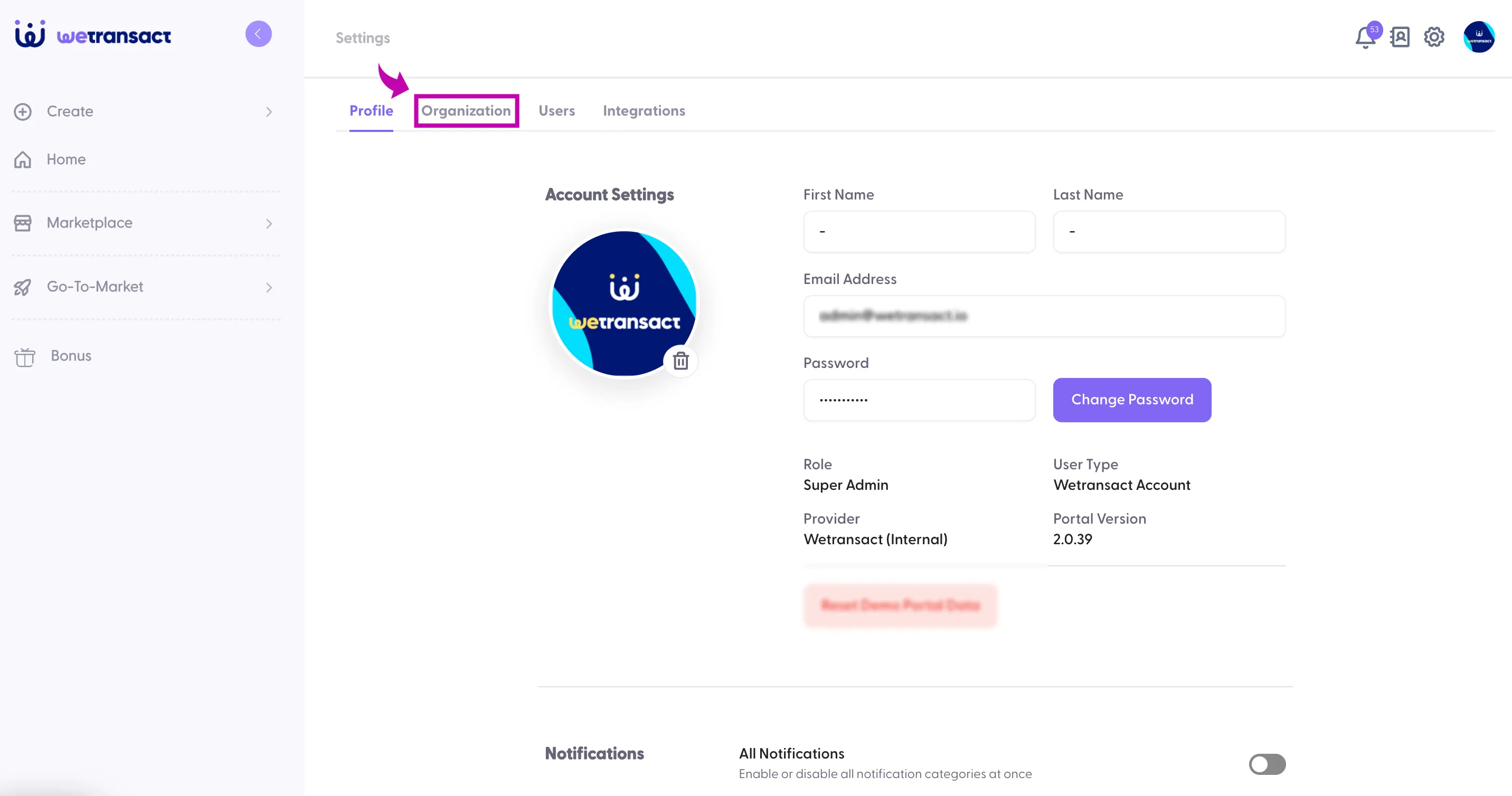
🟣 Click on Organisation
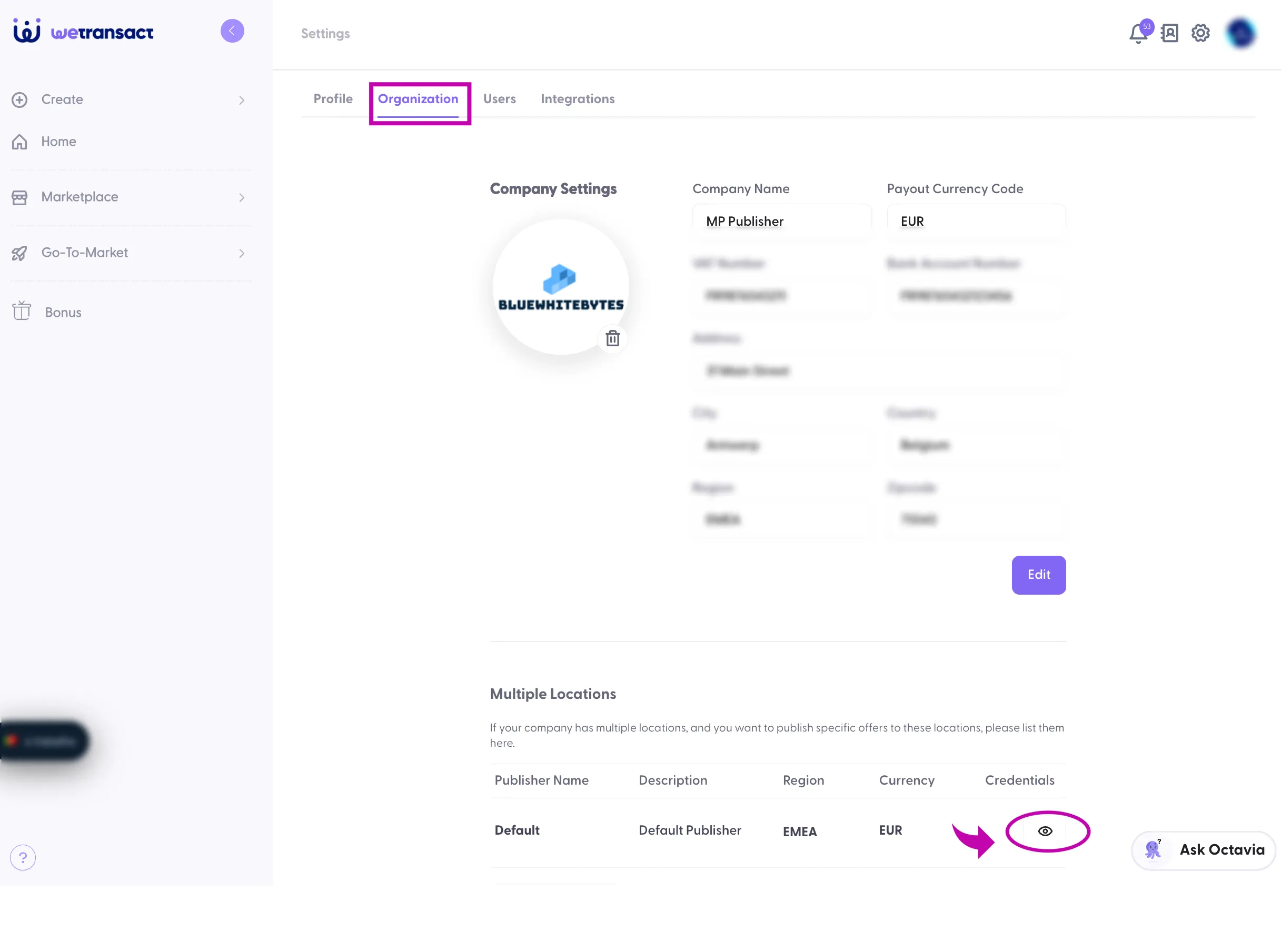
🟣 Under credentials, click on 👁️ symbol.
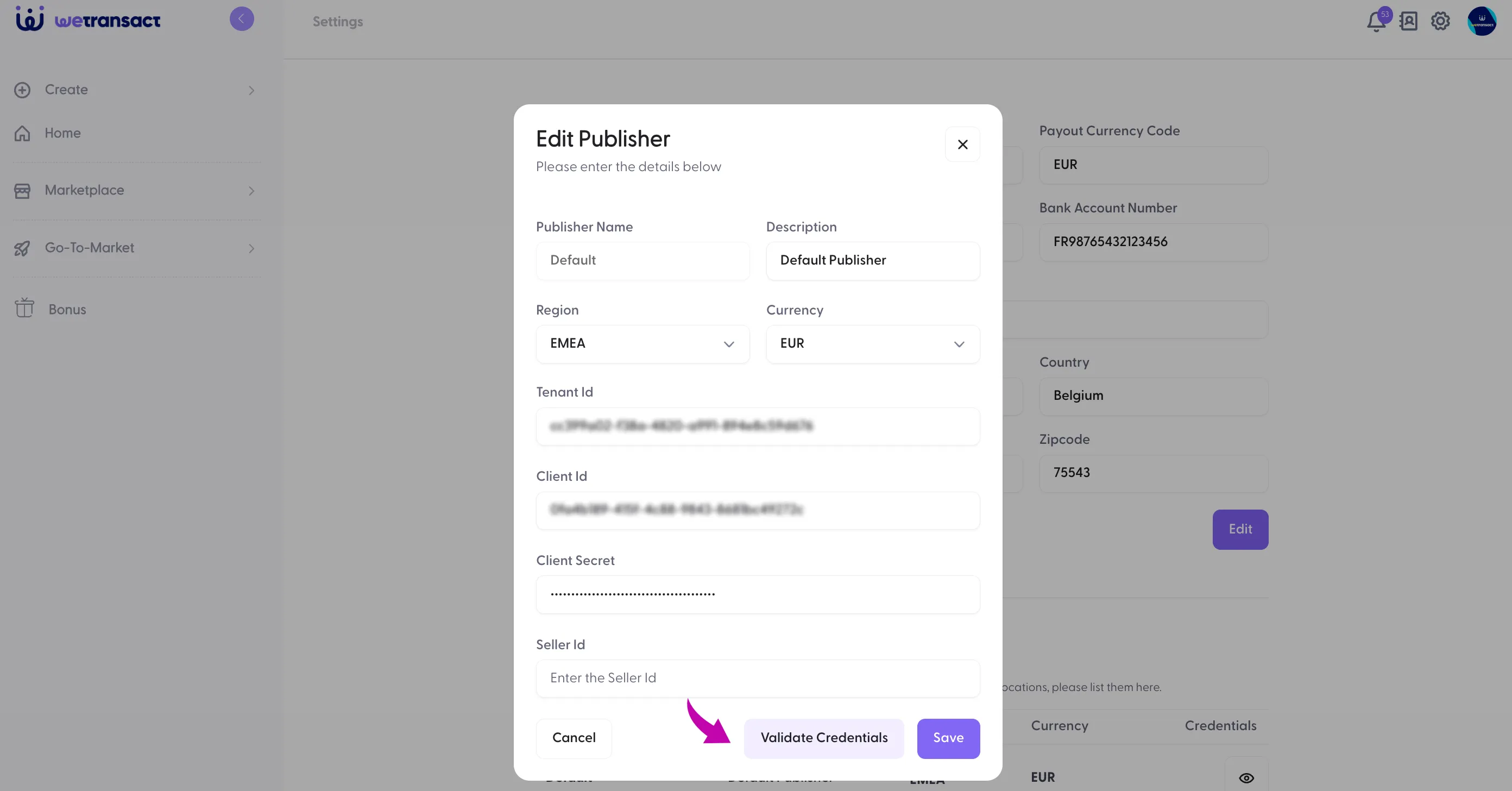
🟣 Enter tenant ID, Client ID and secret with Seller ID
The Seller ID can be found in Partner Center under Account settings → Legal info → Developer tab.
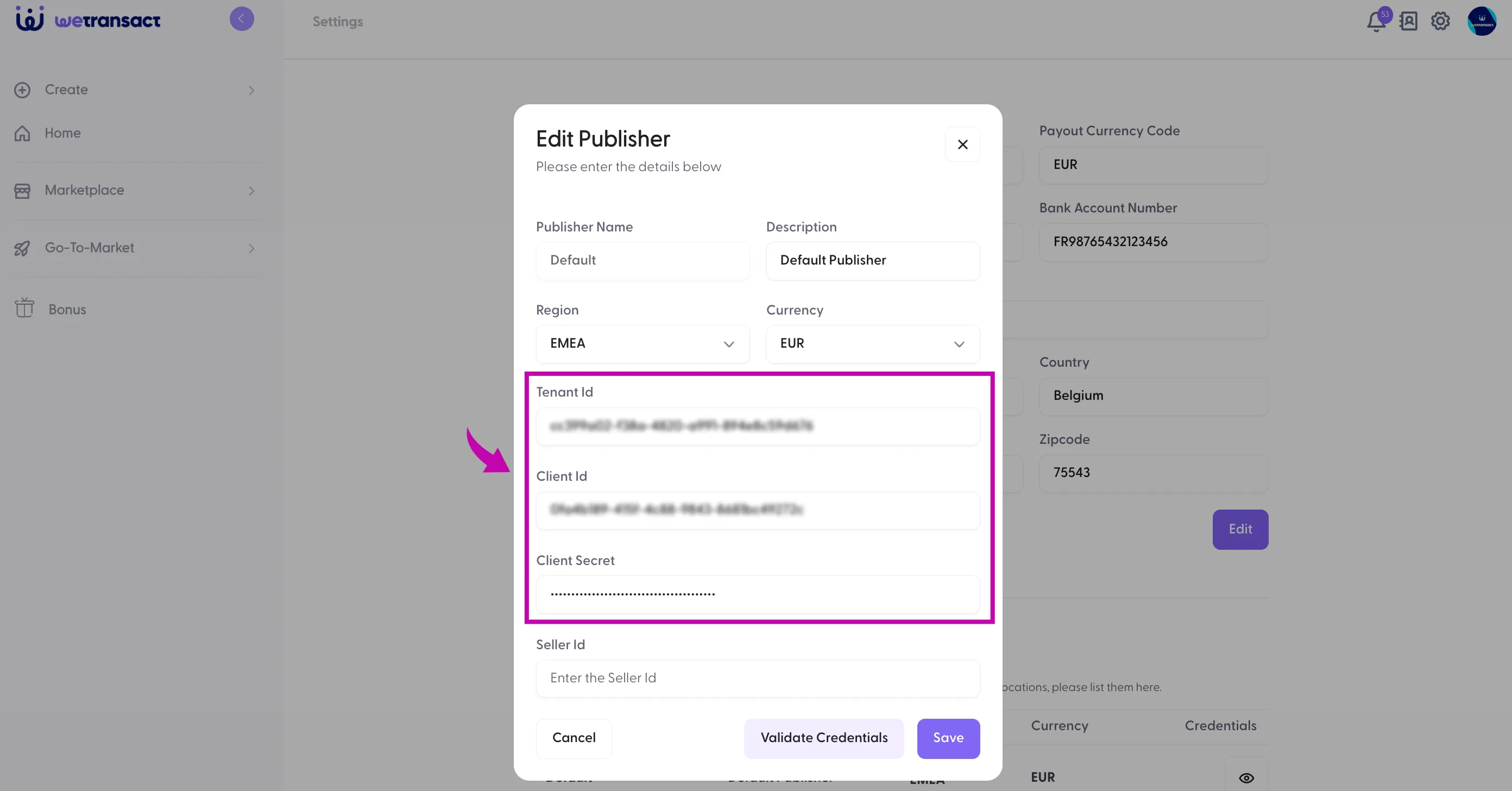
🟣 Click on Validate Credentials and Save
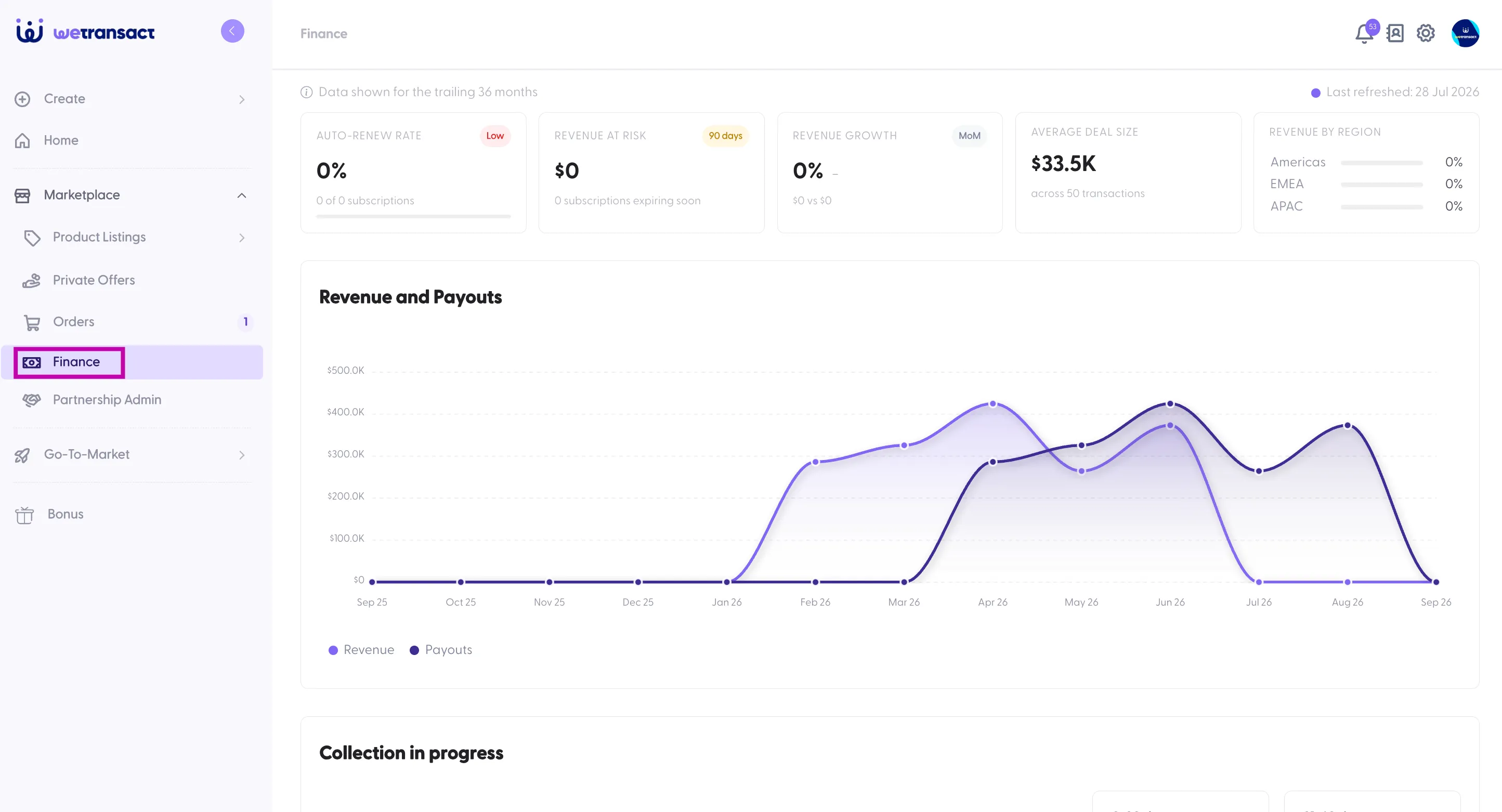
🟣 The Finance Tab is all set!
💬 For more, contact us at : [email protected]