How to connect an email account for Outreach campaigns?
12 min
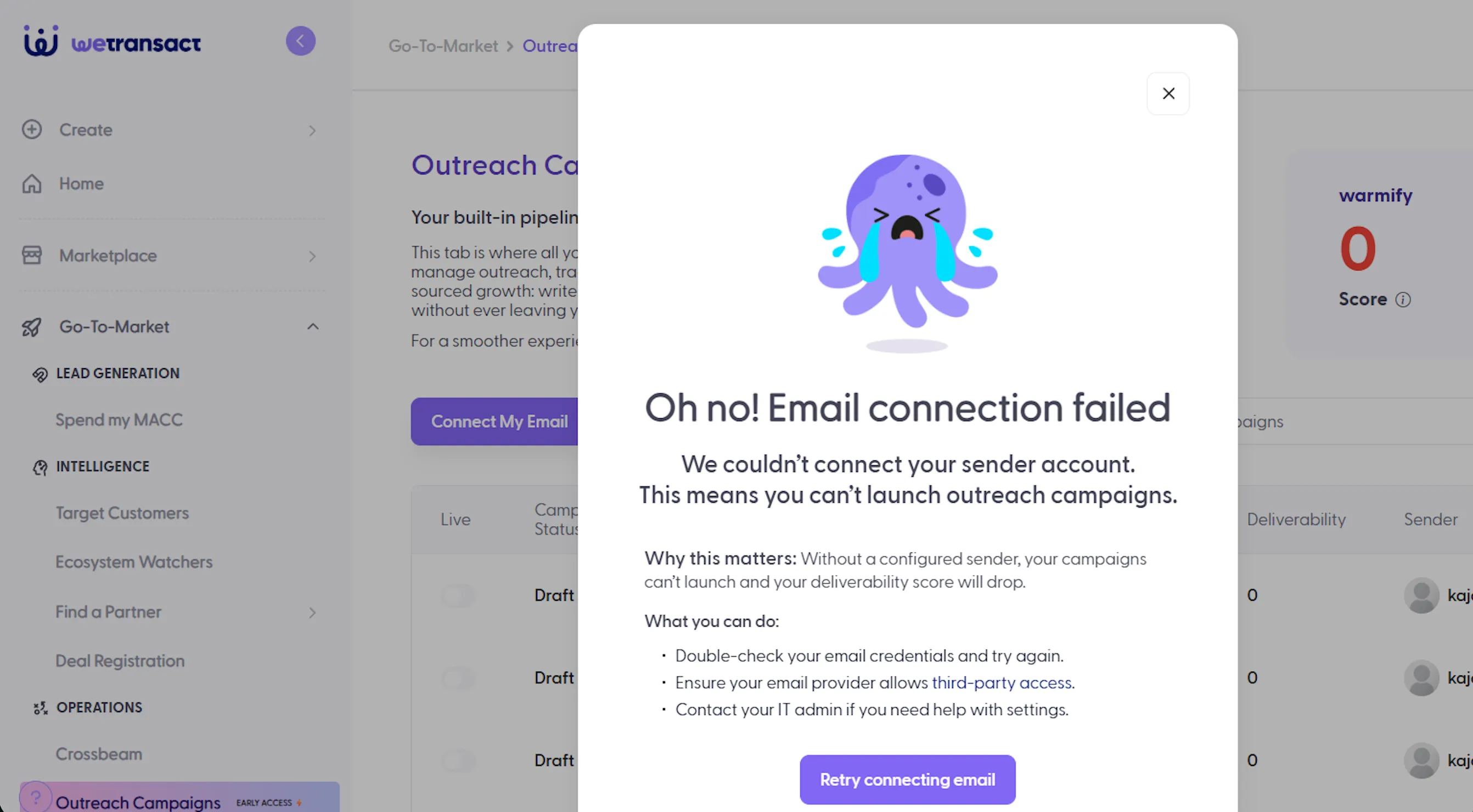
Outreach campaign: If you see an error below 👇🏻 while connecting the email, the following steps must be completed by your admin (or from an admin account).
Type of accounts
- Microsoft outlook
- Gmails or GSuite accounts
🔷 Microsoft Outlook
These steps need to be completed for each user who wants to connect their Outlook email account to Outreach campaigns.
🟣 Log in to Microsoft 365 Admin Center
- Go to https://admin.microsoft.com
- Sign in using your admin credentials
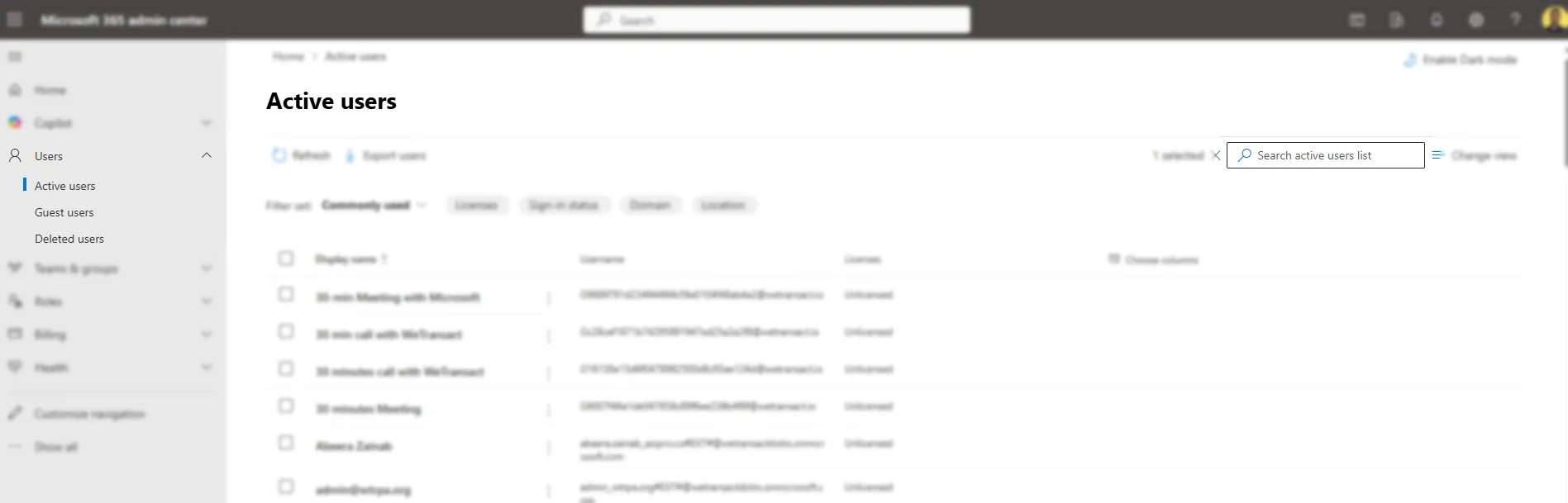
🟣 Go to Active Users
- In the left-hand navigation pane, click on “Users”
- Then select “Active users”
🟣 Locate the Email Account
- Use the search bar to find the user by name or email address
- Click on the user’s name to open their account settings
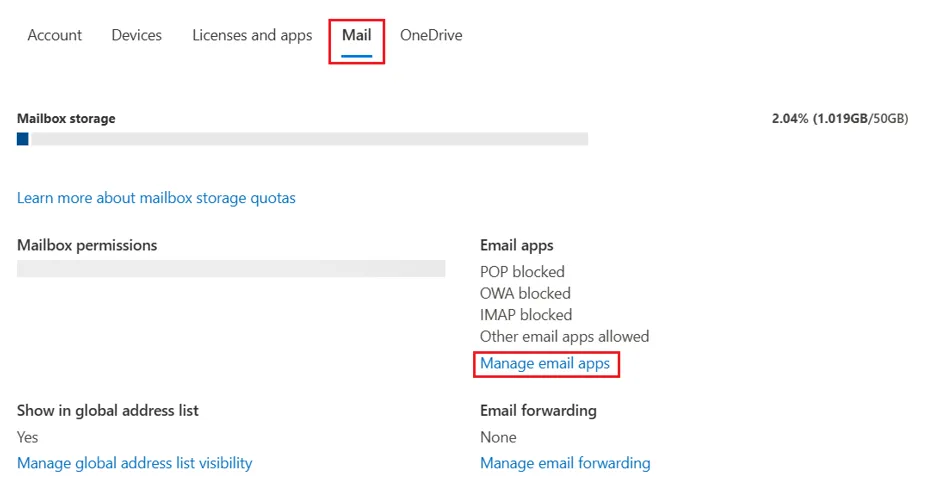
🟣 Navigate to Mail Settings
- In the user’s settings panel, click on “Mail”
- Then select “Manage email apps”
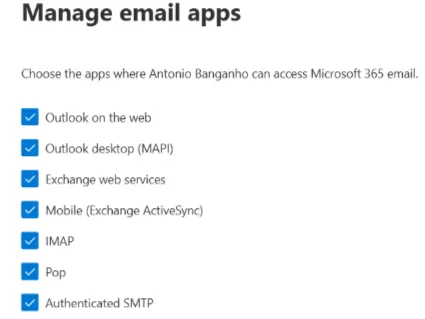
🟣 Check Authenticated SMTP and IMAP
- In the Manage email apps section, look for:
- Authenticated SMTP
- IMAP
- Make sure the checkboxes are enabled
🔷 GSuite accounts
These steps only need to be completed once for your Google Workspace administrator.
🟣 Go to Google Admin Console
- Visit https://admin.google.com
- Sign in using your admin account credentials
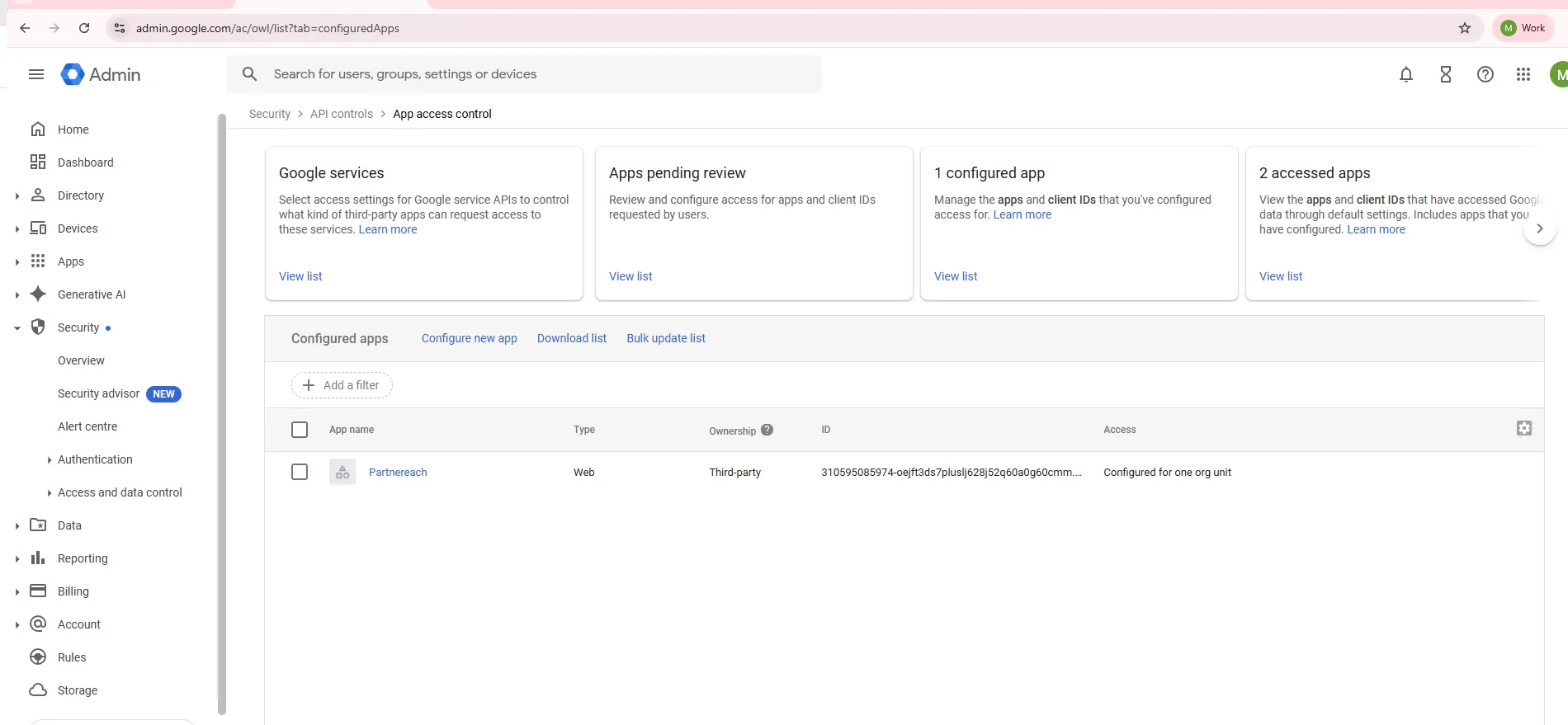
🟣 Add an App
- In the Admin Console dashboard, click on “Security”
- Then go to “Access and data control” > “API controls”
- Click on “Manage App Access”
- Click on “Configure new app”
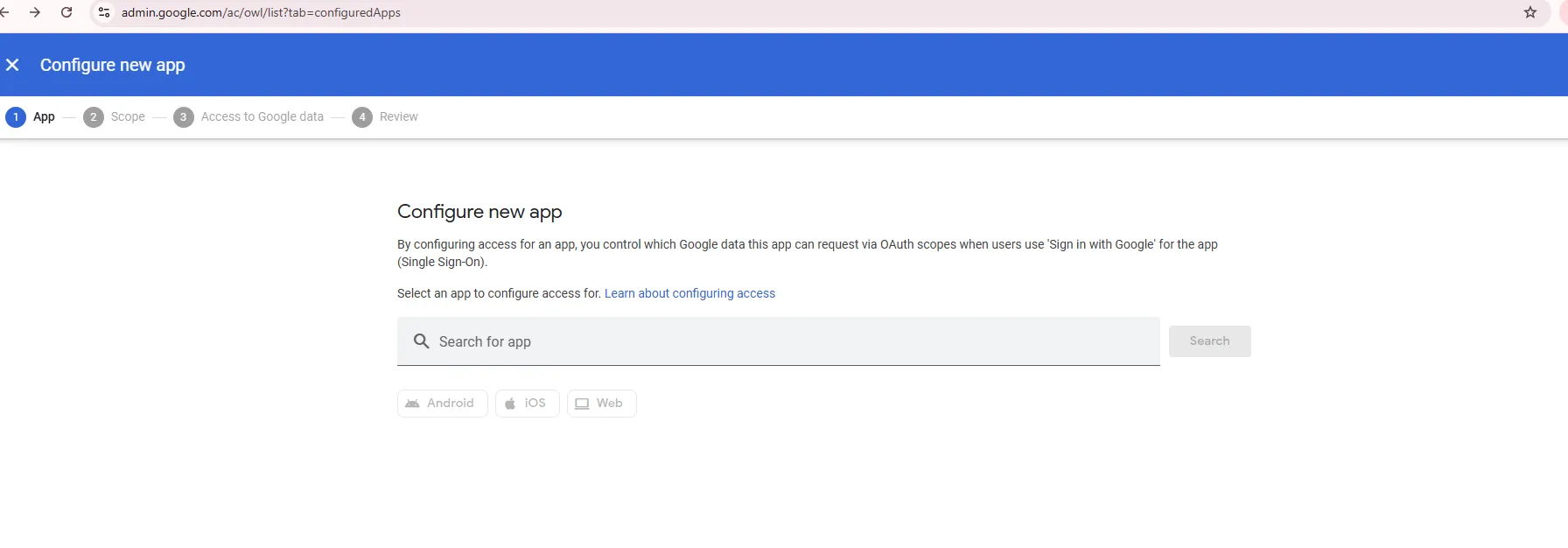
🟣 Search for the Partner Reach OAuth App
- In the search field, enter the following Google Client ID:
310595085974-oejft3ds7pluslj628j52q60a0g60cmm.apps.googleusercontent.com
- Click Search
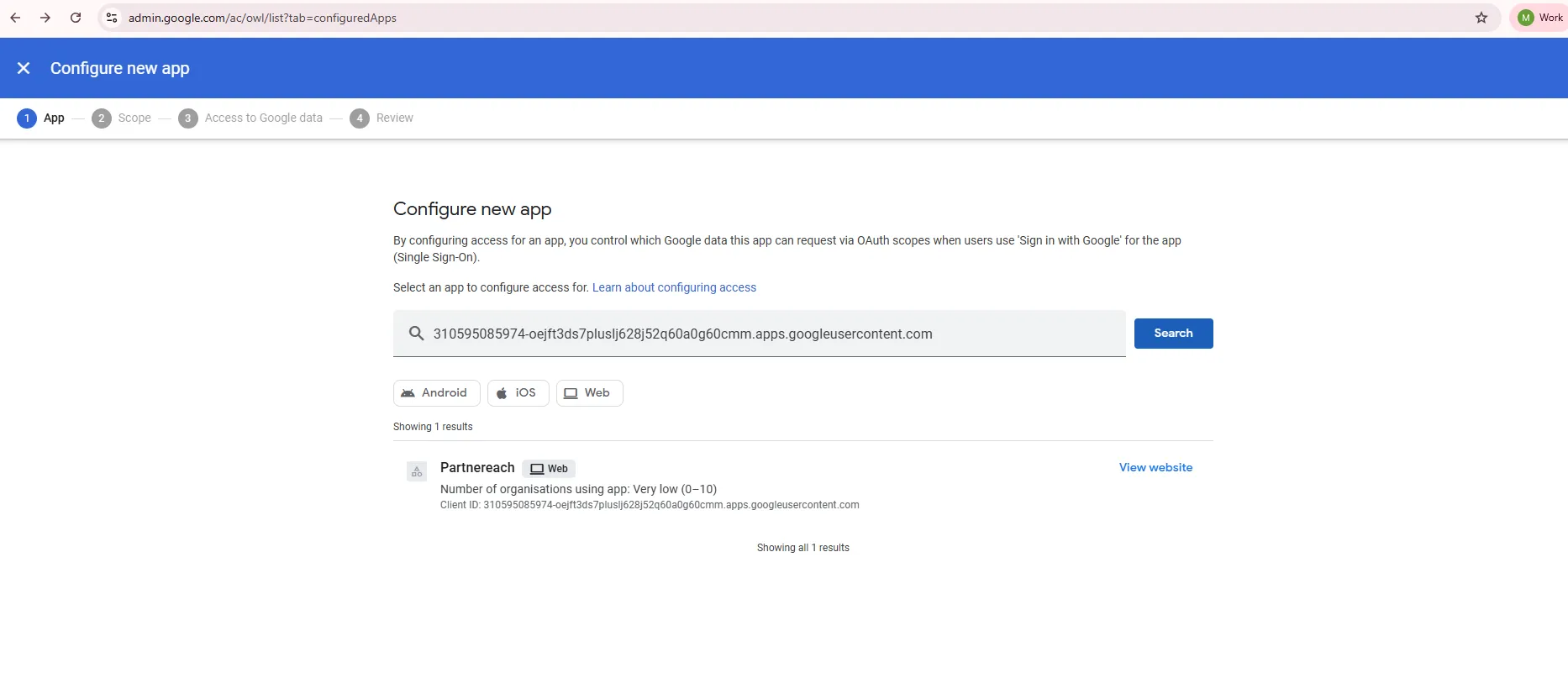
🟣 Select the App
- From the search results, select PartnerReach
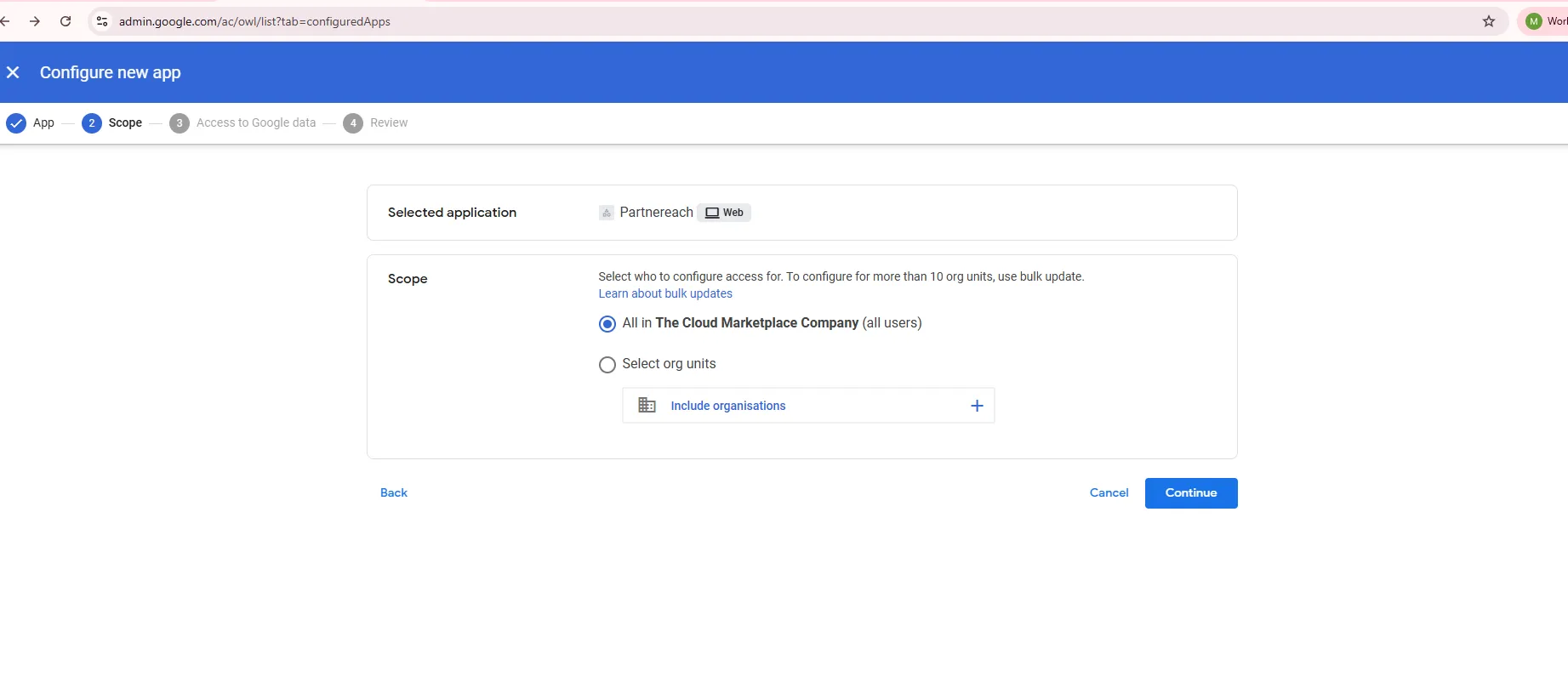
🟣 Mark the App as Trusted
- Choose the option to “Trust” the app
- Click the Submit button
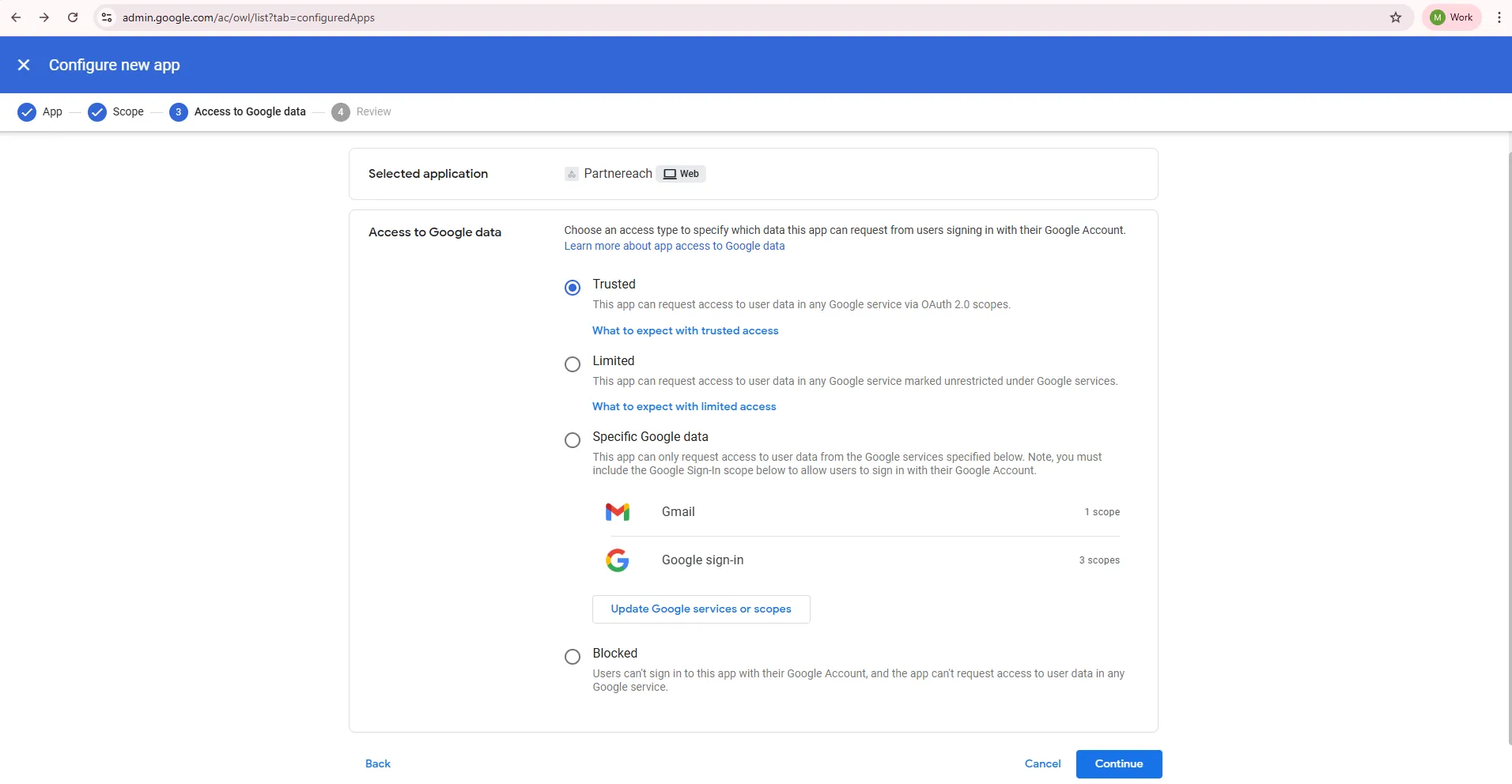
🟣 Finish Setup
- Click the Finish button to complete the process
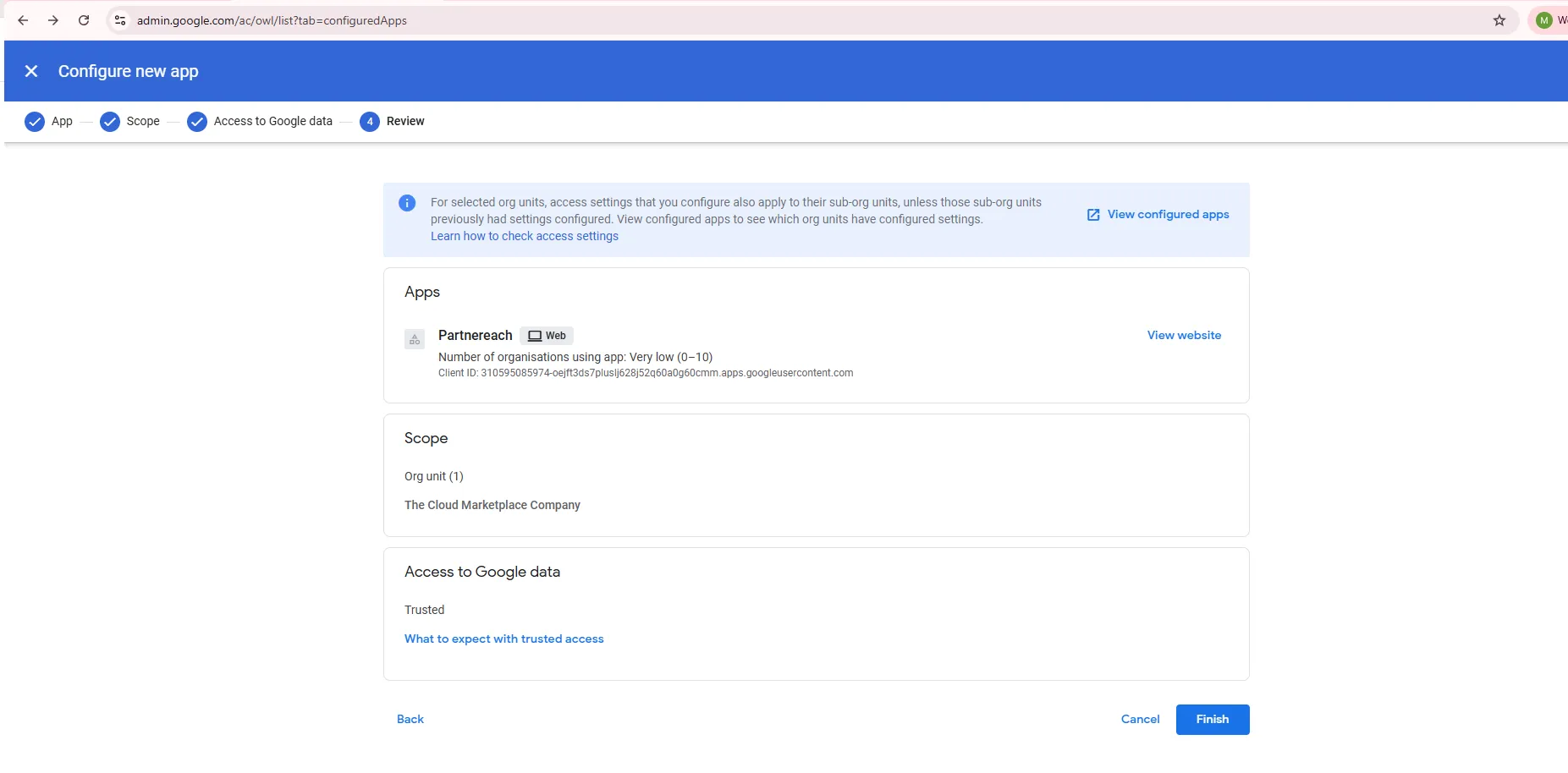
🚀 Final Step
once this is completed please follow this guide to Create Warmify Email Rule in Outlook to avoid spam emails.
💬 For more, contact us at : [email protected]