Step 1 — Create Your Microsoft Work Account
Microsoft Work Account:
If you don't have an existing Microsoft 365 or if your domain is hosted on Google. You need a Microsoft work account to register for Partner Center.
🟣 Step 1: Start the Process
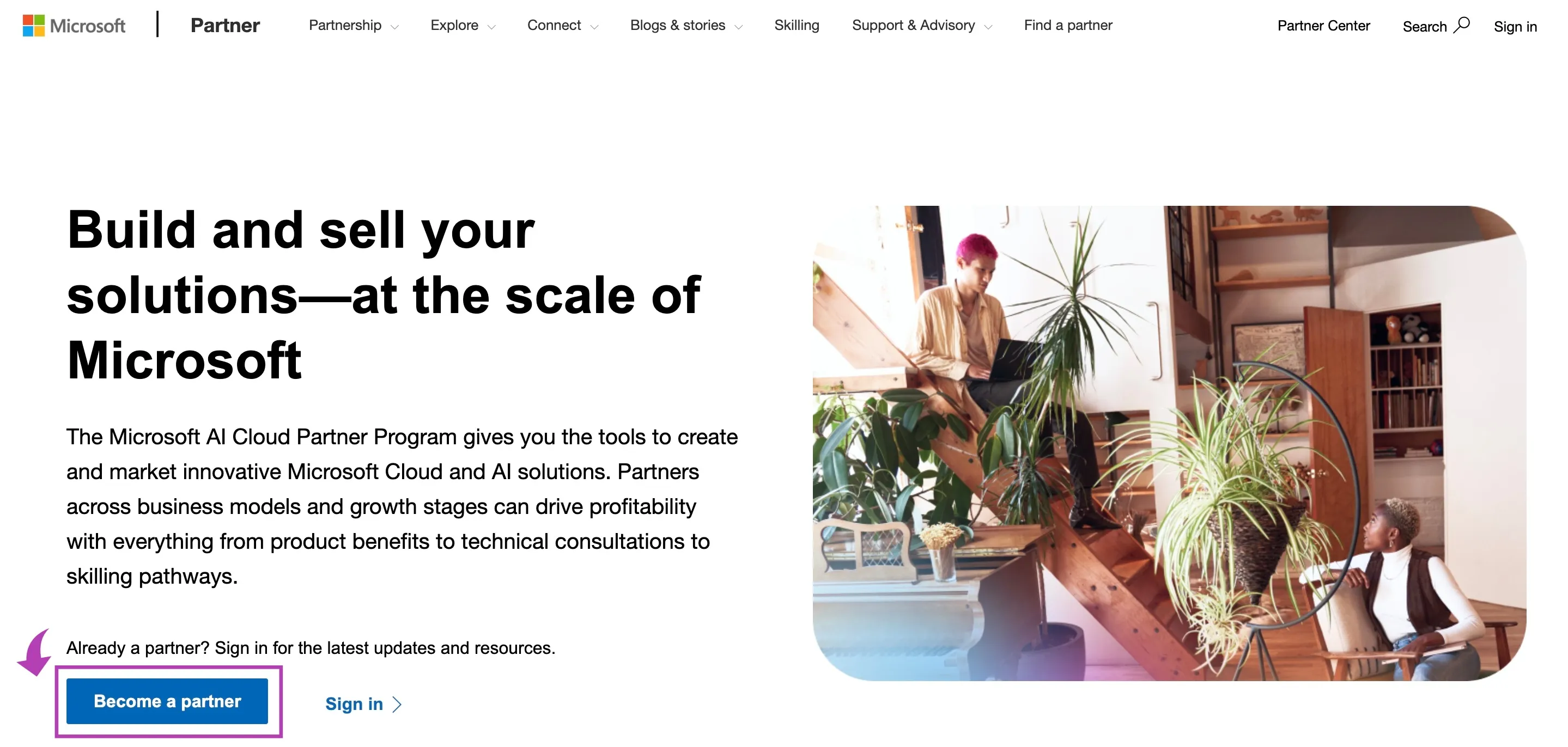
▲ Go to Partner Center and click 'Become a partner.'
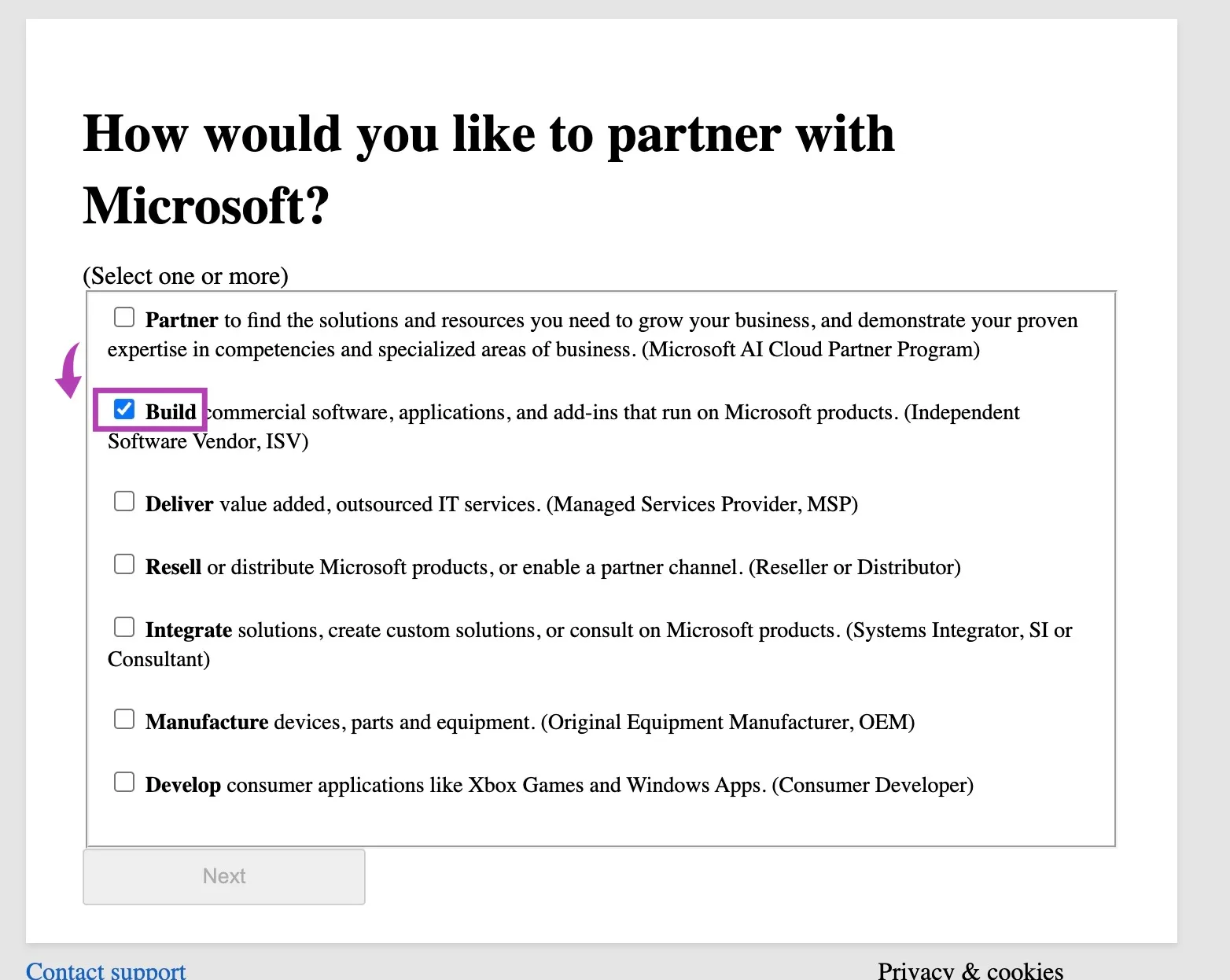
▲ Select Build and go next
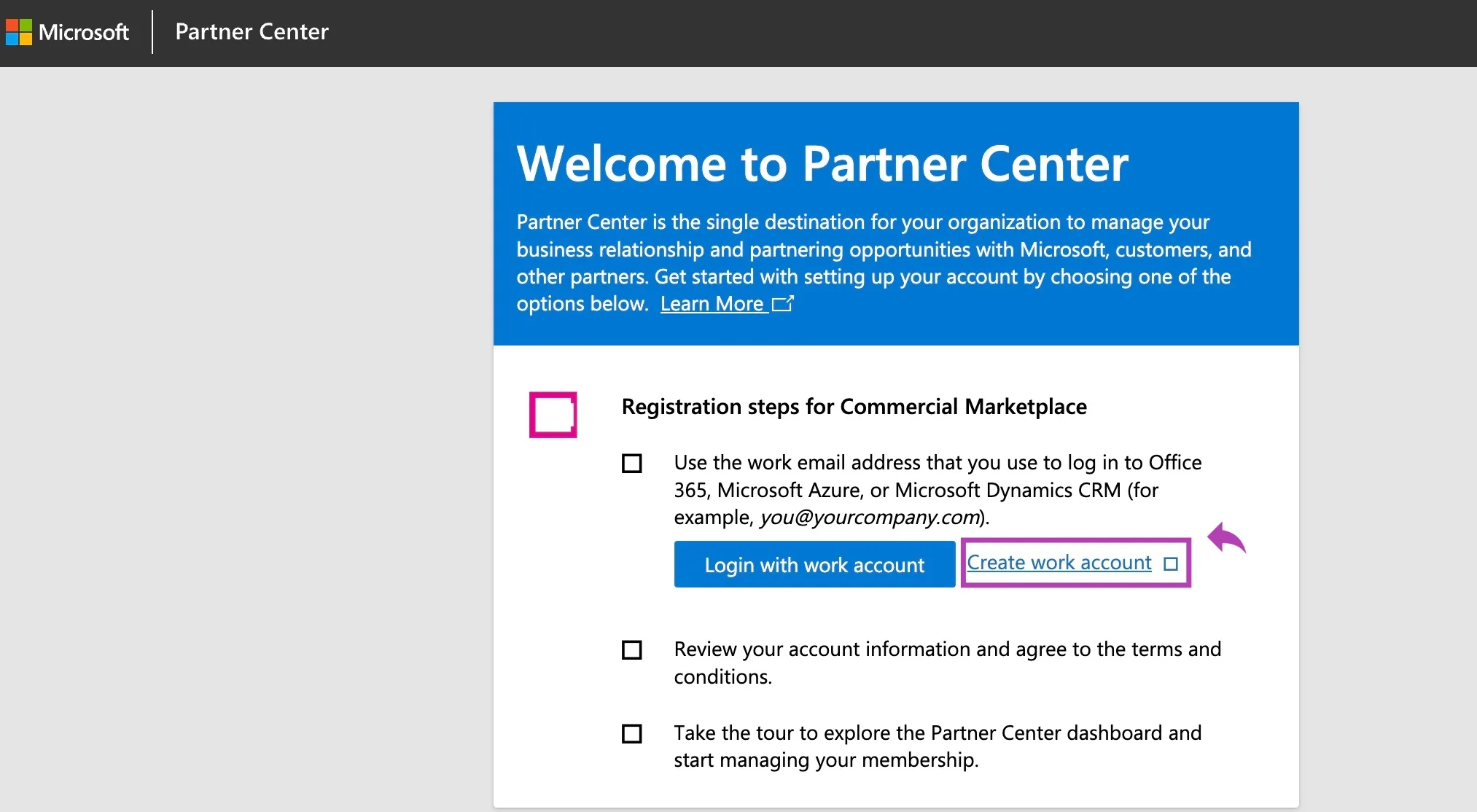
▲ Click on Create Work Account
🟣 Step 2: Enter Your Details
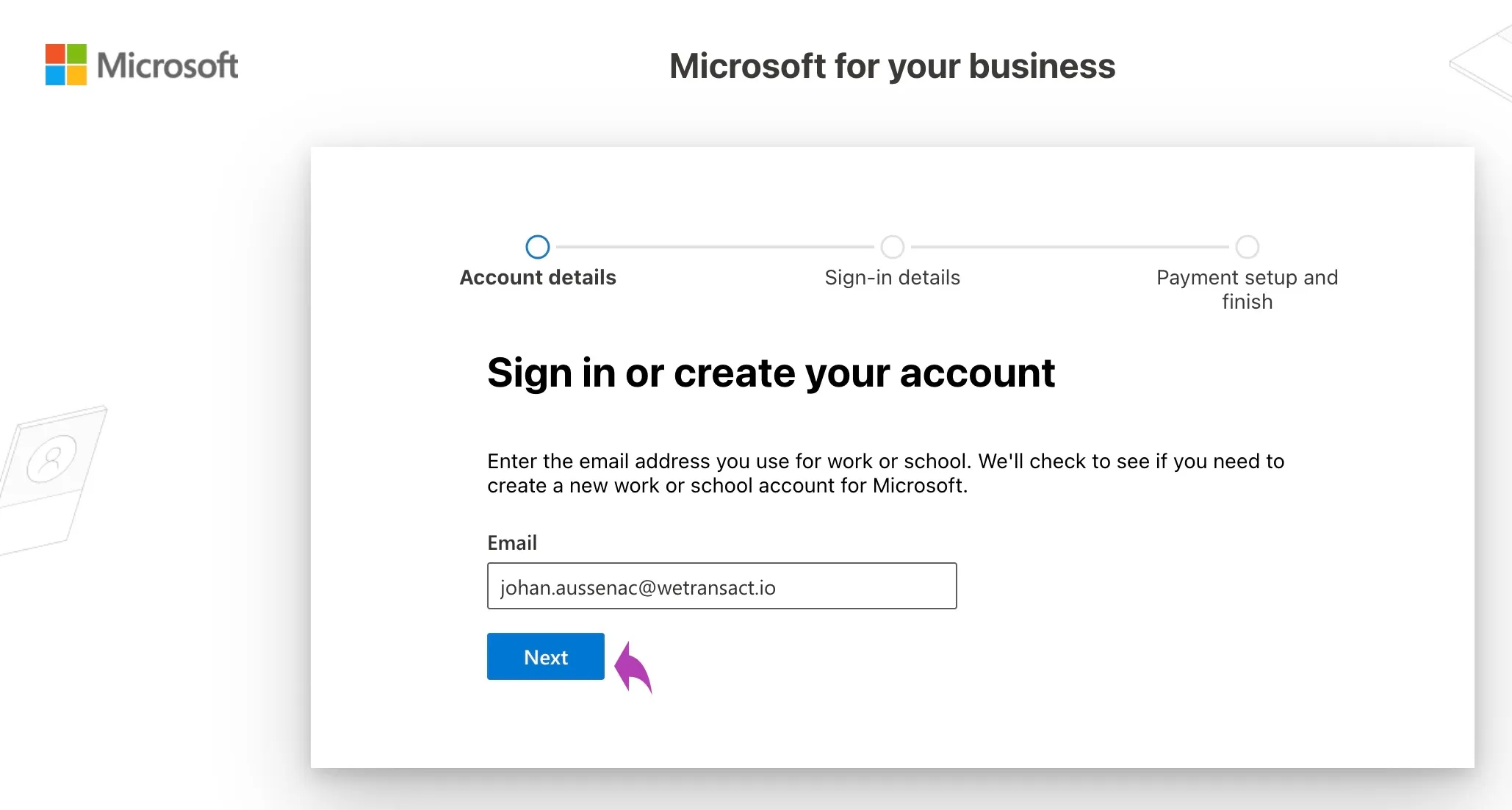
▲ Enter your Email and go next.
▲ Click on Setup Account
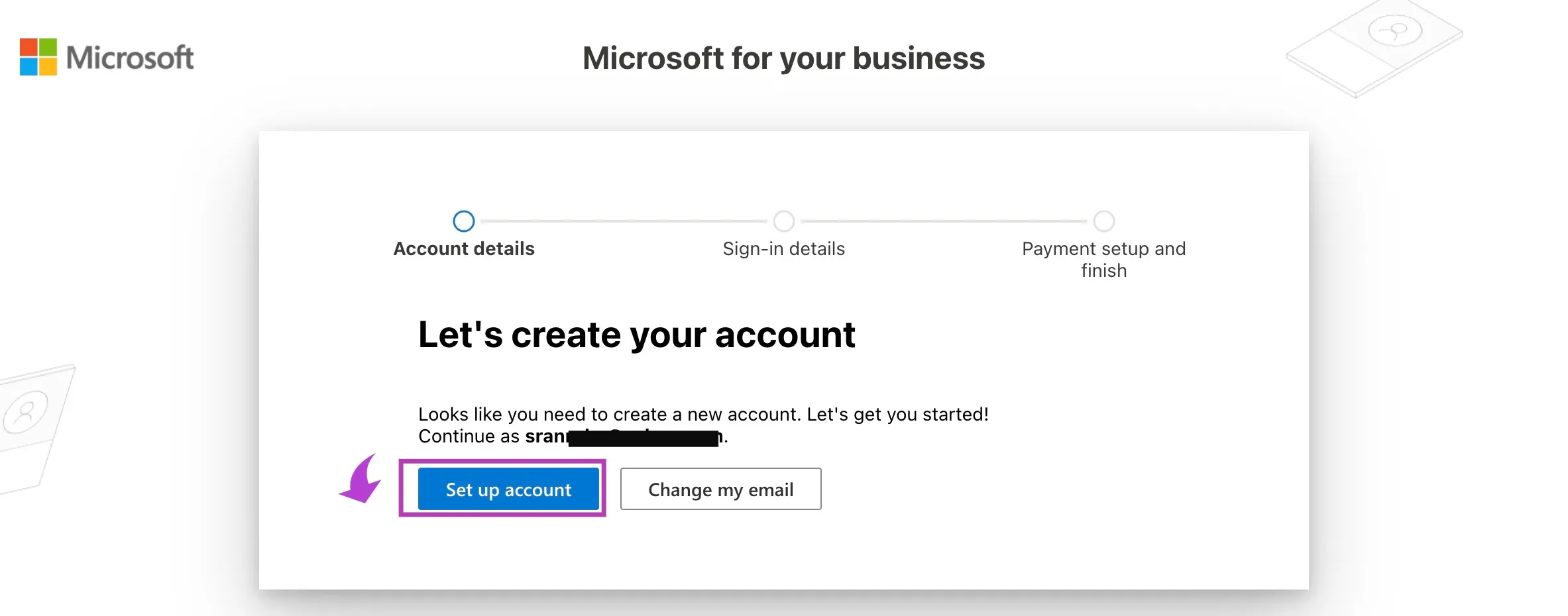
▲ It will prompt you to enter company details.
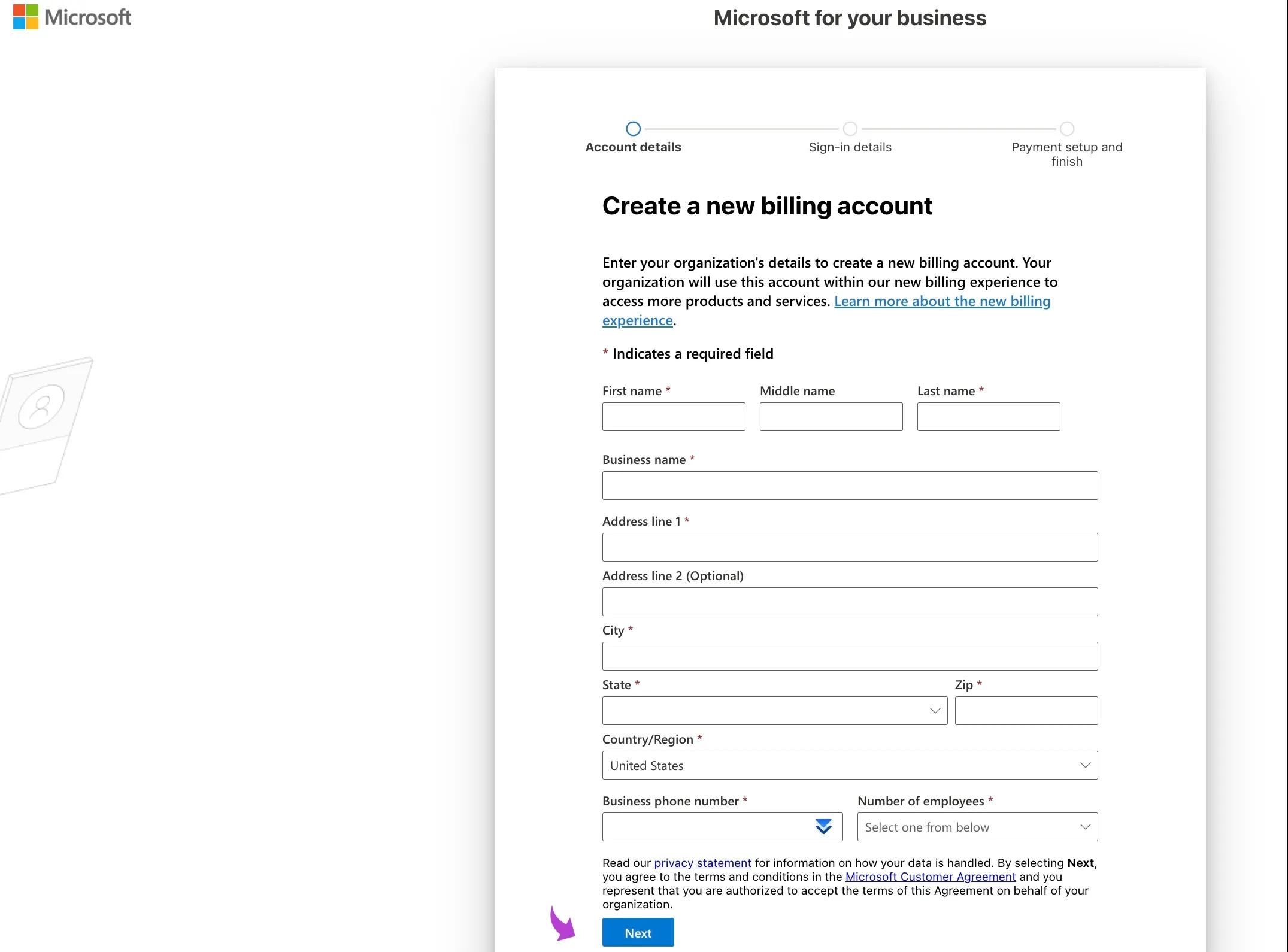
▲ When entering your phone number, use your country code without the plus sign.

🟣Step 3: Complete Payment
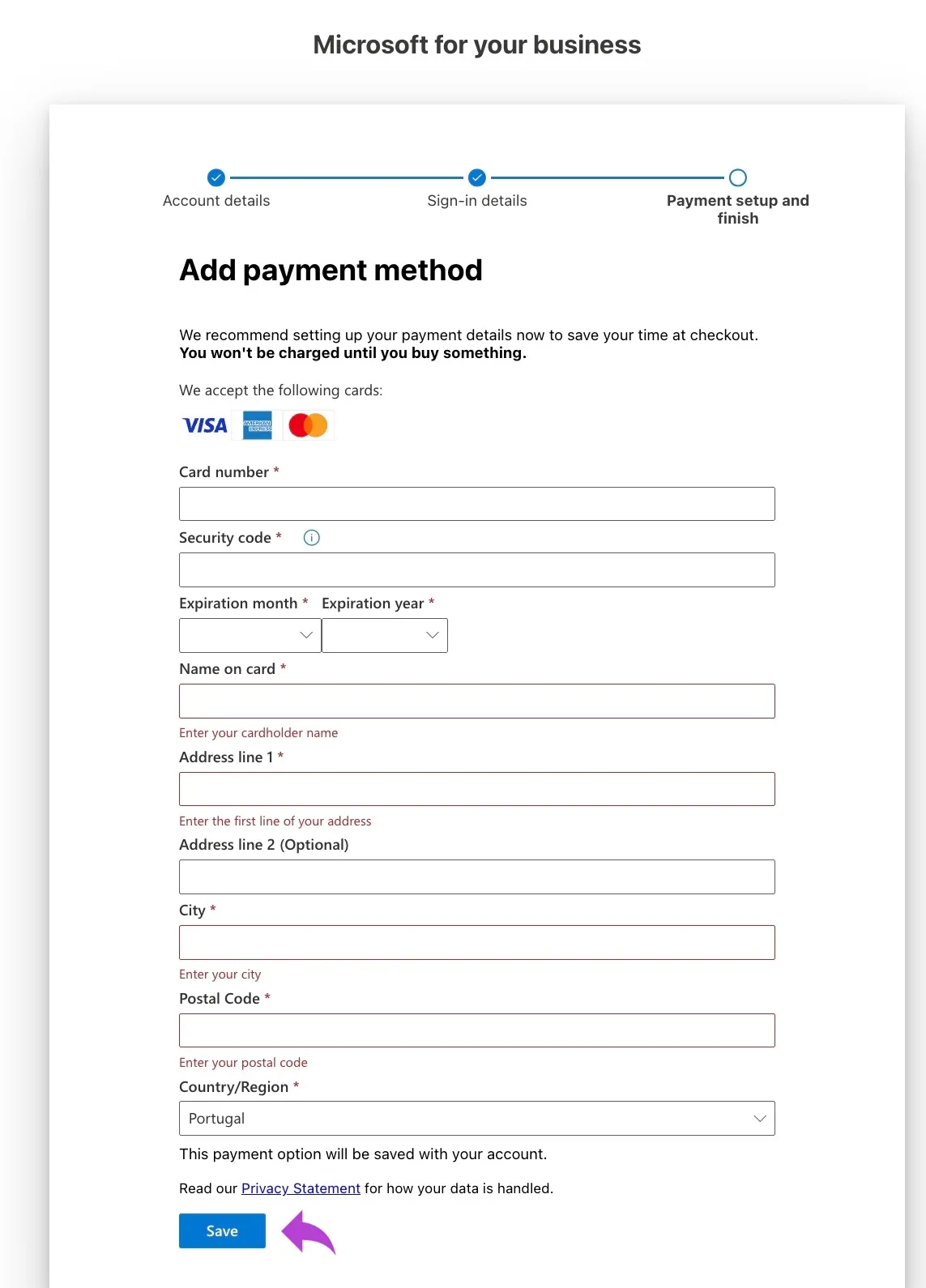
▲ If the payment fails:
Sometimes Microsoft's system fails during payment. If this happens:

Instead:
1. Close the current process
2. Start again using a different email address from your company
Example: if [email protected] failed, try [email protected]
3. Microsoft will automatically create a new work account, possibly with numbers added (e.g.,yourcompany123.onmicrosoft.com)
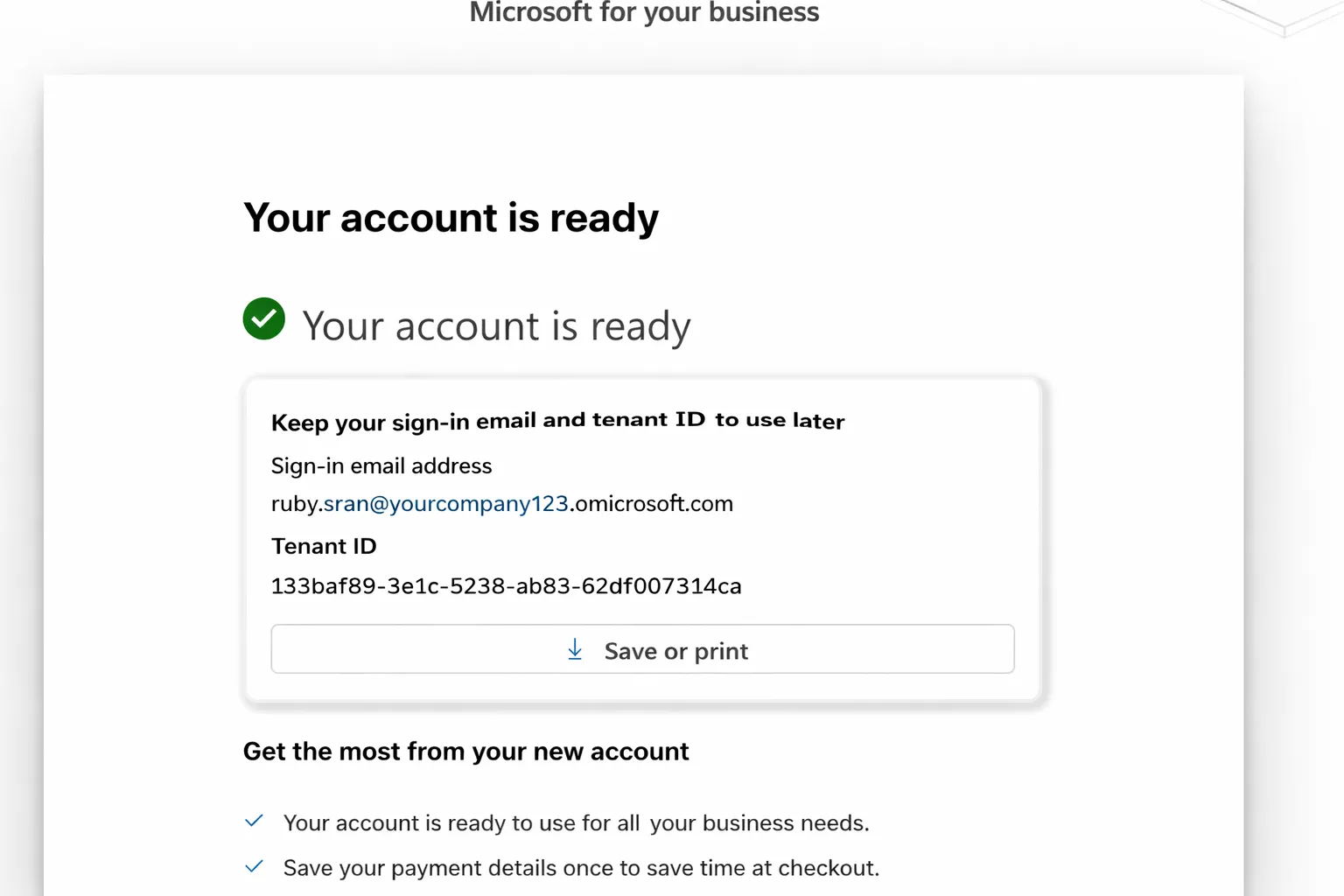
▲ This is normal and works perfectly fine.
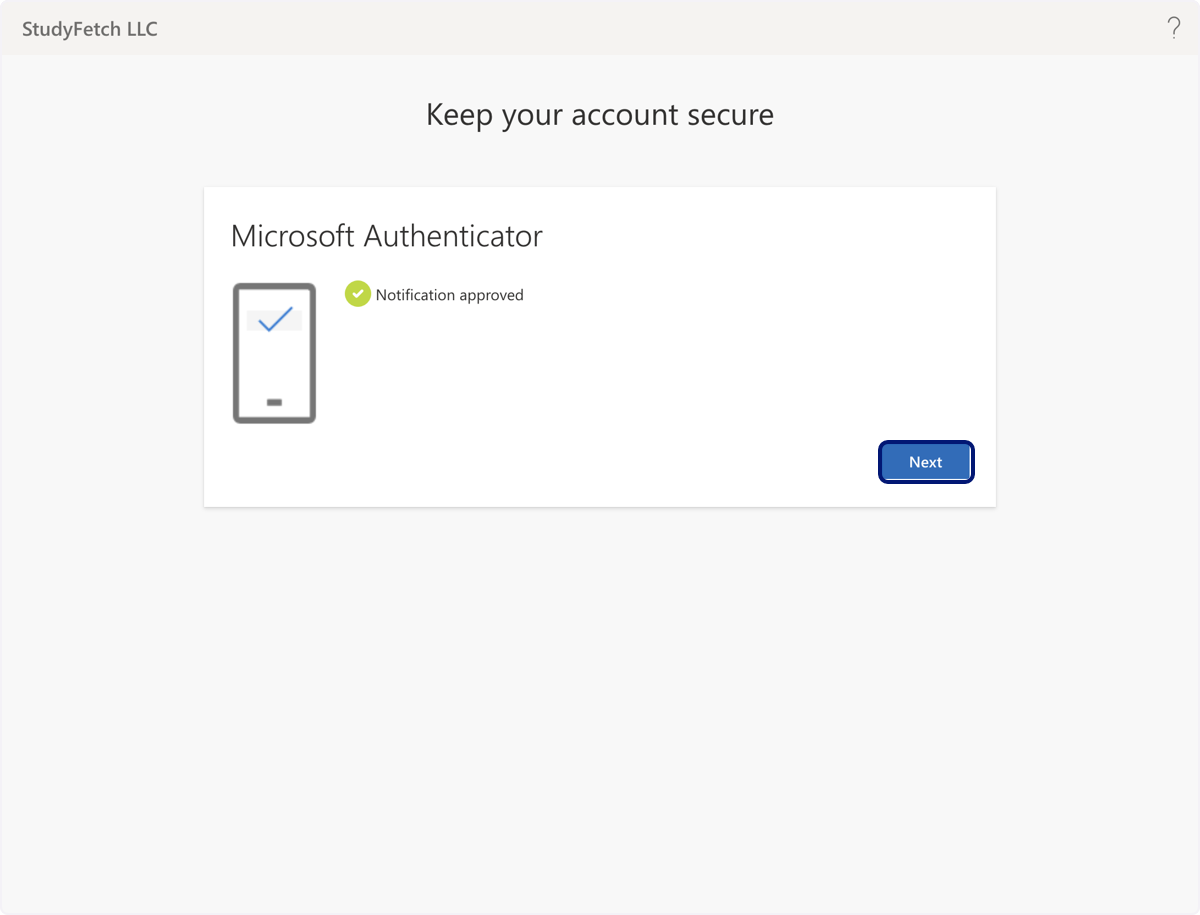
🟣 Step 4: Set Up Multi-Factor Authentication (MFA)

Your work account is not completed until MFA is configured.
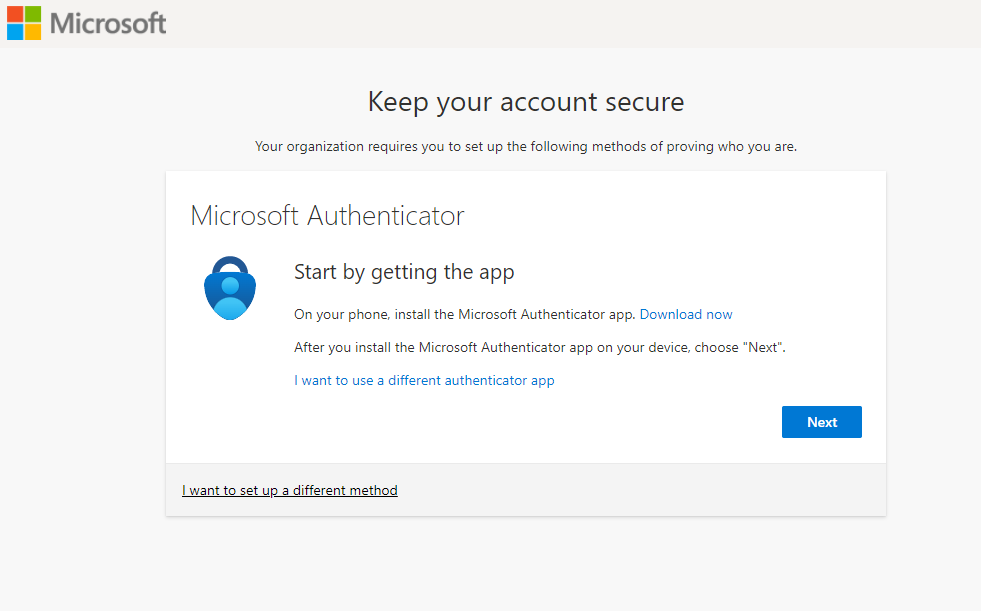
▲ MFA is now set up.
🟣 Step 5: Continue to Partner Center Registration
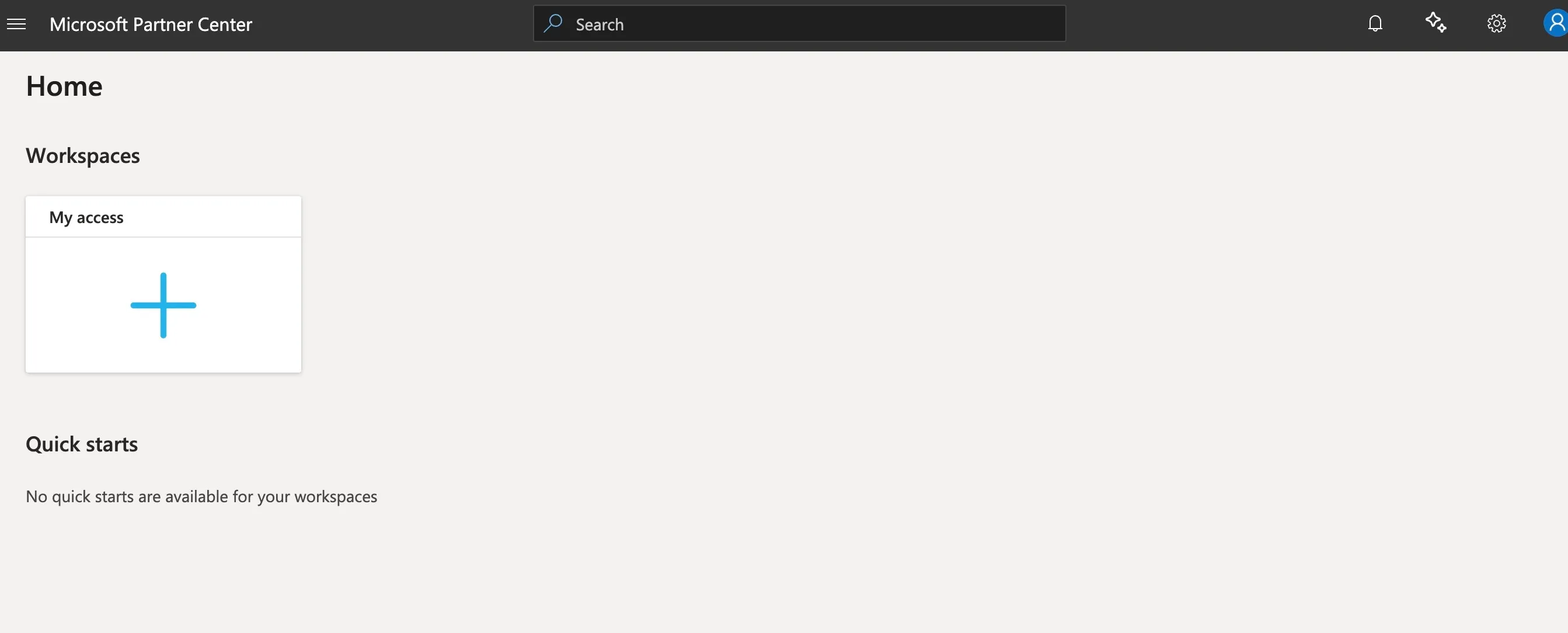
▲ Once MFA is active, you can proceed with your Partner Center registration.
Partner Center registration setup completed after successful work account creation: 👇🏻
Still Stuck? 👇🏻
💬 Need Help?
Contact: [email protected]