WeTransact SalesForce Installation Guide
By Leya Zheng
This guide is intended for Salesforce Admins or technical users responsible for setting up the WeTransact Salesforce integration. If you're a Sales or Marketing user looking to create Co-Sell deals or Private Offers, please refer to the SalesForce - Creating Co-Sell Deals & Private OffersCreating Co-Sell Deals & Private Offers in Salesforce
🟣 Overview
This package connects Salesforce with WeTransact, enabling automated syncing of Co-Sell and Private Offer records. You’ll be able to create offers, retrieve statuses, and keep your data aligned with minimal manual work.
🟣 Requirements
Before you begin, make sure you have:
- Salesforce Administrator access
- Access to install AppExchange applications
- Your WeTransact API credentials (provided by WeTransact)
💡 Note
The installation should be completed by a Salesforce Administrator.
🟣 Install the Package
Click the WeTransact Salesforce Installation link, install for admin, and wait until complete.
🟣 Video : Salesforce WeTransact Installation Demo
The video below provides a full walkthrough of the installation and configuration process.
A step-by-step written guide is also available below.
🟣 Step-by-Step
Salesforce Installation Guide
Install the WeTransact Salesforce App and configure it for Co-Sell and Private Offer management.
Step 1 : Install the WeTransact App
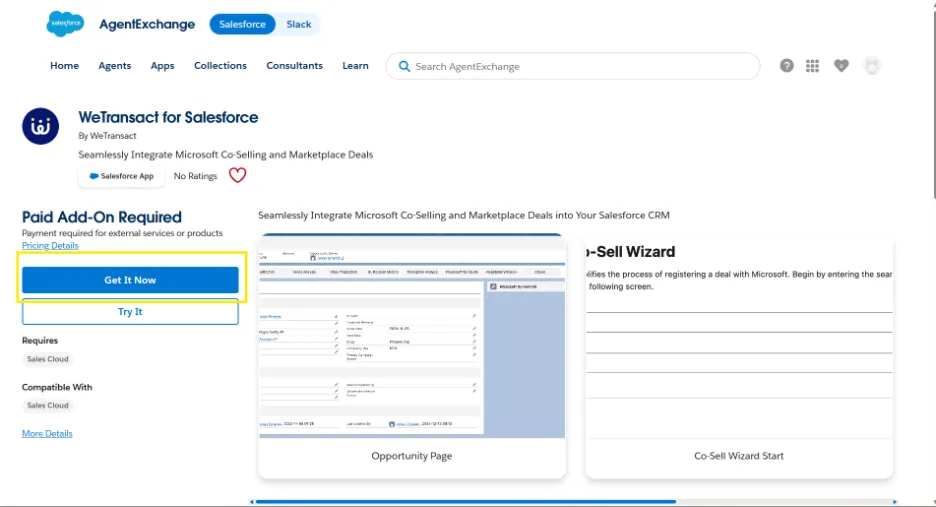
Open the Salesforce AppExchange listing: WeTransact Salesforce Installation link
Click Get It Now.
Step 2: Log in to Salesforce
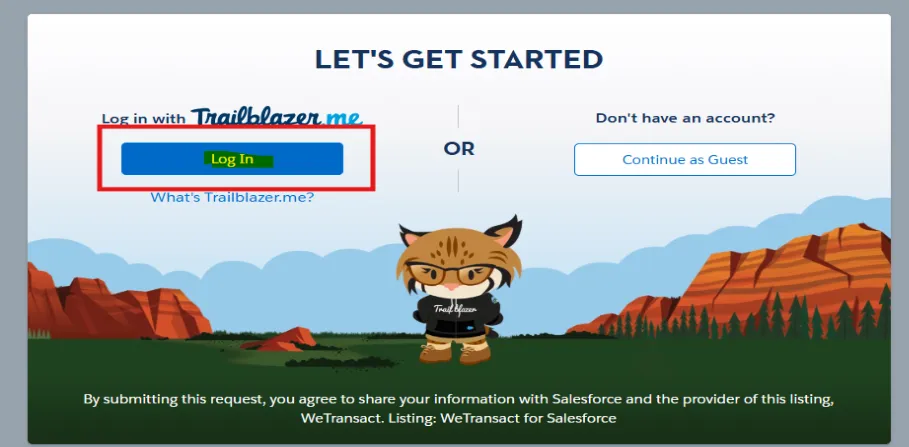
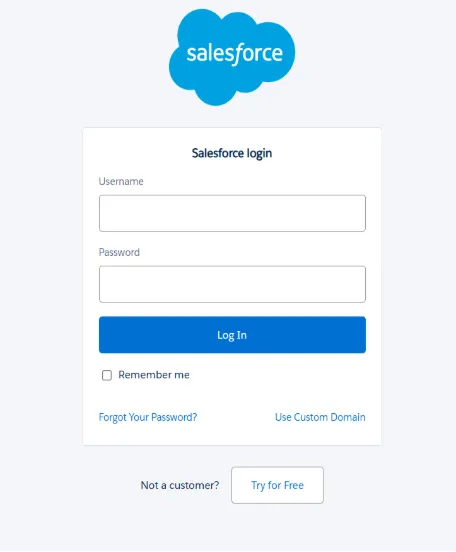
Click Login and authenticate with your Salesforce Administrator account.
Step 3: Install the Package
Choose: Install in Production
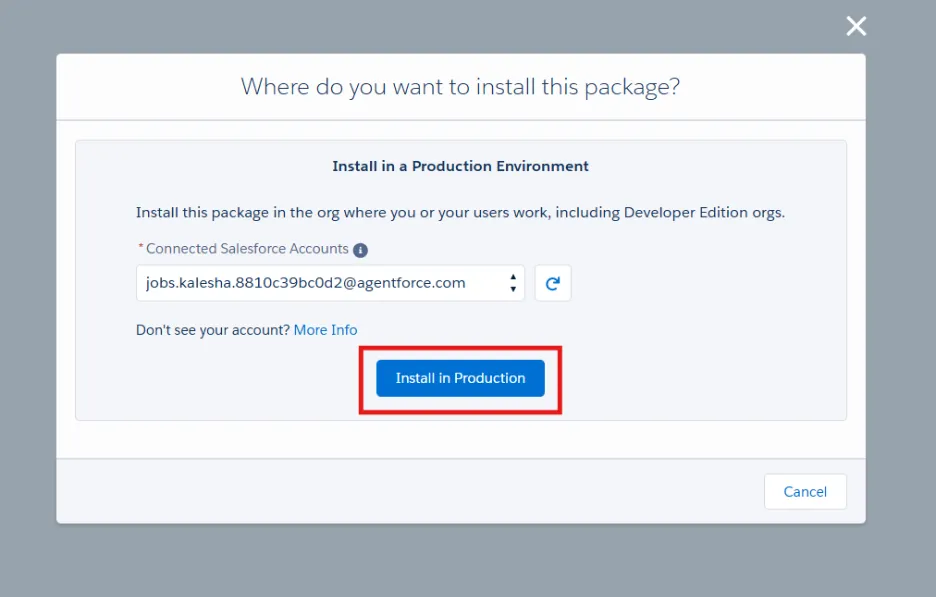
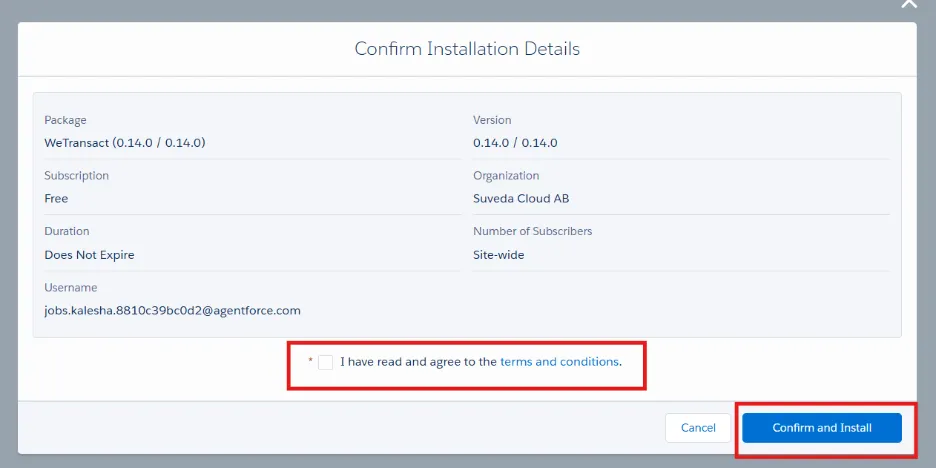
Select: Install for Admins Only, Click Install. Wait until the installation finishes.
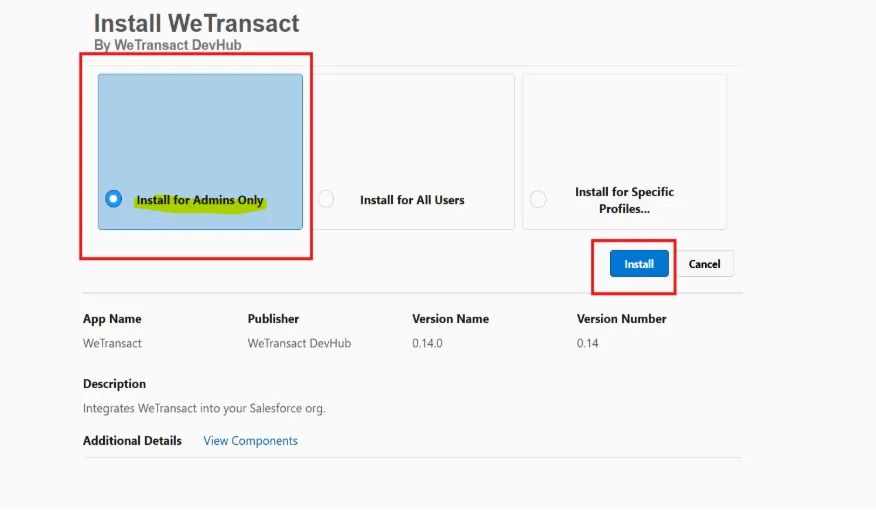
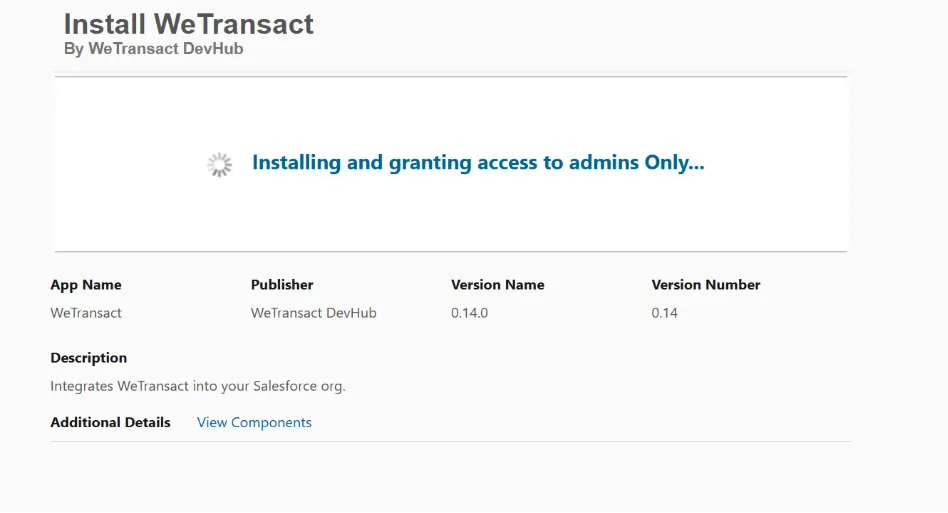
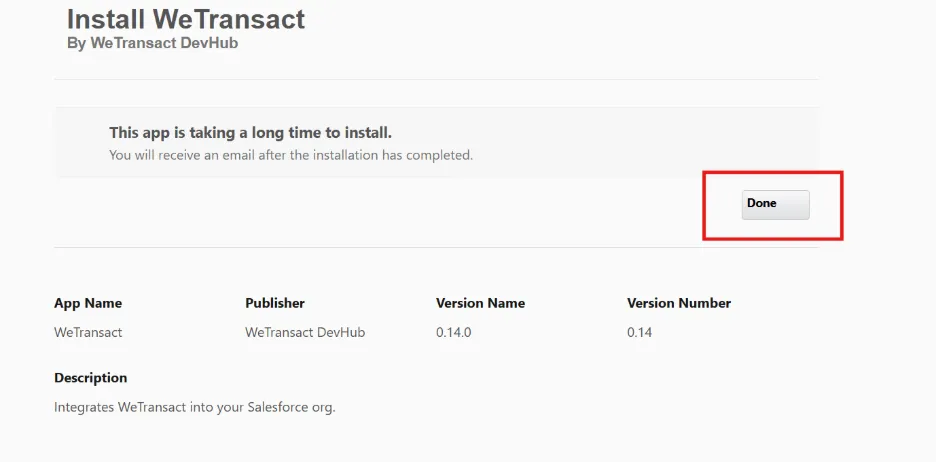
After installation completes, click Done.
Step 4: Verify Installation
Navigate to: Setup → Installed Packages. Verify that WeTransact appears in the Installed Packages list.
√ Success
If the package appears, the installation completed successfully.
Step 5: Assign Permissions
All access is granted through Permission Set Groups (PSGs). Assign the appropriate Permission Set Groups based on the user's role.
💡 Permission Set Groups
WeTransact – Admin Access
Grants full administrative access to credentials, logs, flow configuration, and manual execution.
WeTransact Private Offer – User Access
Grants access to create and manage Private Offers from the Opportunity page.
WeTransact Co-Sell – User Access
Grants access to create and manage Co-Sell records from the Opportunity page.
Bulk-Assign Permission Set Groups
Use this method to assign or remove a Permission Set Group for multiple users at once.
💡 Tip
Permission Sets can also be assigned individually from each User record.
1. Open Permission Set Groups
Navigate to: Setup → Permission Set Groups
2. Open the Permission Set Group
For example: WeTransact Co-Sell – User Access
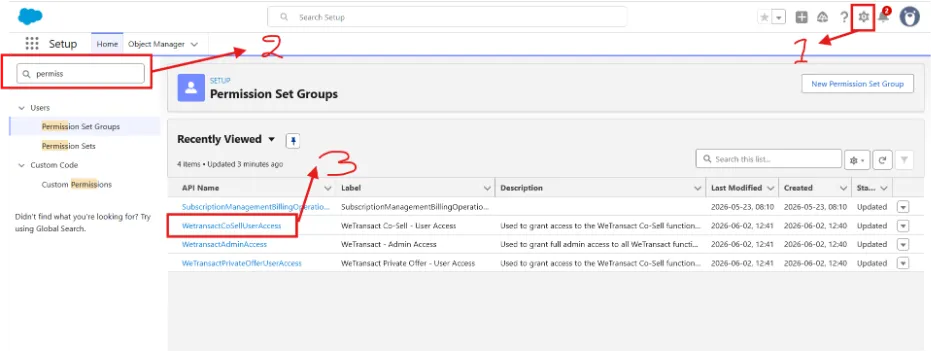
3. Click Manage Assignments

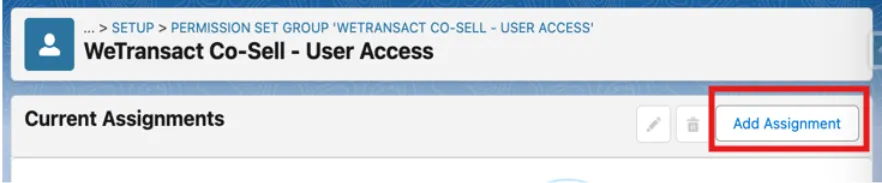
4. Click Add Assignments
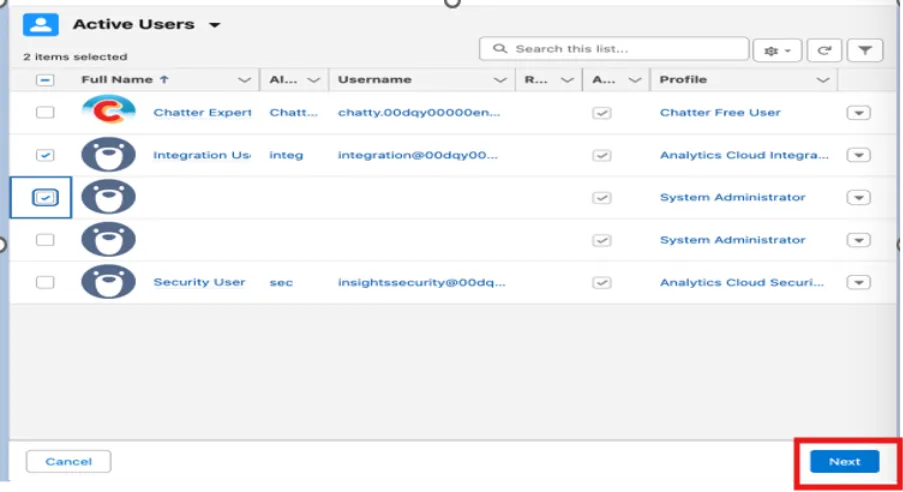
5. Select Users
Choose the users that should receive access. Click Next.
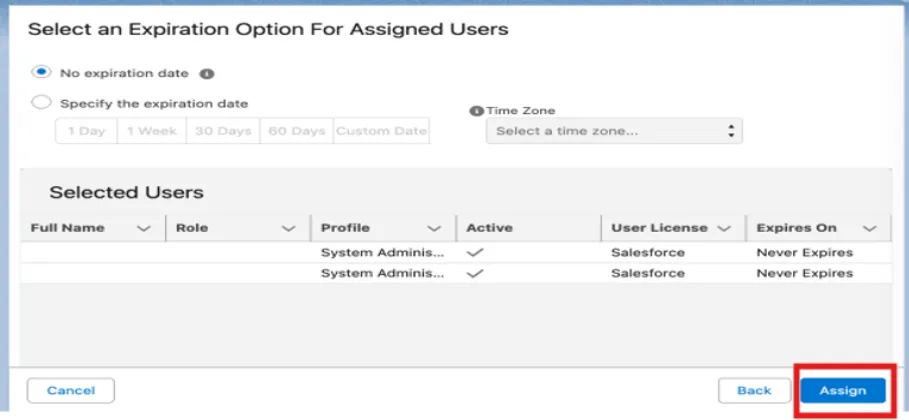
6. Assign Permissions
Click Assign.
💡 Note
Repeat these steps for the remaining Permission Set Groups if required.
Step 6: Configure the API Connection
The Salesforce App communicates with WeTransact through Named Credentials.
Navigate to: Setup → Named Credentials
Open: WeTransact Named Credential
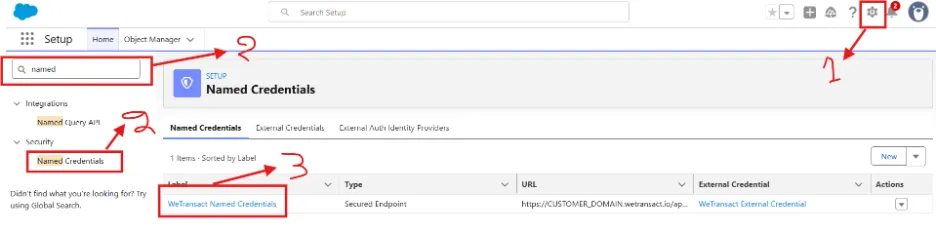
Click Edit.
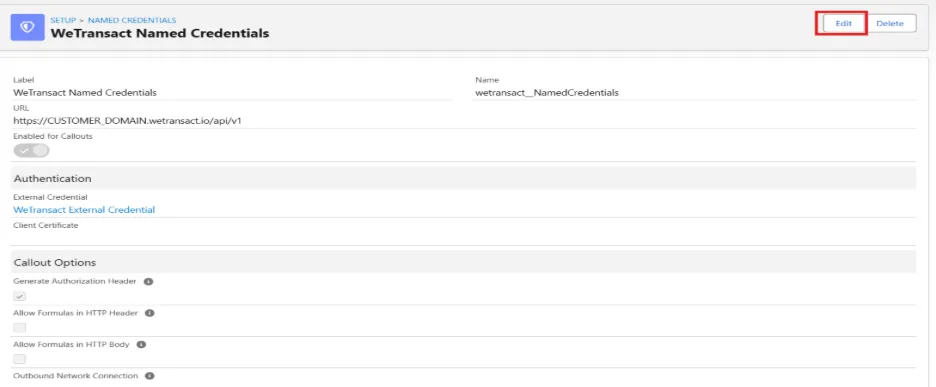
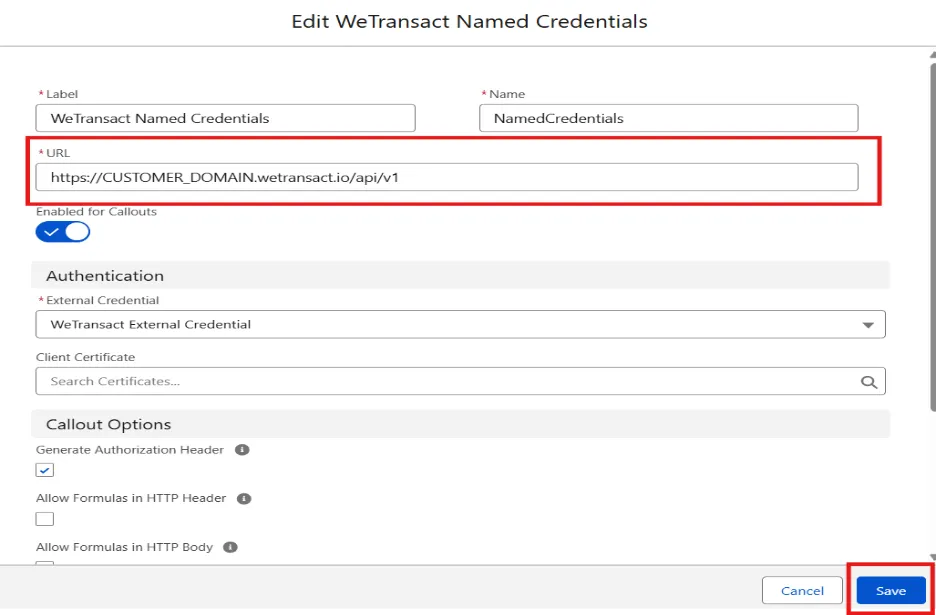
Update the endpoint to:
https://api.archera.wetransact.io/api/v1Click Save.
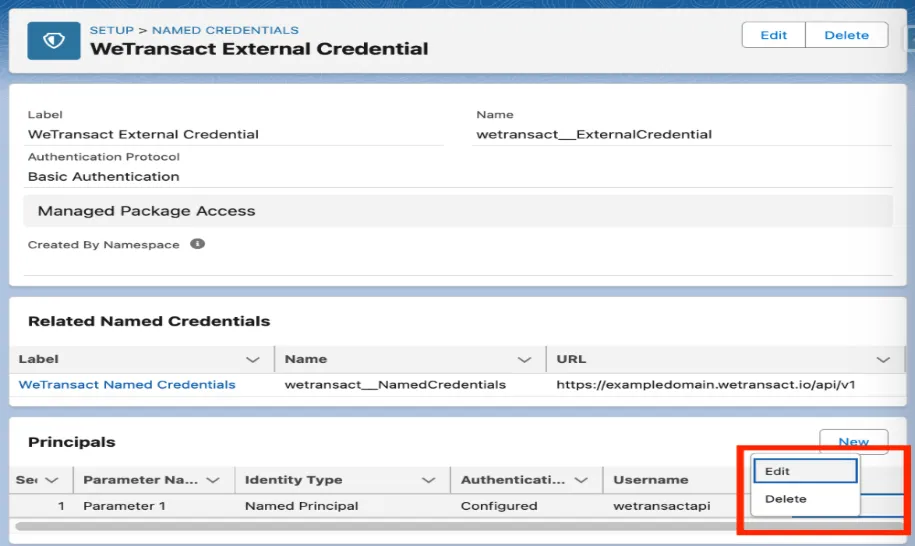
Next, open: WeTransact External Credential
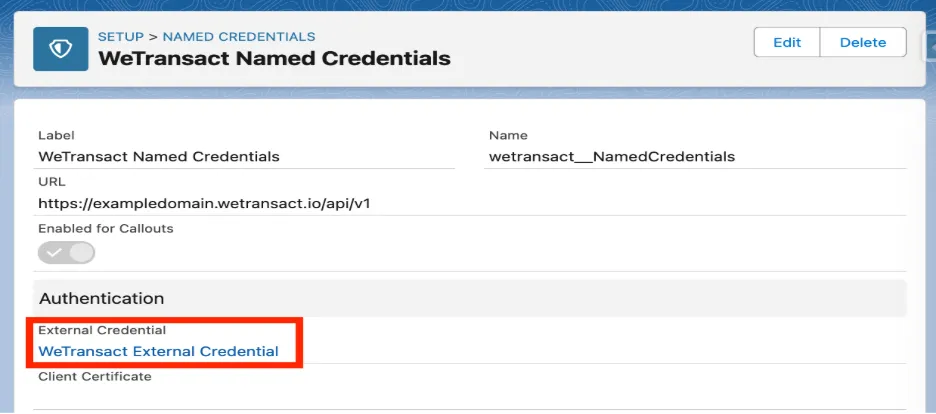
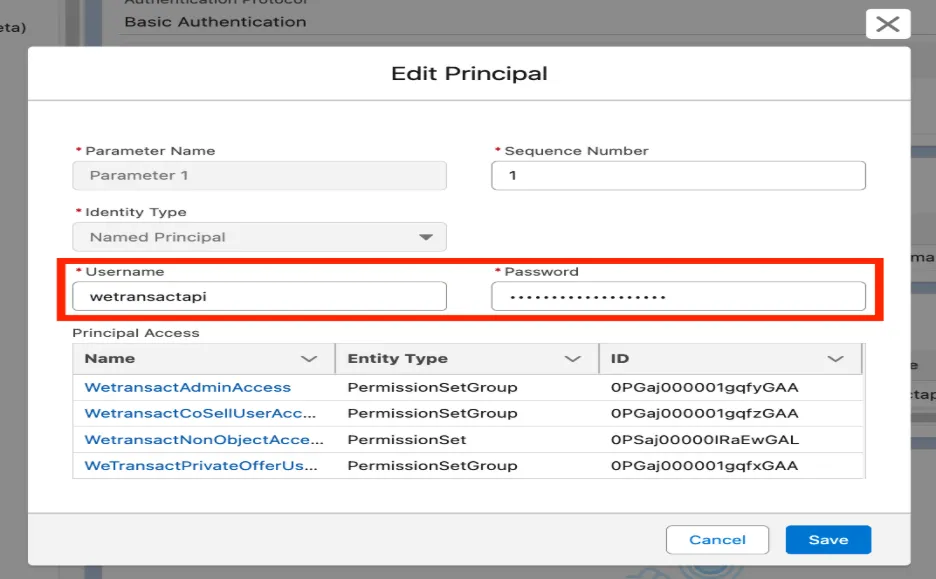
Edit the Principal.
Please go to your WeTransact Portal → Settings → Integrations → CRM API Token Generator → Generate
Enter:
- Username
- API Token
✅ Success
Salesforce is now connected to the WeTransact API.
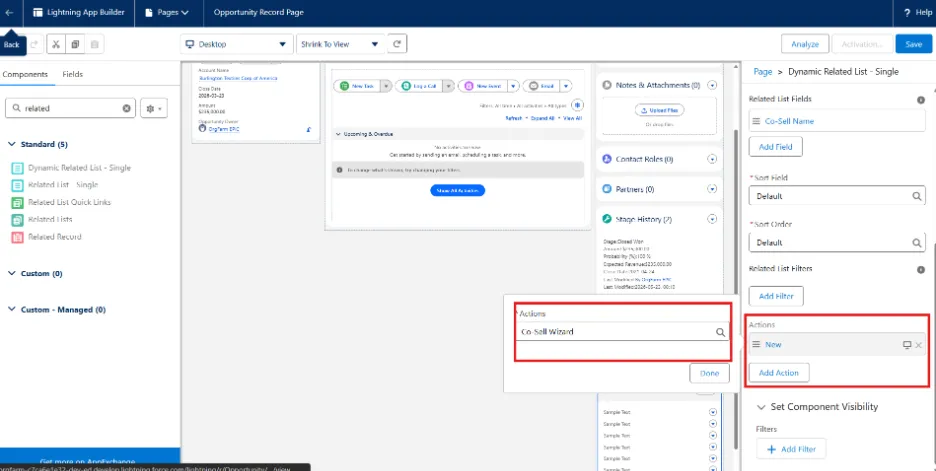
Step 7: Add the Co-Sell Wizard to Opportunity Pages
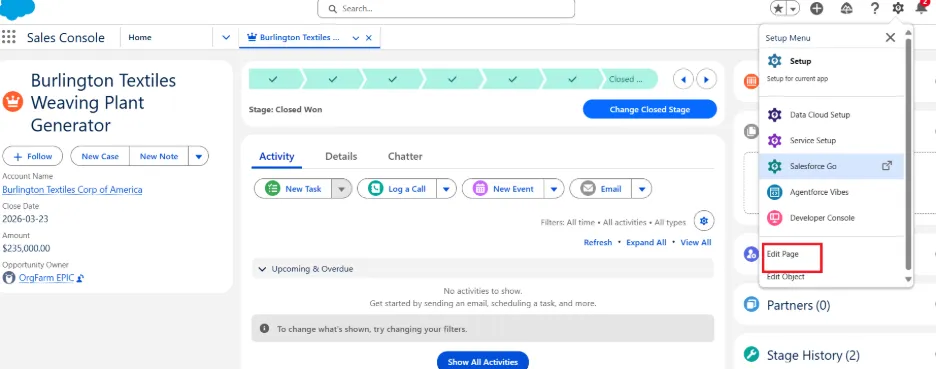
Open any Opportunity.
Select: ⚙️ → Edit Page
Search for: Dynamic Related List – Single
Drag it onto the page.
Add the following fields:
- Deal/Offer Name
- Deal/Offer Status
- Sync Status
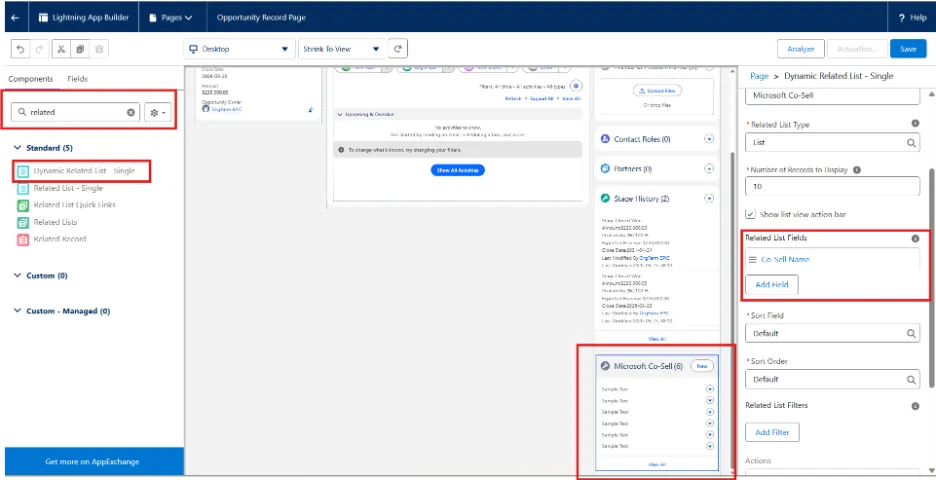
Replace the New action with: Co-Sell Wizard
Step 8: Add the Private Offer Wizard
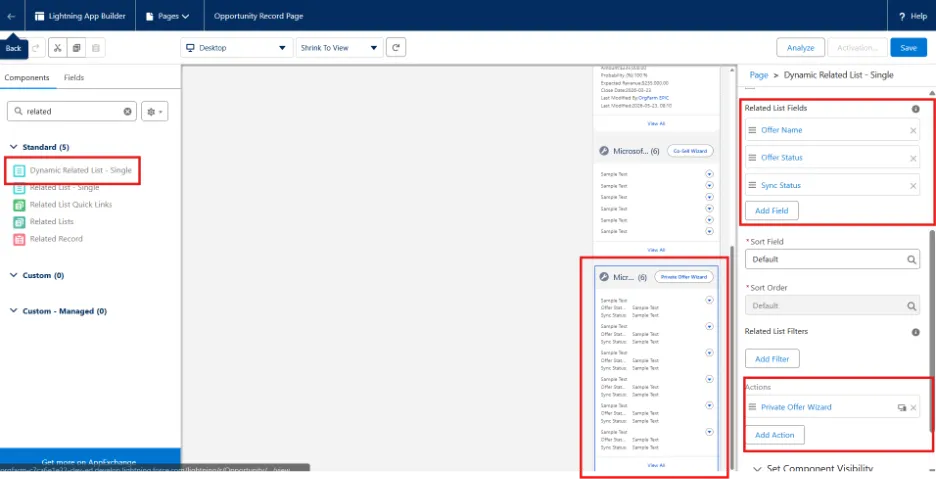
Repeat the previous steps. Add another Dynamic Related List – Single.
Use these fields:
- Offer Name
- Offer Status
- Sync Status
Replace the New action with: Private Offer Wizard
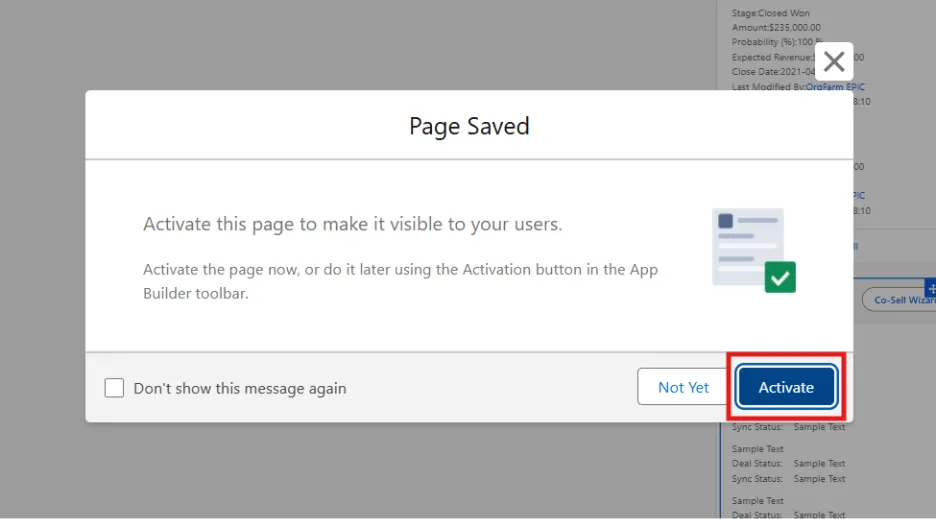
Save and Activate the page
Verify the Installation
Open any Opportunity.
You should now see:
- √ Co-Sell Wizard
- √ Private Offer Wizard
Both should appear and be ready for use.
Installation Complete 🎉
The WeTransact Salesforce App is now installed and fully configured.
🟣 Support
We hope you were able to successfully follow the steps outlined above. If you face any issue please do not hesitate in reaching out to your WeTransact representative.
💬 For more, contact us at : [email protected]