What to do if your only admin has left the company! No Access to Your Microsoft Marketplace Listing?
If you are unable to access your Microsoft Marketplace product listing because the global admin or original owner has left the company, this guide will help.
Start by identifying the current owner of the listing using this guide.
Start by identifying the current owner of the listing using the steps outlined below. If the listed owner is no longer part of your organization, you can request access by creating a Microsoft support ticket following this process. The Microsoft support team will update the owner user or global admin rights.
Sign in to Microsoft Partner Center ( https://partner.microsoft.com/)
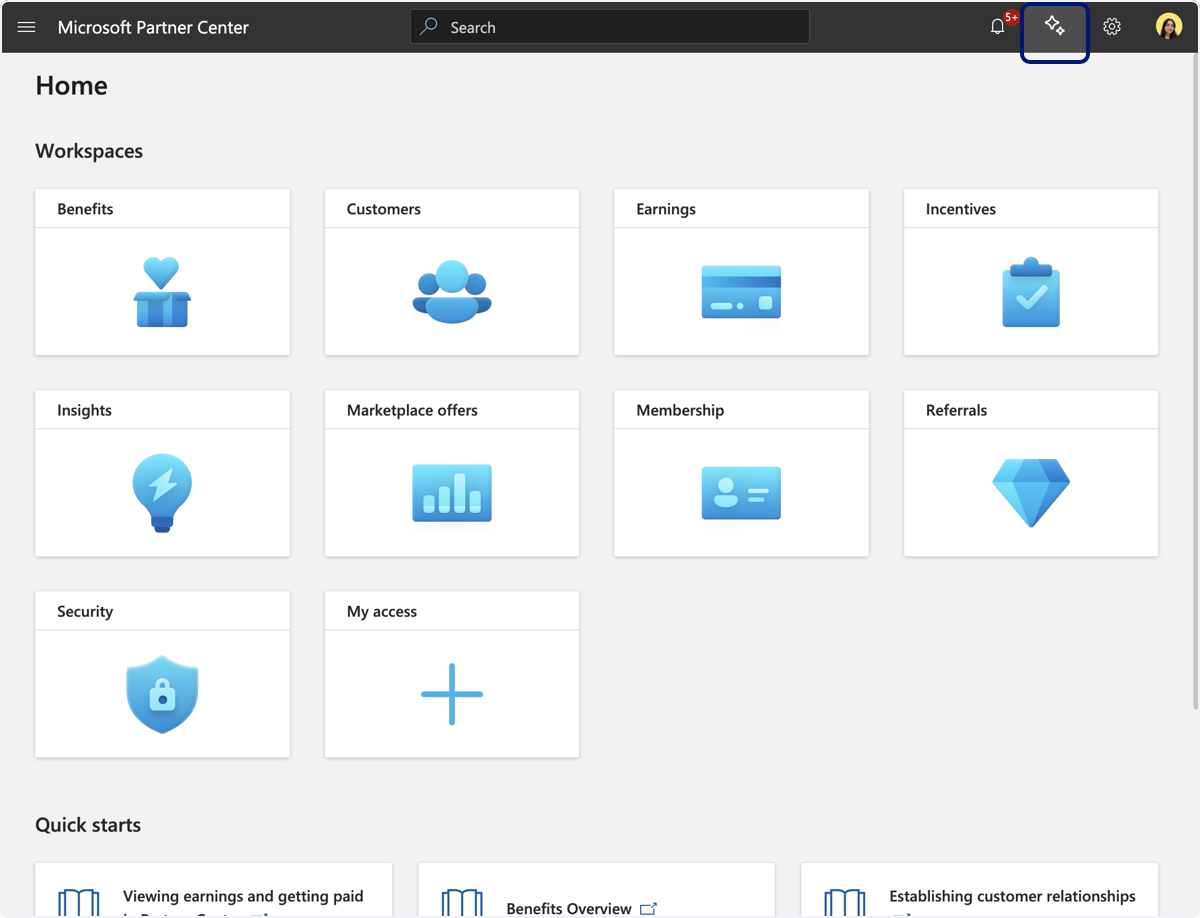
🟣 Click on AI assistant and Support
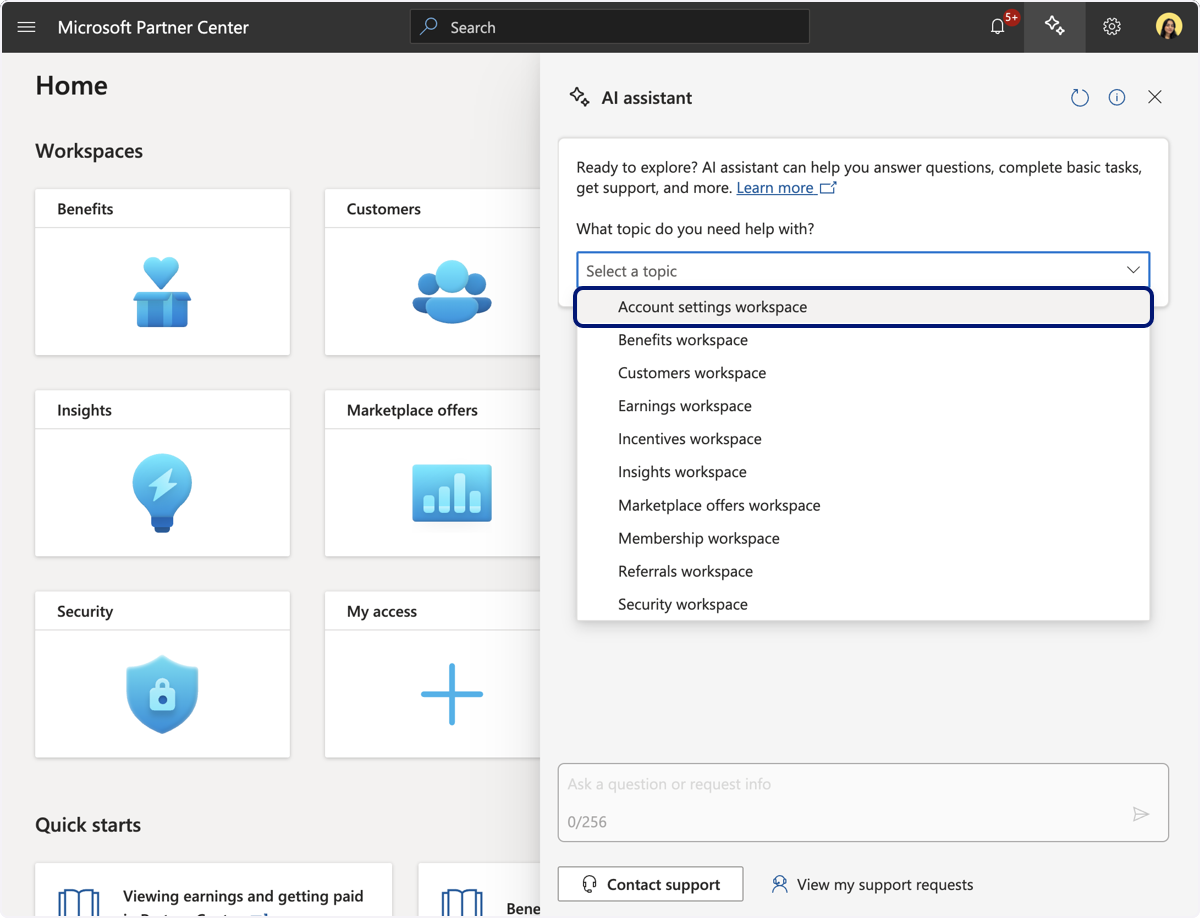
🟣 Click on drop down menu and select 'Account settings workspace'
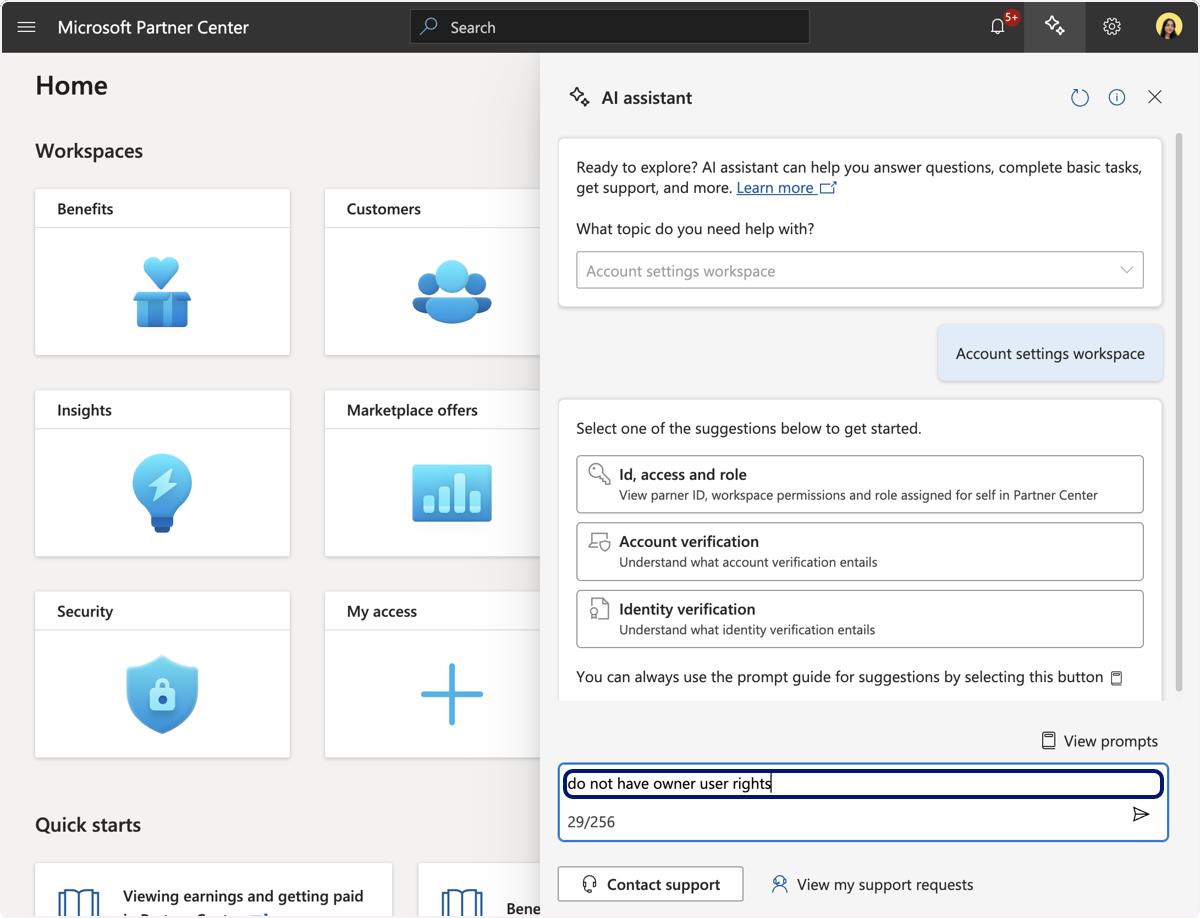
🟣 In the box type the issue such as "do not have owner or global admin user rights" and press Enter.
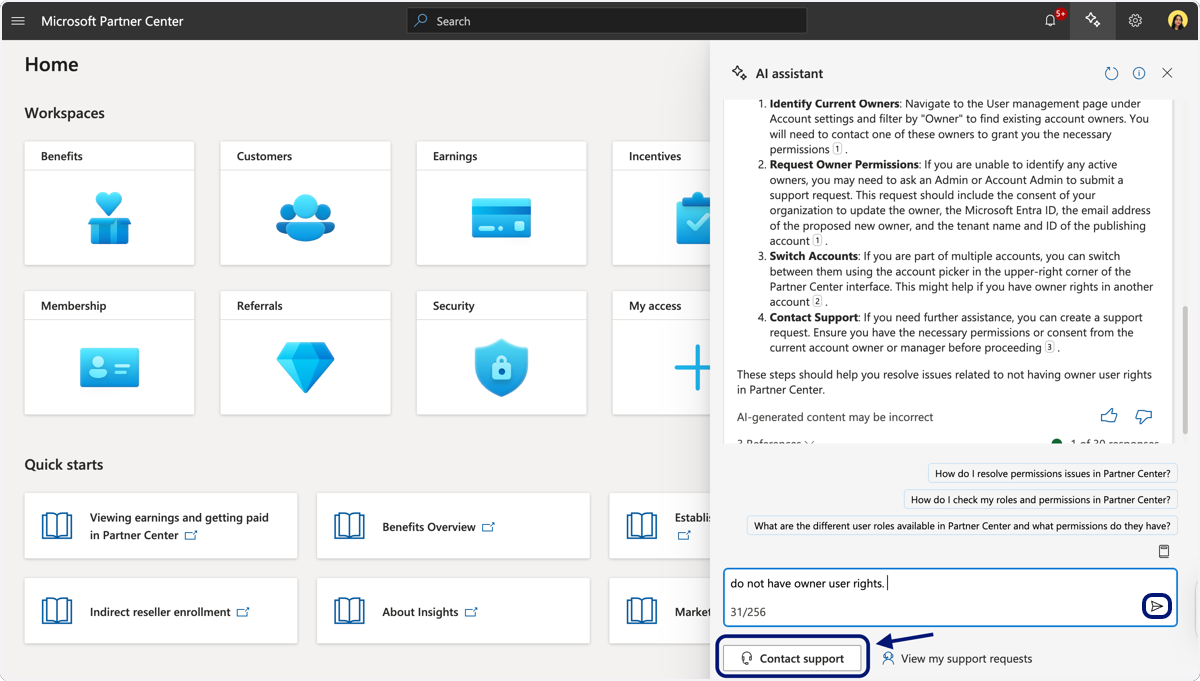
🟣 Once it's generate the articles, click on Contact support
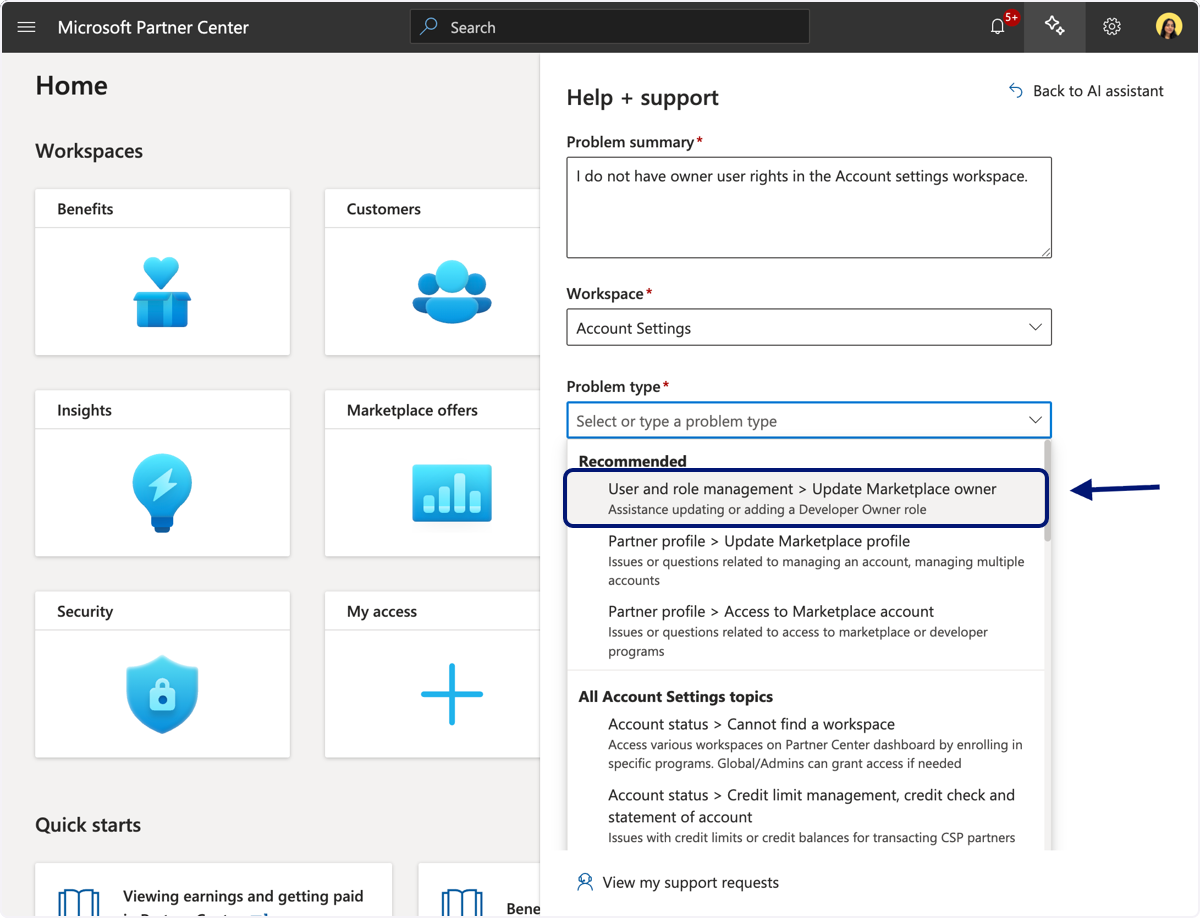
🟣 Under problem type select ' update marketplace owner' option
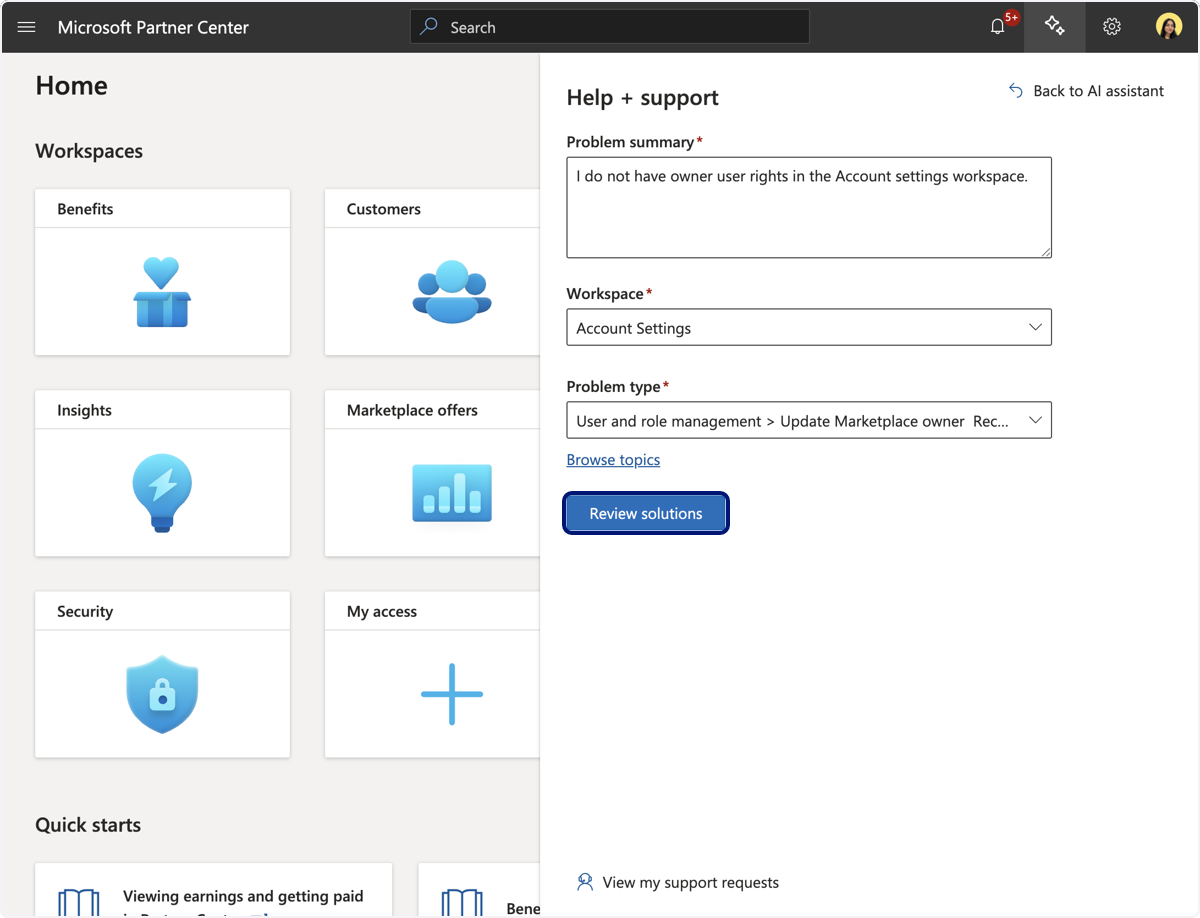
🟣 Click on Review Solutions
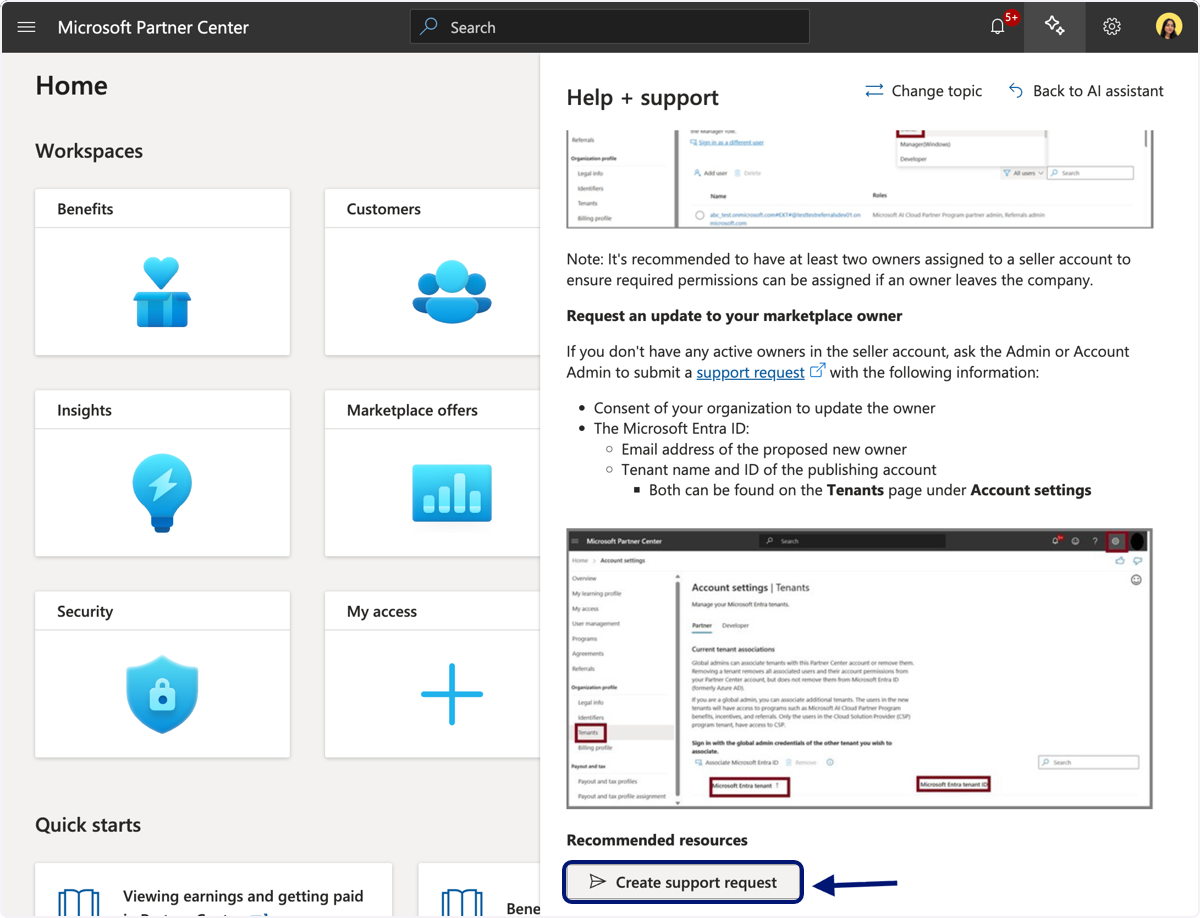
🟣 Click on create support request
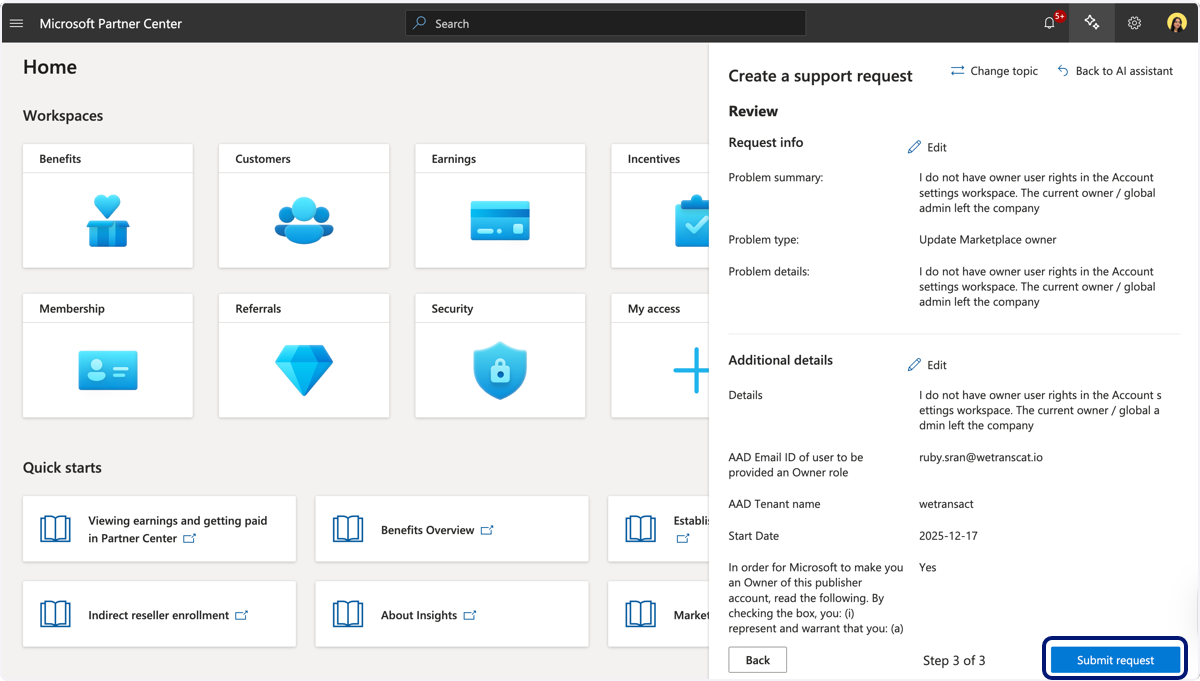
🟣 Type "I do not have owner or global admin user rights in the Account settings workspace. The current owner / global admin left the company"
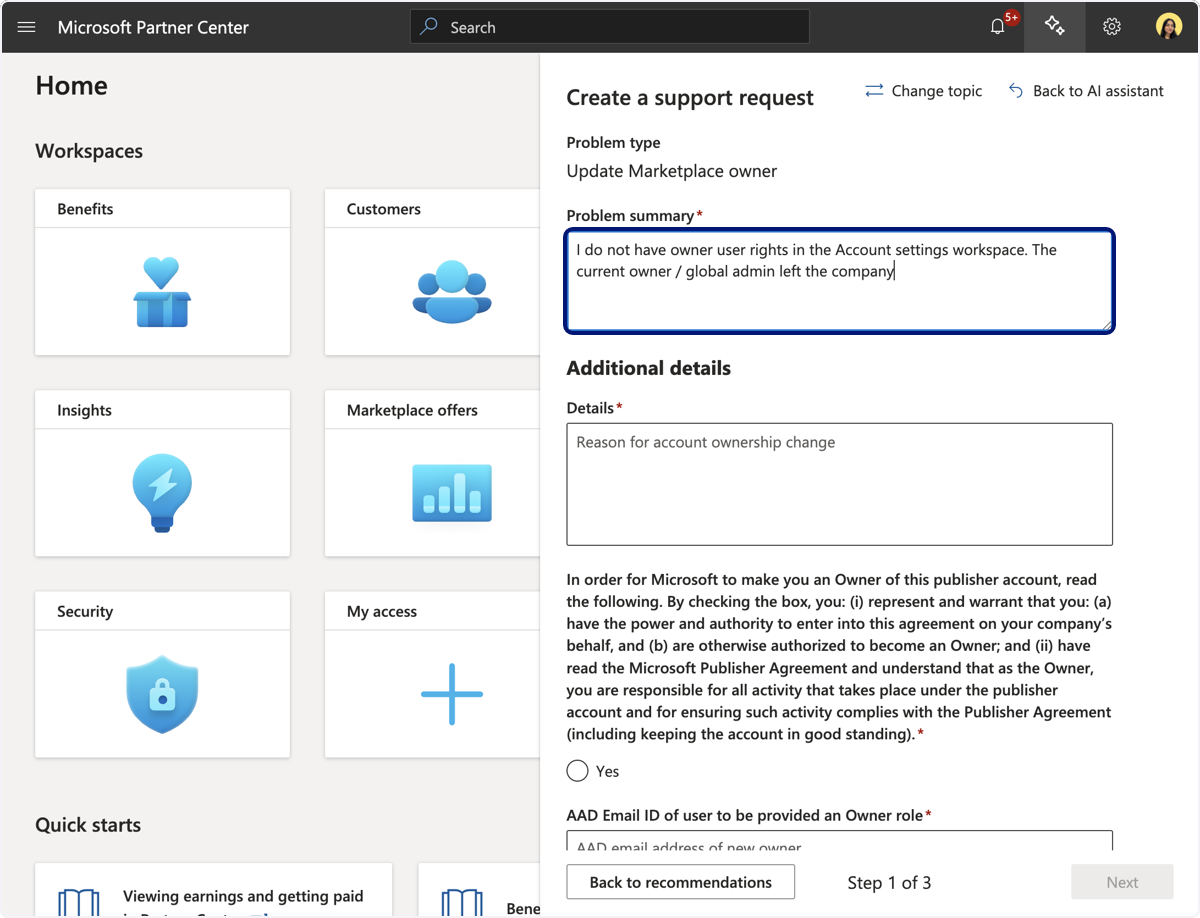
🟣 Add Additional details, you can add the same details
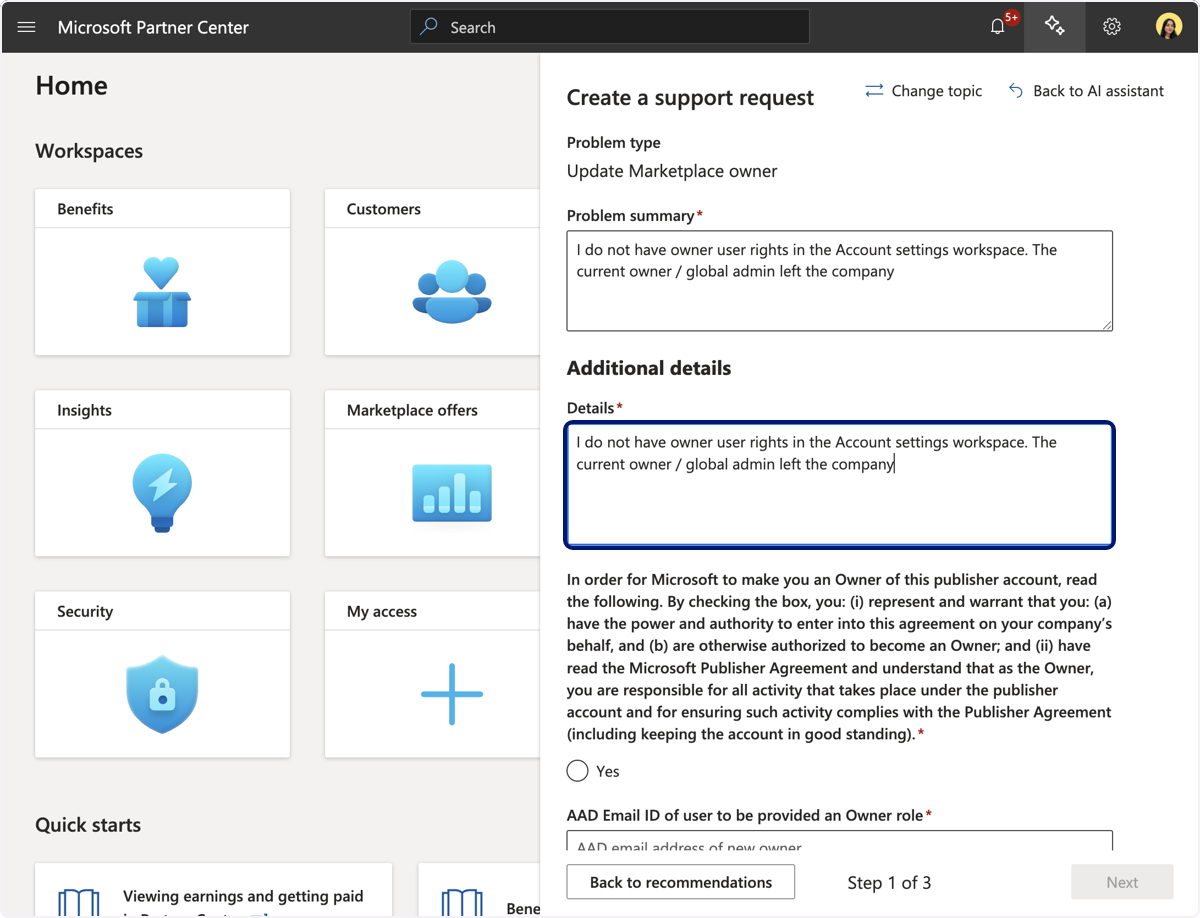
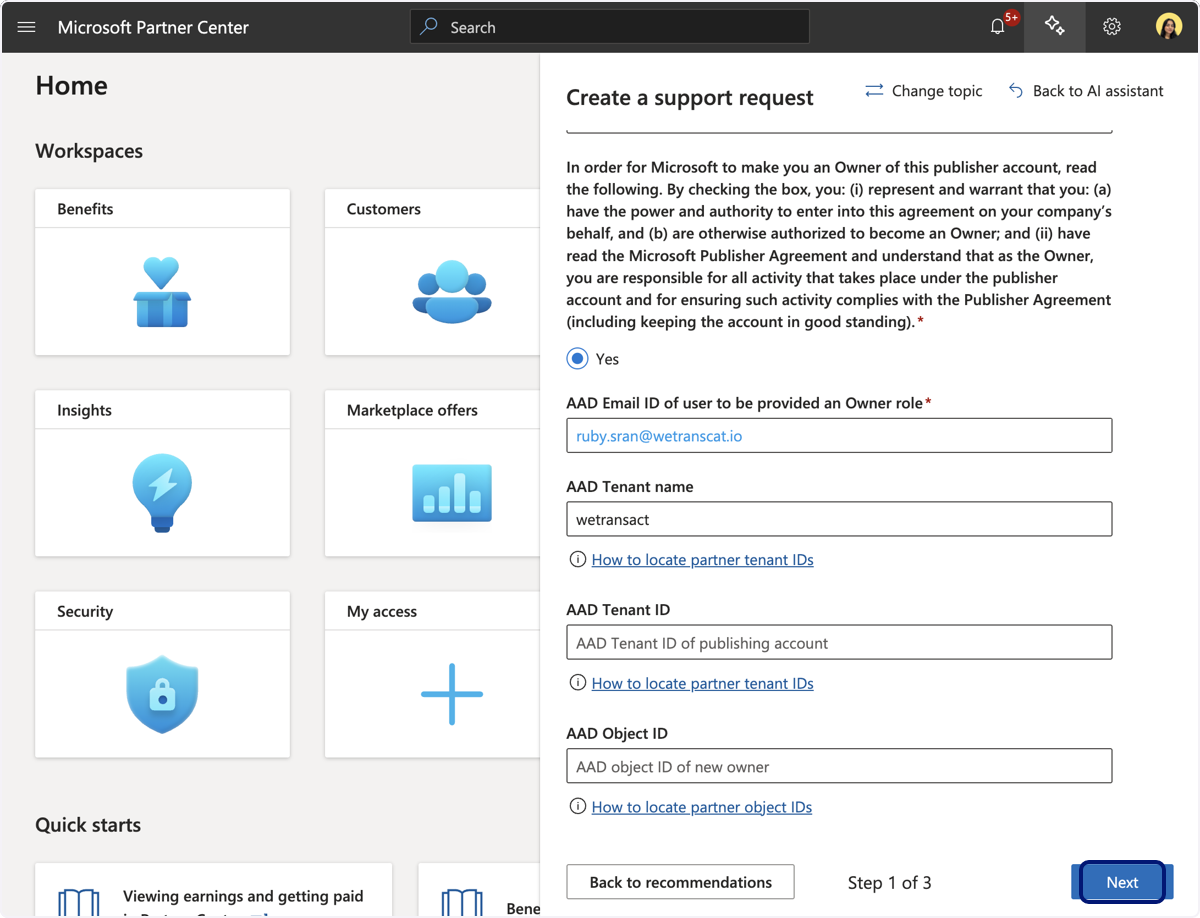
🟣 Click on Yes to confirm the legal ownership declaration & authorization section
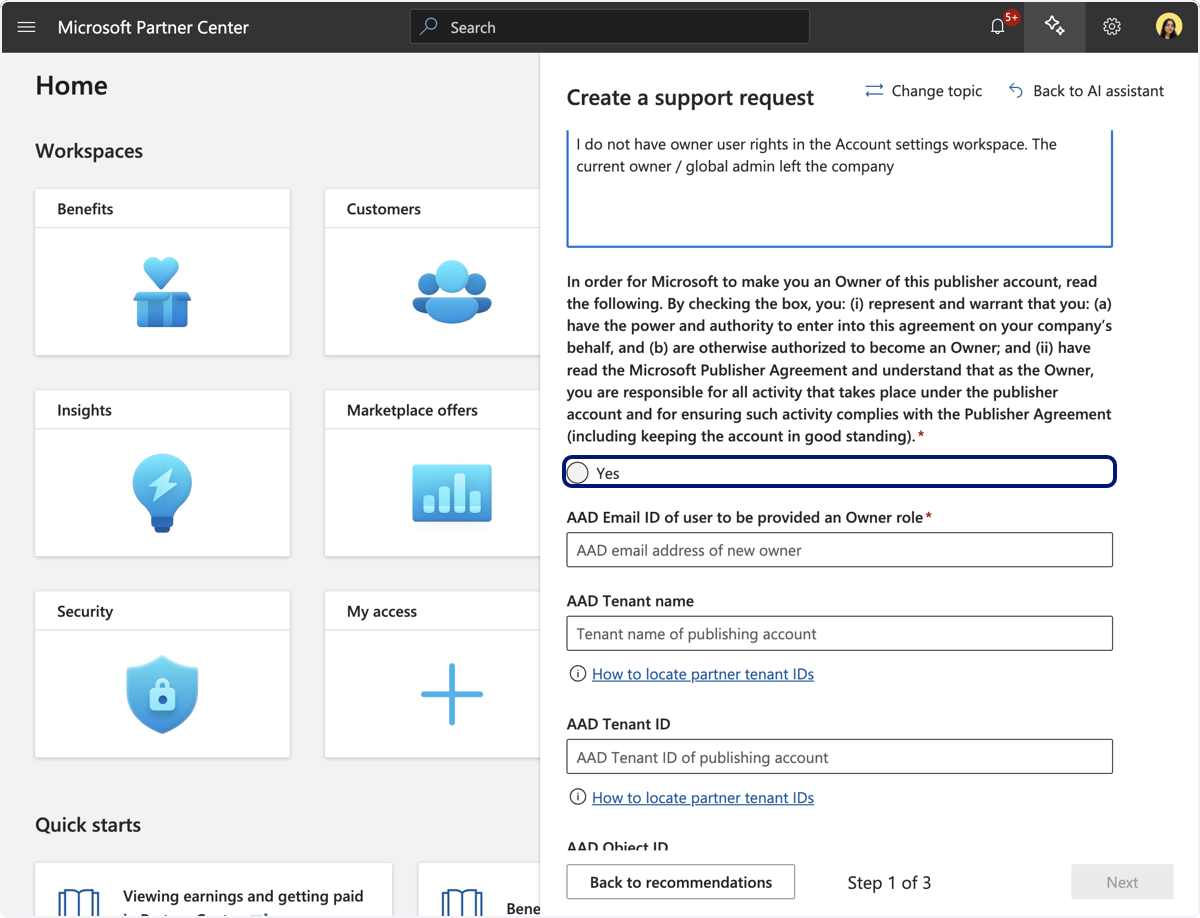
🟣 Type your email "[email protected]"
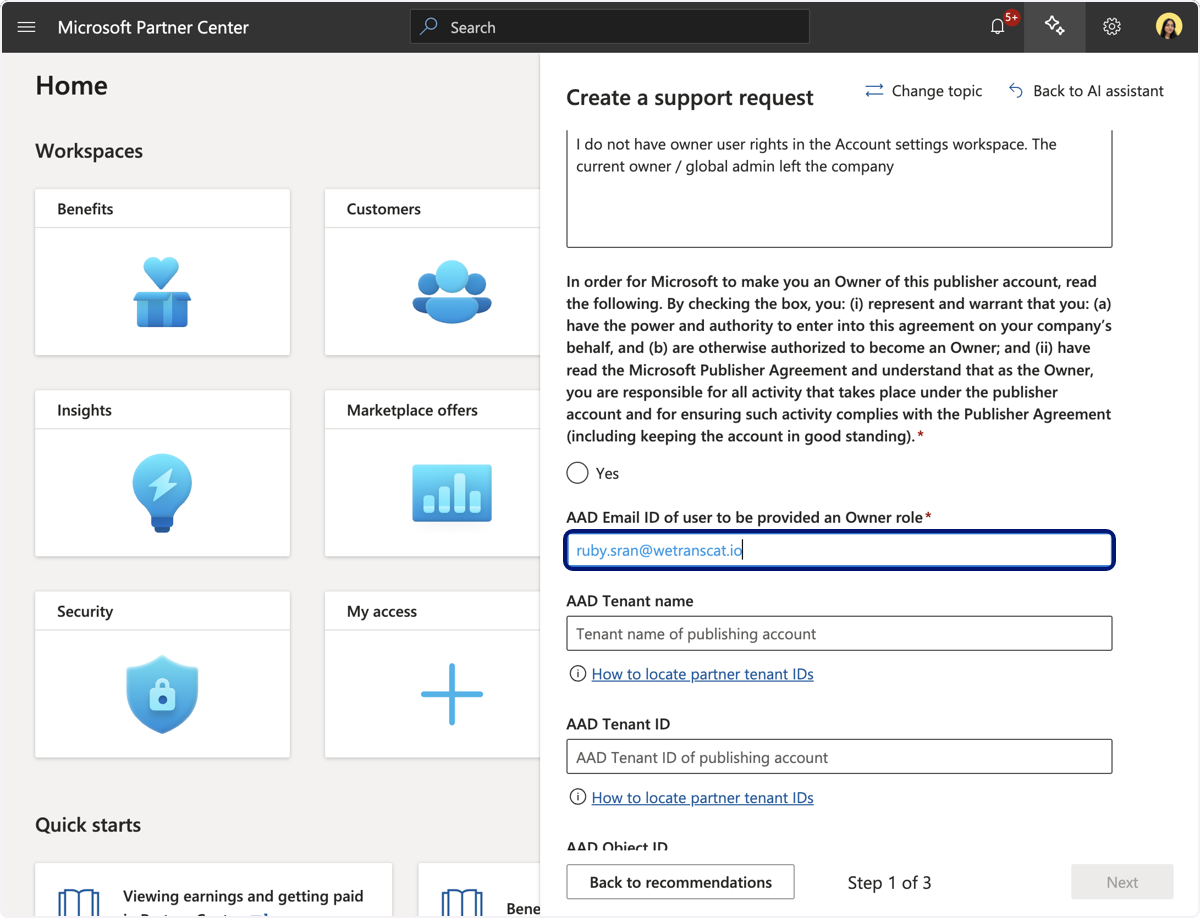
🟣 Add tenant name
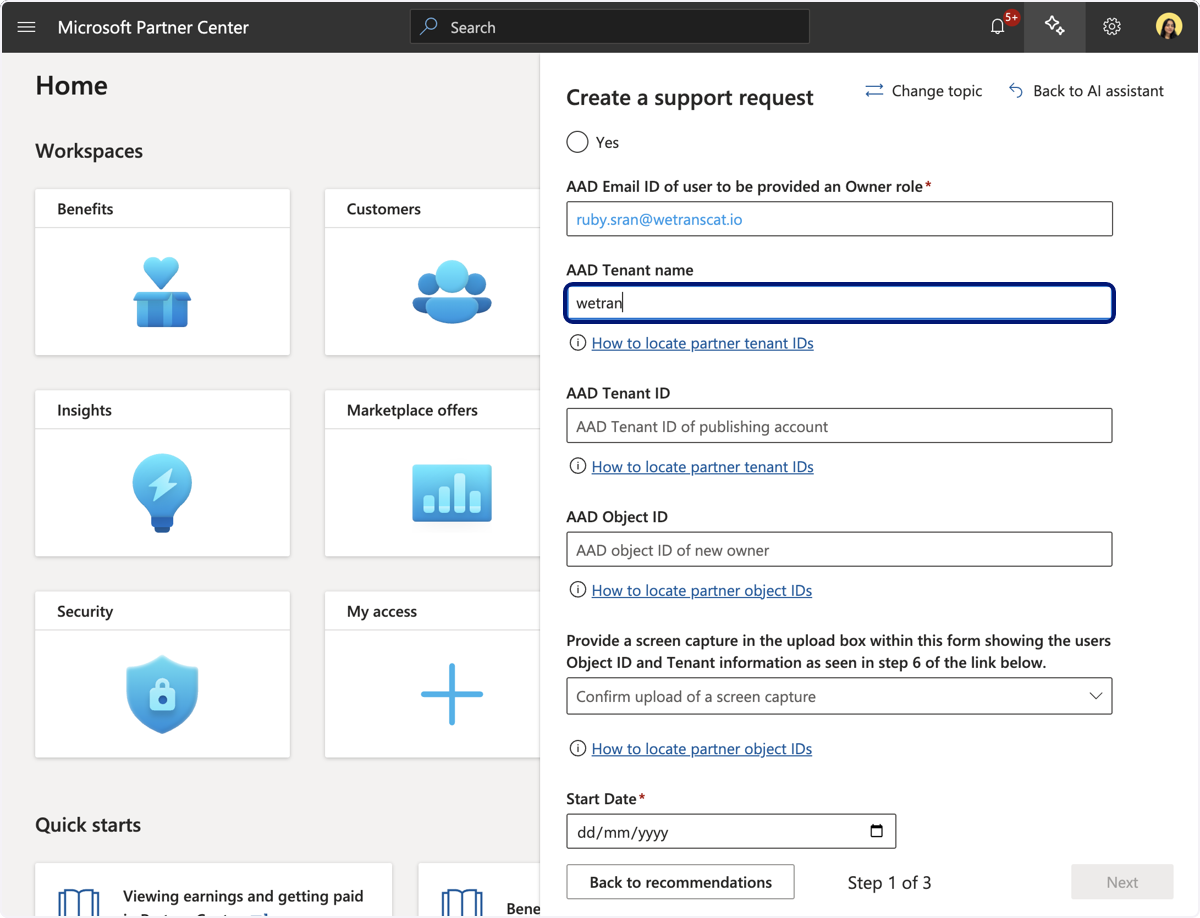
🟣 Select the start date. You may choose today’s date
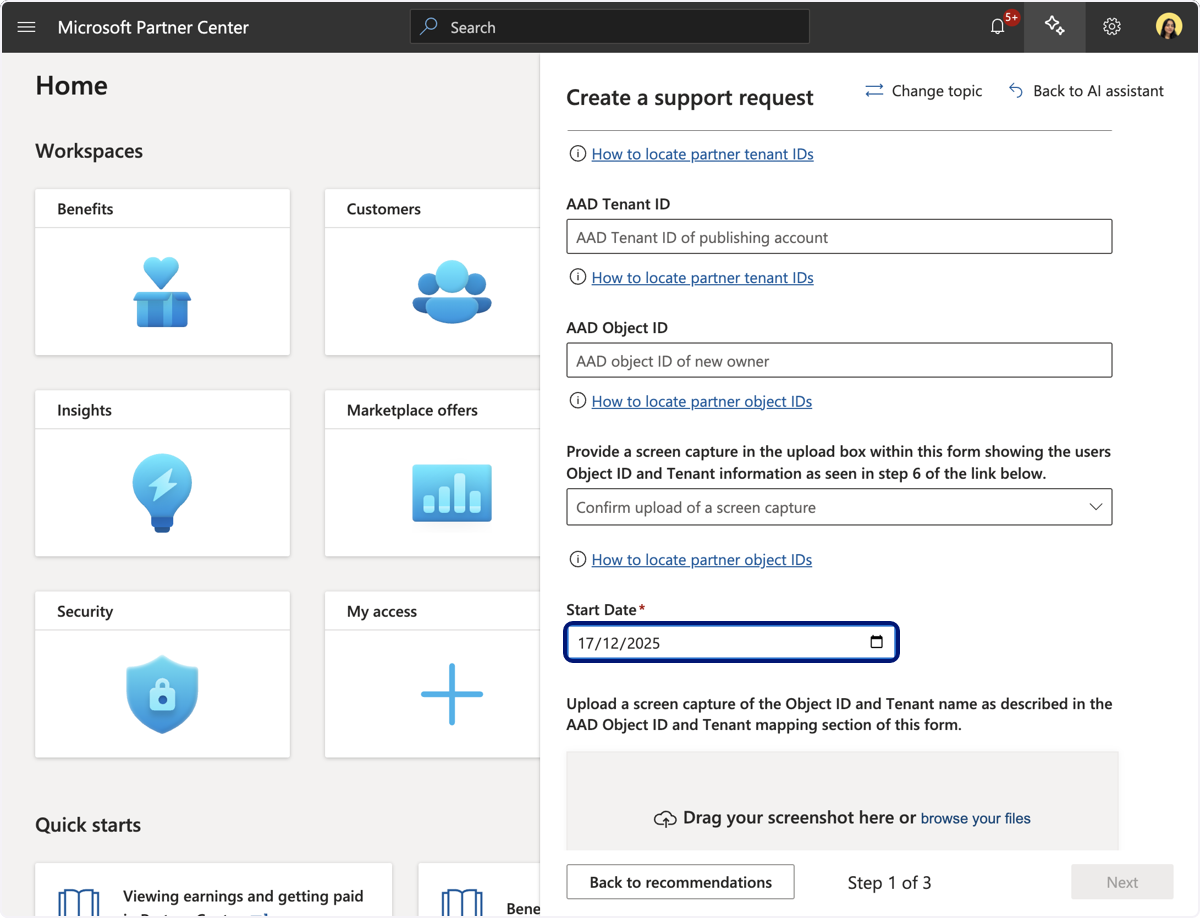
🟣 Click on Next
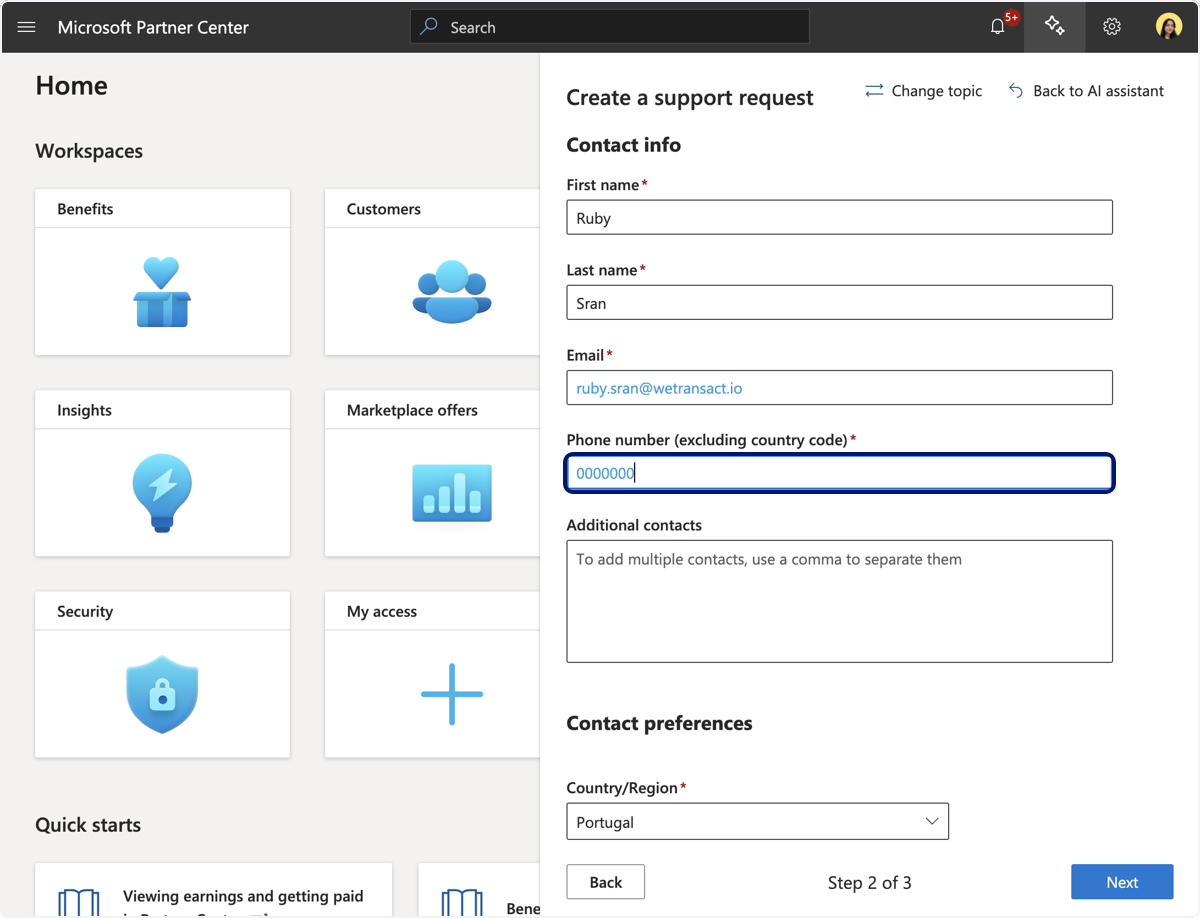
🟣 Add contact Info, Name, email and Phone number
🟣 Click Next
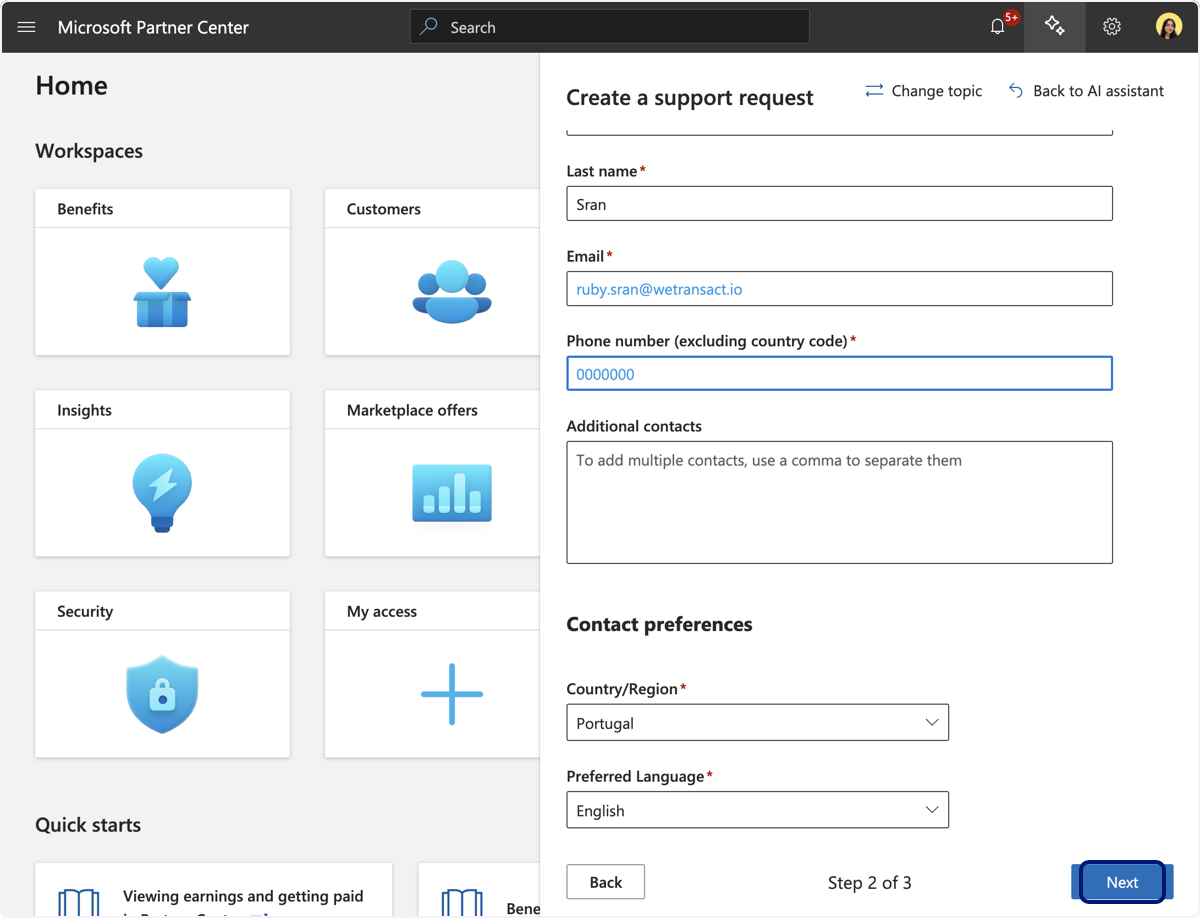
🟣 Select Submit request
The support team will update the user permissions, after which you will be able to access your Marketplace product listing.
💬 For more, contact us at : [email protected]