How to enroll in Frontier Accelerate Program
Overview
Frontier Accelerate for Marketplace is a Microsoft programme for B2B software companies that build, publish and grow solutions on Microsoft Marketplace. It gives you access to resources, benefits and badging. Before you can enrol, you need to complete a short eligibility form in Partner Center, which takes about 2–3 minutes. This guide walks you through the form step by step.
Before you start
- You need the Global admin role in Microsoft Partner Center.
- Have the primary contact's details ready: first name, last name, email, phone, job role and country.
Steps
Step 1 – Open the Membership workspace
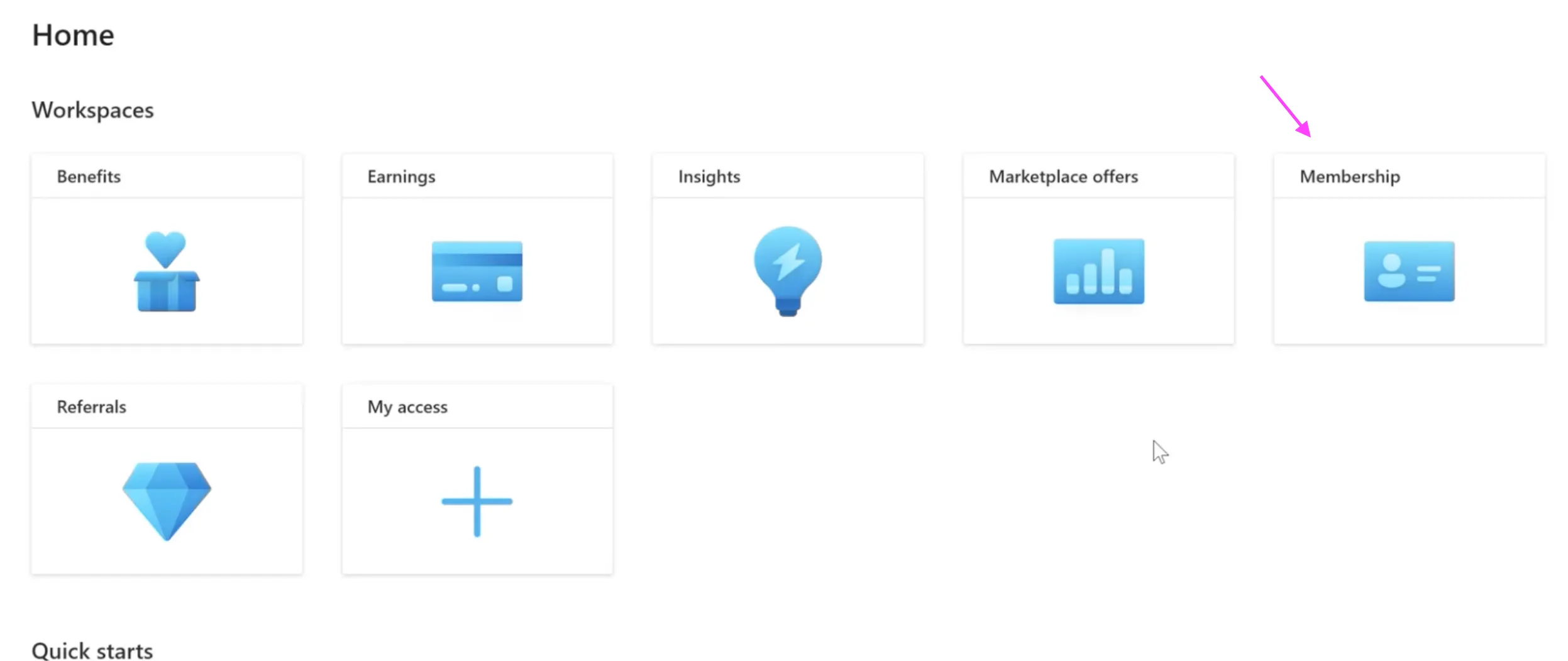
Sign in to Partner Center. On the Home page, under Workspaces, select Membership.
Step 2 – Go to FA for Marketplace
In the left-hand menu, scroll down to FA for Marketplace and select Get Started.
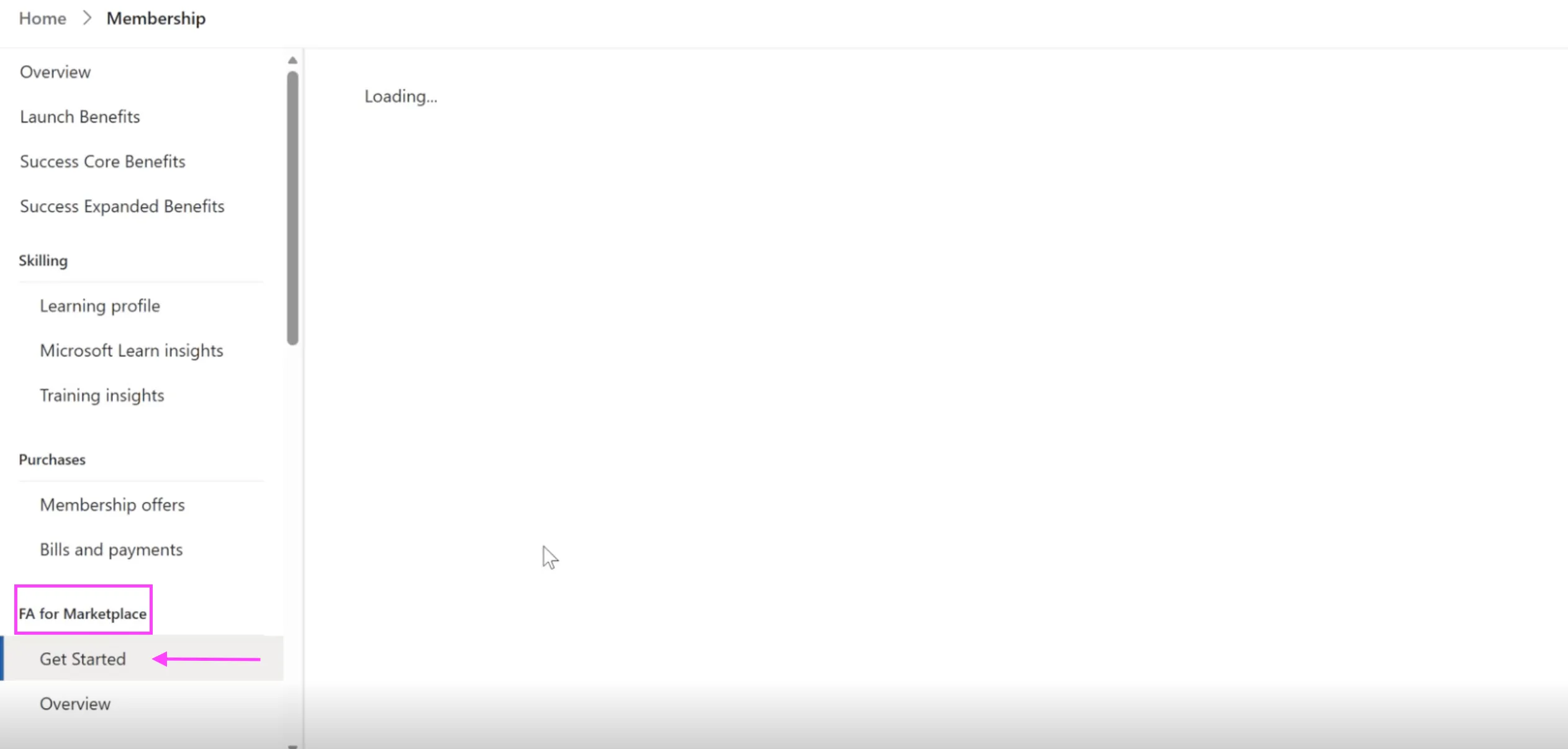
Note: The page may show Loading… for a few seconds before the content appears.
Step 3 – Start the eligibility form
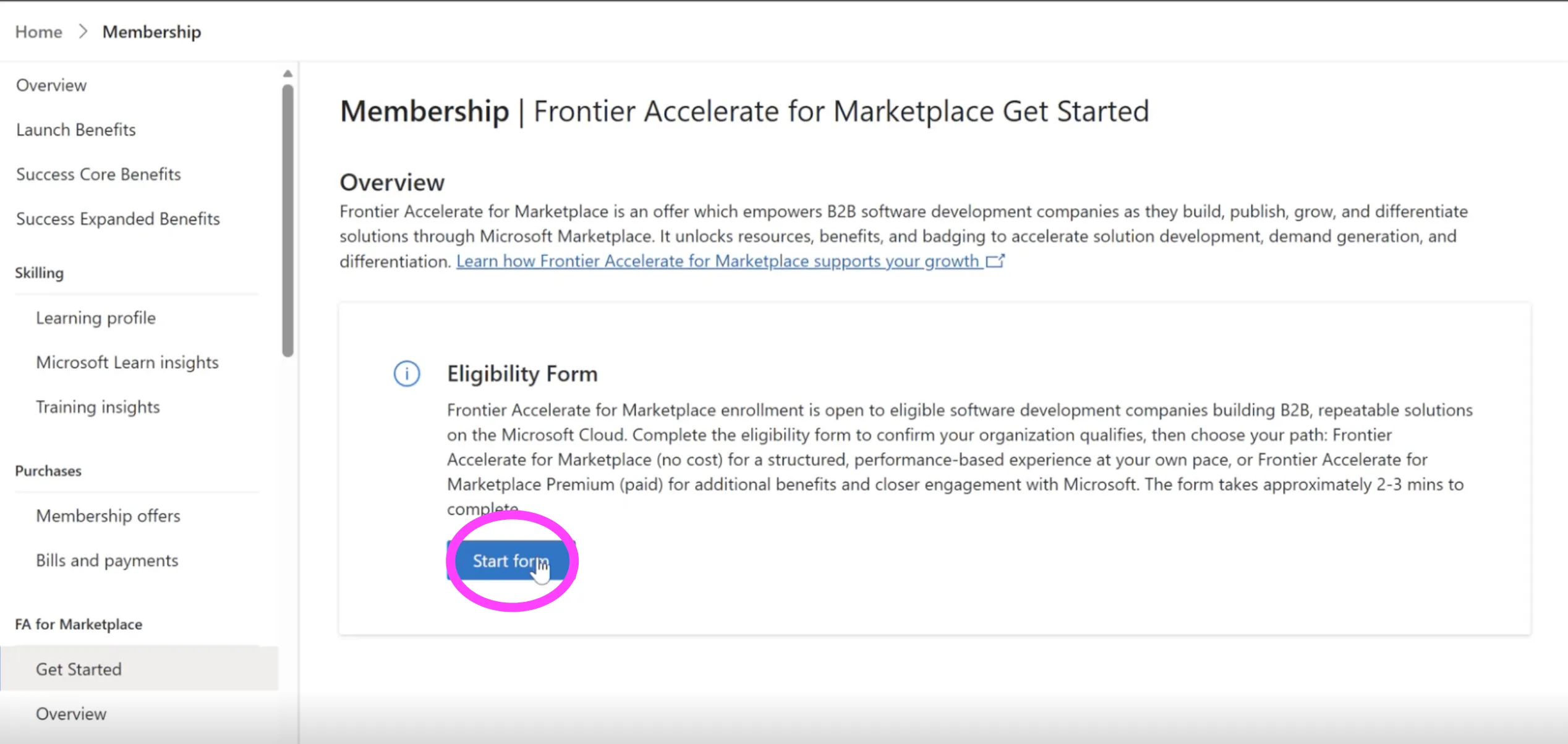
On the Frontier Accelerate for Marketplace Get Started page, find the Eligibility Form panel and click Start form.
Step 4 – Stage selection
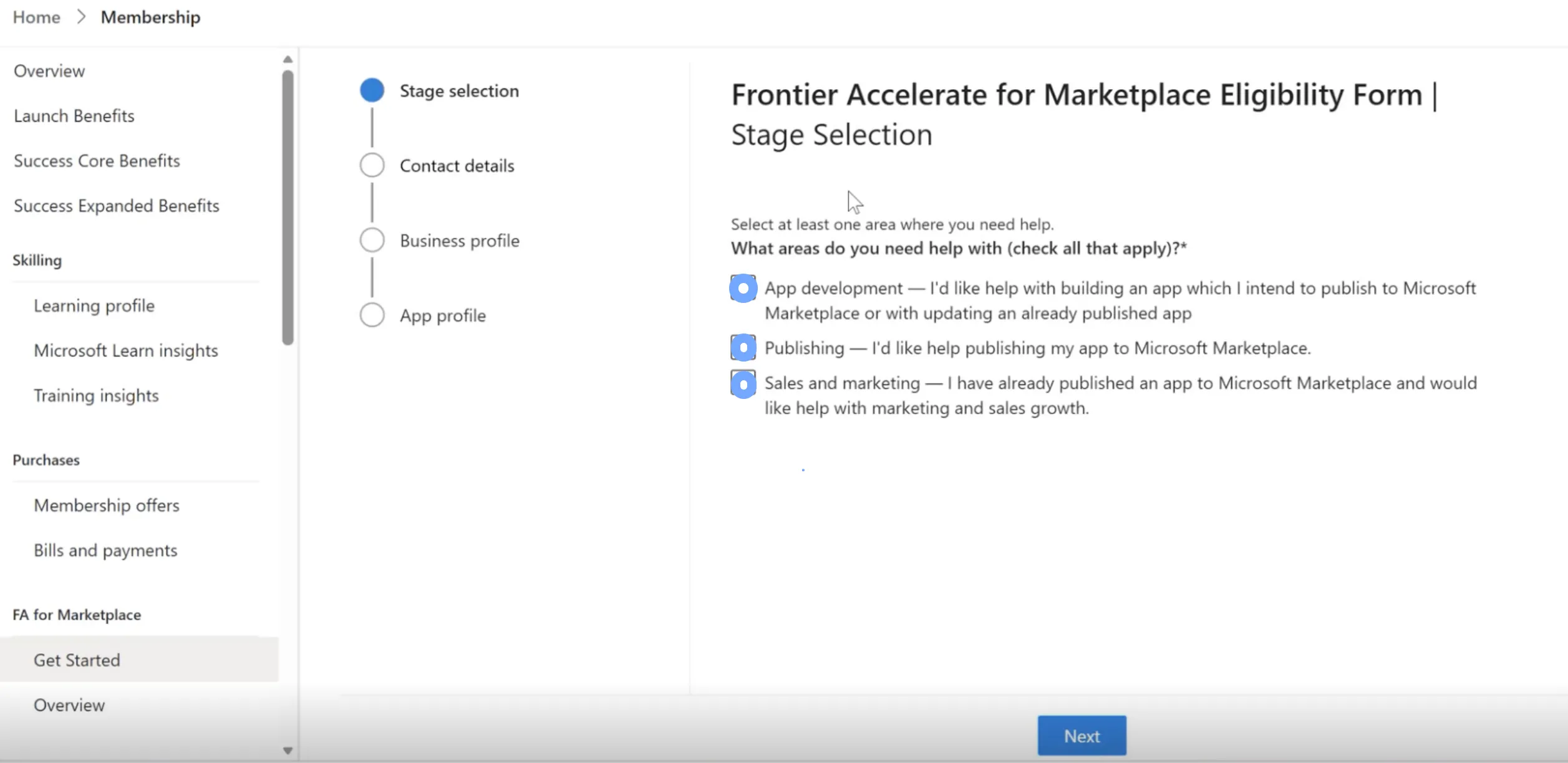
Under What areas do you need help with? Select all the options:
- App development: help building an app for Microsoft Marketplace, or updating an app that's already published
- Publishing: help publishing your app to Microsoft Marketplace
- Sales and marketing: your app is already published and you want help with marketing and sales growth
Click Next.
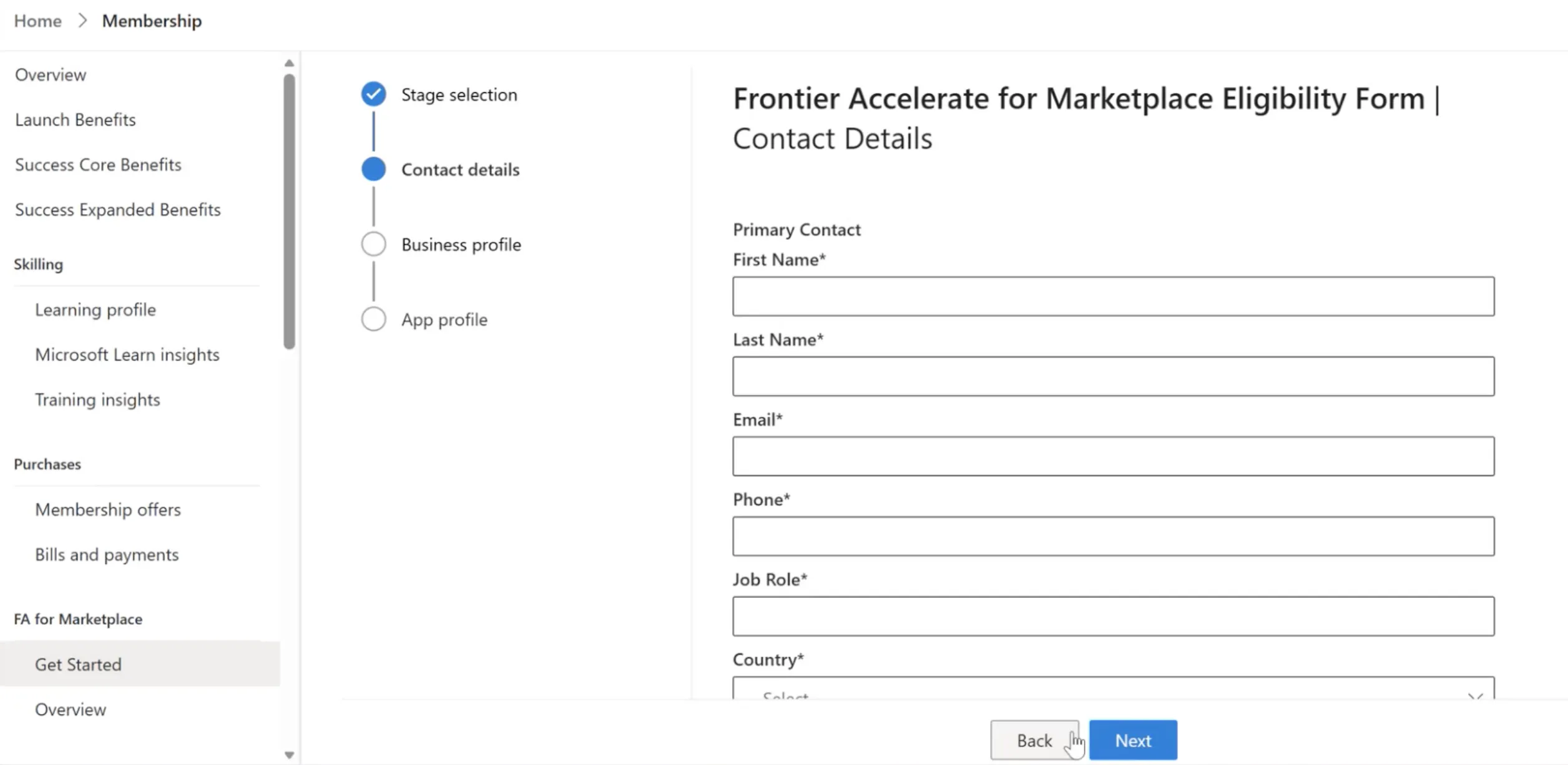
Step 5 – Contact details
Under Primary Contact, complete the required fields: First Name, Last Name, Email, Phone, Job Role and Country. Click Next.
Step 6 – Business profile
Enter your company details:
- Company Name (required)
- Company Website (optional)
- Organisation Size: choose from the drop-down list
- How do you intend to reach and acquire customers? Select all the options
Click Next.
Step 7 – App profile and submit
Under Which Microsoft cloud platform(s) does or will this application use?, select all the options highlighted below
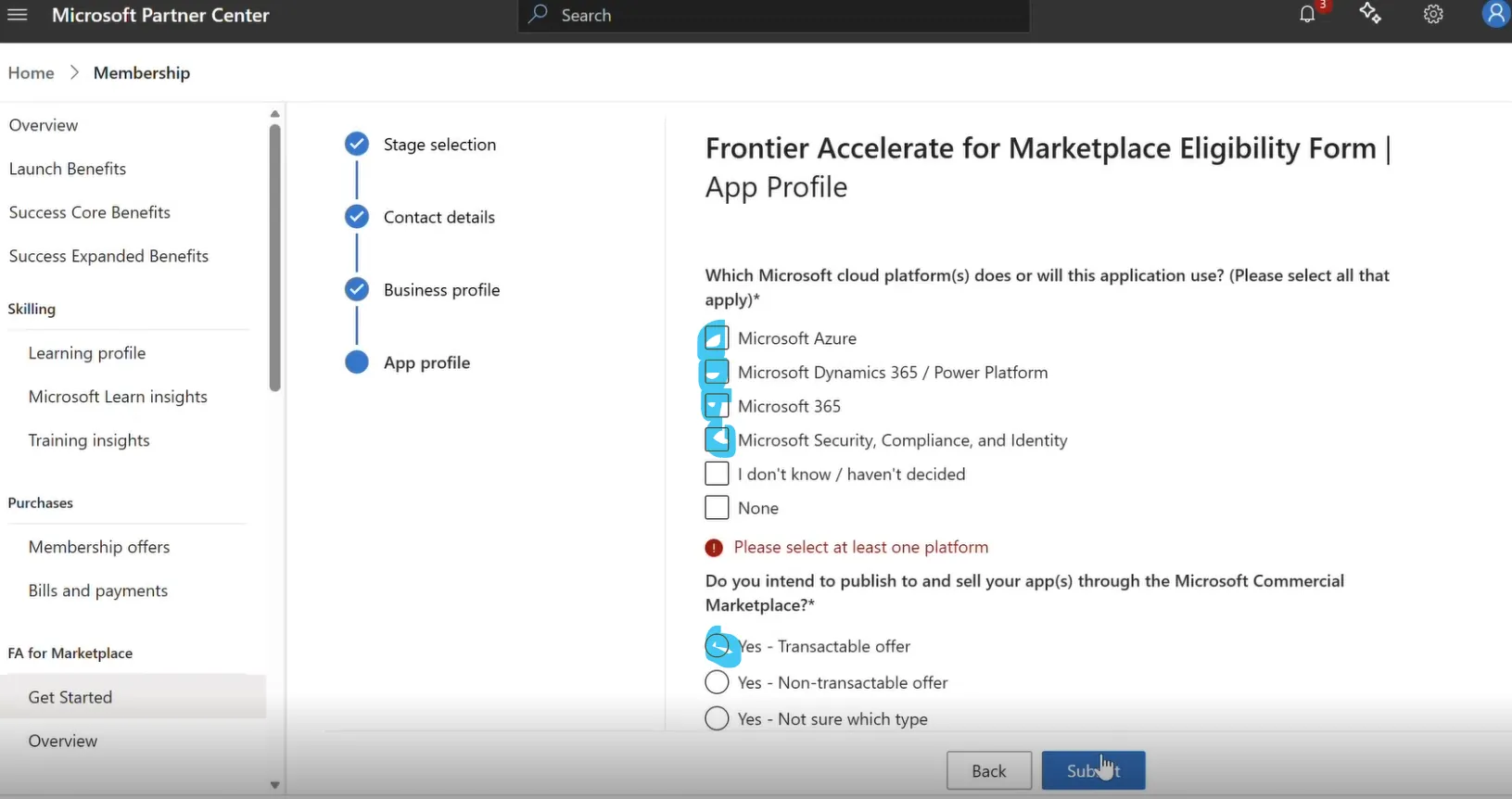
Note: You must select at least one platform. If you don't, the error Please select at least one platform appears and you can't submit the form.
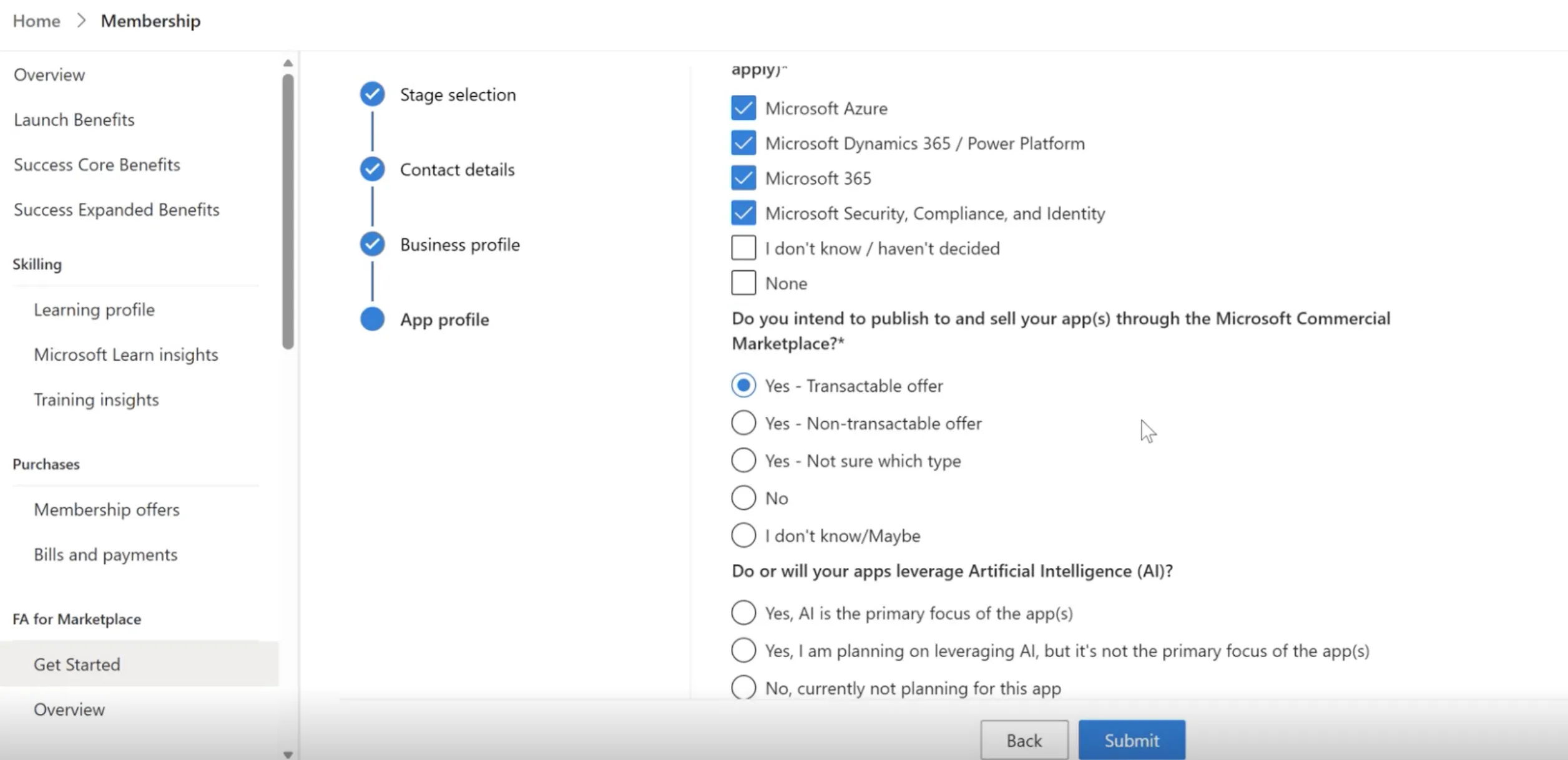
Then answer the remaining questions:
- Do you intend to publish to and sell your app(s) through the Microsoft Commercial Marketplace? If you sell through WeTransact, select Yes – Transactable offer.
- Do or will your apps leverage Artificial Intelligence (AI)? Choose the option that best describes your app.
Click Submit.
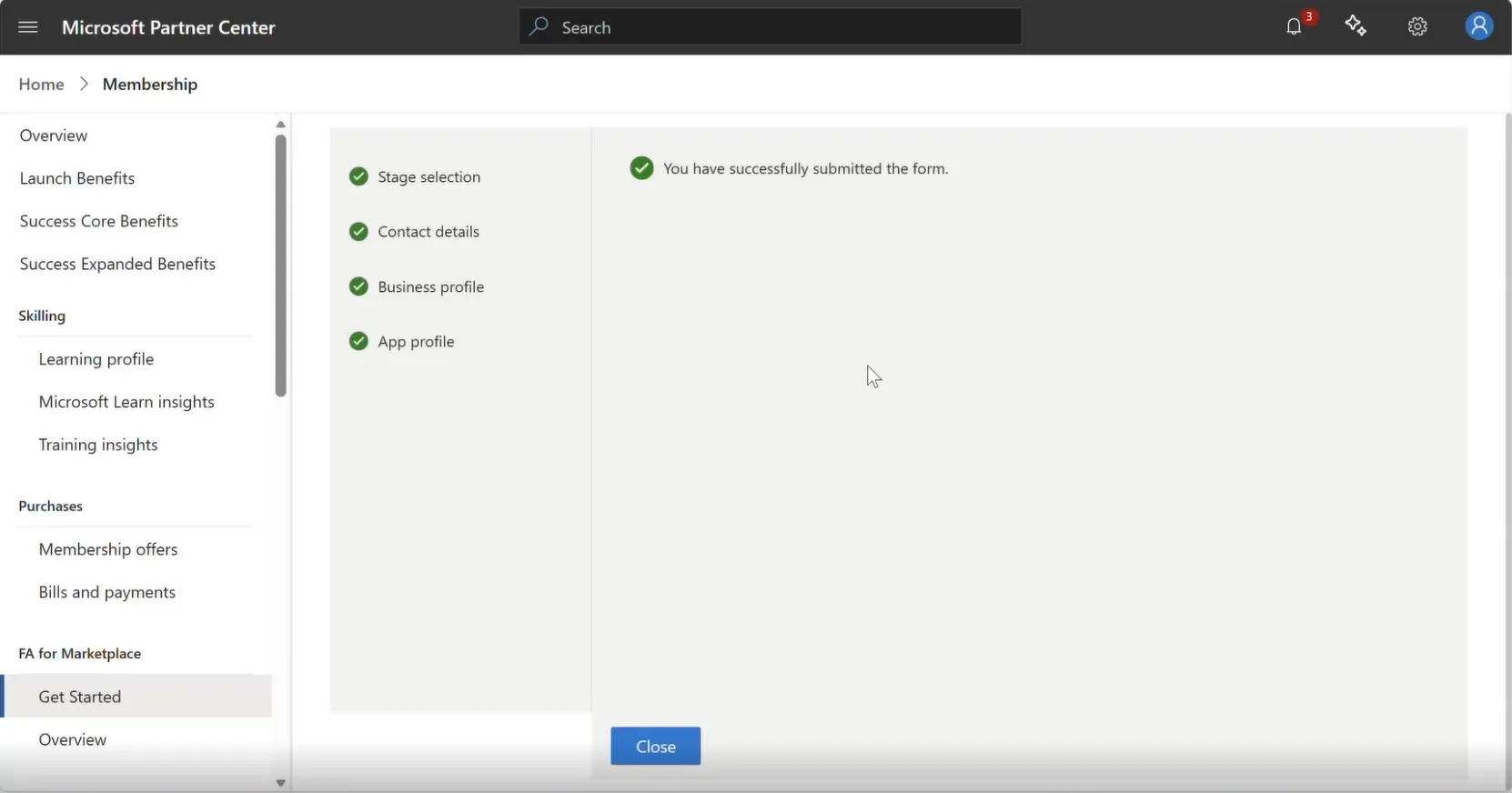
Step 8 – Confirm the form was submitted
You see the message You have successfully submitted the form., and every step on the left shows a green tick. Click Close to finish.
Step 9 – Choose your path and enrol
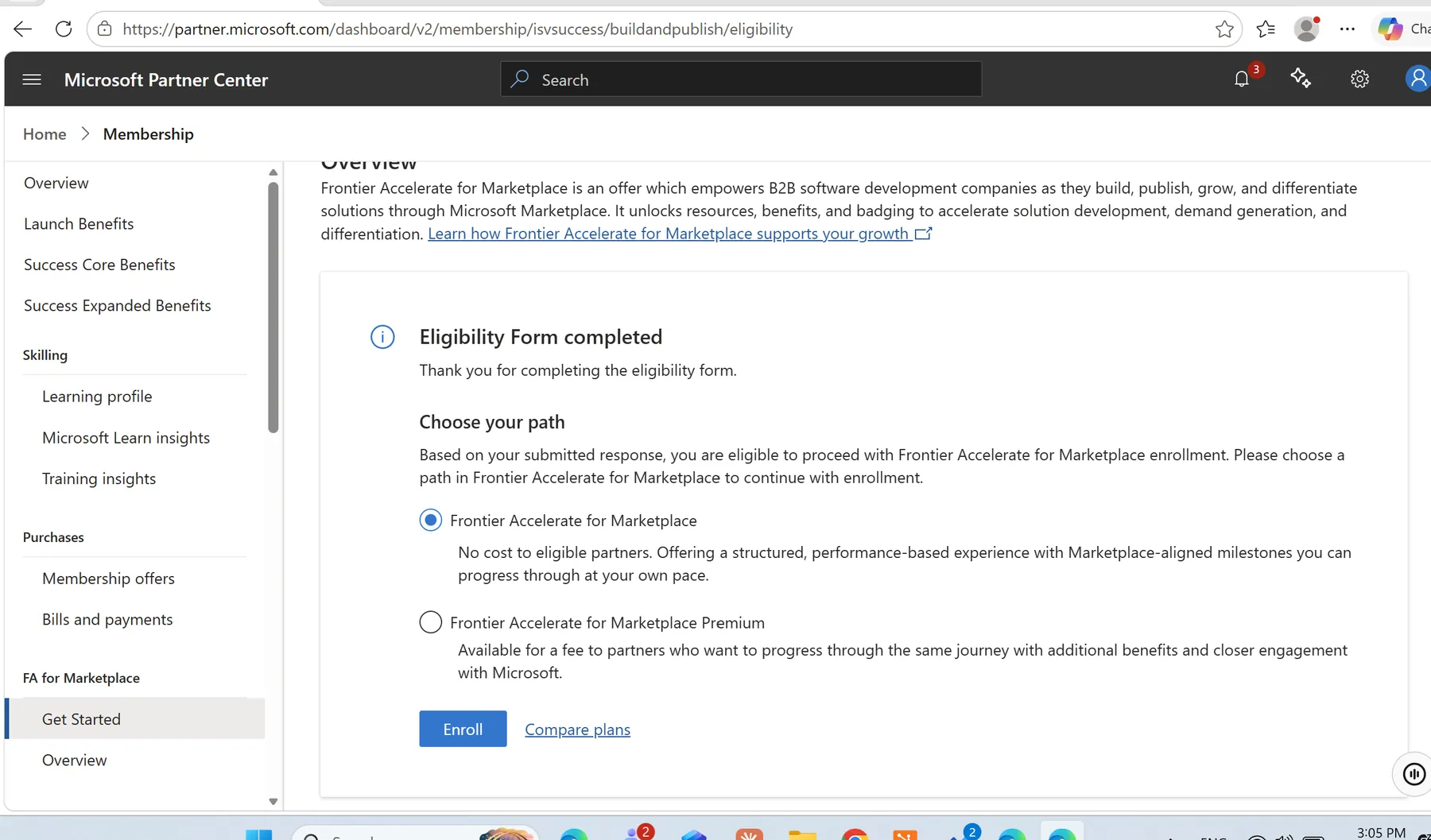
After you submit the form, the Get Started page shows Eligibility Form completed. Under Choose your path, select one of the options:
- Frontier Accelerate for Marketplace: no cost to eligible partners. A structured, performance-based experience with Marketplace-aligned milestones you can progress through at your own pace.
- Frontier Accelerate for Marketplace Premium: available for a fee, with additional benefits and closer engagement with Microsoft.
Click Enroll. To see how the two paths differ, click Compare plans.
Step 10 – Buy the offer in Membership offers
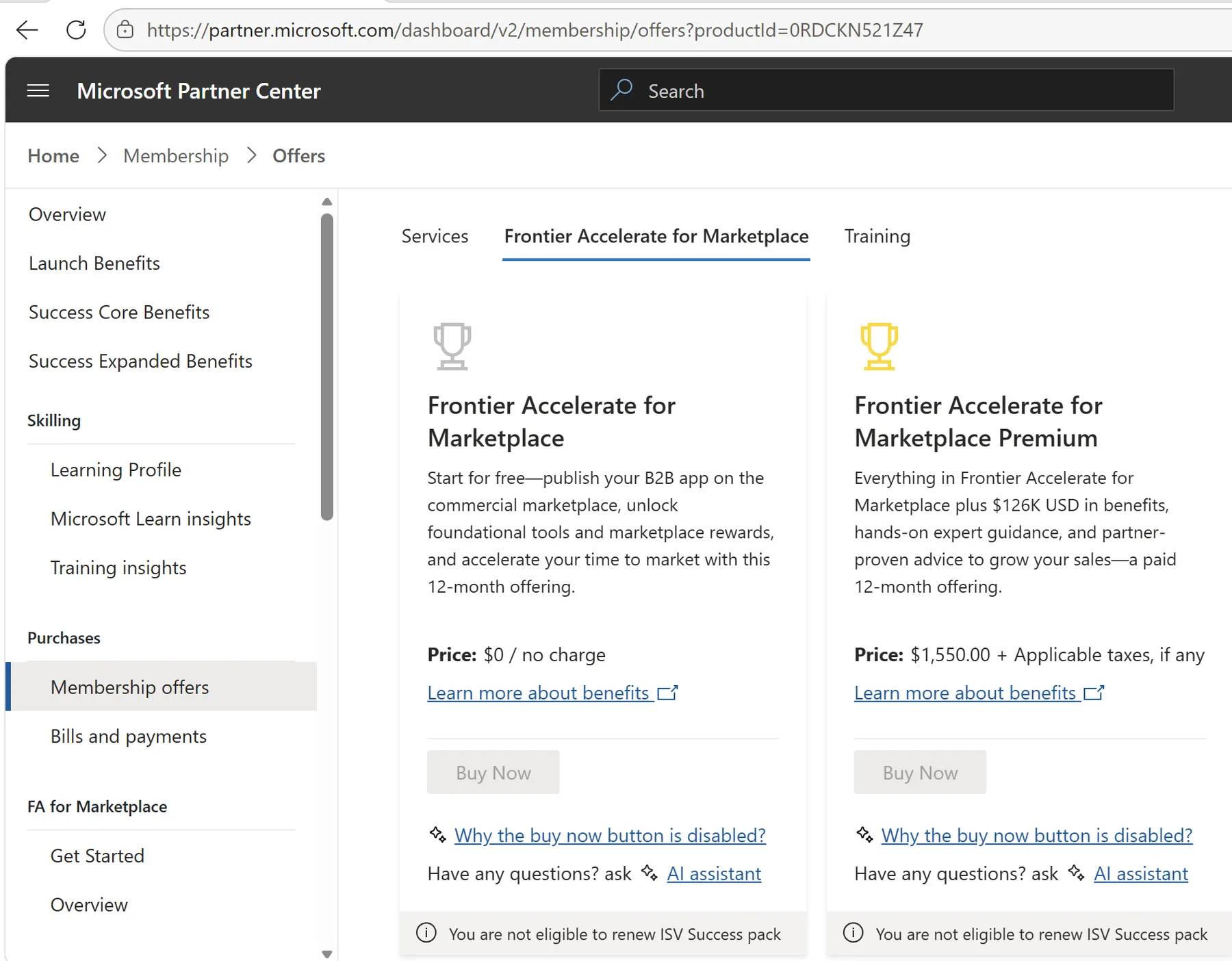
In the left-hand menu, under Purchases, select Membership offers and open the Frontier Accelerate for Marketplace tab. Both offers are 12-month offerings. On the card for the path you chose, click Buy Now.
Troubleshooting
- I can't see FA for Marketplace in the menu. Check that you're in the Membership workspace and scroll down the left-hand menu. If it still isn't there, check that you have the Global admin role.
- The page is stuck on "Loading…". Refresh the page or try another browser.
- Is the Buy Now button greyed out? If you can’t select Buy Now after completing the eligibility form, follow this guide: Frontier Accelerate for Marketplace: Fixing a Greyed-Out Buy Now Button
Need help?
Contact [email protected]