Frontier Accelerate for Marketplace: Fixing a Greyed-Out Buy Now Button
If Buy Now is greyed out on the Frontier Accelerate for Marketplace offer, your Microsoft billing profile isn't linked to your Partner Center account, or hasn't loaded. Link or re-select it under Account settings → Billing profile, then buy the no-cost ($0) offer from Membership offers.
The issue
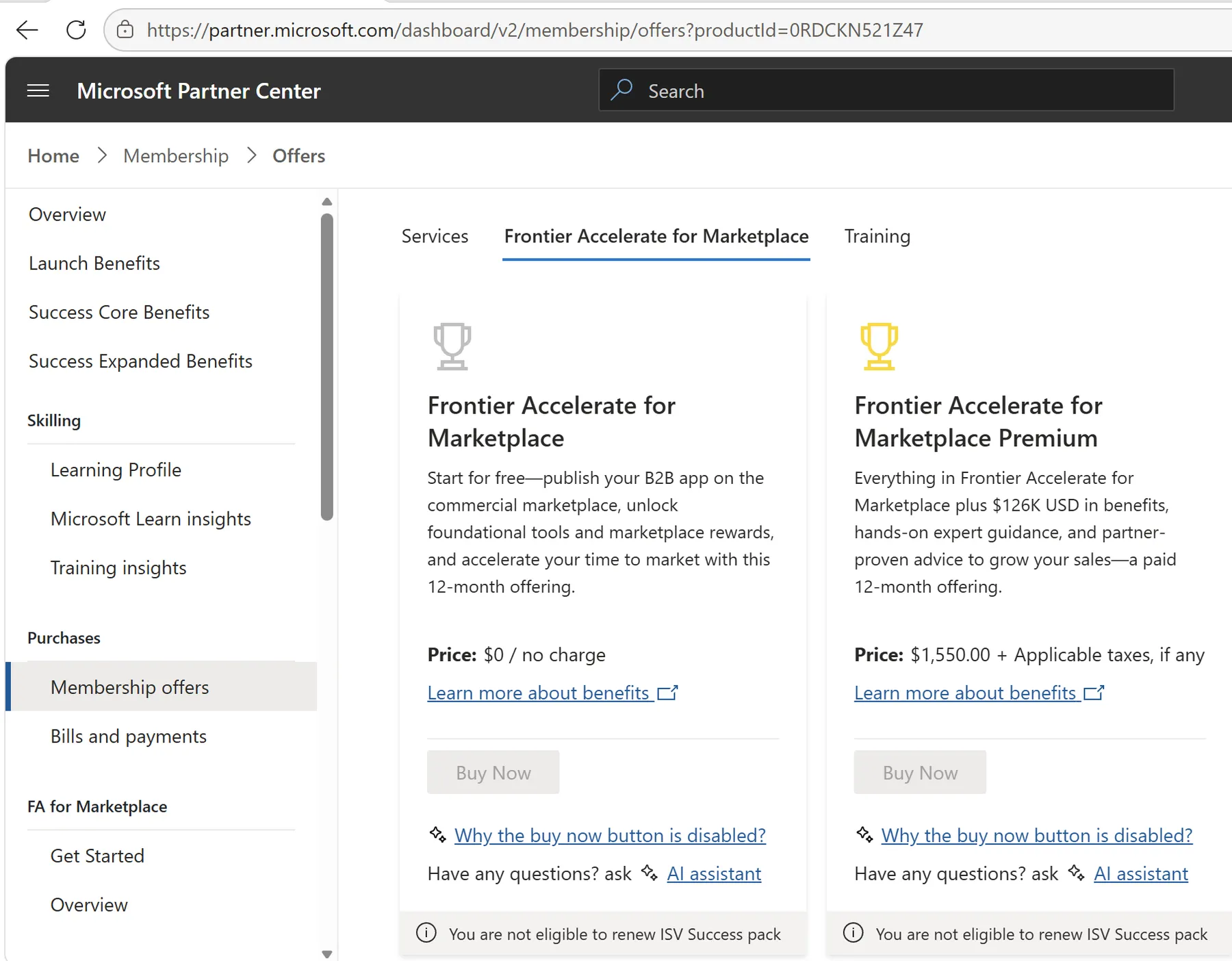
After you complete the eligibility form and select Enroll, the Buy Now button for Frontier Accelerate for Marketplace stays greyed out under Membership → Membership offers.
Step 1: Link your billing account and profile
Go to Account settings → Billing profile (under Organization profile). What you see there decides which steps to follow.
If no billing account is linked
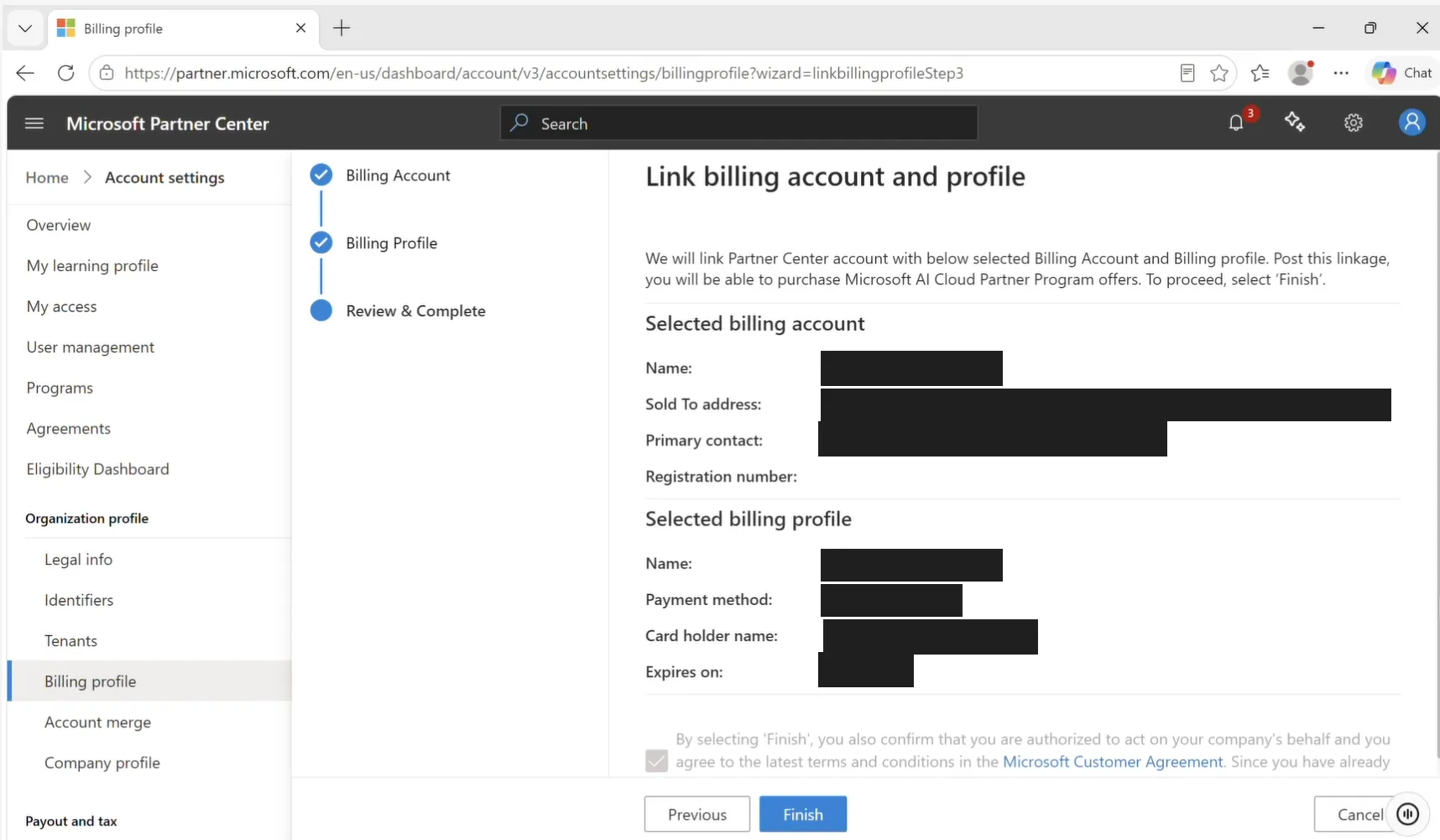
The page shows No billing account linked and No billing profile linked. Select Start to link them.
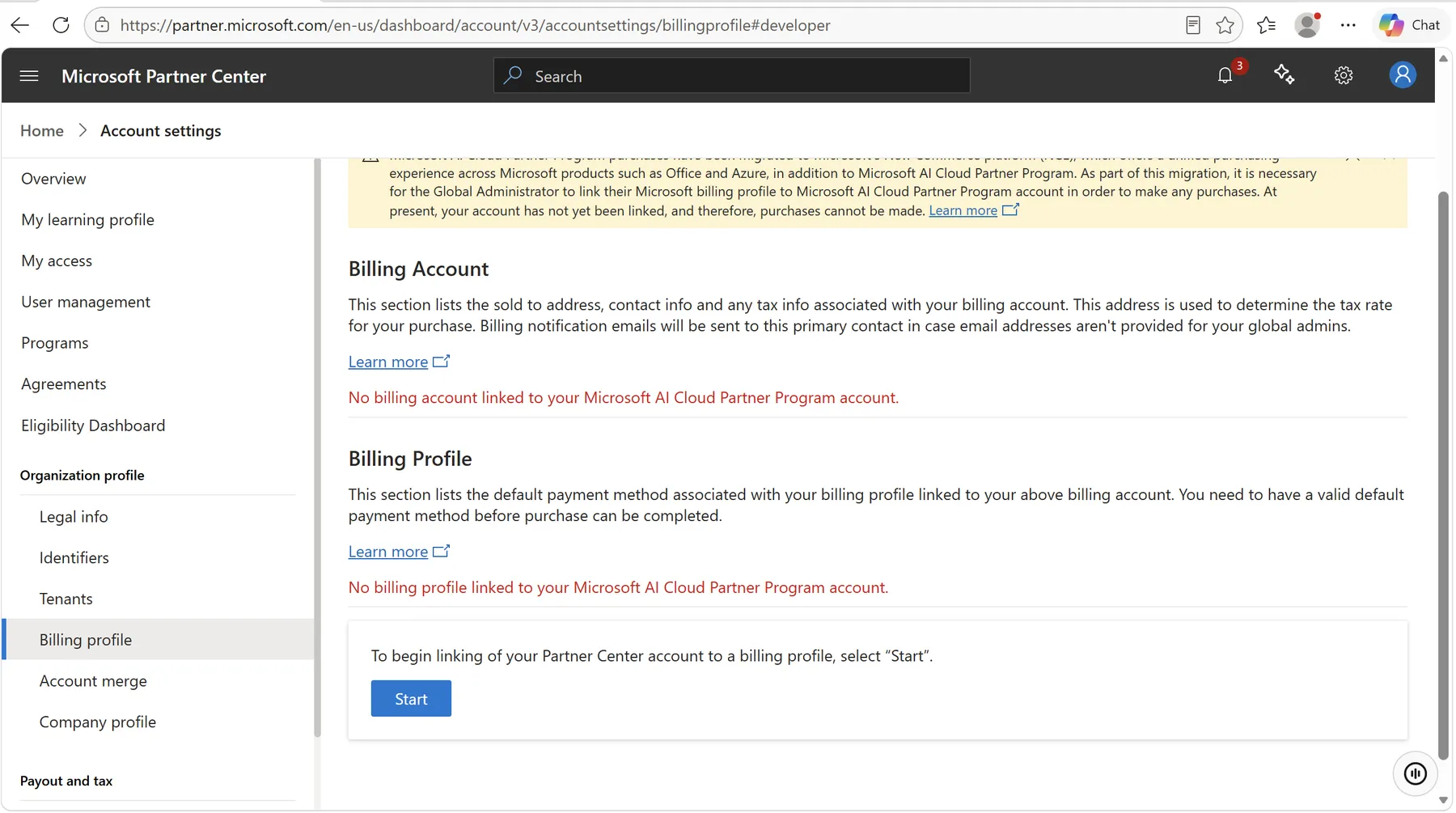
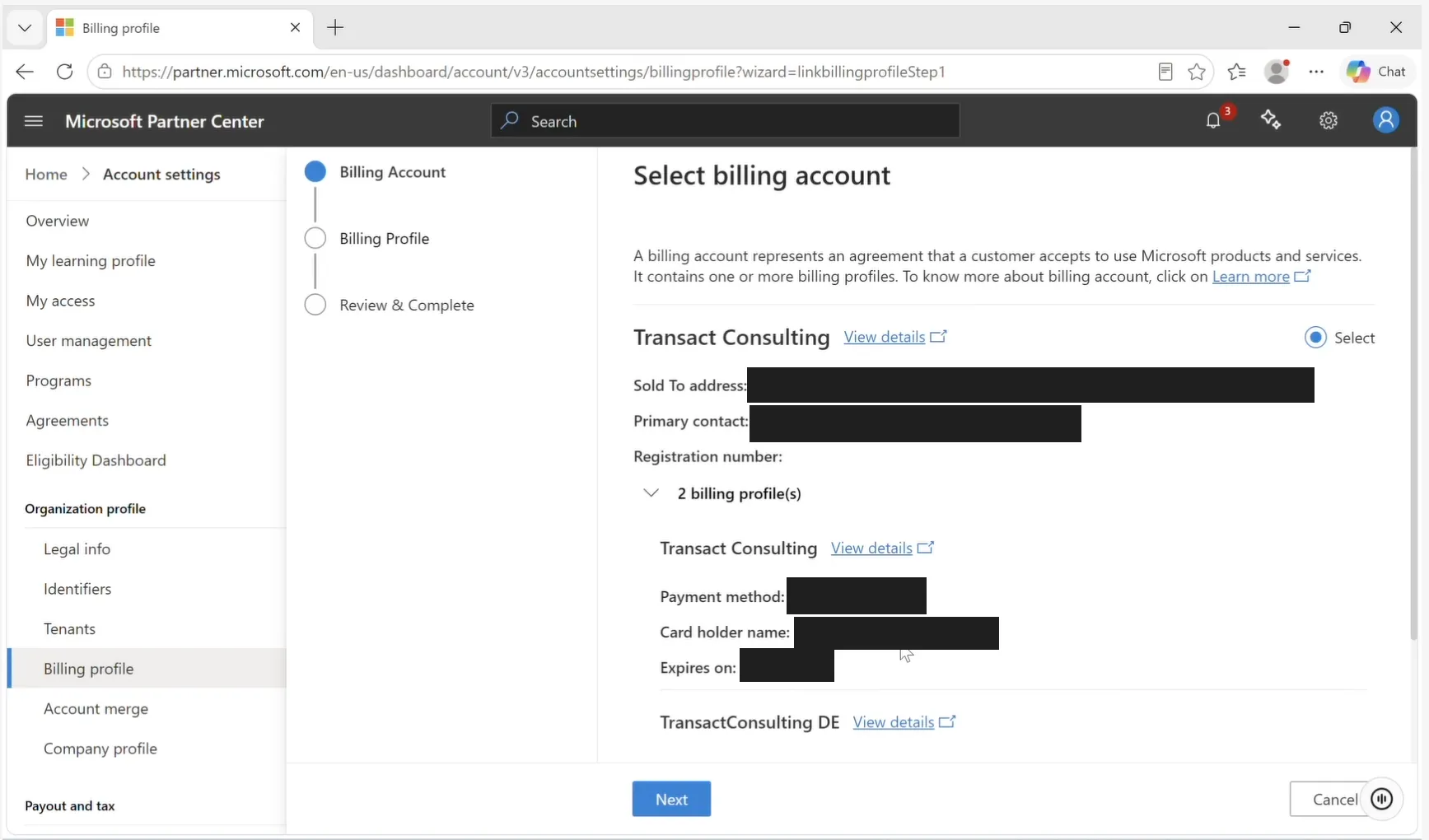
1. Billing Account: select your company's billing account, then select Next.
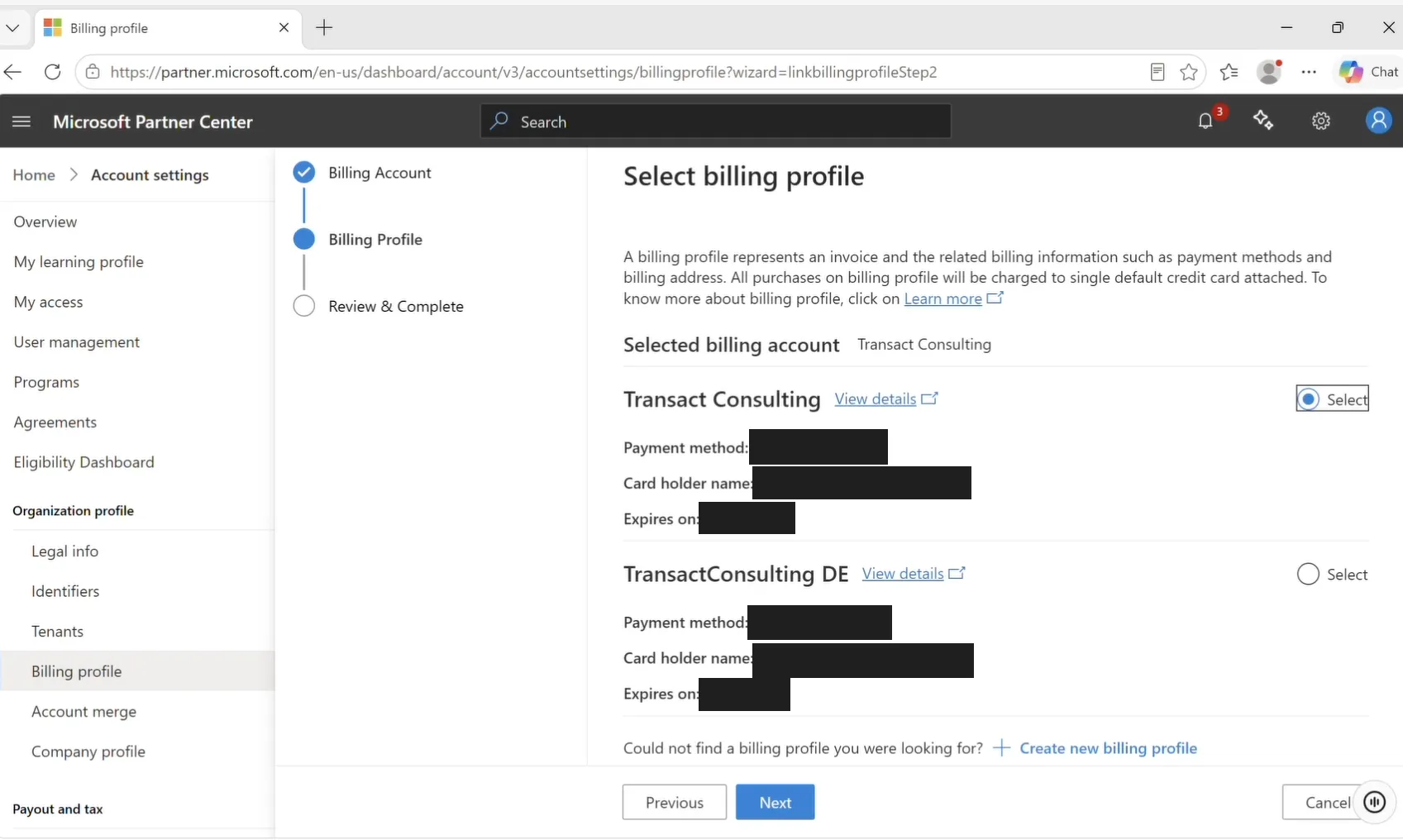
2. Billing Profile: select the billing profile that holds your payment method, then select Next.
3. Review & Complete: check the details, then select Finish. Once linked, you can purchase Microsoft AI Cloud Partner Program offers.
If a billing profile is already linked
If your billing profile is already linked but Buy Now is still greyed out, re-select it to restart the billing profile setup:
- Go to Account settings → Billing profile.
- Select Change billing account.
- Re-select the same billing account and billing profile that are already configured.
- Select Finish. This triggers the billing profile setup again.
- Return to Membership → Membership offers and refresh the page. Check that the billing details load and Buy Now is available.
Step 2: Buy the no-cost offer
Return to Membership → Membership offers and refresh the page. Buy Now is now active.
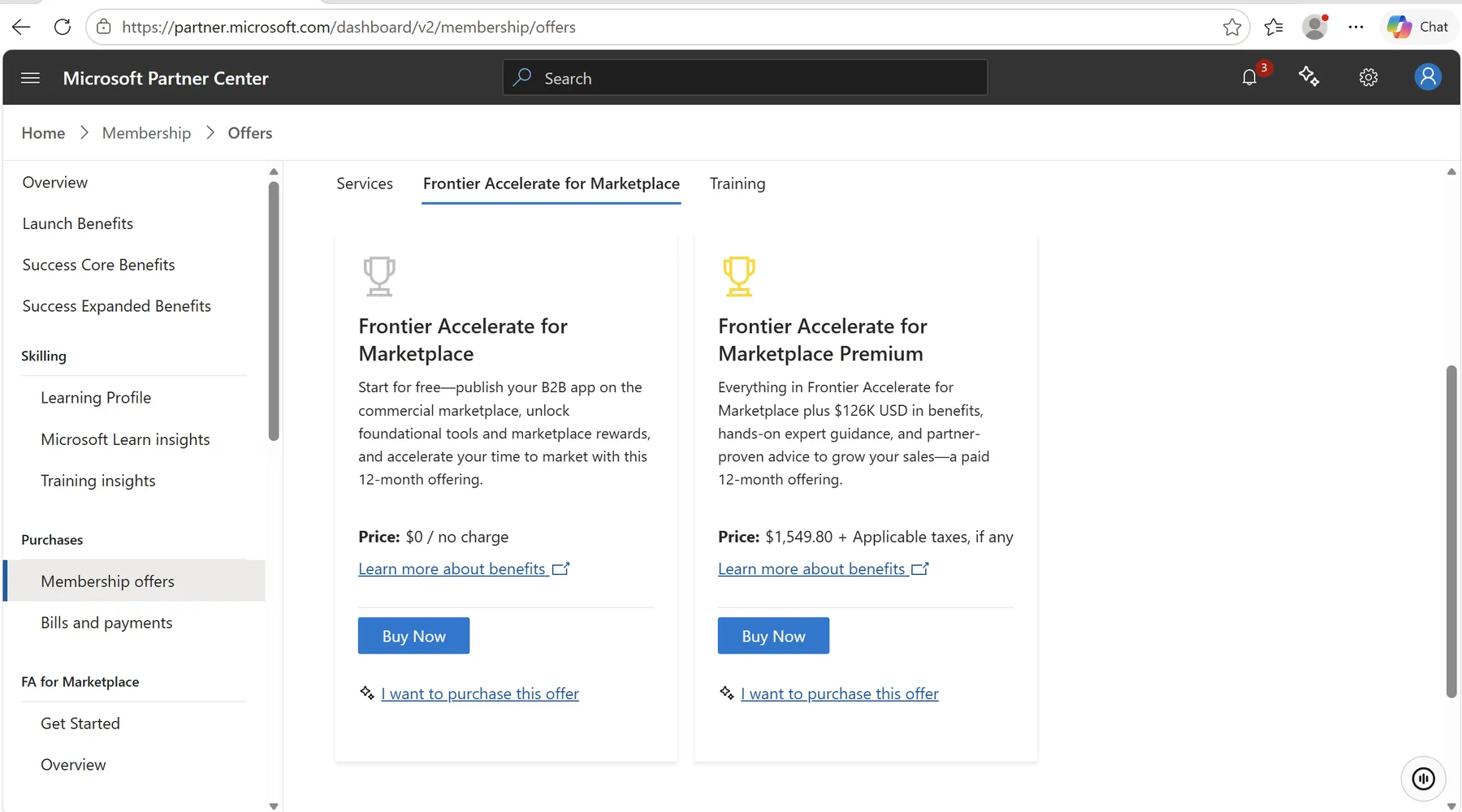
1. Under Frontier Accelerate for Marketplace ($0 / no charge), select Buy Now.
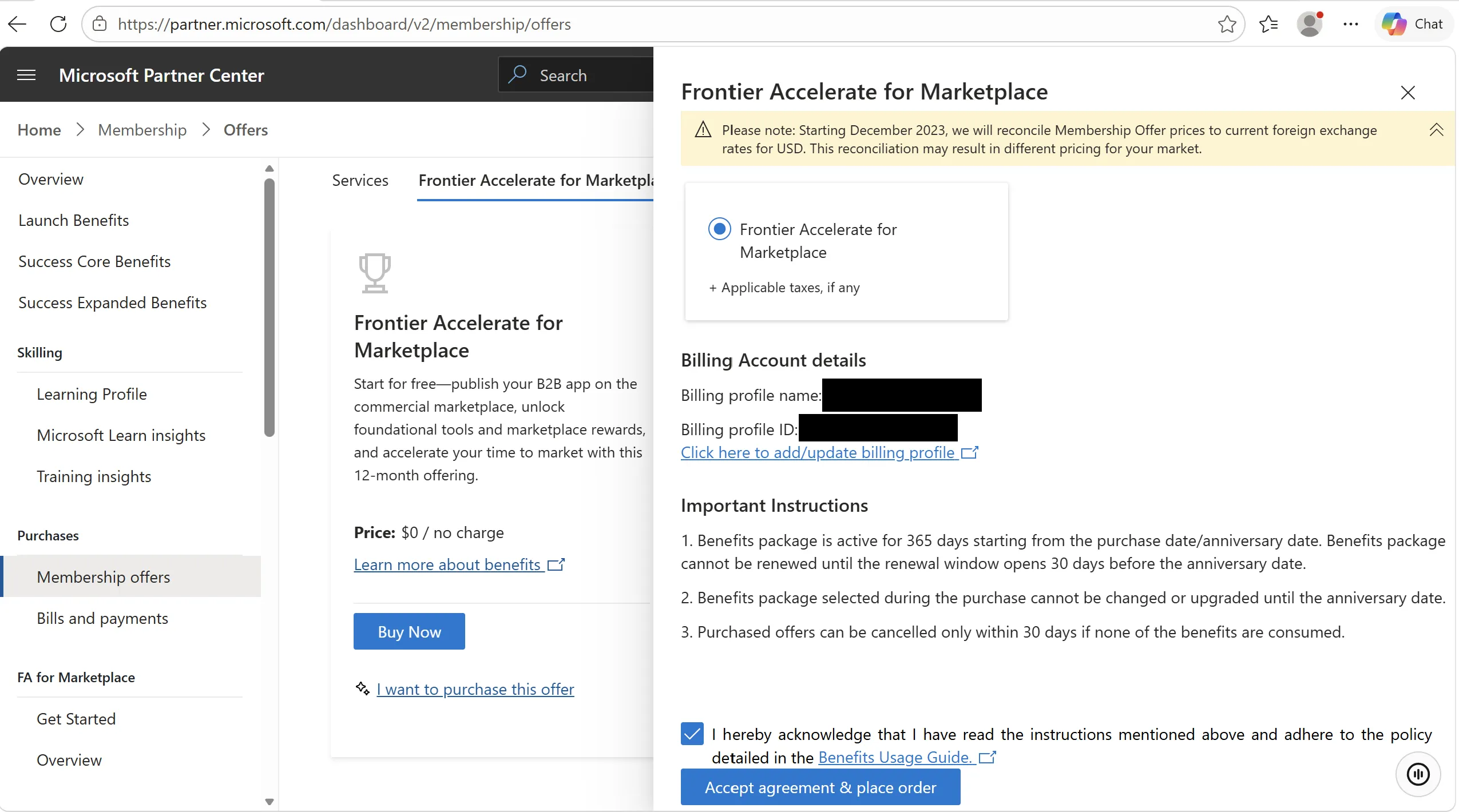
2. In the side panel, check the billing account details, tick the acknowledgement box, and select Accept agreement & place order.
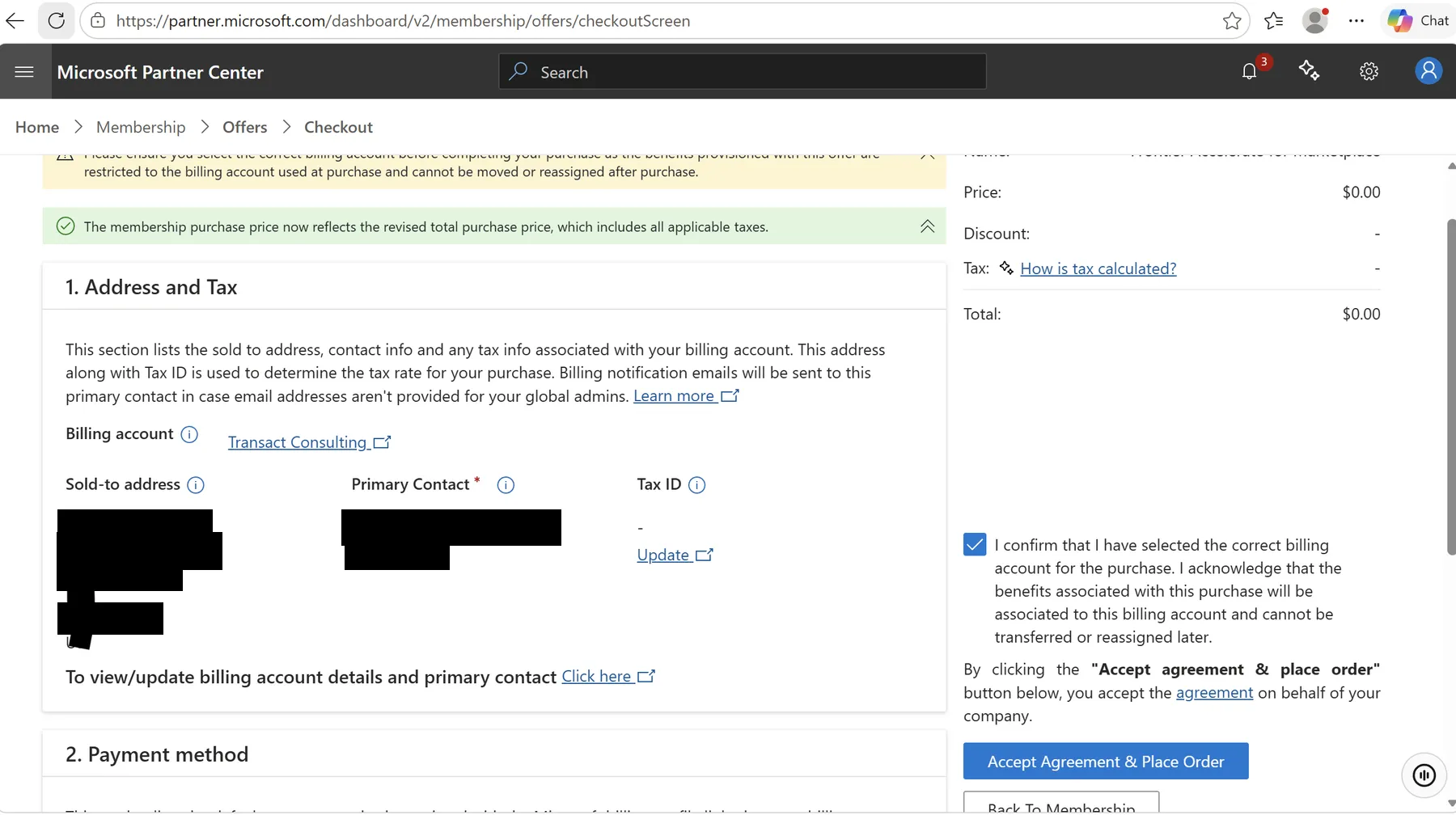
3. On the Checkout page, check that the total is $0.00 and the billing account is correct. Tick the confirmation box, then select Accept Agreement & Place Order.
Step 3: Confirm your enrolment
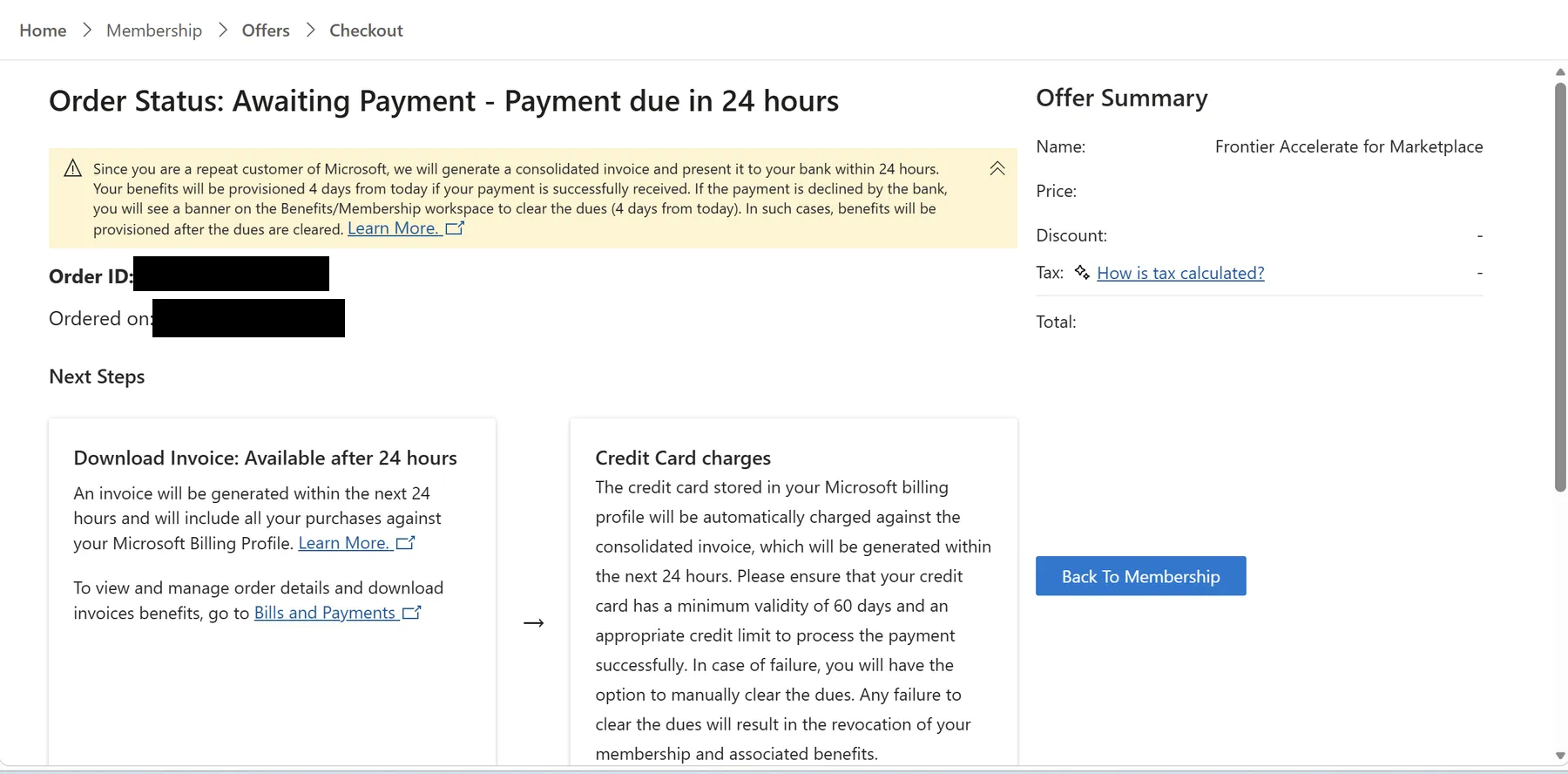
After you place the order, the order page shows Awaiting Payment. This is expected for a $0.00 order, as nothing is charged. Microsoft's order page says benefits are provisioned 4 days after the order.
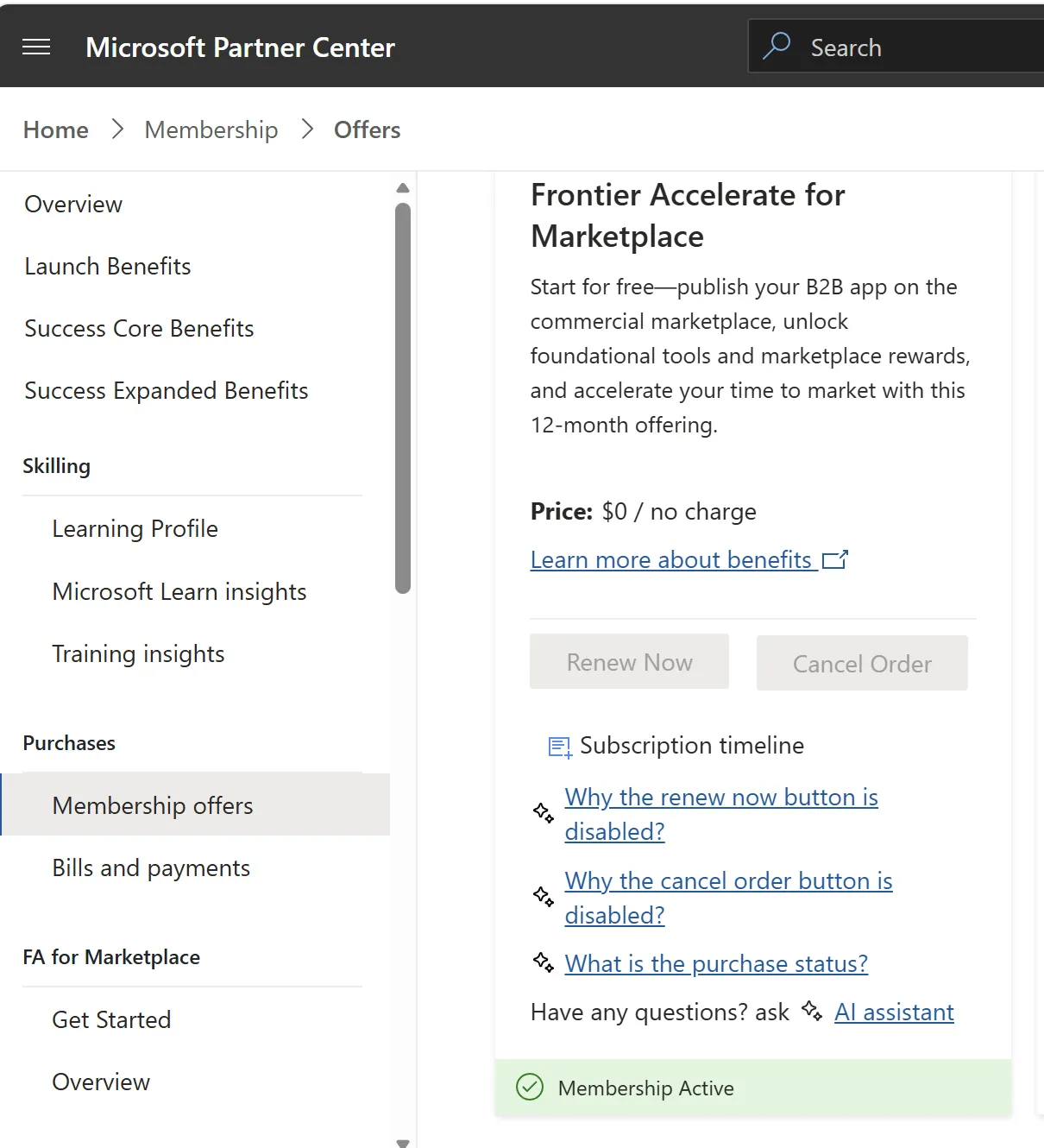
Once the order is processed, Membership offers shows Membership Active for Frontier Accelerate for Marketplace.
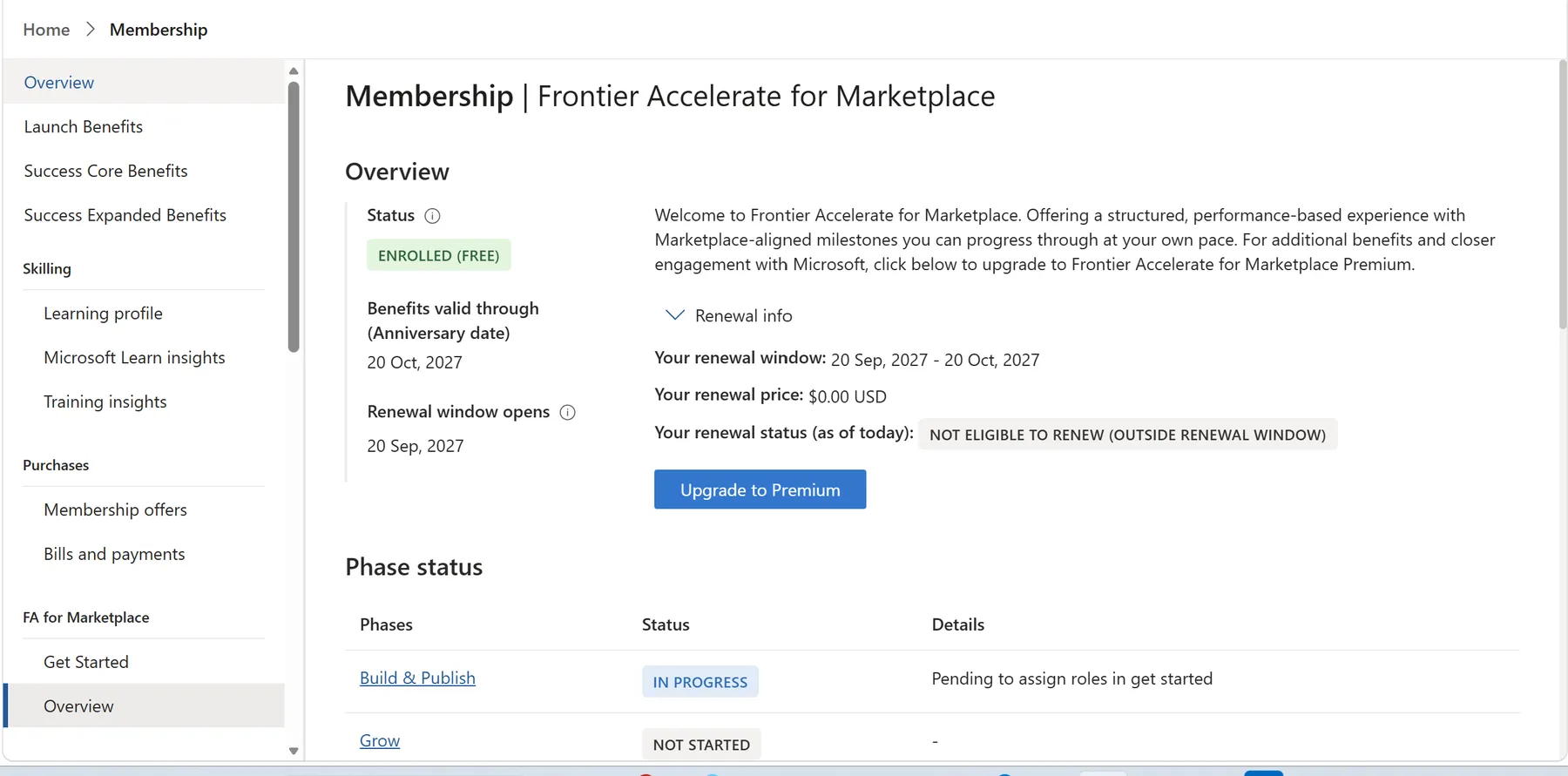
Under FA for Marketplace → Overview, your status shows ENROLLED (FREE), with benefits valid for 12 months.
Once enrolled, you can resubmit any co-sell validation that failed on Frontier Accelerate enrolment.
Still greyed out? Raise a Partner Center support ticket with screenshots of the Buy Now button and your Billing profile page: How to create a Partner Center support ticket?
Need help?
Contact [email protected]