How to fix the "not approved in the Private Marketplace" error when purchasing an offer
Overview
If your organisation has Azure Private Marketplace turned on, users can only buy offers that an administrator has approved. Any other offer shows the message The plan "…" is not approved in the Private Marketplace, and the Subscribe button is greyed out. This can happen even when the buyer has every other purchase permission they need.
This article shows you how to approve the offer and enable the collection in the Azure portal so the purchase can go ahead.

Before you start
- You need Owner or Contributor rights on the Azure subscription, and you need to be a billing administrator.
- Know the name of the offer you want to buy, as listed in Azure Marketplace.
- Know which Azure subscription you will buy it with.
Steps
Step 1 – Open Marketplace in the Azure portal
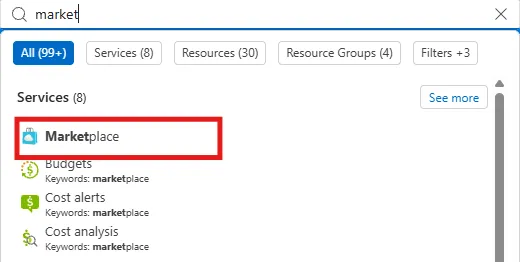
Sign in to the Azure portal. In the search bar at the top, type market and select Marketplace under Services.
Step 2 – Open Private Marketplace
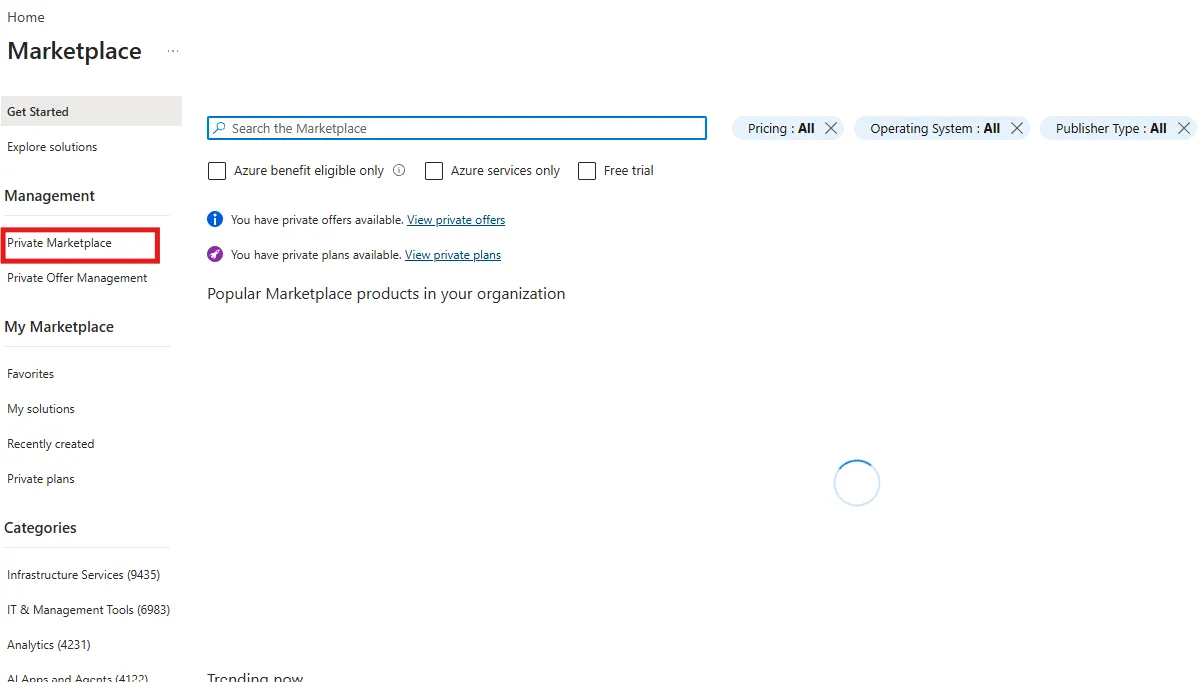
In the left menu, under Management, select Private Marketplace.
Step 3 – Open the collection
Select Manage Marketplace. The banner reads Your organization's Private Marketplace is enabled. Only approved offers can be deployed. In the collection list, select the collection that covers your subscription. In most tenants this is DefaultCollection.
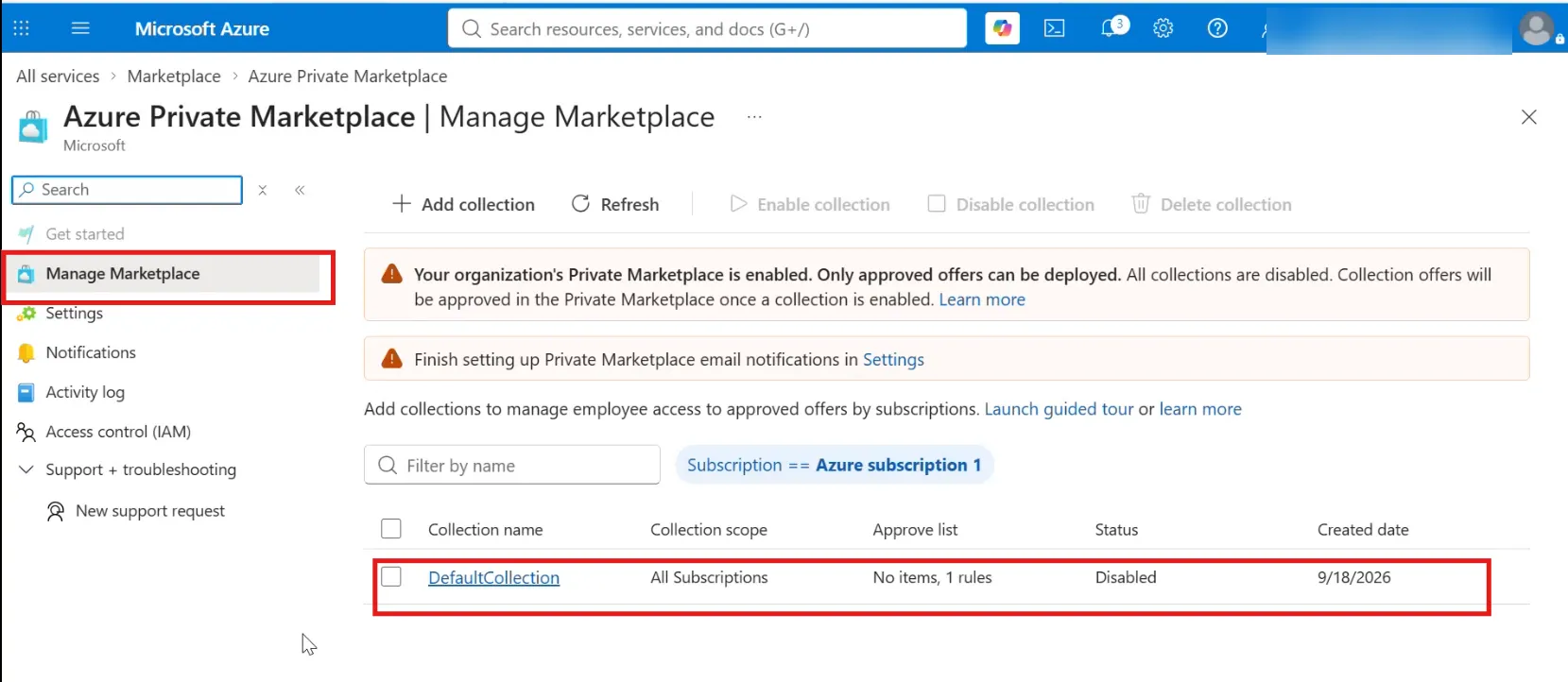
Note: Check the Status and Approve list columns. If the status is Disabled or the approve list shows No items, no offers can be bought through this collection yet.
Step 4 – Add an item to the collection
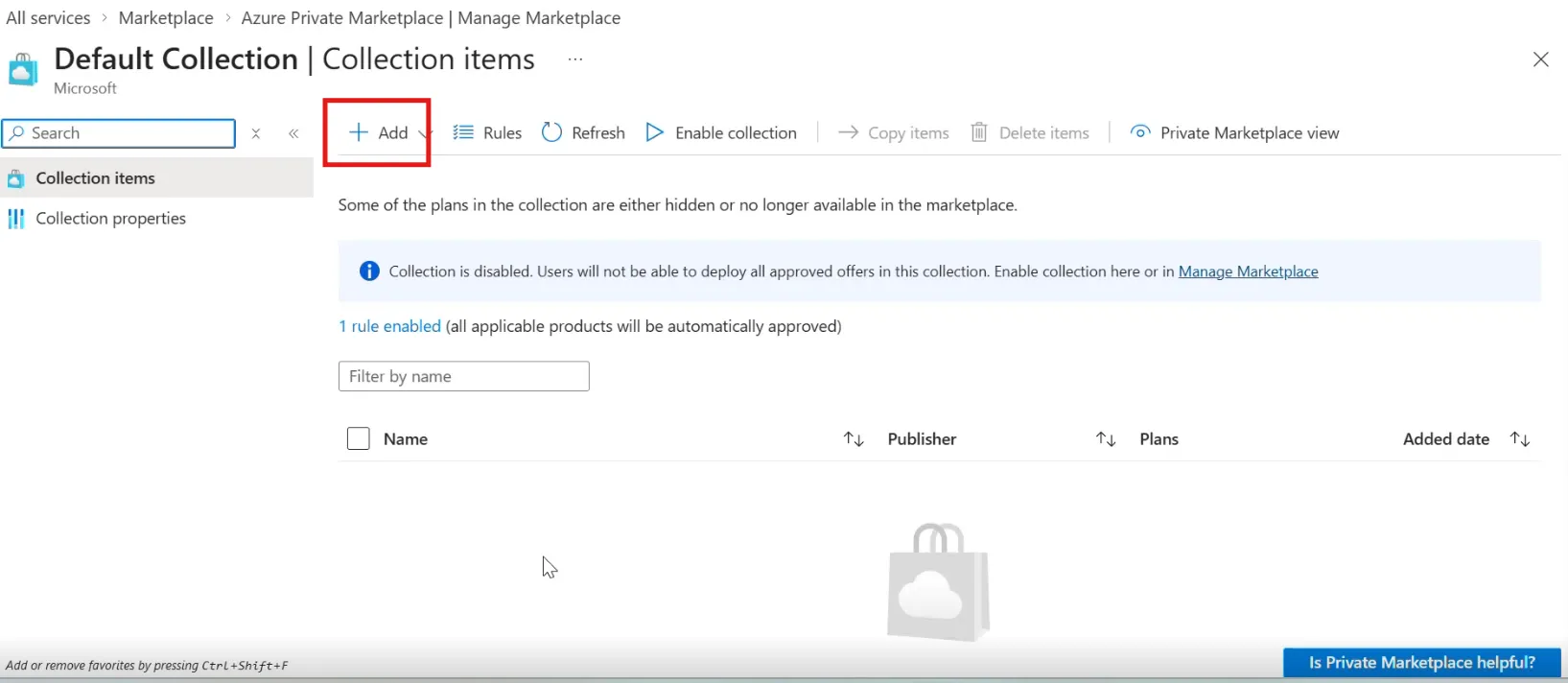
On the Collection items page, select + Add.
Step 5 – Search for the offer
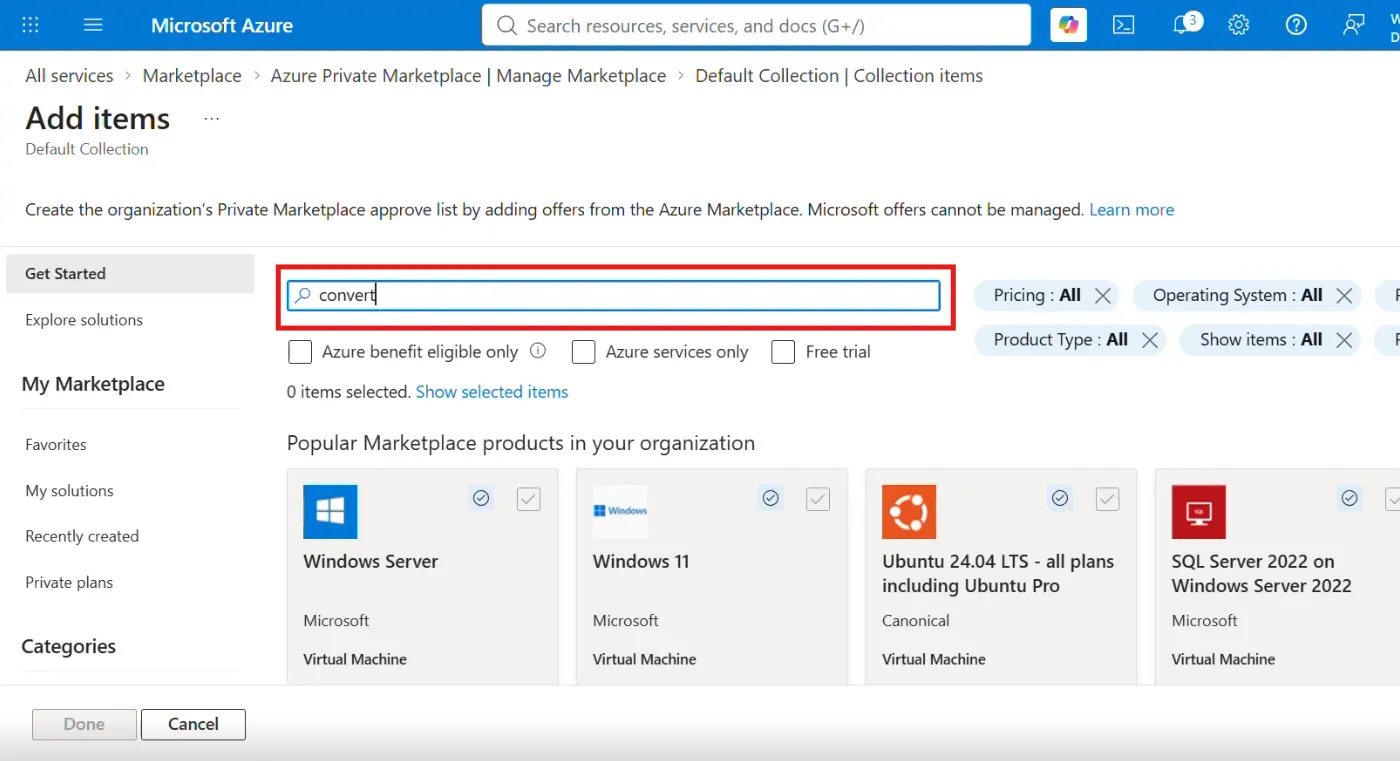
On the Add items page, type the offer name in the search box.
Step 6 – Select the offer and its plans
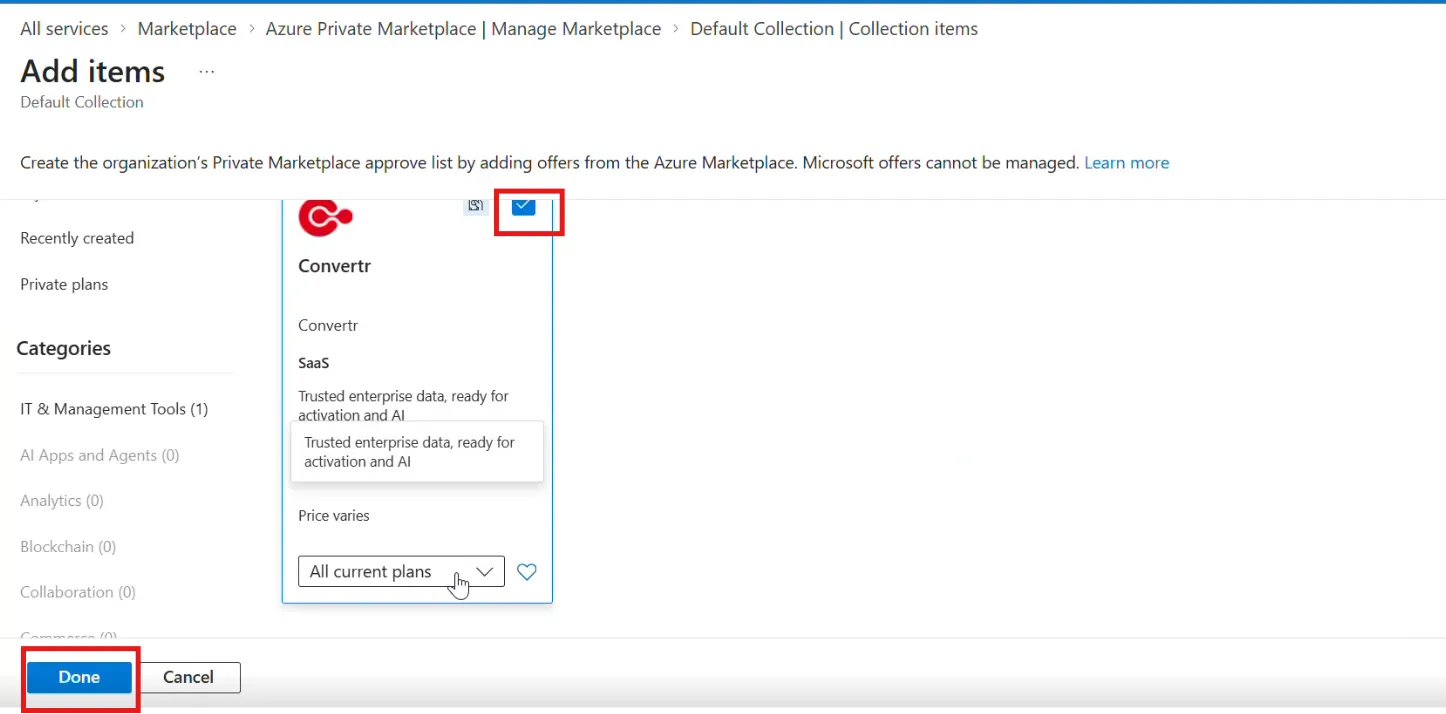
Tick the checkbox on the offer's tile. In the plan drop-down, choose All current plans, or only the plans you want to approve. Make sure the plan you want to buy is included, for example the Private Offer Template plan. Select Done.
Step 7 – Enable the collection
The message Successfully added items confirms the offer is now in the collection. If the page still says Collection is disabled, select Enable collection in the toolbar.
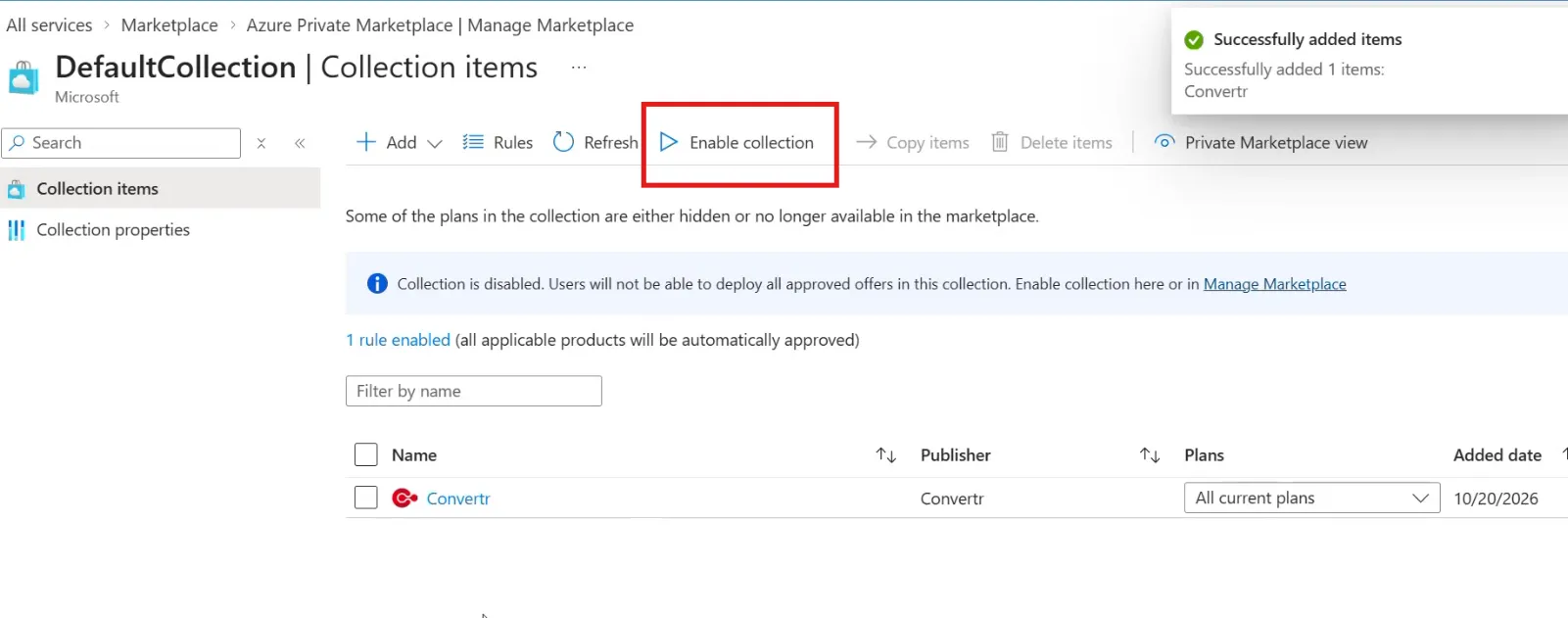
Warning: Users can't deploy any approved offer while the collection is disabled. Adding the offer alone is not enough.
Once the collection is enabled, go back to the offer in Marketplace and complete your purchase. To buy through a private offer, follow How to accept a Private Offer? – Customer walkthrough.
Troubleshooting
The offer page says the plan "is not approved in the Private Marketplace". Private Marketplace is on and the offer isn't approved for your subscription. Follow the steps above, or click Request to add to ask your administrator.
I added the offer but still can't buy it. Check the collection is enabled (Step 7) and that the plan you are buying is included (Step 6).
I don't know who turned on Private Marketplace. Check Activity log in the Private Marketplace menu, or ask your Azure administrator.
Related articles
Need help?
Contact [email protected].